# Notifications
Probo notifies a member when something needs their attention: a document to sign, a document to approve, a task assigned to them, or a mention in a task. Each notification shows in the notifications panel, and can also arrive by email.
## What triggers a notification
| Notification | Sent when | Message | Clears when |
| --------------------------- | ---------------------------------------------------------------------------------------------------------------------------------- | ------------------------------------------- | --------------------------------------------------------- |
| Document signature requests | A document version is sent to the member for signature | _Document_ **is ready for your signature** | The member signs, or the signature request is canceled |
| Document approval requests | A document version is sent to the member for approval | _Document_ **is waiting for your approval** | The member approves or rejects, or the approval is voided |
| Task assignments | Someone else assigns a task to the member | **You were assigned** _task_ | The member opens the task |
| Task mentions | Someone else adds a mention of the member to a task description or comment. See [Mentions](/docs/product/tasks/overview#mentions). | **You were mentioned in** _task_ | The member opens the task |
Probo does not notify you about your own actions: assigning a task to yourself or mentioning yourself sends nothing.
## Where notifications appear
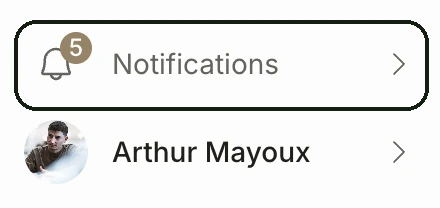
- **Console:** open the menu at the bottom of the sidebar and choose **Notifications**. A badge on the bell icon shows how many notifications are unread.
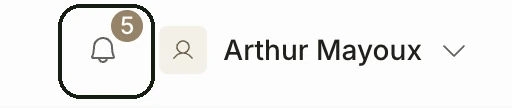
- **Employee portal:** select the bell next to your name, at the top right.
Both list the notifications for the current organization, newest first.
Selecting a notification opens the item:
- Signature and approval requests open the document's **Signatures** or **Approvals** page in the employee portal, or the document in the console when the organization has no employee portal.
- Task notifications open the task in the employee portal, or in the console when the organization has no employee portal.
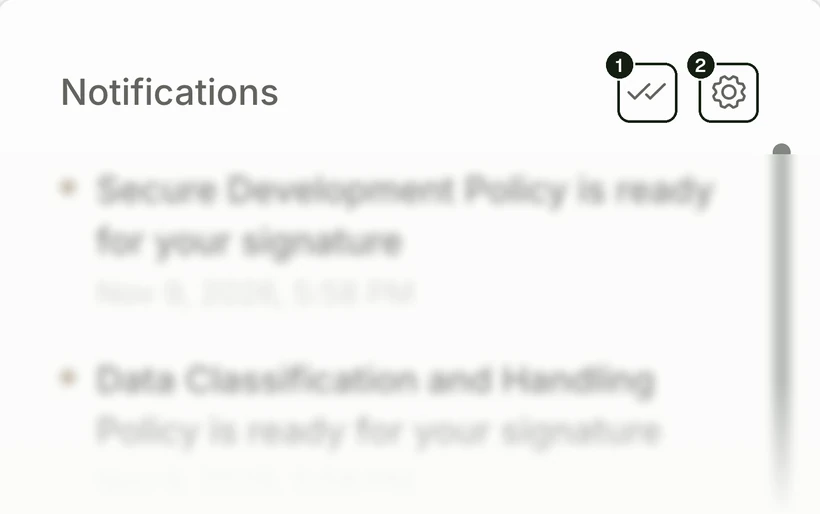
The panel header has two icons:
1. **Mark all as read** (the double check) clears every unread notification in the organization at once, including signature and approval requests that are still open. The underlying request stays open: the document still waits for your signature or approval.
2. **Notification settings** (the gear) opens your email preferences.
A cleared notification gets no further emails.
## Email notifications
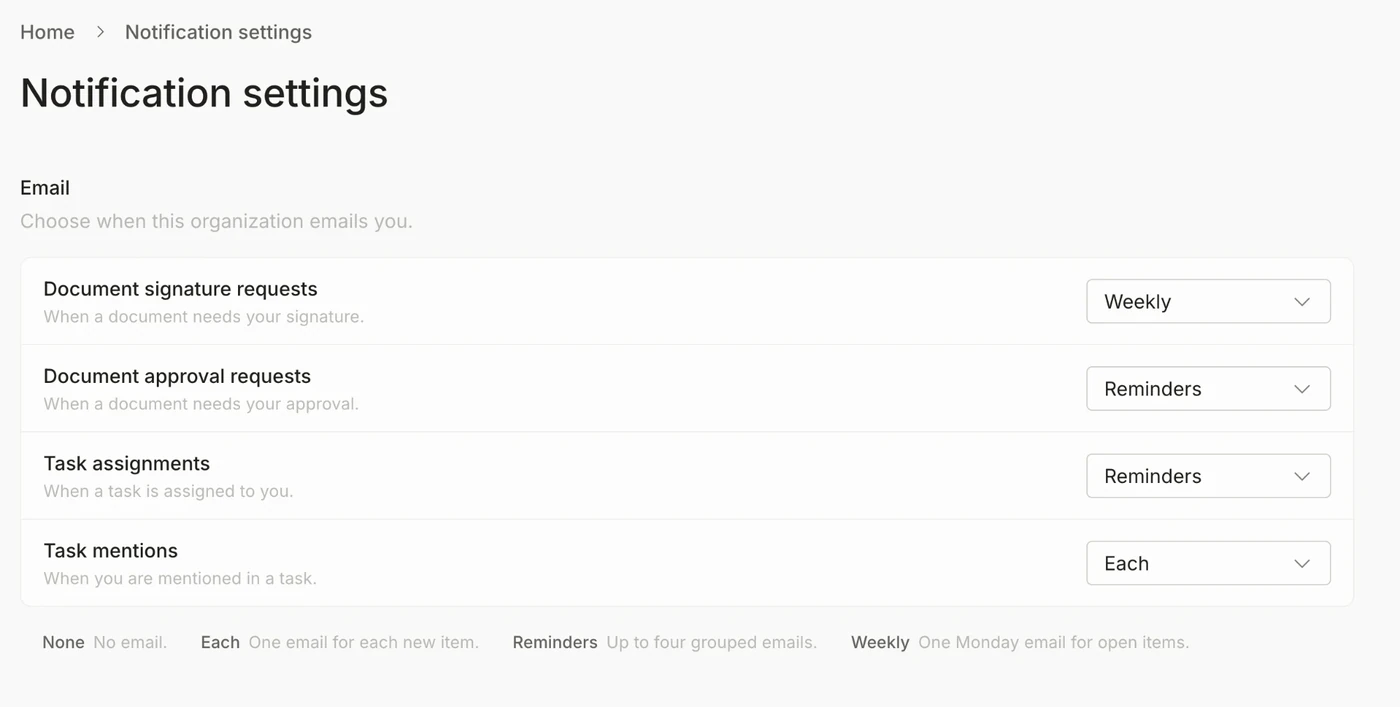
Each member decides how every notification type reaches them by email. Select the gear in the notifications panel, or open **Notification settings** in the employee portal. The settings under **Email** apply to the current organization only.
| Option | Behavior |
| --------- | ------------------------------------------------------------------------------------------------------------------------------------- |
| None | No email. The notification still shows in the notifications panel. |
| Each | One email for each new notification, sent on the next email run (every few minutes). |
| Reminders | The default. A grouped email once a notification has been unread for 15 minutes, then up to three reminders while it stays uncleared. |
| Weekly | One email on Monday listing the items that are still uncleared. |
With **Reminders**, Probo sends a reminder one day after the first email, then two days after that, then three days after that, and then stops. A reminder that falls on a Saturday or Sunday moves to Monday at the same time. The weekly email goes out on Monday at 16:00 UTC.
Each type has its own setting, so you can, for example, get each signature request right away and a weekly digest of task mentions.
## Self-hosting
On Probo Cloud the timings above are fixed. A self-hosted deployment can change them:
| Setting | Default | Meaning |
| ---------------------------------------------- | ----------------- | ----------------------------------------------------------------------- |
| `probod.notifications.email.interval` | `300` (seconds) | How often the email worker runs |
| `probod.notifications.email.debounce-delay` | `900` (seconds) | How long a notification stays unread before the first Reminders email |
| `probod.notifications.email.reminder-interval` | `86400` (seconds) | Base reminder cadence. Reminders go out at 1x, 2x, and 3x this interval |
| `probod.notifications.weekly.weekday` | `1` (Monday) | Day of the weekly email, from `0` (Sunday) to `6` (Saturday) |
| `probod.notifications.weekly.hour` | `16` | Hour of the weekly email, in UTC |
Emails need a working mailer. See [Config file](/docs/deployment/configuration/config-file) and the [Config reference](/docs/deployment/configuration/config-reference#notifications).
## Related
- [Tasks](/docs/product/tasks/overview): assignments and mentions
- [Document management](/docs/product/document-management): signatures and approvals
- [Webhooks](/docs/developers/api/webhooks/overview): notify other systems when records change
 - **Employee portal:** select the bell next to your name, at the top right.
 Both list the notifications for the current organization, newest first.
Selecting a notification opens the item:
- Signature and approval requests open the document's **Signatures** or **Approvals** page in the employee portal, or the document in the console when the organization has no employee portal.
- Task notifications open the task in the employee portal, or in the console when the organization has no employee portal.
 The panel header has two icons:
1. **Mark all as read** (the double check) clears every unread notification in the organization at once, including signature and approval requests that are still open. The underlying request stays open: the document still waits for your signature or approval.
2. **Notification settings** (the gear) opens your email preferences.
A cleared notification gets no further emails.
## Email notifications
Each member decides how every notification type reaches them by email. Select the gear in the notifications panel, or open **Notification settings** in the employee portal. The settings under **Email** apply to the current organization only.

| Option | Behavior |
| --------- | ------------------------------------------------------------------------------------------------------------------------------------- |
| None | No email. The notification still shows in the notifications panel. |
| Each | One email for each new notification, sent on the next email run (every few minutes). |
| Reminders | The default. A grouped email once a notification has been unread for 15 minutes, then up to three reminders while it stays uncleared. |
| Weekly | One email on Monday listing the items that are still uncleared. |
With **Reminders**, Probo sends a reminder one day after the first email, then two days after that, then three days after that, and then stops. A reminder that falls on a Saturday or Sunday moves to Monday at the same time. The weekly email goes out on Monday at 16:00 UTC.
Each type has its own setting, so you can, for example, get each signature request right away and a weekly digest of task mentions.
## Self-hosting
On Probo Cloud the timings above are fixed. A self-hosted deployment can change them:
| Setting | Default | Meaning |
| ---------------------------------------------- | ----------------- | ----------------------------------------------------------------------- |
| `probod.notifications.email.interval` | `300` (seconds) | How often the email worker runs |
| `probod.notifications.email.debounce-delay` | `900` (seconds) | How long a notification stays unread before the first Reminders email |
| `probod.notifications.email.reminder-interval` | `86400` (seconds) | Base reminder cadence. Reminders go out at 1x, 2x, and 3x this interval |
| `probod.notifications.weekly.weekday` | `1` (Monday) | Day of the weekly email, from `0` (Sunday) to `6` (Saturday) |
| `probod.notifications.weekly.hour` | `16` | Hour of the weekly email, in UTC |
Emails need a working mailer. See [Config file](/docs/deployment/configuration/config-file) and the [Config reference](/docs/deployment/configuration/config-reference#notifications).
## Related
- [Tasks](/docs/product/tasks/overview): assignments and mentions
- [Document management](/docs/product/document-management): signatures and approvals
- [Webhooks](/docs/developers/api/webhooks/overview): notify other systems when records change