# Probo Documentation
> Documentation for Probo, the open-source compliance management platform.
Source: https://www.probo.com/docs
# Probo documentation
Probo is an open-source governance, risk, and compliance platform for engineering, security, and compliance teams. Use these docs to understand the product model, operate a compliance program, automate records, and choose a deployment.
## Choose your path
Start with the path that matches your role.
- [Compliance lead](/docs/product/getting-started) — Learn the product model, import a framework, and operate the compliance program
- [Cloud customer](/docs/deployment/cloud) — Review Probo Cloud regions, shared responsibility, and first-organization setup
- [Self-host operator](/docs/deployment/self-hosting) — Deploy with Docker Compose or Kubernetes, then configure the platform
- [Integrator](/docs/developers) — Automate Probo through GraphQL, the CLI, MCP, n8n, and webhooks
## Explore Probo
- [Product overview](/docs/product/getting-started/product-overview) — Understand Probo's scope, users, interfaces, and deployment options
- [Product](/docs/product) — Explore compliance, risk, privacy, audit, trust, identity, consent, and device capabilities
- [Developers](/docs/developers) — Automate Probo through GraphQL, the CLI, MCP, n8n, and webhooks
- [Deployment](/docs/deployment) — Compare Probo Cloud and self-hosting, then review configuration and operations
## Core product areas
Probo connects the records used throughout a compliance program instead of treating them as isolated checklists.
- [Compliance program](/docs/product/compliance-program) — Frameworks, controls, internal controls, tasks, evidence, and applicability
- [Tasks](/docs/product/tasks/overview) — Assign work, set deadlines, and sync tasks with Linear
- [Risk and third parties](/docs/product/risk-management) — Risk registers, threat-based assessments, vendors, services, and subprocessors
- [Privacy and trust](/docs/product/privacy-management) — Processing activities, impact assessments, documents, and the Compliance Portal
- [Identity and access](/docs/product/identity-and-access) — Members, roles, SSO, SCIM, and access-review campaigns
## Learn the model
- [Core concepts](/docs/product/getting-started/core-concepts) — See how the main records relate across a compliance program
- [Glossary](/docs/product/getting-started/glossary) — Look up product, security, privacy, and compliance terminology
- [Choose a deployment](/docs/product/getting-started/choose-deployment) — Compare managed Cloud, Docker Compose, and Kubernetes
## More resources
- [GitHub repository](https://github.com/getprobo/probo) — Browse the source, contribute to Probo, or follow development
- [Report an issue](https://github.com/getprobo/probo/issues) — Report a bug or request a feature
- [Community](https://discord.com/invite/8qfdJYfvpY) — Get help and talk with the Probo community on Discord
---
Source: https://www.probo.com/docs/product/getting-started
# Getting Started
Use these guides to understand Probo, choose how to run it, and begin your first compliance program.
## Learn about Probo
- [Product overview](/docs/product/getting-started/product-overview) — Learn what Probo does, who it is for, and how a compliance program fits together
- [Core concepts](/docs/product/getting-started/core-concepts) — Understand the relationships between frameworks, controls, internal controls, risks, and evidence
- [Glossary](/docs/product/getting-started/glossary) — Find definitions for common Probo and compliance terms
## Get up and running
- [Choose a deployment](/docs/product/getting-started/choose-deployment) — Compare managed Probo Cloud with Docker Compose and Kubernetes
- [Self-hosted quickstart](/docs/product/getting-started/quickstart) — Run a local Probo environment with Docker Compose in about 15 minutes
- [Set up your first framework](/docs/product/getting-started/first-organization-and-framework) — Create an organization, invite teammates, and start working with a framework
## Recommended path
1. Start with the [Product overview](/docs/product/getting-started/product-overview).
2. [Choose a deployment](/docs/product/getting-started/choose-deployment) for your environment.
3. If you are self-hosting, follow the [Quickstart](/docs/product/getting-started/quickstart).
4. [Set up your organization and first framework](/docs/product/getting-started/first-organization-and-framework).
5. Read [Core concepts](/docs/product/getting-started/core-concepts) as you begin working in Probo.
---
Source: https://www.probo.com/docs/product/getting-started/choose-deployment
# Choose a Deployment
For most organizations, **Probo Cloud is the recommended starting point**. Choose self-hosting when a specific security, infrastructure, or data-location requirement makes operating Probo yourself necessary.
## Make the decision
Choose **Probo Cloud** if you want:
- a production service without operating application infrastructure;
- updates and security patches applied by Probo;
- managed backups, monitoring, availability, and incident response;
- EU or US data residency;
- new OAuth connectors to work without configuring provider credentials at the deployment level.
Choose **self-hosting** if you require:
- a hosting location outside Probo Cloud's EU and US regions;
- deployment inside a private network or an existing infrastructure boundary;
- direct control over PostgreSQL, object storage, encryption keys, backups, and logs;
- integration with your own ingress, secret management, monitoring, or recovery systems;
- an internally operated platform—and a team prepared to maintain it.
Self-hosting transfers operational control to your organization, but it also transfers responsibility for availability, upgrades, security patches, backups, monitoring, and connector configuration.
## Before you self-host
A production self-hosted deployment needs more than a running Probo container. Confirm that your team can provide and maintain:
- PostgreSQL and S3-compatible object storage with coordinated backups;
- HTTPS ingress, DNS, and certificate renewal;
- stable encryption, cookie, signing, and password-pepper secrets;
- outbound email and any required identity-provider configuration;
- monitoring for application health, capacity, logs, and certificate expiry;
- tested upgrade, rollback, restore, and incident-response procedures;
- OAuth client credentials for each connector your organizations need.
If these responsibilities are outside your team's scope, use Probo Cloud.
## Choose a self-hosted architecture
After deciding to self-host, choose the architecture that matches your operating environment:
| | **Docker Compose** | **Kubernetes** |
| ---------------------- | --------------------------------------------- | --------------------------------------------------------- |
| **Use when** | You need a straightforward single-host setup | Your team already operates Kubernetes |
| **Infrastructure** | One host running the application and services | Cluster, ingress, secrets, and persistent data services |
| **Operational effort** | Lower initial complexity | More flexibility with greater operational complexity |
| **Production fit** | Smaller installations with a capable host | Environments requiring orchestration and managed services |
The local quickstart uses Docker Compose for evaluation. Do not treat its development defaults as a production configuration.
## Start your deployment
- [Probo Cloud](/docs/deployment/cloud) — Review regions, managed operations, security, and shared responsibilities
- [Self-hosted quickstart](/docs/product/getting-started/quickstart) — Run Probo locally with Docker Compose
- [Docker Compose guide](/docs/deployment/self-hosting/docker-compose) — Plan and operate a production single-host deployment
- [Kubernetes guide](/docs/deployment/self-hosting/kubernetes) — Deploy Probo with Helm and managed infrastructure services
Probo Cloud is provisioned through onboarding. To discuss region choice or security requirements, [contact Probo](/contact).
After Probo is available, [set up your organization and first framework](/docs/product/getting-started/first-organization-and-framework).
---
Source: https://www.probo.com/docs/product/getting-started/core-concepts
# Core Concepts
Probo models a compliance program as connected records. Understanding those relationships helps teams avoid duplicate work and preserve traceability from a requirement to its implementation and evidence.
## Organizations
The top-level entity in Probo. All compliance data — frameworks, controls, risks, third parties, evidence — belongs to an organization. Users are invited as members of an organization.
## Frameworks
Compliance standards or custom programs your organization follows. Each framework contains controls that define expected outcomes.
## Controls
Specific requirements within a framework. For example, "Access controls must be implemented for all production systems" or "Data must be encrypted at rest." Controls represent what needs to be achieved.
## Internal controls
Actions and processes your organization implements to satisfy controls. A single internal control can satisfy multiple controls across different frameworks. For example, a "multi-factor authentication" internal control might satisfy access control requirements in both SOC 2 and ISO 27001.
## Risks
Potential adverse outcomes tracked by the organization. Risks can be linked to internal controls, obligations, vendor assessments, and structured risk-assessment scenarios.
## Risk Assessments
Structured analyses made from scopes, nodes, boundaries, processes, threats, and scenarios. Scenarios can link the analysis to risks in the organization’s risk register.
## Third Parties
External service providers and suppliers your organization relies on. Third-party management includes tracking contracts, conducting risk assessments, vetting, and monitoring compliance status.
## Assets
Systems, applications, databases, and infrastructure that your organization operates. Assets are inventoried and linked to the controls and risks that apply to them.
## Evidence
Files and URLs that support the operation of an internal control. Linking evidence to the implementation record keeps it reusable across every control supported by that internal control.
## Tasks
Actionable items assigned to team members. Tasks track work like implementing a control, reviewing a third party, completing an assessment, or remediating a finding. A task has a state, a priority, an optional deadline, and can repeat when that deadline passes. Tasks can stay in sync with Linear. See [Tasks](/docs/product/tasks/overview).
## Audits
Formal evaluations of your compliance posture. Probo helps you prepare evidence packages, organize documentation, and track audit findings and remediation.
## Documents
Policies, procedures, reports, and other controlled content. Documents support versions, approval quorums, electronic signatures, publication, archival, and PDF export.
## Findings
Issues identified during an audit or another review. Finding kinds include major nonconformity, minor nonconformity, observation, and exception. Findings can be linked to one or more audits.
## Obligations
Legal and regulatory requirements your organization must fulfill. Obligations are tracked separately from framework controls to capture jurisdiction-specific requirements.
## Data Classification
Data records describe information handled by the organization, including sensitivity and business impact.
## Processing Activities
Records of data processing activities, as required for GDPR compliance. Each record documents what data is processed, the legal basis, retention periods, and data subjects involved.
## DPIAs (Data Protection Impact Assessments)
Assessments required for high-risk data processing activities under GDPR. DPIAs evaluate the necessity and proportionality of processing, and identify measures to mitigate risks to data subjects.
## TIAs (Transfer Impact Assessments)
Assessments for international data transfers. TIAs evaluate whether the destination country provides adequate data protection and what supplementary measures are needed.
## Statements of Applicability (SoA)
A reviewed record of which controls apply to an organization and why. It is commonly used with ISO 27001 but can represent applicability decisions for other control sets.
## Access Reviews
Campaigns that bring access entries from Probo memberships, CSV data, or connected providers into one review. Decisions, flags, sources, and campaign statistics remain associated with the campaign.
## Compliance Portal
A public-facing portal for selected certifications, commitments, references, files, and links. Portal publication is separate from internal program publication.
## Devices and Agent Runs
Device records represent enrolled endpoints and their reported posture. Agent runs represent in-product agent work over authorized GRC data; they are distinct from Device Agent device enrollment.
## How Concepts Relate
The core workflow in Probo follows this chain:
- **Frameworks** contain **Controls** that define what must be achieved
- **Internal controls** implement Controls — a single internal control can satisfy multiple Controls across Frameworks
- **Risks** are mitigated by internal controls
- **Evidence** supports internal controls
- **Tasks** drive the day-to-day work of implementing and maintaining compliance
- **Audits** verify that everything is in place and operating as expected
- **Findings** preserve the issues identified during review
- **Documents** formalize approved policies, procedures, and reports
See [Compliance program](/docs/product/compliance-program) for how this chain is operated day to day.
## Next Steps
- [Product Overview](/docs/product/getting-started/product-overview) — See how Probo supports a compliance program from setup through audit
- [Self-Hosted Quickstart](/docs/product/getting-started/quickstart) — Run Probo locally and set up your first compliance framework
- [Glossary](/docs/product/getting-started/glossary) — Look up Probo, security, privacy, and compliance terms
- [MCP API Overview](/docs/developers/api/mcp/overview) — Interact with all these concepts programmatically via AI tools
---
Source: https://www.probo.com/docs/product/getting-started/first-organization-and-framework
# Set Up Your First Organization and Framework
Once you can sign in to Probo, create the workspace that will hold your compliance program and select the first framework your team wants to manage.
## Before you start
You need:
- Access to a Probo Cloud or self-hosted instance
- Permission to create or administer an organization
- A compliance framework your organization plans to follow
- The names of the teammates who will help own the program
If you do not have a running instance yet, [choose a deployment](/docs/product/getting-started/choose-deployment).
## Create your compliance workspace
1. **Create an organization**
After signing in, create an organization for the company or business unit whose compliance program you want to manage. Compliance data, members, frameworks, risks, third parties, documents, and audits belong to this organization.
2. **Add the people responsible for the program**
Invite the teammates who will administer Probo or own compliance work. Start with a small group that includes a compliance lead and the engineering or security leaders responsible for implementing controls. See [Roles and permissions](/docs/product/roles-and-permissions).
You can configure [SAML single sign-on](/docs/product/sso/overview) and [SCIM provisioning](/docs/product/scim/overview) when you are ready to centralize access.
3. **Choose your first framework**
Select the standard or regulation driving your immediate goal—for example, SOC 2, ISO 27001, or GDPR. Starting with one framework makes it easier to establish ownership and evidence-collection habits before expanding the program.
4. **Import the framework**
Open the frameworks area in Probo and import the framework you selected. Review its controls to understand the requirements now tracked in your organization.
5. **Review controls and define internal controls**
A control describes what must be achieved. An internal control records the process, safeguard, or recurring activity your organization operates to satisfy one or more controls. Link existing internal controls where they already meet a requirement instead of duplicating work.
6. **Assign owners and initial tasks**
Give internal controls and follow-up work clear owners. Prioritize gaps that block your certification or compliance target, then record due dates and the evidence each owner should provide.
7. **Add your first evidence**
Attach a document, record, screenshot, export, or other artifact that demonstrates an internal control is operating. Evidence should be current, attributable, and specific enough for a reviewer to understand what it proves.
## What to do next
- Record the risks that matter most to the organization and link their mitigations.
- Inventory critical vendors and begin third-party assessments.
- Import or write policies, then assign review and approval work.
- Establish a recurring cadence for evidence collection and control review.
- Add other frameworks when the first program has clear owners and processes.
- [Core concepts](/docs/product/getting-started/core-concepts) — Understand the Probo data model and how its records relate
- [Glossary](/docs/product/getting-started/glossary) — Look up product and compliance terminology
- [MCP API](/docs/developers/api/mcp/overview) — Work with Probo records from supported AI tools
- [CLI](/docs/developers/cli/overview) — Automate Probo from the command line
---
Source: https://www.probo.com/docs/product/getting-started/glossary
# Glossary
Use this glossary as a quick reference while working in Probo. For an explanation of how the main records connect, read [Core Concepts](/docs/product/getting-started/core-concepts).
Access entry
A snapshot of an identity and its permissions in an access review
campaign. An entry can include roles, administrator status, MFA status,
account state, optional flags, and the reviewer’s decision.
Access review
A periodic review of who can access a system and whether that access
remains appropriate. In Probo, reviews are organized as campaigns using
one or more access sources. See{" "}
Access Reviews overview
.
Access review campaign
A point-in-time access review that combines one or more sources, their
snapshotted entries, reviewer decisions, flags, and completion statistics.
Access review flag
An optional reviewer label on an access entry, such as orphan account,
dormant, excessive privileges, or SoD conflict. Flags highlight findings
for evidence; they do not replace a decision. See{" "}
Flags.
Access source
A connected provider or CSV import from which an access review campaign
collects identity and permission data.
Agent run
A record of in-product agent work performed over authorized GRC data. An
agent run is distinct from a Device Agent posture collection on a device.
Applicability statement
The decision and rationale describing whether a particular control applies
within a Statement of Applicability.
Approval quorum
The set or minimum number of approvers whose decisions are required for a
specific document version to proceed.
Asset
A system, application, database, device, service, or other resource an
organization needs to protect. Assets can be associated with risks and
controls.
Audit
A formal evaluation of whether an organization meets defined requirements.
An audit includes its scope, supporting evidence, findings, and
remediation work.
Audit log
A chronological record of actions and changes in an organization, used to
investigate who performed an operation and when it occurred. See
Audit log.
Auditor
An internal or external reviewer who evaluates a compliance program and
the evidence supporting it.
Authentication
The process of verifying the identity of a user, device, or service.
Passwords, SSO, API tokens, and OAuth are authentication mechanisms.
Authorization
The rules that determine which resources and actions an authenticated
identity is permitted to access.
BAA
Business Associate Agreement. A contract required by
HIPAA when a business associate handles protected health information on
behalf of a covered entity.
An organized set of requirements or controls from a standard, regulation,
or assurance program, such as SOC 2, ISO 27001, or GDPR.
Compliance Portal
A public-facing site where an organization shares selected certifications,
commitments, references, files, and links without exposing its private
Probo workspace. See{" "}
Compliance Portal overview.
Commitment
A statement an organization chooses to publish through its Compliance
Portal, organized within a commitment group.
Commitment group
A collection used to organize related commitments published through the
Compliance Portal.
Consent record
A record of a visitor’s cookie-consent choices, including the categories
accepted or rejected and the banner version under which the choice was
made.
Control
A requirement or expected outcome within a framework. A control states
what the organization must achieve, while an internal control describes
how it does so.
Control owner
The person accountable for implementing, operating, or reviewing a control
and its supporting internal controls.
Cookie banner
A configurable notice that presents tracking categories and records a
visitor’s consent choices according to the applicable consent mode.
Cookie category
A group of trackers with a shared purpose and consent behavior, such as
necessary, analytics, or marketing.
Custom domain
An organization-owned hostname used for a Compliance Portal instead of its
default Probo address.
Data classification
A category assigned to data based on its sensitivity and handling
requirements, such as public, internal, confidential, or restricted.
Data record
A description of information handled by an organization, including its
classification, sensitivity, and business impact.
Data subject
An identified or identifiable person whose personal data is processed.
Device
An endpoint enrolled with Device Agent. Its record can include ownership,
platform details, enrollment state, and reported posture.
Document
A controlled policy, procedure, report, or other compliance record that
supports versioning, approvals, signatures, publication, archival, and
export.
Document version
A preserved revision of a document. Content, approval decisions, and
signature requests are associated with a specific version.
DPA
Data Processing Agreement. A contract that defines how a
processor handles personal data on behalf of a controller.
DPIA
Data Protection Impact Assessment. An assessment of
privacy risks associated with processing that could create a high risk for
individuals.
Electronic signature
An electronically recorded signature associated with a specific document
version and signer.
Evidence
An artifact that demonstrates a control or internal control is operating.
Examples include reports, configuration exports, screenshots, approvals,
logs, and signed documents.
External access
A visitor’s approved permission to open a restricted Compliance Portal
resource. If the portal has an NDA, exporting the resource also requires a
completed electronic signature.
Finding
A gap, exception, observation, or nonconformity identified during an
assessment or audit. Findings are tracked through investigation and
remediation.
A service that authenticates users and supplies identity information to
applications through protocols such as SAML or OpenID Connect.
Impact
The severity of the consequences if a risk event occurs. Impact is
commonly evaluated together with likelihood.
Inherent risk
The level of risk before existing safeguards, measures, or mitigations are
taken into account.
Integration
A connection between Probo and another application or service.
Integrations can support access reviews, automation, notifications, or
data exchange.
Internal control
A safeguard, process, or recurring activity implemented to satisfy one or
more controls. An internal control can support controls across multiple
frameworks. Previously called a measure.
Legal basis
The lawful justification relied upon for processing personal data, such as
consent, contract, legal obligation, or legitimate interests.
Likelihood
An estimate of how probable it is that a risk event or scenario will
occur.
Membership
The relationship that grants a user a role (OWNER,{" "}
ADMIN, VIEWER,AUDITOR, or{" "}
EMPLOYEE) and access within a Probo organization. Managed
under People. See
Roles and permissions.
Multi-factor authentication. Authentication that requires
evidence from more than one factor, reducing reliance on a password alone.
NDA
Non-Disclosure Agreement. An agreement a Compliance
Portal visitor may be required to sign before exporting portal documents.
OAuth
An authorization framework that lets an application obtain limited access
to another service without receiving the user’s password.
Obligation
A legal, regulatory, contractual, or other requirement the organization
must fulfill. Obligations can be tracked separately from framework
controls.
Organization
The top-level workspace in Probo. Members, frameworks, controls, risks,
third parties, evidence, documents, and audits belong to an organization.
Personal data
Information relating to an identified or identifiable person. Privacy laws
may use related terms with jurisdiction-specific definitions.
Policy
A documented statement of the organization's rules, responsibilities, and
expected practices. Policies are reviewed, approved, and updated over
time.
Portal access request
A visitor’s request to view one or more restricted Compliance Portal
documents, pending the organization’s approval.
Portal file
A file uploaded specifically for publication through a Compliance Portal,
separate from a controlled Probo document.
Portal update
An announcement published on a Compliance Portal and optionally sent to
subscribed visitors through its mailing list.
Device Agent
Probo’s endpoint agent for enrolling devices and reporting posture checks
such as encryption, screen-lock, firewall, and operating-system status.
Processing activity
A record of how personal data is collected, used, shared, stored, and
deleted. It includes purposes, legal bases, data subjects, recipients, and
retention details.
Publication
The action of creating a reviewed or externally usable representation of a
record or list. Publication does not necessarily make internal records
public on the Compliance Portal.
Reference
A customer or partner name, logo, website, and optional description
published in a Compliance Portal’s Trusted by section.
Remediation
Work performed to correct a finding, reduce a risk, or resolve another
identified gap.
Retention period
The length of time information is kept before it is deleted, anonymized,
or otherwise disposed of.
Residual risk
The risk remaining after existing measures and mitigations are taken into
account.
Resource alias
A portal-specific URL slug for a published document or file, used to
create a stable, readable public path.
Rights request
A request from a data subject to exercise a privacy right, such as access,
correction, deletion, restriction, or portability.
Risk
The possibility that a threat or event will affect the organization's
objectives, security, privacy, or compliance posture. Risks are commonly
assessed by likelihood and impact.
Risk assessment
A structured analysis of scope, systems, boundaries, processes, threats,
and scenarios used to identify and evaluate risks.
Risk owner
The person accountable for monitoring a risk and ensuring its treatment is
appropriate.
Risk register
The maintained set of risks an organization tracks, reviews, owns, and
treats over time.
Risk scenario
A description of how one or more threats could act within an assessment
scope and lead to a risk.
SAML
Security Assertion Markup Language. A standard for
exchanging authentication and authorization information between an
identity provider and a service provider.
SCIM
System for Cross-domain Identity Management. A standard
used to provision, update, and remove user accounts between an identity
provider and an application.
Scope
The systems, processes, organizational units, locations, or other
boundaries included in a compliance activity, audit, or risk assessment.
Service provider
In SSO, the application that relies on an identity provider to
authenticate users. Probo acts as the SAML service provider.
SoA
Statement of Applicability. An ISO 27001 document that
records whether each Annex A control applies, why it is included or
excluded, and its implementation status.
SSO
Single Sign-On. An authentication approach that lets
users access Probo through a central identity provider. Probo supports
SAML 2.0 SSO.
Subprocessor
A third party engaged by a processor to process personal data on behalf of
a controller.
Task
An assigned unit of work with an owner and status. Tasks help teams
implement internal controls, collect evidence, complete assessments, and
remediate findings.
Threat
A potential cause of an unwanted event. In a risk assessment, threats are
connected to scenarios that explain how risks may arise.
Third party
A supplier, vendor, service provider, or other external organization that
supports the business or processes its data.
TIA
Transfer Impact Assessment. An assessment of privacy and
legal risks associated with transferring personal data between
jurisdictions.
Tracker
A script, iframe, image, stylesheet, or other browser resource whose
loading can be classified and controlled by the cookie banner.
The collection and review of information about a third party to support a
risk or due-diligence decision.
Visibility
The Compliance Portal setting that determines whether content is public,
restricted to approved visitors, or not published.
Webhook
An HTTP notification sent when a supported event occurs in Probo. Webhooks
let another system react without repeatedly polling for changes.
## Next steps
- Read [Core Concepts](/docs/product/getting-started/core-concepts) to understand the relationships between these terms.
- [Set up your first organization and framework](/docs/product/getting-started/first-organization-and-framework).
- Explore the [MCP tools reference](/docs/developers/api/mcp/tools) for the records available through the MCP server.
---
Source: https://www.probo.com/docs/product/getting-started/product-overview
# Product Overview
Probo is an open-source governance, risk, and compliance platform for engineering, security, and compliance teams. It connects requirements, implementation work, evidence, risk, privacy, vendors, audits, and approved public information in one organization-scoped system.
## What you can do with Probo
- **Run a compliance program** — Manage frameworks, controls, internal controls, tasks, evidence, obligations, and Statements of Applicability.
- **Assess risk** — Maintain a risk register and model scopes, systems, threats, scenarios, and resulting risks.
- **Manage third parties and privacy** — Inventory vendors and subprocessors, assess them, document processing, and manage DPIAs, TIAs, data, and rights requests.
- **Control documents and audits** — Version and approve documents, collect signatures, scope audits, and track findings.
- **Share approved information** — Publish certifications, commitments, references, and protected files through the Compliance Portal.
- **Manage identity and access** — Configure SSO and SCIM, connect applications, and run access-review campaigns.
- **Manage consent and devices** — Publish cookie banners, retain consent records, and collect endpoint posture through Device Agent.
- **Automate every domain** — Use GraphQL, the `prb` CLI, MCP, n8n, and webhooks instead of limiting work to the console.
## Who uses Probo
Probo is designed for the people who share responsibility for compliance:
- **Engineering and security leaders** demonstrate how systems and data are protected.
- **Compliance teams** coordinate frameworks, controls, evidence, risks, policies, and audits.
- **Control owners** complete assigned work and provide evidence that internal controls are operating.
- **Auditors and reviewers** evaluate the resulting records and supporting documentation.
## How a compliance program fits together
1. Define the organization boundary, memberships, frameworks, and obligations.
2. Review controls and connect them to the internal controls the team actually operates.
3. Assign tasks and collect evidence showing that internal controls are in place.
4. Identify assets, data, risks, and third parties, then connect safeguards and assessments.
5. Approve controlled documents and prepare audit scope, evidence, and applicability records.
6. Resolve findings, review access, and update the program as systems and requirements change.
Read [Core Concepts](/docs/product/getting-started/core-concepts) for a closer look at these relationships.
## Choose how to use Probo
The same open-source product can be operated for you with Probo Cloud or deployed on infrastructure you control.
- [Choose a deployment](/docs/product/getting-started/choose-deployment) — Compare managed Cloud, Docker Compose, and Kubernetes
- [Self-hosted quickstart](/docs/product/getting-started/quickstart) — Run Probo locally with Docker Compose
- [Set up your first framework](/docs/product/getting-started/first-organization-and-framework) — Create your organization and begin a compliance program
- [Glossary](/docs/product/getting-started/glossary) — Look up product and compliance terminology
---
Source: https://www.probo.com/docs/product/getting-started/quickstart
# Self-Hosted Quickstart
This guide walks you through deploying Probo locally with Docker Compose and setting up your first compliance framework. You should be up and running in about 15 minutes.
For a managed service or a production Kubernetes deployment, [compare the deployment options](/docs/product/getting-started/choose-deployment).
## Prerequisites
- [Docker](https://docs.docker.com/get-started/get-docker/) and [Docker Compose](https://docs.docker.com/compose/install/) installed on your machine
- [OpenSSL](https://www.openssl.org/) for generating local secrets
:::note
This quickstart creates a local evaluation environment at `http://localhost:8080`. For a production deployment with HTTPS, email delivery, backups, and monitoring, use the [full Docker Compose guide](/docs/deployment/self-hosting/docker-compose).
:::
## Deploy Probo
```bash
git clone https://github.com/getprobo/probo.git
cd probo
```
Generate the required secrets and application settings:
```bash
cat > .env <
```bash
docker compose -f compose.prod.yaml up -d
```
This starts the Probo server, PostgreSQL, SeaweedFS, and the headless browser used for document generation.
```bash
curl --fail http://localhost:8080/healthz
docker compose -f compose.prod.yaml ps
```
The health request should succeed and each service should report a running or healthy state. If it does not, inspect the application logs:
```bash
docker compose -f compose.prod.yaml logs probo
```
Open [http://localhost:8080](http://localhost:8080) in your browser. Create your account and log in.
After logging in, create your first organization. This is the top-level entity that contains all your compliance data.
Navigate to the frameworks section and import the framework relevant to your business — for example, SOC 2 or ISO 27001. This gives you a set of controls to work with.
## Next Steps
You now have a running Probo instance with a compliance framework in place. From here, you can start mapping controls to your security practices, collecting evidence, and managing risks.
- [Set up your first framework](/docs/product/getting-started/first-organization-and-framework) — Continue with organization, framework, ownership, and evidence setup
- [Core Concepts](/docs/product/getting-started/core-concepts) — Understand the data model: frameworks, controls, internal controls, risks, and more
- [Configuration](/docs/deployment/configuration/overview) — Configure Probo for your environment
- [Single Sign-On](/docs/product/sso/overview) — Set up SSO with Google Workspace, Okta, or other SAML providers
- [Docker Compose (full guide)](/docs/deployment/self-hosting/docker-compose) — Complete deployment guide with production configuration, backups, and monitoring
---
Source: https://www.probo.com/docs/product
# Product
Probo is an open-source governance, risk, and compliance platform. It keeps the records behind a compliance program connected: requirements lead to controls, controls are implemented through internal controls, and internal controls are supported by tasks, evidence, and documents.
## Operate a compliance program
- [Compliance program](/docs/product/compliance-program) — Connect frameworks, controls, internal controls, tasks, evidence, and statements of applicability
- [Tasks](/docs/product/tasks/overview) — Assign work, set deadlines, and sync tasks with Linear
- [Risk management](/docs/product/risk-management) — Maintain a risk register and model threat-based risk assessments
- [Third-party management](/docs/product/third-party-management) — Track vendors, services, contracts, subprocessors, and assessments
- [Privacy management](/docs/product/privacy-management) — Document processing activities, data, DPIAs, TIAs, and rights requests
## Review and publish
- [Audits and findings](/docs/product/audits-and-findings) — Scope audits, connect controls, and resolve findings
- [Document management](/docs/product/document-management) — Manage versions, approval quorums, signatures, publication, and export
- [Compliance Portal](/docs/product/compliance-portal) — Publish selected compliance information through a controlled public portal
- [Assets and obligations](/docs/product/assets-and-obligations) — Inventory important assets and track requirements outside a framework
## Specialized capabilities
Probo also supports [identity and access](/docs/product/identity-and-access) (roles, [SSO](/docs/product/sso/overview), [SCIM](/docs/product/scim/overview), and the [audit log](/docs/product/audit-log)), [access reviews](/docs/product/access-review/overview), [cookie consent](/docs/product/cookie-banner/overview), and device posture collection with [Device Agent](/docs/product/device-agent/overview).
---
Source: https://www.probo.com/docs/product/access-review/anthropic
# Anthropic
Probo reads your Anthropic organization's members through the Admin API so you can review who has access.
:::caution
Use a **Claude Console** Admin API key (`sk-ant-admin01-…`) created at `platform.claude.com`. A standard Console API key (`sk-ant-api03-…`) will **not** work, because the Admin API members endpoint requires an admin key sent in the `x-api-key` header.
:::
## Prerequisites
- Probo organization administrator access
- The **admin** role in an Anthropic **Claude Console organization** (the Admin API isn't available for individual accounts)
## Collected Fields
| Probo field | Anthropic field | Notes |
| ----------- | -------------------------------------------------------- | ------------------------------------------------------------------ |
| Name | `name` | |
| Email | `email` | |
| Role | `role` | One of `user`, `claude_code_user`, `developer`, `billing`, `admin` |
| Admin | `role` | Flagged as an administrator when `role` is `admin` |
| Status | | |
| MFA | | |
| Last login | | |
| External ID | `id` | Stable identifier used to track the account across reviews |
| Created at | `added_at` | When the member joined the organization |
## Step 1: Create an Admin API Key
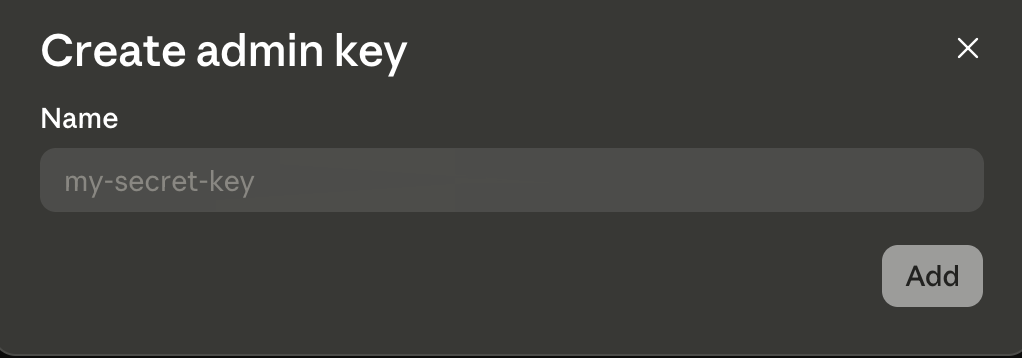
1. In the [Claude Console](https://platform.claude.com/settings/admin-keys), go to **Settings** > **Admin keys** as an organization **admin**.
2. Click **+ Create admin key**, enter a name (e.g. `Probo Access Review`), and click **Add**. Console admin keys have no scopes, so every key carries full Admin API access.
3. Copy the key (`sk-ant-admin01-…`) and store it securely. It's shown only once.
## Step 2: Connect in Probo
1. In Probo, go to **Access Review** > **Connections**.
2. Find **Anthropic**, click **API Key**, paste the key, and click **Connect**.
Probo names the source after your organization and pulls its members into your campaigns.
## Troubleshooting
- **Key rejected.** Confirm it's a Console admin key (`sk-ant-admin01-…`) created by an admin. A standard Console API key (`sk-ant-api03-…`) won't work.
- **"Admin API unavailable for individual accounts".** Set up an organization in the Console under **Settings** > **Organization** first.
---
Source: https://www.probo.com/docs/product/access-review/apollo
# Apollo.io
Probo reads your Apollo.io account's team members through the Apollo REST API so you can review who has access. Probo reviews Apollo teammates (account seats), not prospect or contact records.
:::caution
Use a **master API key** created in Apollo under **Settings** > **Integrations** > **API Keys** with **Set as master key** enabled. A **non-master, endpoint-scoped key** will **not** work, because the Get a List of Users endpoint that Probo reads is accessible only to master keys.
:::
## Prerequisites
- Probo organization administrator access
- The **Apollo account admin** role, or a permission profile that grants API key creation
- A **master API key** (created with the **Set as master key** toggle), since Probo reads the master-key-only Get a List of Users endpoint
## Collected Fields
| Probo field | Apollo.io field | Notes |
| ----------- | -------------------------------------------------------- | ------------------------------------------------------------- |
| Name | `name` | Falls back to first and last name, then the email |
| Email | `email` | |
| Role | `role` | The Apollo permission-profile name for the user |
| Admin | `role` | Flagged as an administrator when the role name equals `Admin` |
| Status | | |
| MFA | | |
| Last login | | |
| External ID | `id` | Stable identifier used to track the account across reviews |
| Created at | | |
## Step 1: Create an API Key
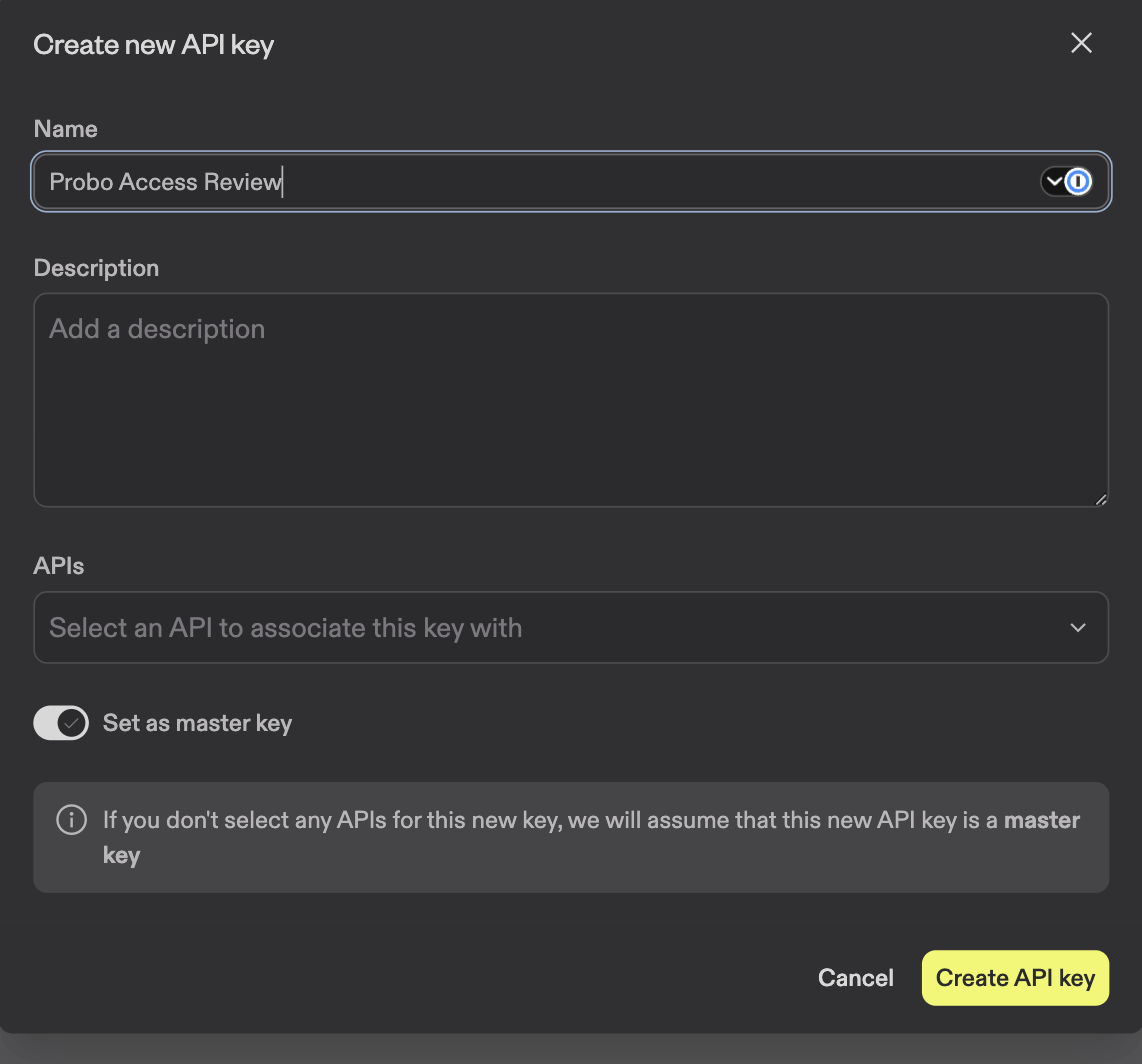
1. In Apollo (signed in as an account admin), go to **Settings** > **Integrations** > **API Keys** > **Create new key**.
2. Name the key (e.g. `Probo Access Review`) and toggle **Set as master key** so it can reach the Get a List of Users endpoint that Probo reads.
3. Save the key immediately and store it securely. Apollo may not show it again.
## Step 2: Connect in Probo
1. In Probo, go to **Access Review** > **Connections**.
2. Find **Apollo.io**, click **API Key**, paste the key, and click **Connect**.
Probo names the source **Apollo.io** (the fixed provider name), since Apollo exposes no stable account-name endpoint. Probo pulls the account's members into your campaigns.
## Troubleshooting
- **Key rejected.** Confirm it's a master key created with **Set as master key** enabled. A non-master, endpoint-scoped key is rejected because the Get a List of Users endpoint is master-key-only.
- **No members appear.** The key must be created by an account admin (or a permission profile that grants API key creation) and belong to the Apollo account you're reviewing.
---
Source: https://www.probo.com/docs/product/access-review/attio
# Attio
Probo reads your Attio workspace members through the Attio API so you can review who has access. Connecting with **OAuth** is the recommended method and requires no token management. An access token is also available if you would rather not authorize an OAuth connection.
:::caution
The credential must grant **User Management** at **Read** or **Read-write**. Attio sets permissions per resource and defaults every one to **Disabled**. A token created without User Management authenticates, and Attio then refuses the members endpoint.
:::
## Prerequisites
- Probo organization administrator access
- Attio workspace administrator access, which is what Attio requires to create an access token and grant it scopes
## Collected Fields
| Probo field | Attio field | Notes |
| ----------- | -------------------------------------------------------- | ----------------------------------------------------------------------------------------------------------- |
| Name | `first_name`, `last_name` | Joined into one display name |
| Email | `email_address` | |
| Role | `access_level` | Displayed as `Admin` or `Member`. A suspended member has no role: Attio replaces the level with `suspended` |
| Admin | `access_level` | Flagged as administrator when the access level is `admin` |
| Status | `access_level` | Attio has no separate status field. Probo reports a member whose access level is `suspended` as inactive |
| MFA | | |
| Last login | | |
| External ID | `id.workspace_member_id` | The member's Attio workspace member ID; stable identifier used to track the account across reviews |
| Created at | `created_at` | When the member joined the workspace |
Attio does not delete workspace members. When a member loses access, Attio sets the access level to `suspended` and keeps the record, so the seat appears in your campaign as an inactive account. Attio also replaces the level the member held, so a suspended member has no role.
Probo does not include unaccepted invitations. Attio exposes pending invitations only through its SCIM interface, which requires an Enterprise entitlement, so review invitations in Attio directly.
## Connect Attio
### Option A: Connect with Attio (recommended)
1. In Probo, go to **Access Review** > **Connections**.
2. Find **Attio** and click **OAuth**.
3. Sign in to Attio and authorize Probo. Probo needs **`user_management:read`** to list workspace members. Attio grants permissions from the Probo app's own configuration rather than from the authorization request.
### Option B: Access Token
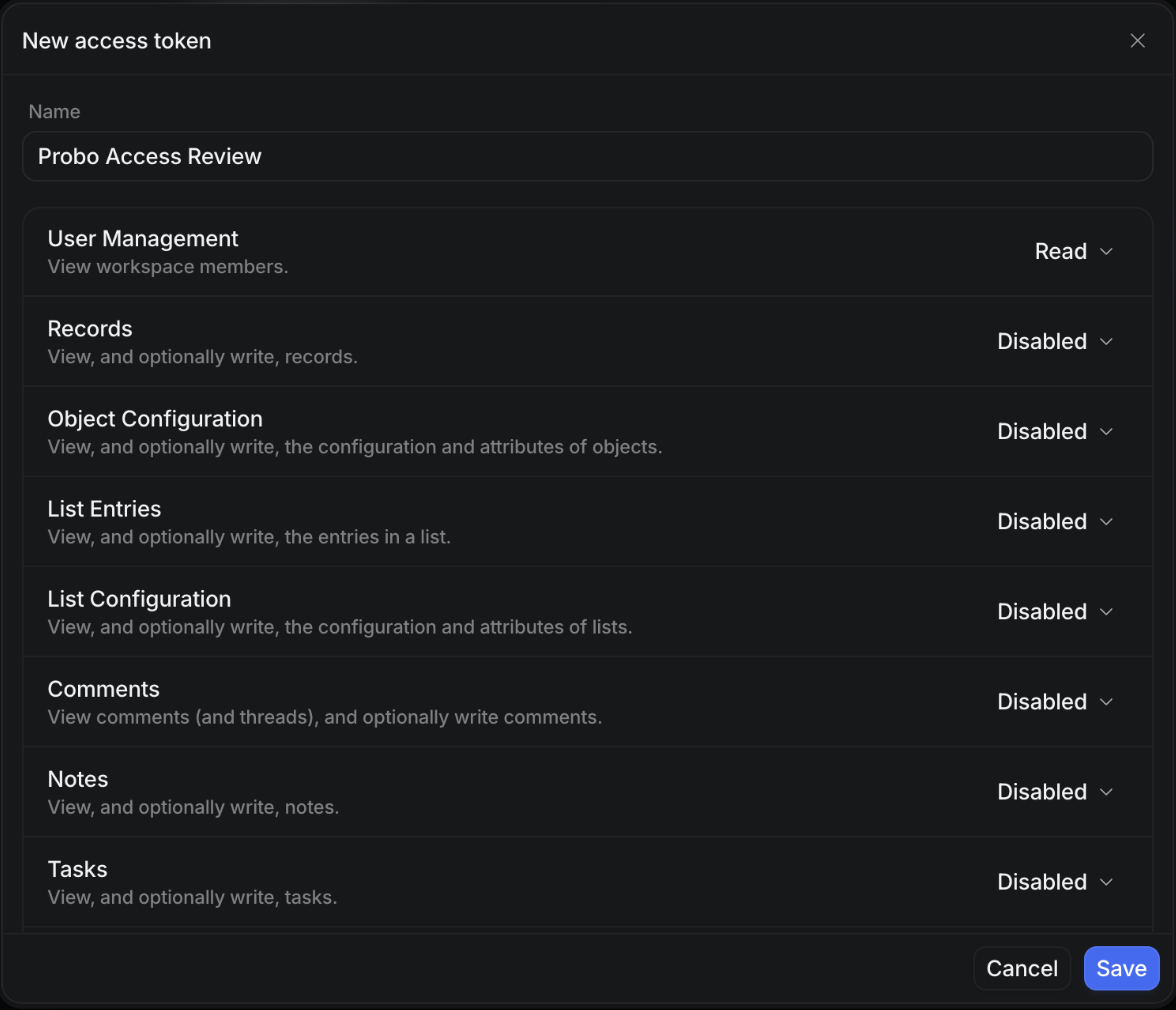
1. In Attio, go to **Settings** > **Developers** and open the **Access tokens** tab.
2. Click **Create access token**, or **New access token** if the workspace already has one.
3. Name it (e.g. `Probo Access Review`).
4. Set **User Management** to **Read**. Leave every other permission on **Disabled**.
5. Click **Save**, then copy the token with the copy button next to it.
6. In Probo, go to **Access Review** > **Connections** and find **Attio**. Click **API Key** on that row. When your deployment also offers OAuth, **API Key** sits in the menu behind the arrow next to the **OAuth** button.
7. Paste the token and click **Connect**.
Probo names the source `Attio / ` and pulls its members into your campaigns.
## Troubleshooting
- **Token rejected.** Attio returns an authentication error for a token that was revoked, deleted, or copied incompletely. Confirm the token still appears under **Settings** > **Developers** > **Access tokens** and copy it again with the copy button rather than by hand.
- **Token accepted but the connection still fails.** The token is valid but has no **User Management** permission, so Attio refuses the members endpoint. Probo does not repeat Attio's explanation, so the missing permission is not named in the error. Attio defaults every permission to **Disabled**, so this is the usual outcome of creating a token and clicking straight through. Set **User Management** to **Read** on the token.
- **A former colleague still appears.** Attio keeps suspended members so past activity stays attributable. Probo reports them with an inactive status and no role. Suspend the member in Attio and the next campaign picks up the change; a campaign already under review keeps the entries it snapshotted.
---
Source: https://www.probo.com/docs/product/access-review/authentik
# authentik
Probo reads the users of your self-hosted authentik instance through the authentik API so you can review who has access. The list covers people and service accounts, and service accounts are marked.
:::caution
Use an authentik **Token** whose **Intent** is set to **API Token**, created under **Directory** > **Tokens and App passwords**. The password shown when a service account is created is an **app password** and will **not** work, because authentik matches a bearer credential against tokens whose intent is `api`, and rejects a token carrying any other intent.
:::
## Prerequisites
- Probo organization administrator access
- An authentik administrator to create the token. Copying a token value out of authentik requires the **View token's key** permission, which super-users hold
- A user for the token to belong to, with read access to the data Probo collects. authentik grants permissions through roles and groups, and a service account can be added to either. The permissions are **Can view User** for the account list, **Can view TOTP Device**, **Can view WebAuthn Device**, **Can view Duo Device** and **Can view SMS Device** for the MFA state, and **Can view Brand** for the source name. Only **Can view User** is mandatory. The token usually belongs to a dedicated service account, but any authentik user works
- The **Base URL** of the authentik instance Probo should review. The Connect dialog asks for it alongside the token. It is the root URL you sign in to, for example `https://authentik.example.com`. Include the subpath when authentik is served from one
## Collected Fields
| Probo field | authentik field | Notes |
| ----------- | ----------------------------------------- | ---------------------------------------------------------------------------------------------------------------------------------------------------------------------------------------------------------------------------------------------------------------------------------------------------------------------------------------------------------------------------- |
| Name | `name` | Probo leaves it empty when the user has no name set in authentik |
| Email | `email` | Falls back to `username` when the user has no email address; service accounts usually show their username here. Probo skips a user with neither |
| Role | `roles_obj` and `groups_obj` | The `name` of every role the user holds, then the `name` of every group. Probo drops blanks and removes duplicates, so a name carried by both a role and a group is listed once |
| Admin | `is_superuser` | Probo flags the account as an administrator when `is_superuser` is true. An account whose administrative access comes only from role permissions may not carry that flag |
| Status | `is_active` | Probo lists the user as inactive when `is_active` is false. Deactivated accounts still appear in the review |
| MFA | `pk` matched against the device endpoints | Probo lists the TOTP, WebAuthn, Duo and SMS devices and reports MFA enabled when one of them references the user. Static recovery codes are excluded, since they are not a login factor. When no device references the user, Probo reports MFA disabled. The state stays unknown instead for a service account, or when one of the four device endpoints answered 403 or 404 |
| Last login | `last_login` | The last time the user signed in. Probo leaves it empty when the field is null or is not an RFC 3339 timestamp, as happens for an account that has never signed in |
| External ID | `uuid` | Stable identifier used to track the account across reviews |
| Created at | `date_joined` | When the user was created in authentik |
## Step 1: Create an API Token
1. In the authentik Admin interface, signed in as an administrator, go to **Directory** > **Users**, click **New User**, then select **Service Account**. Enter a **Username** such as `probo-access-review`, click **Next**, then click **Close**. The password on the confirmation screen is the account's initial app password. Probo needs a different value.
2. Give that user read access. Go to **Directory** > **Roles**, click **New Role**, enter a name, and click **Create Role**. Open the role, click the **Permissions** tab, click **Assigned global permissions**, then click **Assign permission**. In the dialog, click the plus sign, select **Can view User**, **Can view TOTP Device**, **Can view WebAuthn Device**, **Can view Duo Device**, **Can view SMS Device** and **Can view Brand**, click **Add**, then click **Assign**.
3. Go back to **Directory** > **Users**, click the service account, open the **Roles** tab, and click **Add to existing role** to attach the role you created.
4. Go to **Directory** > **Tokens and App passwords** and click **Create**.
5. Enter a unique **Identifier**, select the service account in the **User** field, and set **Intent** to **API Token**.
6. Make sure **Expiring** is off. authentik rotates an expiring API token when it expires, and a rotated token no longer matches the value stored in Probo.
7. Click **Create**, then copy the generated value and store it securely.
## Step 2: Connect in Probo
1. In Probo, go to **Access Review** > **Connections**.
2. Find **authentik**, click **API Key**, paste the token, enter your **Base URL** (the root URL of that same authentik instance), and click **Connect**.
Probo names the source after the branding title of your authentik brand, preferring the default brand, and pulls its users into your campaigns.
## Troubleshooting
- **Token rejected.** Confirm the value is a token whose **Intent** is **API Token**. The app password returned when a service account is created is a different credential and authentik does not accept it on the API. The Intent recorded in authentik is what tells the two credentials apart. Open **Directory** > **Tokens and App passwords** and check the intent recorded on the token, then create a new one if it is wrong.
- **Token worked before and stopped working.** authentik rotates an expiring API token when it expires, and the new value differs from the one stored in Probo. Create a non-expiring token, or update the source after each rotation.
- **The connection succeeds but the sync fails on permissions.** Probo checks the credential against an endpoint that answers for any authenticated token. A token can therefore connect and still fail to read the account list. Reading that list requires **Can view User**. Assign the permission through a role or a group and connect again.
- **Some users are missing.** Without the global **Can view User** permission, authentik returns only the users the token holds an object permission on. Assign the permission globally so the whole directory is reviewed.
- **MFA shows as unknown for everyone.** One of the device endpoints answered 403 or 404, either because the token lacks the matching view permission or because the stage is not installed on the instance. Add **Can view TOTP Device**, **Can view WebAuthn Device**, **Can view Duo Device** and **Can view SMS Device** to the role. A user that already has a readable device is still reported as enabled, and a service account holding no device stays unknown even when all four endpoints are readable.
- **The source has no name.** Probo reads the brands endpoint to name the source, and that endpoint needs **Can view Brand**. Without the permission, Probo still collects the users but leaves the source unnamed.
- **Base URL rejected.** It must be an `http` or `https` URL with a host, for example `https://authentik.example.com`. Probo calls the instance from its own servers, so it cannot reach an authentik that is only available on a private network.
---
Source: https://www.probo.com/docs/product/access-review/aws
# Amazon Web Services
Probo reads the identities of one AWS account so you can review who has access. It lists the IAM users of that account. It also lists the IAM Identity Center users assigned to that account, when the role can read an Identity Center instance. Each source covers a single account, so Probo does not enumerate the other accounts in your organization.
Workload identity is the strongest access pattern Probo uses for your AWS account. You create a read-only IAM role, and you keep control of it. Probo never stores AWS access keys, secret keys, or session tokens. The only value it stores is the Role ARN, which is not a secret.
:::note
Copy the issuer URL from the connect page instead of retyping it. AWS compares that URL case-sensitively, so one wrong character would stop Probo from assuming the role.
:::
## How Access Works
Workload identity is the pattern AWS recommends for third-party access. There is no long-lived IAM user key that you would have to paste into Probo or rotate later.
1. You create a read-only `ProboAudit` role in your AWS account. Its trust policy accepts only your Probo organization's issuer and subject.
2. On each sync, Probo signs a token in memory. That token is valid for five minutes. AWS STS exchanges it for a session that lasts at most one hour.
3. The token and the session both stay in memory. Probo never writes them to disk and never stores them with the connector.
4. You can revoke access from AWS at any time. Delete the role, or change its trust policy, and Probo can no longer open a new session. A session that is already open would still expire within the hour. To stop it sooner, attach an explicit deny to the role.
CloudTrail names every session `probo-`, so you can attribute each API call to your Probo organization.
## Prerequisites
- Probo organization administrator access
- Permission to create IAM roles and an OpenID Connect provider in the AWS account you want to review. The CloudFormation stack and the Terraform module Probo supplies both need it
- The **Role ARN** of the audit role. That ARN is the only value you paste into Probo
## Collected Fields
### IAM Users
| Probo field | AWS field | Notes |
| ----------- | --------------------------------------------------- | --------------------------------------------------------------------------------------------------------------------------------------------------------------------------------------------------------- |
| Name | IAM user name | The account root appears as `` |
| Email | Organizations `DescribeAccount` | Reported for the account root only, where it is the account sign-in address. An IAM user has no email attribute. It also stays empty for a standalone account, or when the role cannot call Organizations |
| Role | Groups, attached policies, and inline policies | Policy and group names on the user |
| Admin | Attached and inline policies | Flagged when `AdministratorAccess` is present, or when the identity is the account root. Left unknown otherwise, because a custom policy can grant the same access |
| Status | Credential report | Active when a console password or an access key is active. Unknown when the credential report is missing |
| MFA | Credential report | Whether MFA is enabled on the user |
| Last login | `password_last_used` and access-key last-used dates | The most recent of those timestamps. It records the last use of a password or an access key, not a sign-in event |
| External ID | User ARN | Stable identifier used to track the account across reviews |
| Created at | `CreateDate` | When the IAM user was created |
IAM users with an active access key and no console password are recorded as service accounts.
### Identity Center Users
Probo lists Identity Center users assigned to the connected account, directly or through a group.
| Probo field | AWS field | Notes |
| ----------- | ---------------------------------------------- | ------------------------------------------------------------------------------------------------------------------------------------------------------------------------ |
| Name | `DisplayName` | Falls back to `UserName` when the profile has no display name |
| Email | Identity store email | |
| Role | Permission set names | Grants on the connected account |
| Admin | Permission set names | Flagged when a grant is `AWSAdministratorAccess` or `AdministratorAccess` |
| Status | `UserStatus` | Active when the status is `ENABLED`. Inactive when it is `DISABLED` |
| MFA | Identity Center MFA devices | Enabled when the user has a registered MFA device. Unknown when your identity source is an external provider, because Identity Center holds no MFA state for those users |
| Last login | CloudTrail `UserAuthentication` sign-in events | The most recent successful sign-in to the AWS access portal. CloudTrail keeps 90 days of event history, so a user who has not signed in during that window stays empty |
| External ID | Identity store user ARN | Stable identifier used to track the account across reviews |
| Created at | Identity store create time | When the user was created in the identity store |
Neither MFA nor last login is an attribute on the user, so Probo reads them from elsewhere in the account. MFA comes from the registered devices in Identity Center. Last login comes from the CloudTrail sign-in events, because Identity Center itself keeps no last-login field. The audit role already allows both reads, so a role you deployed earlier needs no change.
If the account has no Identity Center instance, if `ListInstances` is denied, or if the role cannot read the SSO Admin API, the review lists IAM users only.
## Step 1: Deploy the Audit Role
The connect page prefills the issuer, the audience (`sts.amazonaws.com`), the subject, and a suggested role name (`ProboAudit`). You can deploy the role with CloudFormation or with Terraform. Both create an OpenID Connect provider and a read-only role. The role attaches `SecurityAudit` and `ViewOnlyAccess`, plus the Identity Center read permissions those two policies miss.
1. In Probo, go to **Access Review** > **Connections**.
2. Find **Amazon Web Services** and click **Workload Identity**.
3. On the **Connect AWS** page, choose an install method:
- **Install via CloudFormation** opens the AWS console with the issuer, subject, and role name already filled in. Create the stack in the account you want to review. Leave **Deploy to the whole organization** set to **No**, unless you also want the role in your member accounts for later.
- **Install via Terraform** copies a module snippet for `getprobo/audit-role/aws`. Paste the issuer URL into it rather than retyping it.
4. When the stack or the apply finishes, copy the `RoleARN` output.
You can also create the role yourself. Use the issuer, audience, and subject shown on the connect page. The trust policy must allow `sts:AssumeRoleWithWebIdentity` and pin both `aud` and `sub` with `StringEquals`.
CloudFormation can deploy the same role to every member account. Probo still reviews only the account whose Role ARN you connect. To review another account, connect another source.
## Step 2: Connect in Probo
1. Stay on the **Connect AWS** page. You can also reopen it from **Access Review** > **Connections** > **Amazon Web Services** > **Workload Identity**.
2. Paste the **Role ARN** (for example `arn:aws:iam::123456789012:role/ProboAudit`) and click **Connect**.
Probo first names the source with the 12-digit account ID, for example `Amazon Web Services / 123456789012`. A background worker then replaces that ID with the account name, or with the IAM sign-in alias when AWS returns no name.
## Troubleshooting
- **Probo could not assume the audit role.** Confirm that the stack is in the account that owns the Role ARN, and that the issuer and subject match the values on the connect page. Copy those values rather than retyping them.
- **Role ARN rejected.** Probo needs an IAM role ARN, for example `arn:aws:iam::123456789012:role/ProboAudit`. An access-key ID or a user ARN would be refused.
- **Only IAM users appear.** The account has no Identity Center instance, the instance is in a region Probo does not search, or the role cannot read the SSO Admin API. The review then lists IAM users only.
- **The source name still shows the account ID.** The worker that resolves the name has not run yet. When it runs, it prefers the account name, then the sign-in alias.
---
Source: https://www.probo.com/docs/product/access-review/azure
# Microsoft Azure
Probo reads the identities of one Azure subscription so you can review who has access. It lists the users, groups, and service principals that hold Azure RBAC roles on that subscription. Each source covers a single subscription, so Probo does not list the other subscriptions in your tenant.
Workload Identity Federation is the strongest access pattern Probo uses for your Azure subscription. You configure an app registration with a federated credential and grant read-only Azure RBAC access to Probo's identity. Probo never stores Azure client secrets or permanent credentials. The only values it stores are your tenant ID, application (client) ID, subscription ID, and environment, which are not secrets.
:::note
Copy the issuer URL and audience from the connect page instead of retyping them. Microsoft Entra ID compares OIDC claims case-sensitively, so one wrong character would stop Probo from exchanging tokens.
:::
## How Access Works
Workload Identity Federation is the pattern Microsoft recommends for third-party access. There is no long-lived client secret that you would have to download, paste into Probo, or rotate later.
1. You create an app registration in Microsoft Entra ID and add a federated credential. Its subject and issuer accept only your Probo organization's issuer and subject.
2. On each sync, Probo signs a token in memory. That token is valid for five minutes. Microsoft Entra ID exchanges it for a short-lived access token for Azure Resource Manager.
3. The token and the session both stay in memory. Probo never writes them to disk and never stores them with the connector.
4. You can revoke access from Azure at any time. Delete the federated credential, the app registration, or the RBAC assignment, and Probo can no longer request access tokens. Any existing short-lived token expires automatically within the hour.
Azure Activity Log attributes every API call to your federated app, so you can track and verify every read operation Probo performs.
## Prerequisites
- Permission to create an access source in your Probo organization
- Permission in Azure to create an app registration, a federated credential, and a Reader assignment, so you can apply the Terraform module Probo provides
- The **directory (tenant) ID**, **application (client) ID**, **subscription ID**, and **Azure environment**, which are the only values you paste into Probo
## Collected Fields
Probo lists principals that hold Azure RBAC at subscription scope, including assignments inherited from a management group. It does not list assignments on resource groups or resources.
### Users
Probo lists `User` and `AgentUser` principals on the subscription.
| Probo field | Azure field | Notes |
| ----------- | -------------------------------------------------------- | --------------------------------------------------------------------------------------------------------------------------------------------------------------------------- |
| Name | Graph `displayName` | Empty when directory read is denied |
| Email | Graph `mail` | Falls back to `userPrincipalName` when mail is empty |
| Role | Azure RBAC role names | Role names bound at subscription scope |
| Admin | Azure RBAC role definitions | Flagged when Owner, User Access Administrator, or Role Based Access Control Administrator is present. Left unknown otherwise, because a custom role can grant the same access |
| Status | Graph `accountEnabled` | Active when the account is enabled. Unknown when directory read is denied |
| MFA | Graph `userRegistrationDetails.isMfaCapable` | Enabled when the user can complete MFA. Unknown unless directory read is granted and the tenant has Entra ID P1 or P2 |
| Last login | Graph `signInActivity` | The most recent successful sign-in, then the last sign-in time. Empty when Graph has no activity, the tenant has no Entra ID P1 or P2, or directory read is denied |
| External ID | Entra object ID | Stable identifier used to track the account across reviews |
| Created at | — | Azure RBAC does not expose a created-at attribute on a role assignment |
Users are recorded with an SSO auth method.
### Groups
Probo lists `Group` and `ForeignGroup` principals on the subscription.
| Probo field | Azure field | Notes |
| ----------- | ----------------------- | --------------------------------------------------------------------------------------------------------------------------------------------------------------------------- |
| Name | Graph `displayName` | Empty when directory read is denied |
| Email | Graph `mail` | Empty when the group has no mail address |
| Role | Azure RBAC role names | Role names bound at subscription scope |
| Admin | Azure RBAC role definitions | Flagged when Owner, User Access Administrator, or Role Based Access Control Administrator is present. Left unknown otherwise |
| Status | — | Unknown, because a group has no enabled flag on this path |
| MFA | — | Not collected, because a group has no MFA state |
| Last login | — | Not collected, because a group does not sign in |
| External ID | Entra object ID | Stable identifier used to track the account across reviews |
| Created at | — | Azure RBAC does not expose a created-at attribute on a role assignment |
### Service Principals
Probo lists `ServicePrincipal`, `AgentServicePrincipal`, and `Device` principals on the subscription. Devices are recorded as service accounts.
| Probo field | Azure field | Notes |
| ----------- | ----------------------- | --------------------------------------------------------------------------------------------------------------------------------------------------------------------------- |
| Name | Graph `displayName` | Empty when directory read is denied. A device often stays empty, because Graph `getByIds` only asks for user, group, and service principal |
| Email | — | Not collected, because a service principal has no mail on this path |
| Role | Azure RBAC role names | Role names bound at subscription scope |
| Admin | Azure RBAC role definitions | Flagged when Owner, User Access Administrator, or Role Based Access Control Administrator is present. Left unknown otherwise, because a custom role can grant the same access |
| Status | Graph `accountEnabled` | Active when the account is enabled. Unknown when Graph cannot resolve the object |
| MFA | — | Not collected, because a service principal has no MFA state |
| Last login | — | Not collected, because this path does not read service-principal sign-in |
| External ID | Entra object ID | Stable identifier used to track the account across reviews |
| Created at | — | Azure RBAC does not expose a created-at attribute on a role assignment |
Neither MFA nor last login is an attribute on the role assignment, so Probo reads them from Microsoft Graph. MFA comes from authentication-method registration, and last login comes from sign-in activity. The Terraform module grants those Graph reads only when `grant_directory_read` is true. Those reads also need Entra ID P1 or P2. On Azure China or Azure Government DoD, Graph can omit those APIs, and those columns stay unknown.
## Step 1: Deploy the Audit Role
The connect page prefills the issuer, the audience (`api://AzureADTokenExchange`), the subject, and a suggested application name (`Probo Access Review`). **Install via Terraform** copies a module snippet for `getprobo/audit-role/azurerm`. The module creates an app registration, a federated credential, a service principal, and a Reader assignment on the subscription. When `grant_directory_read` is true, it also assigns Graph `Directory.Read.All` and `AuditLog.Read.All`.
1. In Probo, go to **Access Review** > **Connections**.
2. Find **Microsoft Azure** and click **Workload Identity**.
3. On the **Connect Azure** page, click **Install via Terraform**. The button copies a module snippet for `getprobo/audit-role/azurerm`. Paste the issuer URL into it rather than retyping it.
4. Replace `SUBSCRIPTION_ID` with the subscription UUID you want to review.
5. Apply the module in that subscription. When the apply finishes, copy the `tenant_id`, `client_id`, and `subscription_id` outputs.
You can also create the app, federated credential, and assignment yourself. Use the issuer, audience, and subject shown on the connect page. The federated credential must pin issuer and subject with exact equality. Do not add a second audience: Entra accepts only `api://AzureADTokenExchange`. Do not use a flexible federated credential. Those credentials support only GitHub, GitLab, and Terraform Cloud as issuers.
The module covers one subscription and does not walk management groups or resource groups. To review another subscription, apply the module there and connect another source.
The copied snippet sets `grant_directory_read` to false, so a subscription operator can apply it without directory admin consent. Directory grants need a Global Administrator or Privileged Role Administrator. Until that flag is true, Probo resolves principals as GUIDs and leaves MFA unknown. If you do not need names, MFA, or last login on this source, keep the flag false.
For Azure Government or Azure China, set `environment` on the root `azurerm` and `azuread` providers. This module has no provider block. GCC uses the public cloud. GCC High uses Government. DoD uses Government DoD.
## Step 2: Connect in Probo
1. Stay on the **Connect Azure** page. You can also reopen it from **Access Review** > **Connections** > **Microsoft Azure** > **Workload Identity**.
2. Paste the **Directory (tenant) ID**, **Application (client) ID**, and **Subscription ID** (for example `11111111-1111-1111-1111-111111111111`), choose the **Azure environment**, then click **Connect**.
Probo first names the source with the subscription ID, for example `Microsoft Azure / 11111111-1111-1111-1111-111111111111`. A background worker then replaces that ID with the subscription display name, or keeps the ID when Azure returns no name.
Federation can take a few minutes to propagate. If Connect reports a disconnected connector, wait and try again.
## Troubleshooting
- **Probo could not assume the audit identity.** Make sure the module is applied in the subscription you connect, and that the issuer and subject match the values on the connect page. Copy those values rather than retyping them. Federation can take a few minutes.
- **Tenant, client, or subscription ID rejected.** Probo needs a GUID for each field, for example `11111111-1111-1111-1111-111111111111`.
- **Names stay as GUIDs.** The module was applied with `grant_directory_read` set to false, or Graph `Directory.Read.All` was denied. Set the flag to true if you want names on this source, or leave them as GUIDs.
- **MFA stays unknown.** The tenant has no Entra ID P1 or P2, Graph `AuditLog.Read.All` is missing, or the principal is not a user. Assign those grants if you want MFA on this source, or leave it unknown.
- **Last login stays empty.** The user has no Graph sign-in activity, the tenant has no Entra ID P1 or P2, or directory read is denied.
- **The source name still shows the subscription ID.** The worker that resolves the name has not run yet. When it runs, it prefers the subscription display name, then the subscription ID.
- **Connect fails on a GCC tenant.** GCC uses Azure Public. Only GCC High and DoD use Government.
---
Source: https://www.probo.com/docs/product/access-review/better-stack
# Better Stack
Probo reads the members of one Better Stack team through the Uptime API so you can review who has access.
:::caution
Create a **Global API token** in **Better Stack** > **API tokens** and enter the exact **Team Name** of the team you are reviewing. A team-based **Uptime API token** also works. A **Telemetry API token** does not work, because the team members endpoint accepts only Global and Uptime API tokens. The tokens look alike, so check which section a token came from instead of reading its value.
:::
## Prerequisites
- Probo organization administrator access
- The **Admin** role in Better Stack. Only Admins can edit API tokens, and a Team lead can only view them
- The **Team Name** of the team Probo should review, which the Connect dialog asks for alongside the token. Better Stack lists your teams at **Settings** > **Teams**. Enter the name exactly as Better Stack spells it, including capitalization
## Collected Fields
| Probo field | Better Stack field | Notes |
| ----------- | -------------------------------------------------------- | ----------------------------------------------------------------------------------------------------------------------------------------------------------------------------------------------------------------------------------------- |
| Name | `first_name`, `last_name` | Probo joins the two into one name and drops a missing part. A pending invitation carries neither, so the name stays empty |
| Email | `email` | Probo skips a record that comes back without an email address |
| Role | `role` | Probo shows `admin`, `billing_admin`, `team_lead`, `responder` and `member` as Admin, Billing admin, Team lead, Responder and Member. Any other value, including `custom`, appears as returned. A record with no role is left without one |
| Admin | `role` | Flagged as an administrator when `role` is `admin` or `team_lead`. `billing_admin` (billing only) and custom roles are not flagged, so check a custom role's permissions in Better Stack |
| Status | `type` | Probo lists `team_member` as active and `team_member_invitation` as inactive. Any other type leaves the status unknown |
| MFA | | |
| Last login | | |
| External ID | `id` | Stable identifier used to track the account across reviews |
| Created at | `created_at` | When the member joined the team. Probo falls back to `invited_at` when `created_at` is missing, as on a pending invitation |
Probo also lists members who have been invited but have not yet accepted, and marks them inactive. The role Better Stack returns is the member's role in the team being listed. `admin` and `billing_admin` are organization-wide roles in Better Stack, so they are the same in every team.
## Step 1: Create a Global API Token

1. In [Better Stack](https://betterstack.com/settings/global-api-tokens), signed in as an **Admin**, go to **API tokens** and find the **Global API tokens** section. A global token is valid across all of your teams, which is why the team members endpoint takes a team name.
2. Enter a **Token name** (e.g. `Probo Access Review`), set the permission to **Read only**, and click **Create**. Read-only access is enough because Probo only reads team members.
3. Copy the token and store it securely. Existing tokens show a **Copy** button on this screen, so you can retrieve the token later.
## Step 2: Connect in Probo
1. In Probo, go to **Access Review** > **Connections**.
2. Find **Better Stack**, click **API Key**, paste the token, enter your **Team Name**, and click **Connect**.
When you click **Connect**, Probo uses the token to request that team's members from Better Stack. If Better Stack has no team by that name for the token, the dialog shows an error under **Team Name** and Probo does not save the connection. After you connect, Probo names the source after the team name you entered and pulls that team's members into your campaigns.
With a team-based **Uptime API token**, Better Stack ignores the team name and lists the token's own team, so enter that team's name to keep the source label accurate.
## Troubleshooting
- **Token rejected.** Confirm the token is a **Global API token** or a team-based **Uptime API token**. Better Stack rejects a **Telemetry API token** on the team members endpoint. A token of the wrong kind is not caught when you connect: the source then shows **Better Stack credentials are invalid**.
- **"Better Stack has no team with this name for this API token."** Better Stack matches team names exactly, including capitalization. Copy the name from **Settings** > **Teams**, or use a team-based **Uptime API token** for the team.
- **Token creation is unavailable.** Editing API tokens is an Admin permission in Better Stack. A Team lead can view tokens but not create them, so ask an Admin.
- **Roles do not match what Better Stack shows.** The endpoint reports the role the member holds in the team being listed, so confirm the **Team Name** matches the team you meant to review. Custom roles are an Enterprise feature and come back as `custom`. Probo flags only `admin` and `team_lead` as administrators.
---
Source: https://www.probo.com/docs/product/access-review/brevo
# Brevo
Probo reads your Brevo account's users through the Brevo API so you can review who has access.
:::caution
Create an **API key** (`xkeysib-…`) on the **API Keys & MCP** tab of **Settings** > **SMTP & API**. An **SMTP key**, created on the **SMTP** tab of the same page, will **not** work, because it authenticates Brevo's SMTP relay rather than the REST API that serves the users endpoint. Leave the **Create MCP server API key** option off: activating it deactivates the key you just generated and issues an MCP version instead.
:::
## Prerequisites
- Probo organization administrator access
- The **API Keys** permission in Brevo, under **SMTP & API** (the account owner has it; only users with that permission can open the API Keys & MCP page and generate a key)
- A key created inside the Brevo account you want to review, since a key belongs to exactly one account
## Collected Fields
| Probo field | Brevo field | Notes |
| ----------- | -------------------------------------------------------- | -------------------------------------------------------------------------------------------------------------------------------------------------------------------------------------------------------------------------------- |
| Name | `email` | The users endpoint returns no display name, so Probo uses the email address |
| Email | `email` | |
| Role | `feature_access` | The access levels Brevo returns per feature area (marketing, crm, conversations, transactional, phone and any others), deduplicated and sorted. A feature set to `none` is dropped, so a user with access to nothing has no role |
| Admin | `is_owner` | Flagged as an administrator when `is_owner` is true. Brevo returns a boolean, and Probo also accepts the string `"true"` |
| Status | `status` | `active` is listed as active and any other value, such as `pending`, as inactive. A user Brevo returns without a status is left unknown |
| MFA | | |
| Last login | | |
| External ID | `id` | Stable identifier used to track the account across reviews. Falls back to the email address when the response has no id |
| Created at | | |
The account owner is listed alongside everyone invited to the account. An invitation that has not been accepted yet still appears in the list, marked inactive. A user returned without an email address is skipped.
## Step 1: Create an API Key
1. In Brevo, signed in as the account owner or as a user with the **API Keys** permission, click your account dropdown and select **Settings** > **SMTP & API** > **API Keys & MCP**.
2. Click **Generate a new API key**, name it (e.g. `Probo Access Review`), and set an expiry date from 7 days to 1 year, or choose no expiration. Brevo API keys have no scopes, so every key has full access to the account.
3. Click **Generate**, copy the key (`xkeysib-…`), and click **OK**. It's shown only once.
## Step 2: Connect in Probo
1. In Probo, go to **Access Review** > **Connections**.
2. Find **Brevo**, click **API Key**, paste the key, and click **Connect**.
The users endpoint returns no account name, so Probo lists the source under the fixed name Brevo and pulls the account's users into your campaigns.
## Troubleshooting
- **Key rejected.** Confirm it is an API key (`xkeysib-…`) from the **API Keys & MCP** tab and that it is still active. An SMTP key won't work. A key also stops working once it reaches its expiry date, and Brevo expires any key that goes unused for 90 days.
- **Generate a new API key is unavailable.** Only the account owner and users with the **API Keys** permission, under **SMTP & API**, can open the API Keys & MCP page and create or delete a key.
- **Calls stop working after the key worked once.** Brevo can block API calls from unauthorized IP addresses. Under **Settings** > **Security** > **Authorized IPs**, allow the [Probo Cloud egress address](/docs/deployment/ip-ranges) for your region, or disable API-key IP blocking. For a self-hosted deployment, authorize that deployment's fixed egress addresses.
- **Only the account owner appears.** The Free and Starter plans include a single user seat, so those accounts have no other users to review. Otherwise, confirm the key was created in the account whose users you want to review: a key belongs to exactly one Brevo account, and an Admin account and each of its sub-organizations have their own keys.
---
Source: https://www.probo.com/docs/product/access-review/brex
# Brex
Probo reads your Brex organization's users through the Brex Team API so you can review who has access. Connecting with **Connect** (OAuth) is the recommended method and requires no token management. A Business API key is also available if you would rather not authorize an OAuth connection.
## Prerequisites
- Probo organization administrator access
- Brex **account admin** or **card admin** access. Brex requires this level of access to create a Business API key, and to authorize a new connected app through OAuth
## Collected Fields
| Probo field | Brex field | Notes |
| ----------- | -------------------------------------------------------- | ---------------------------------------------------------------------------- |
| Name | `first_name`, `last_name` | Joined with a space |
| Email | `email` | |
| Role | `role` | Used exactly as returned by Brex; Probo does not relabel it |
| Admin | | |
| Status | `status` | Active only when `status` is `ACTIVE`; any other value is listed as inactive |
| MFA | | |
| Last login | | |
| External ID | `id` | Stable identifier used to track the account across reviews |
| Created at | | |
Brex returns every member of the organization on one endpoint. Probo skips a record that arrives without an email address.
## Connect Brex
### Option A: Connect with Brex (recommended)
1. In Probo, go to **Access Review** > **Connections**.
2. Find **Brex** and click **OAuth**.
3. Sign in to Brex as an account admin or card admin and authorize Probo. Probo requests the **`users.readonly`** and **`companies.readonly`** scopes, plus `openid` and `offline_access` so the connection keeps syncing without you reconnecting.
### Option B: Business API Key
1. In Brex ([dashboard.brex.com](https://dashboard.brex.com)), signed in as an account admin or card admin, go to **Developer** > **Settings**, and click **Create Token**.
2. Name it (e.g. `Probo Access Review`), and grant it read access to the **Team** and company profile data. Confirm your selection and click **Allow Access**.
3. Copy the token (`bxt_…`). Brex shows it only once.
4. In Probo, go to **Access Review** > **Connections** and find **Brex**. Click **API Key** on that row. When your deployment also offers OAuth, **API Key** sits in the menu behind the arrow next to the **OAuth** button.
5. Paste the token and click **Connect**.
Probo names the source after your Brex company's legal name and pulls its users into your campaigns.
## Troubleshooting
- **Key or token rejected, or no users appear.** A Business API key starts with `bxt_`; Probo refuses a value that does not. Confirm the key (or OAuth authorization) grants read access to Team/Users data, since a key scoped only to Expenses, Payments, or another API cannot list users.
- **The source keeps the generic name "Brex" instead of your company name.** Resolving the company name requires the `companies.readonly` scope. A Business API key without read access to company data, or an OAuth connection authorized before this scope was requested, will 403 on the lookup. Reconnect through OAuth, or recreate the API key with company data access, to pick up the name.
- **The source stops syncing after a quiet period.** Brex expires a Business API key after 90 days of inactivity, and revokes a token tied to a user who is no longer active. Create a new token, or reconnect via OAuth, to restore the source.
---
Source: https://www.probo.com/docs/product/access-review/calcom
# Cal.com
Probo reads your Cal.com team or organization members through the Cal.com API so you can review who has access. Connecting with **OAuth** is the recommended method and requires no token management. An API key is also available if you would rather not authorize an OAuth connection.
## Prerequisites
- Probo organization administrator access
- A Cal.com account that belongs to a team or an organization. A connected account with neither returns only itself (see [Collected Fields](#collected-fields))
## Collected Fields
| Probo field | Cal.com field | Notes |
| ----------- | -------------------------------------------------------- | ------------------------------------------------------------------------------------------------------ |
| Name | `user.name` | Falls back to the connected account's own name when it belongs to no team or organization |
| Email | `user.email` | Falls back to the connected account's own email when it belongs to no team or organization |
| Role | `membership.role` | Displayed as `Owner`, `Admin`, or `Member`; blank for a connected account with no team or organization |
| Admin | `membership.role` | Flagged as administrator when the role is `OWNER` or `ADMIN` |
| Status | `membership.accepted` | Active once the member accepts their invitation; a member active in at least one team counts as active |
| MFA | | |
| Last login | | |
| External ID | `userId` | Stable identifier used to track the account across reviews |
| Created at | | |
If the connected account belongs to a Cal.com **organization**, Probo lists every member of that organization. Otherwise, Probo lists members across every **team** the connected account belongs to, combining a member who is on multiple teams into a single entry with every role they hold. A connected account with no team or organization returns only itself.
## Connect Cal.com
### Option A: Connect with Cal.com (recommended)
1. In Probo, go to **Access Review** > **Connections**.
2. Find **Cal.com** and click **OAuth**.
3. Sign in to Cal.com and authorize Probo. Probo requests the **`PROFILE_READ`**, **`TEAM_PROFILE_READ`**, **`TEAM_MEMBERSHIP_READ`**, and **`ORG_MEMBERSHIP_READ`** scopes.
### Option B: API Key
1. In Cal.com, signed in as a team or organization admin, go to **Settings** > **Developer** > **API keys**, and create one.
2. Name it (e.g. `Probo Access Review`) and copy the key (`cal_live_…`, or `cal_…` for a test mode key). Cal.com shows it only once.
3. In Probo, go to **Access Review** > **Connections** and find **Cal.com**. Click **API Key** on that row. When your deployment also offers OAuth, **API Key** sits in the menu behind the arrow next to the **OAuth** button.
4. Paste the key and click **Connect**.
Probo names the source "Cal.com" and pulls its members into your campaigns.
## Troubleshooting
- **Key or token rejected, or no members appear.** Confirm the API key or OAuth authorization belongs to a user who is a member of the team or organization you want to review.
- **Only the connected account appears.** The connected Cal.com account has no team or organization, so Probo can only see that account. Add it to a team, or connect an account that already belongs to one.
---
Source: https://www.probo.com/docs/product/access-review/calendly
# Calendly
Probo reads your Calendly organization's members through the Calendly API so you can review who has access. Connecting with **OAuth** is the recommended method and requires no token management. An API key is also available if you would rather not authorize an OAuth connection.
:::caution
The connected Calendly account must belong to an **organization** (Calendly's multi-seat plan). Probo cannot list members for a personal Calendly account.
:::
## Prerequisites
- Probo organization administrator access
- A Calendly account that belongs to an organization
## Collected Fields
| Probo field | Calendly field | Notes |
| ----------- | -------------------------------------------------------- | ----------------------------------------------------------------------------------------- |
| Name | `name` | |
| Email | `email` | |
| Role | `role` | Displayed as `Owner`, `Admin`, or `User` |
| Admin | `role` | Flagged as administrator when the role is `owner` or `admin` |
| Status | | |
| MFA | | |
| Last login | | |
| External ID | `uri` | The member's Calendly API URI; stable identifier used to track the account across reviews |
| Created at | `created_at` | |
## Connect Calendly
### Option A: Connect with Calendly (recommended)
1. In Probo, go to **Access Review** > **Connections**.
2. Find **Calendly** and click **OAuth**.
3. Sign in to Calendly and authorize Probo. Probo requests the **`users:read`** and **`organizations:read`** scopes.
### Option B: API Key
1. In Calendly, signed in as an organization admin, go to **Integrations** > **API & Webhooks**, and under **Personal Access Tokens** click **Generate New Token**.
2. Name it (e.g. `Probo Access Review`) and copy the token. Calendly shows it only once.
3. In Probo, go to **Access Review** > **Connections** and find **Calendly**. Click **API Key** on that row. When your deployment also offers OAuth, **API Key** sits in the menu behind the arrow next to the **OAuth** button.
4. Paste the token and click **Connect**.
Probo names the source "Calendly" and pulls its members into your campaigns.
## Troubleshooting
- **Key or token rejected, or no members appear.** Confirm the API key or OAuth authorization belongs to a user who is a member of a Calendly organization.
- **Connecting fails with no organization found.** The connected Calendly account has no organization. Calendly's organization features require a paid multi-seat plan; Probo cannot list members without one.
---
Source: https://www.probo.com/docs/product/access-review/campaigns
# Run an Access Review Campaign
An access review campaign takes a point-in-time snapshot of the accounts available from one or more access sources. Reviewers can then flag accounts, record a decision for every entry, and preserve the completed review.
Before you begin, create at least one access source. Connect a provider from the [Connector Directory](/docs/product/access-review/directory), or [create a CSV source](/docs/product/access-review/csv-sources).
## Create a Campaign
1. In Probo, open your organization and go to **Access Review** > **Campaigns**.
2. Click **New campaign**.
3. Enter a **Name** and, optionally, a **Description**.
4. Select the sources that belong in the review, then click **Create**.
The campaign starts in **Draft**. Open it to add another source before starting. A campaign must contain at least one source.
:::tip
Give the campaign a name that identifies its period and purpose, such as `Q3 2026 privileged access review`. A clear name makes the preserved review easier to identify later.
:::
## Start the Campaign
Review the source list, then click **Start campaign**. Probo queues a fetch for every source and changes the campaign status to **In progress**.
Each source shows its fetch status and the number of accounts returned:
- **Queued** or **Fetching** means collection is still running.
- **Success** means the source snapshot is ready.
- **Failed** shows the provider error. Resolve the source or credential problem before relying on the campaign.
After collection finishes, the campaign moves to **Pending actions**. Starting the campaign fixes its scope: you cannot add or remove sources after this point.
## Review Accounts
Expand each source to review its accounts. Depending on what the provider exposes, Probo displays name, email, role, administrator status, account status, MFA status, and last login.
For each account:
1. Check the identity, assigned role, administrative access, status, MFA, and recent activity.
2. Add any useful [flags](#flags) that describe what you found.
3. Record one of these decisions:
- **Approve**: the current access is appropriate.
- **Revoke**: the access should be removed.
- **Modify**: the account should remain, but its access should change.
- **Escalate**: another reviewer or owner must decide.
Approve records immediately. Revoke, Modify, and Escalate require a note explaining the decision. You can select several accounts to apply a decision or flags in bulk.
:::note
A decision records the review outcome; it does not change access in the connected provider. Complete any required remediation in that provider and retain the decision note as evidence.
:::
## Flags
Flags are optional labels reviewers attach to an account during a campaign. They do not replace a decision: every entry still needs Approve, Revoke, Modify, or Escalate before the campaign can complete. Use flags to call out risk themes, group similar findings, and leave clearer evidence for auditors.
An entry can carry more than one flag. You can set flags on a single account or apply them in bulk to a selection.
### Account
| Flag | Use when |
| -------------------- | ------------------------------------------------------------------------------------------------- |
| Orphan account | The account has no clear owner, or it no longer maps to a known person in the organization. |
| Dormant | The account looks unused for a long period relative to your review policy. |
| Terminated user | The person has left the organization and the account should no longer have access. |
| Contractor expired | A contractor or temporary worker's engagement has ended, but the account remains. |
### Privileges
| Flag | Use when |
| ---------------------- | ------------------------------------------------------------------------------------------------- |
| Excessive privileges | The account has more access than the role or job requires. |
| SoD conflict | The account combines duties that your segregation-of-duties policy separates. |
| Privileged access | The account holds elevated or administrative rights that deserve explicit review. |
| Role creep | Access has accumulated over time beyond what the current role needs. |
### Anomaly
| Flag | Use when |
| ----------------- | ------------------------------------------------------------------------------------------------- |
| No justification | There is no clear business reason for the account or its level of access. |
| Out of department | The account belongs outside the team or department that should own this system. |
| Shared account | More than one person uses the same login, or the account is otherwise shared. |
Flags are reviewer annotations. Probo does not auto-detect them from provider data; choose them based on what the snapshot and your internal context show.
## Complete the Campaign
The **Complete campaign** action becomes available after every entry has a decision.
1. Confirm that no entries remain pending.
2. Confirm that failed source fetches have been investigated.
3. Click **Complete campaign**, then confirm.
Completion finalizes the decisions and changes the campaign status to **Completed**. This action cannot be undone.
## Campaign Statuses
| Status | Meaning |
| --------------- | -------------------------------------------------------------------------- |
| Draft | Sources can still be added and the campaign has not fetched accounts. |
| In progress | Probo is fetching accounts from the selected sources. |
| Pending actions | Collection finished and entries are ready for decisions. |
| Completed | Every entry has a finalized decision and the campaign is closed. |
| Cancelled | The campaign was cancelled through the API or CLI and is no longer active. |
The console can delete any campaign that is not **In progress**. Deletion permanently removes the campaign, so do not use it as a substitute for completing a review that must be retained as evidence.
For automation, see the [CLI access-review commands](/docs/developers/cli/commands/access-review).
---
Source: https://www.probo.com/docs/product/access-review/clickhouse
# ClickHouse Cloud
Probo reads your ClickHouse Cloud organization's members through the ClickHouse Cloud API so you can review who has access.
:::caution
Use a **ClickHouse Cloud API key** created on the console's **API Keys** page, and paste both halves as `keyId:keySecret`. The Cloud API authenticates with HTTP Basic over the key ID and the key secret, so either half on its own will **not** work. The key also needs organization-level access. A key scoped only to a service role such as `Basic service API reader` reaches services but not the organization's members. A service's SQL user credentials are a database login and do not authenticate against the Cloud API.
:::
## Prerequisites
- Probo organization administrator access
- The **Admin** organization role in ClickHouse Cloud (Admin performs all administrative activities for the organization, including creating API keys)
- A key whose assigned role carries organization-level access, so it can list the organization's members. A key limited to a service role, or to the sign-in-only **Member** organization role, cannot read them
- Both halves of the key, the **Key ID** and the **Key secret**, which the console shows only once
## Collected Fields
| Probo field | ClickHouse Cloud field | Notes |
| ----------- | -------------------------------------------------------- | ---------------------------------------------------------------------------------------------------------------------------------------------------------------------------------------------------------------------------------- |
| Name | `name` | Falls back to the email address |
| Email | `email` | A member with no email address is skipped |
| Role | `assignedRoles[].roleName` | The system and custom roles assigned to the member. Falls back to the deprecated `role` field for a member with none: `admin` → Admin, `developer` → Developer |
| Admin | `assignedRoles[].roleName` | Flagged as an administrator when an assigned role is named `Admin`. With no assigned roles, flagged when the deprecated `role` is `admin`. The match is on the exact name, so a custom role such as `Billing Admin` does not count |
| Status | | |
| MFA | | |
| Last login | | |
| External ID | `userId` | Stable identifier used to track the account across reviews. It stays the same when a user belongs to several organizations |
| Created at | `joinedAt` | When the member joined the organization |
ClickHouse Cloud marks `role` as deprecated and points API clients to `assignedRoles`. For an organization that has migrated to custom roles, `role` is frozen at its pre-migration value, which is why Probo reads `assignedRoles` first.
## Step 1: Create a ClickHouse Cloud API Key
1. In the [ClickHouse Cloud console](https://console.clickhouse.cloud), signed in as an organization **Admin**, open the **API Keys** tab in the left menu.
2. Click **New API Key** (until the organization has its first key, the page shows a create prompt instead of the button), name it (e.g. `Probo Access Review`), assign a role with organization-level access, and set an expiration.
3. Click **Generate API Key**, then copy the **Key ID** and the **Key secret**. They are shown only on this screen.
## Step 2: Connect in Probo
1. In Probo, go to **Access Review** > **Connections**.
2. Find **ClickHouse Cloud**, click **API Key**, paste the **Key ID** and the **Key secret** joined by a colon (`keyId:keySecret`), and click **Connect**.
Probo names the source **ClickHouse Cloud** and pulls your organization's members into your campaigns.
## Troubleshooting
- **Key rejected.** Paste both halves joined by a colon, `keyId:keySecret`, with no spaces. The Key ID alone or the Key secret alone fails HTTP Basic authentication, and so does a key that has been disabled or has passed its expiration date.
- **"API key is not associated with any organization".** A key belongs to exactly one organization, and ClickHouse returns only that one. Create the key inside the organization you are reviewing.
- **No members appear.** The key's role must grant organization-level access. A key limited to a service role, such as `Basic service API reader`, reaches services but not the organization's members.
- **Requests fail from Probo but the key works locally.** If the key was created with **Specific locations** under **Allow access to this API Key**, include the [Probo Cloud egress address](/docs/deployment/ip-ranges) for your region, or remove the restriction. For a self-hosted deployment, allowlist that deployment's fixed egress addresses.
---
Source: https://www.probo.com/docs/product/access-review/cloudflare
# Cloudflare
Probo reads your Cloudflare account's members through the Cloudflare API so you can review who has access.
:::caution
Use a scoped **API Token** (newly created tokens are prefixed `cfut_`) created in the Cloudflare dashboard under **My Profile** > **API Tokens**. A **Global API Key** will **not** work, because it authenticates with `X-Auth-Email` and `X-Auth-Key` headers instead of the `Authorization: Bearer` scheme Probo uses.
:::
## Prerequisites
- Probo organization administrator access
- Membership in the Cloudflare account you want to review, with privileges to grant account-level read permissions (**Super Administrator - All Privileges** is sufficient; an account **Administrator** also works)
- The token scoped to include every account whose members should be reviewed (**Account Resources** set to **All accounts** or the specific accounts), since Probo only sees accounts the token is authorized for
## Collected Fields
| Probo field | Cloudflare field | Notes |
| ----------- | -------------------------------------------------------- | ------------------------------------------------------------------------------------------------ |
| Name | `first_name` and `last_name` | Combined into the member's display name |
| Email | `email` | |
| Role | `roles[].name` | Defaults to Member when the member has no roles |
| Admin | `roles[].name` | Flagged as an administrator when a role is Super Administrator - All Privileges or Administrator |
| Status | `status` | A member is active when `status` is `accepted` |
| MFA | `two_factor_authentication_enabled` | Whether two-factor authentication is enabled for the member |
| Last login | | |
| External ID | `id` | Stable identifier used to track the account across reviews |
| Created at | | |
## Step 1: Create an API Token
1. In the [Cloudflare dashboard](https://dash.cloudflare.com/profile/api-tokens), go to **My Profile** > **API Tokens** > **Create Token**, then choose **Get started** under **Custom token**.
2. Name it (e.g. `Probo Access Review`), add the permission **Account** > **Account Settings** > **Read**, and set **Account Resources** to **Include** > **All accounts** (or the specific accounts to review). Read access is enough, since Probo only issues read requests.
3. Create the token, then copy it and store it securely. It's shown only once.
## Step 2: Connect in Probo
1. In Probo, go to **Access Review** > **Connections**.
2. Find **Cloudflare**, click **API Key**, paste the token, and click **Connect**.
Probo pulls members from every Cloudflare account included in the token's scope. When the token covers several accounts, the source name uses the first account returned by Cloudflare even though the campaign includes members from all of them.
## Troubleshooting
- **Token rejected.** Confirm it's a scoped API Token with **Account Settings: Read** permission. A Global API Key won't work, because it uses `X-Auth-Email` and `X-Auth-Key` headers instead of `Authorization: Bearer`.
- **No members appear.** The token must be scoped to include the account you're reviewing (**Account Resources**), and its creator must be a member of that account with permission to read the account's membership.
---
Source: https://www.probo.com/docs/product/access-review/crisp
# Crisp
Probo reads your Crisp website's operators (your team members, not your visitors) through the Crisp plugin API so you can review who has access.
:::caution
This connector asks you for no API key. You do not create a credential or paste a value anywhere. Probo connects through its own Crisp Marketplace plugin. You start the connection in Probo and approve the plugin on the Crisp website you want to review, and Crisp sends you back to Probo. Probo confirms the installation with Crisp before the connection completes, so only someone who can approve a plugin on that website can create a connection.
:::
## Prerequisites
- Probo organization administrator access
- Access to the Crisp website you want to review, with rights to install a plugin on it (Crisp operators are either Owner or Member)
- A Crisp account you are already signed in to, so the approval screen can list the websites you can choose from
## Collected Fields
The Probo column lists every field shown in the review. The Crisp column shows the operator field Probo reads or marks a field as **Not supported** when Crisp does not provide it. Probo also records each operator's job title from `title`.
| Probo field | Crisp field | Notes |
| ----------- | -------------------------------------------------------- | ------------------------------------------------------------------------------------------------------------------------------------------- |
| Name | `first_name` and `last_name` | Falls back to the email |
| Email | `email` | An operator with no email is skipped |
| Role | `role` | `owner` becomes Owner and `member` becomes Member, ignoring case. Any other value is kept as sent, after trimming. A blank role yields none |
| Admin | `role` | Flagged as an administrator when `role` is `owner` |
| Status | | |
| MFA | `has_token` | Enabled when true, Disabled when false, Unknown when absent |
| Last login | | |
| External ID | `user_id` | Stable identifier used to track the account across reviews |
| Created at | | |
Probo lists joined operators only. Operators who were invited but have not accepted, and Crisp Marketplace plugin developers attached to the website, both come back from the same Crisp endpoint, and Probo leaves them out of the review.
## Step 1: Start the Install from Probo
1. In Probo, go to **Access Review** > **Connections**.
2. Find **Crisp** and click **App Install**.
Probo sends you to Crisp without opening a dialog or asking you for a value.
## Step 2: Approve the Plugin in Crisp
1. Crisp shows **Link Crisp with Probo Access Review**. Click **Continue**.
2. Choose the website you want Probo to review.
3. Crisp installs the **Probo Access Review** plugin and returns you to Probo.
Finish signed in to the same Probo account that started the connection, with a session that is still valid. Probo ties the installation link to the person who started it, so returning as anyone else is refused. Staying in the same browser is the simplest way to meet that, though it is the account that matters, not the browser.
Probo checks the installation with Crisp. It then names the source after your Crisp website and pulls its operators into your campaigns. The installation link works once, so start again from Probo if you need to connect another website.
## Troubleshooting
Each entry quotes the message Probo shows on the connections page after a failed installation.
- **"This installation link was already used. Start the connection again from Probo."** Each installation link works only once. Return to **Access Review** > **Connections** and click **App Install** again.
- **"The installation could not be verified. Start the connection again from Probo."** Crisp did not confirm the installation for that website. Click **App Install** again and approve the plugin on the website you want to review.
- **"The provider could not be reached to verify the installation. Please try again in a moment."** Probo could not reach Crisp to confirm the installation, usually because Crisp was busy or briefly unavailable. Nothing was spent, so click **App Install** again. If the same message keeps appearing, Probo's own Crisp credential may need attention, so contact your Probo administrator.
- **"Something went wrong while finishing the installation. Please try again."** Probo could not save the connection. Click **App Install** again, and contact your Probo administrator if it persists.
- **"You no longer have permission to connect this provider for this organization."** Your access to this organization changed while you were in Crisp. Ask an administrator to restore it, then start again from Probo.
- **An authorization error instead of the connections page.** Probo refused the return trip because you came back as a different account, your session had expired, or your permission was withdrawn before Crisp sent you back. Sign in again as the account that started the connection and click **App Install** again.
- **"invalid connector install callback".** The installation link was malformed or more than ten minutes old. Start again from Probo.
- **Crisp is not listed in Connections.** The connector is enabled per deployment. Contact your Probo administrator if Crisp does not appear.
- **No operators appear.** Confirm you approved the plugin on the website you meant to review. Operators are read when a campaign that includes the Crisp source runs, so add the source to a campaign and start it. Probo lists operators (agents), not visitors.
---
Source: https://www.probo.com/docs/product/access-review/csv-sources
# Create a CSV Access Source
Use a CSV source when a system has no supported connector or when you need to review a controlled export. Probo stores the CSV with the source and parses it each time the source is included in a campaign.
## Prepare the CSV
The first row must contain column names. The `email` column is required; all other supported columns are optional.
| Column | Value |
| -------------- | -------------------------------------------------------------------------------------------------------------- |
| `email` | Account email address. Rows with an empty email are skipped. |
| `full_name` | Person or service-account name. |
| `role` | One role value. |
| `job_title` | Account holder's job title. |
| `is_admin` | `true` for an administrator; every other value is treated as `false`. |
| `active` | `true` for an active account; every other value is treated as `false`. Omit the column when status is unknown. |
| `external_id` | Stable identifier from the source system. |
| `account_type` | Use `SERVICE_ACCOUNT` for a non-human account. Every other value is treated as a user account. |
Column names are case-insensitive and surrounding spaces are ignored. Extra columns are ignored.
```csv
email,full_name,role,job_title,is_admin,active,external_id,account_type
alex@example.com,Alex Morgan,Member,Engineer,false,true,user-1042,
deploy@example.com,Production deploy,Deployer,,true,true,svc-17,SERVICE_ACCOUNT
```
:::caution
Check boolean values before creating the source. For `is_admin` and `active`, Probo treats only `true` as true; values such as `yes`, `1`, and `active` are treated as false.
:::
## Create the Source
1. In Probo, go to **Access Review** > **Connections**.
2. Find **CSV** in the provider list and click **Open**.
3. Enter a descriptive source **Name**.
4. Paste the complete CSV, including its header row, into **CSV Data**.
5. Click **Create**.
The source is now available when you [create a campaign](/docs/product/access-review/campaigns).
## Use a New Export
A campaign reads the CSV stored on the source when the campaign starts. To review a newer export, update or replace the source data before starting the next campaign.
Starting a campaign creates a snapshot. Later source changes do not rewrite entries or decisions in an existing campaign.
The console does not currently edit a CSV source in place. Delete the old source and create a new one with the updated export, or use `prb access-review source update` from the [CLI](/docs/developers/cli/commands/access-review).
## Troubleshooting
- **The campaign reports a missing email column.** Add an `email` header. The spelling must match, although capitalization does not matter.
- **A row is missing.** Probo skips rows whose email value is empty.
- **An account has the wrong status or admin value.** Use `true` or `false`. Only `true` is recognized as true.
- **A service account appears as a person.** Set `account_type` to `SERVICE_ACCOUNT`.
- **A role is incomplete.** The CSV format accepts one `role` value per row. Use a concise combined label if the export contains several roles.
---
Source: https://www.probo.com/docs/product/access-review/cursor
# Cursor
Probo reads your Cursor team's members through the Cursor Admin API so you can review who has access.
:::caution
Use a team API key (`crsr_…`) with the **Read-only** scope, created by a team administrator in the Cursor dashboard. A personal **User API Key** will **not** work because it cannot list team members through the Admin API.
:::
## Prerequisites
- Probo organization administrator access
- The **team administrator** role in Cursor (only team administrators can create and manage Admin API keys)
- A Cursor team on a paid **Business** plan (the Admin API is not available on individual accounts)
## Collected Fields
| Probo field | Cursor field | Notes |
| ----------- | -------------------------------------------------------- | ------------------------------------------------------------------------------------------------------------------------- |
| Name | `name` | Member display name |
| Email | `email` | Member email address |
| Role | `role` | `owner` and `free-owner` map to Owner, `member` to Member, `removed` to Removed; any other value passes through unchanged |
| Admin | `role` | Flagged as an administrator when `role` is `owner` or `free-owner` |
| Status | `isRemoved`, `role` | Shown inactive when `isRemoved` is true or `role` is `removed`, otherwise active |
| MFA | | |
| Last login | | |
| External ID | `id` | Stable identifier used to track the account across reviews |
| Created at | | |
## Step 1: Create an API Key
1. In Cursor (signed in as a team administrator), open `cursor.com/dashboard`, go to **Settings**, and select **API Keys** in the sidebar.
2. Open the **Team** tab and click **New API Key**.
3. Enter a name (e.g. `Probo Access Review`), choose an expiration date, and set **Scope** to **Read-only**.
4. Create and copy the key (`crsr_…`), then store it securely. It's shown only once.
## Step 2: Connect in Probo
1. In Probo, go to **Access Review** > **Connections**.
2. Find **Cursor**, click **API Key**, paste the key, and click **Connect**.
The Admin API exposes no team or organization name endpoint, so Probo lists the source under the fixed name Cursor and pulls its members into your campaigns.
## Troubleshooting
- **Key rejected.** Confirm it's a team API key (`crsr_…`) with the **Read-only** scope, created by a team administrator. A personal User API Key won't work, and because the Admin API accepts only Basic auth, Bearer tokens are rejected.
- **No members appear.** The key must be created by a team administrator and belong to the team you're reviewing on a paid Business plan.
---
Source: https://www.probo.com/docs/product/access-review/deepgram
# Deepgram
Probo reads your Deepgram account's members through the Deepgram Management API so you can review who has access.
:::caution
Use a **Deepgram project API Key** created with the **Owner** or **Admin** role. Deepgram keys have no fixed prefix, and Probo sends the key as `Authorization: Token `. A **short-lived access token (JWT)** from the token-based Auth API (sent as `Authorization: Bearer `) will **not** work, because it is a roughly 30 second Bearer token that carries only usage scope instead of the static members-read key Probo needs.
:::
## Prerequisites
- Probo organization administrator access
- The **Owner** or **Admin** role in Deepgram (the key must carry owner or admin scopes so it can enumerate every project and its members)
- A key created under a project where its holder has the Owner or Admin role, so the key can see all projects across the account
## Collected Fields
| Probo field | Deepgram field | Notes |
| ----------- | -------------------------------------------------------- | ---------------------------------------------------------------------------- |
| Name | `name` | First and last name, falling back to the email |
| Email | `email` | The member's email address |
| Role | `scopes` | An owner scope maps to Owner, an admin scope maps to Admin, otherwise Member |
| Admin | `scopes` | Flagged as an administrator when the member holds an owner or admin scope |
| Status | | |
| MFA | | |
| Last login | | |
| External ID | `member_id` | Stable identifier used to track the account across reviews |
| Created at | | |
## Step 1: Create an API Key
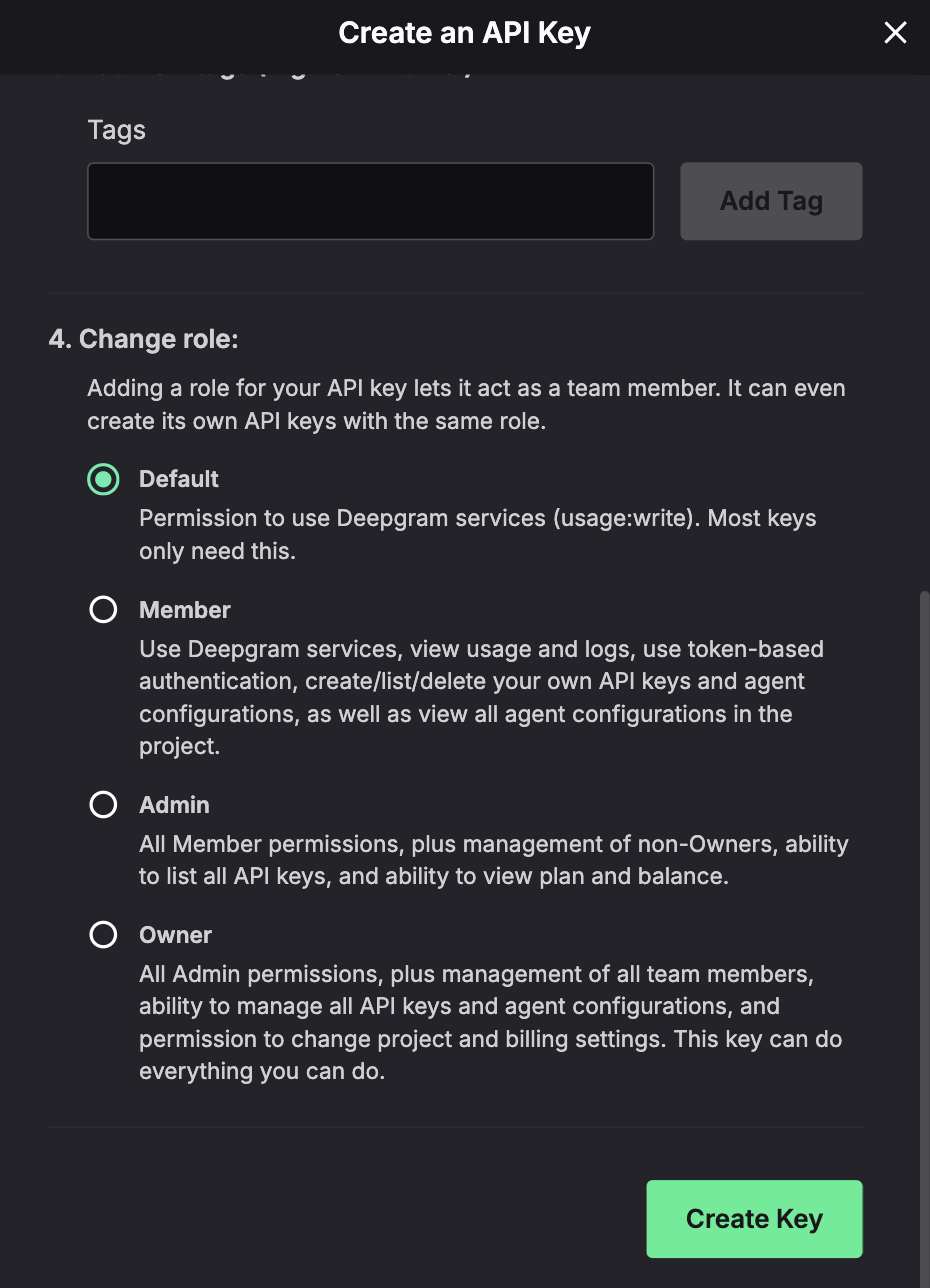
1. In the [Deepgram Console](https://console.deepgram.com), open the **Projects** dropdown (top left), select the project, then go to **Settings** > **API Keys**.
2. Click **Create a New API Key**, name it (e.g. `Probo Access Review`), and choose the **Owner** or **Admin** role so the key carries members-read access across the account. You can optionally set an expiration.
3. Copy the key and store it securely. It's shown only once.
## Step 2: Connect in Probo
1. In Probo, go to **Access Review** > **Connections**.
2. Find **Deepgram**, click **API Key**, paste the key, and click **Connect**.
Probo names the source **Deepgram**. An account may span several projects, so the source keeps its generic name rather than a specific organization or project name.
## Troubleshooting
- **Key rejected.** Confirm it's a Deepgram project API Key with the Owner or Admin role, sent under the Token scheme. Short-lived Bearer access tokens from the token-based Auth API won't work.
- **No members appear.** The key must carry owner or admin scopes so it can enumerate every project and its members. A Member-role or narrowly scoped project key that cannot see all projects is insufficient.
---
Source: https://www.probo.com/docs/product/access-review/directory
# Connector Directory
Probo connects to these providers as access sources. Each guide covers the connection method, the data Probo collects, and the steps to connect.
The connection buttons shown in **Access Review** > **Connections** are the source of truth for the methods available in your deployment. Some providers use OAuth or client credentials even when the guides below focus on API-key connectors.
- [How Probo Protects Integration Credentials](/docs/product/access-review/integration-security) — Encryption, access control, and data handling when you connect API keys or OAuth
- [Amazon Web Services](/docs/product/access-review/aws) — Workload identity (no credentials)
- [Google Cloud](/docs/product/access-review/gcp) — Workload identity (no credentials)
- [Microsoft Azure](/docs/product/access-review/azure) — Workload identity (no credentials)
- [Anthropic](/docs/product/access-review/anthropic) — Claude Console Admin API key
- [OpenAI](/docs/product/access-review/openai) — Organization Admin API key (Read only)
- [OVHcloud](/docs/product/access-review/ovhcloud) — OAuth, or a service account with an account READ policy
- [Resend](/docs/product/access-review/resend) — Full access API key
- [Cursor](/docs/product/access-review/cursor) — Team Admin API key
- [OpenRouter](/docs/product/access-review/openrouter) — Organization Management API key
- [Deepgram](/docs/product/access-review/deepgram) — Owner or Admin project API key
- [Apollo.io](/docs/product/access-review/apollo) — Master API key
- [Cloudflare](/docs/product/access-review/cloudflare) — Scoped API token
- [Scaleway](/docs/product/access-review/scaleway) — IAM API secret key
- [Yousign](/docs/product/access-review/yousign) — Production API key
- [Railway](/docs/product/access-review/railway) — Account API token
- [Crisp](/docs/product/access-review/crisp) — Probo Marketplace plugin
- [Dotfile](/docs/product/access-review/dotfile) — Workspace API key
- [Segment](/docs/product/access-review/segment) — Public API token
- [1Password](/docs/product/access-review/one-password) — SCIM Bridge bearer token
- [Attio](/docs/product/access-review/attio) — OAuth, or an access token with User Management Read
- [authentik](/docs/product/access-review/authentik) — API token plus base URL
- [Better Stack](/docs/product/access-review/better-stack) — Global API token plus team name
- [Brex](/docs/product/access-review/brex) — OAuth (recommended) or Business API key
- [Brevo](/docs/product/access-review/brevo) — Account API key
- [Cal.com](/docs/product/access-review/calcom) — OAuth (recommended) or API key
- [Calendly](/docs/product/access-review/calendly) — OAuth (recommended) or API key
- [ClickHouse Cloud](/docs/product/access-review/clickhouse) — Cloud API key ID and secret
- [GitHub](/docs/product/access-review/github) — OAuth (recommended), GitHub App, or personal access token
- [Grafana](/docs/product/access-review/grafana) — Service account token plus base URL
- [HubSpot](/docs/product/access-review/hubspot) — OAuth (recommended) or private app access token
- [incident.io](/docs/product/access-review/incident-io) — Account-level API key
- [Langfuse](/docs/product/access-review/langfuse) — Organization-scoped API key
- [Mercury](/docs/product/access-review/mercury) — Read Only API token
- [Metabase](/docs/product/access-review/metabase) — Administrators group API key
- [Neon](/docs/product/access-review/neon) — Organization API key
- [Nuki](/docs/product/access-review/nuki) — Nuki Web API token
- [Okta](/docs/product/access-review/okta) — Okta API token plus org domain
- [Pylon](/docs/product/access-review/pylon) — Admin-created API token
- [Qovery](/docs/product/access-review/qovery) — Organization API token
- [Render](/docs/product/access-review/render) — Account API key and workspace ID
- [SendGrid](/docs/product/access-review/sendgrid) — API key with Teammates access
- [SigNoz](/docs/product/access-review/signoz) — Service account API key
- [Slack](/docs/product/access-review/slack) — OAuth (workspace admin or owner)
- [Supabase](/docs/product/access-review/supabase) — Personal access token
- [Tailscale](/docs/product/access-review/tailscale) — API access token
- [Tally](/docs/product/access-review/tally) — User-scoped Tally API key
- [UpCloud](/docs/product/access-review/upcloud) — Main-account API token
- [ElevenLabs](/docs/product/access-review/elevenlabs) — API key with Workspace Members Read
- [New Relic](/docs/product/access-review/new-relic) — User key plus region
- [Retool](/docs/product/access-review/retool) — API access token with the Users Read scope (Enterprise)
- [Twingate](/docs/product/access-review/twingate) — Read-only API token plus network name
- [MongoDB Atlas](/docs/product/access-review/mongodb-atlas) — Service account client ID and secret
:::note
More connectors are being added. A provider not listed yet can still be brought in through a [CSV source](/docs/product/access-review/csv-sources).
:::
---
Source: https://www.probo.com/docs/product/access-review/dotfile
# Dotfile
Probo reads your Dotfile workspace's members through the Dotfile API so you can review who has access.
:::caution
Use a workspace API key (`dotkey.…`) created by a workspace **admin**. A Dotfile API key is workspace wide and Dotfile documents no scopes or permissions on it, so any workspace API key can call the users endpoint. Dotfile hashes and encrypts the key, so copy it when you create it. You cannot recover a lost key and will have to generate a new one.
:::
## Prerequisites
- Probo organization administrator access
- The **admin** role in the Dotfile workspace (Dotfile requires you to be an admin of the workspace to generate API keys)
## Collected Fields
| Probo field | Dotfile field | Notes |
| ----------- | -------------------------------------------------------- | ------------------------------------------------------------- |
| Name | `first_name` and `last_name` | Falls back to the email address |
| Email | `email` | |
| Role | `role` | `owner`, `admin`, `member`, or the name of a custom role |
| Admin | `role` | Flagged as an administrator when `role` is `owner` or `admin` |
| Status | `suspended_at` | Inactive once a suspension timestamp is set |
| MFA | | |
| Last login | | |
| External ID | `id` | Stable identifier used to track the account across reviews |
| Created at | `created_at` | When the user was created in the workspace |
Probo requests suspended users as well as active ones, so a suspended member still appears in the campaign, marked inactive.
## Step 1: Create an API Key
1. In the [Dotfile console](https://app.dotfile.com), signed in as a workspace **admin**, go to **Workspace settings** > **API keys**.
2. Create a new key and give it a name (e.g. `Probo Access Review`). Dotfile documents no scope or permission to set on a key.
3. Copy the key (`dotkey.…`) and store it securely (password manager, secret manager). Dotfile hashes and encrypts it, so you cannot read it again.
## Step 2: Connect in Probo
1. In Probo, go to **Access Review** > **Connections**.
2. Find **Dotfile**, click **API Key**, paste the key, and click **Connect**.
Probo names the source after your Dotfile workspace and pulls its members into your campaigns.
## Troubleshooting
- **Key rejected.** Confirm a workspace admin generated the key and that it has not been replaced since. Probo sends it in the `X-DOTFILE-API-KEY` header, so a key from a different workspace will not authenticate.
- **No members appear.** An API key is workspace wide, so check that it belongs to the workspace you intend to review.
---
Source: https://www.probo.com/docs/product/access-review/elevenlabs
# ElevenLabs
Probo reads your ElevenLabs workspace members through the ElevenLabs API so you can review who has access.
:::caution
Use an API key that carries the **Workspace Members: Read** access (`workspace_members_read`), created under **Developers** > **API Keys**. A key whose scope restriction leaves that permission out is refused when Probo asks for the member list, so the source cannot sync.
:::
## Prerequisites
- Probo organization administrator access
- An ElevenLabs account that can create API keys for the workspace you want to review
- An API key granted the **Workspace Members: Read** permission. ElevenLabs lets you restrict a key to selected endpoints, so select that permission explicitly
- A key that does not expire. ElevenLabs lets a user API key carry an expiry as short as 15 minutes, and a connector whose key expires stops syncing without any change on the Probo side. A service account key, available to multi-seat workspaces, does not expire
## Collected Fields
| Probo field | ElevenLabs field | Notes |
| ----------- | -------------------------------------------------------- | --------------------------------------------------------------------------------------------------------------------------- |
| Name | `first_name` | ElevenLabs stores only a first name. A member who has not set one is listed under their email address |
| Email | `email` | |
| Role | `seat_type`, `is_owner` | `workspace_admin`, `workspace_member` and `workspace_lite_member` map to Workspace Admin, Workspace Member and Workspace Lite Member. An owner also carries Owner, since ownership sits on top of a seat |
| Admin | `is_owner`, `seat_type` | Flagged for the workspace owner and for anyone holding the `workspace_admin` seat |
| Status | `is_locked` | A locked member is listed as inactive. They keep their seat and their history, so they stay in the campaign rather than disappearing from it |
| MFA | | |
| Last login | | |
| External ID | `user_id` | Stable identifier used to track the account across reviews |
| Created at | | |
The members endpoint returns the whole workspace in one response, and that response includes locked members. A campaign therefore covers everyone in the workspace, with no paging to follow.
## Step 1: Create an API Key
1. In the ElevenLabs dashboard, open **Developers** and go to **API Keys**.
2. Click **Create Key** and name it, for example `Probo Access Review`.
3. Under the key's access restrictions, grant **Workspace Members: Read**. Leave the credit quota and IP allowlist as they are unless your policy requires them, and do not set an expiry, or the connector stops syncing when the key expires.
4. Copy the key and store it securely. ElevenLabs shows it only once.
## Step 2: Connect in Probo
1. In Probo, go to **Access Review** > **Connections**.
2. Find **ElevenLabs**, click **API Key**, paste the key, and click **Connect**.
Probo pulls the workspace members into your campaigns.
## Troubleshooting
- **Key rejected.** ElevenLabs refuses a key it will not accept with a `400` and an authentication error, where most APIs answer `401`. Probo treats both as a rejected credential. Check that the key was copied whole and has not been revoked.
- **No members appear.** The key needs the **Workspace Members: Read** permission. A key without it authenticates but cannot read the roster. Edit the key under **Developers** > **API Keys**, or create a new key with the permission selected.
---
Source: https://www.probo.com/docs/product/access-review/gcp
# Google Cloud
Probo reads the identities of one Google Cloud project so you can review who has access. It lists the IAM users, groups, and service accounts of that project. Each source covers a single project, so Probo does not list the other projects in your organization.
Workload Identity Federation is the strongest access pattern Probo uses for your Google Cloud project. You create a read-only service account and keep control of it. Probo never stores Google Cloud service account keys or permanent credentials. The only values it stores are the workload identity provider resource and the service account email, which are not secrets.
:::note
Copy the issuer URL from the connect page instead of retyping it. Google Cloud compares that URL case-sensitively, so one wrong character would stop Probo from exchanging tokens.
:::
## How Access Works
Workload Identity Federation is the pattern Google Cloud recommends for third-party access. There is no long-lived service account key that you would have to download, paste into Probo, or rotate later.
1. You create a Workload Identity Pool and OIDC Provider in your Google Cloud project. Its attribute condition accepts only your Probo organization's issuer and subject.
2. On each sync, Probo signs a token in memory that is valid for five minutes. Google Cloud Security Token Service (STS) exchanges it for a short-lived federated access token, and Probo impersonates the audit service account.
3. The token and the session both stay in memory. Probo never writes them to disk and never stores them with the connector.
4. You can revoke access from Google Cloud at any time. Disable or delete the Workload Identity Pool, provider, or IAM binding, and Probo can no longer request access tokens. Any existing short-lived token expires automatically within the hour.
Google Cloud Audit Logs attributes every API call to your federated principal, so you can attribute each read to your Probo organization.
## Prerequisites
- Permission to create an access source in your Probo organization
- Permission in the Google Cloud project to create a Workload Identity Pool, an OIDC provider, and a service account, so you can apply the Terraform module Probo provides
- The **workload identity provider** resource and the **service account email**, which are the only values you paste into Probo
## Collected Fields
### Users
Probo lists `user:` members on the project IAM policy.
| Probo field | Google Cloud field | Notes |
| ----------- | ------------------------------- | ------------------------------------------------------------------------------------------------------------------------------------------------------------------------------------------------------------- |
| Name | IAM member email | A project binding has no display name, so the email identifies the user |
| Email | `user:` member | The Google account on the binding |
| Role | Project IAM roles | Role names bound to the member |
| Admin | Project IAM roles | Flagged when `roles/owner` is present. Left unknown otherwise, because a custom role can grant the same access |
| Status | Project IAM policy | Unknown, because a user has no enabled flag on the project policy |
| MFA | Admin SDK `isEnrolledIn2Sv` | Enabled when the user has 2-Step Verification. Unknown unless you assign a Users-read admin role to `probo-audit` in the Google Admin console |
| Last login | Cloud Audit Logs Admin Activity | The most recent Admin Activity event for the user. Cloud Logging keeps 90 days of that history, so a user with no action in that window stays empty |
| External ID | IAM principal | `user:`. Stable identifier used to track the account across reviews |
| Created at | — | Google Cloud IAM does not expose a created-at attribute on a project binding |
### Groups
Probo lists `group:` members on the project IAM policy.
| Probo field | Google Cloud field | Notes |
| ----------- | ------------------ | -------------------------------------------------------------------------------------------- |
| Name | IAM member email | A project binding has no display name, so the email identifies the group |
| Email | `group:` member | The group address on the binding |
| Role | Project IAM roles | Role names bound to the group |
| Admin | Project IAM roles | Flagged when `roles/owner` is present. Left unknown otherwise |
| Status | Project IAM policy | Unknown, because a group has no enabled flag on the project policy |
| MFA | — | Not collected, because a group has no 2-Step Verification state |
| Last login | — | Not collected, because a group does not sign in |
| External ID | IAM principal | `group:`. Stable identifier used to track the account across reviews |
| Created at | — | Google Cloud IAM does not expose a created-at attribute on a project binding |
### Service Accounts
Probo lists `serviceAccount:` members on the project policy, plus every service account that lives in the project.
| Probo field | Google Cloud field | Notes |
| ----------- | -------------------------------------------------- | ---------------------------------------------------------------------------------------------------------------------------------------------------------------- |
| Name | Service account `displayName` | Empty when the account has no display name |
| Email | Service account email | |
| Role | Project IAM roles | Empty when the account has no project binding |
| Admin | Project IAM roles | Flagged when `roles/owner` is present. Left unknown otherwise, because a custom role can grant the same access |
| Status | Service account `disabled` | Active when the account is not disabled. Unknown when the account cannot be listed |
| MFA | — | Not collected, because a service account has no 2-Step Verification |
| Last login | Policy Analyzer `serviceAccountLastAuthentication` | Falls back to Admin Activity if Policy Analyzer is denied, and stays empty if there is no activity in the 90-day window |
| External ID | Service account unique ID | Falls back to `serviceAccount:` when the unique ID is missing. Stable identifier used to track the account across reviews |
| Created at | — | Google Cloud IAM does not expose a created-at attribute on a service account listing |
Service accounts with a user-managed key are recorded with an API-key auth method.
Neither MFA nor last login is an attribute on the IAM binding, so Probo reads them from elsewhere in the project. MFA comes from 2-Step Verification in Google Workspace or Cloud Identity, and last login comes from Admin Activity and Policy Analyzer. The Terraform module already grants those project reads. MFA still needs the extra Users-read role in the Google Admin console.
## Step 1: Deploy the Audit Role
The connect page prefills the issuer, the audience, the subject, and a suggested service account name (`probo-audit`). **Install via Terraform** copies a module snippet for `getprobo/audit-role/gcp`. The module creates a Workload Identity Pool, an OIDC provider, and a read-only service account. The account attaches `roles/iam.securityReviewer` and `roles/iam.serviceAccountViewer`, plus `roles/logging.viewAccessor` on the `_Required`/`_AllLogs` view and `roles/policyanalyzer.activityAnalysisViewer`.
1. In Probo, go to **Access Review** > **Connections**.
2. Find **Google Cloud** and click **Workload Identity**.
3. On the **Connect GCP** page, click **Install via Terraform**. The button copies a module snippet for `getprobo/audit-role/gcp`. Paste the issuer URL into it rather than retyping it.
4. Before you apply, enable `iam.googleapis.com`, `cloudresourcemanager.googleapis.com`, `sts.googleapis.com`, `iamcredentials.googleapis.com`, and `logging.googleapis.com` in the project.
5. Apply the module in the project you want to review. When the apply finishes, copy the `workload_identity_provider` and `service_account_email` outputs.
You can also create the pool, provider, and service account yourself. Use the issuer, audience, and subject shown on the connect page. The provider attribute condition must pin `assertion.sub` with exact equality. Do not set `allowed_audiences`: an empty list tells Google Cloud to accept the default provider URL, which is the audience Probo signs.
The module covers one project and does not walk folders or the organization. To review another project, apply the module there and connect another source.
Human identities on the project are Google Workspace or Cloud Identity users. Cloud IAM cannot grant Directory reads, so the module does not cover MFA. After you apply, a Super Admin can assign a Users-read admin role to `probo-audit` in the Google Admin console (**Account** > **Admin roles** > **Assign service accounts**). Probo then reads 2-Step Verification with the same token. If you do not need MFA on this source, skip that step and those accounts stay MFA unknown.
For Cloud de Confiance (S3NS), point the root `google` provider at that universe. The service account email then ends in `.s3ns.iam.gserviceaccount.com`; paste that email so Probo dials `*.s3nsapis.fr`.
## Step 2: Connect in Probo
1. Stay on the **Connect GCP** page. You can also reopen it from **Access Review** > **Connections** > **Google Cloud** > **Workload Identity**.
2. Paste the **Workload identity provider** (for example `projects/123456789012/locations/global/workloadIdentityPools/probo/providers/probo`) and the **Service account email** (for example `probo-audit@PROJECT_ID.iam.gserviceaccount.com`), then click **Connect**.
Probo first names the source with the project number, for example `Google Cloud / 123456789012`. A background worker then replaces that number with the project display name, or with the project ID when Google Cloud returns no name.
## Troubleshooting
- **Probo could not impersonate the audit service account.** Make sure the module is applied in the project you connect, and that the issuer and subject match the values on the connect page. Copy those values rather than retyping them.
- **Workload identity provider rejected.** Probo needs a provider resource, for example `projects/123456789012/locations/global/workloadIdentityPools/probo/providers/probo`. A project ID or a service account email in that field would be refused.
- **Service account email rejected.** Probo needs a service account email, for example `probo-audit@PROJECT_ID.iam.gserviceaccount.com`.
- **MFA stays unknown.** The service account has no Users-read admin role in the Google Admin console. Assign that role if you want MFA on this source, or leave it unknown.
- **Last login stays empty.** The identity has no Admin Activity in the last 90 days, the `_Required` bucket is not in `global`, or the account cannot read that view. If Cloud Logging moved `_Required`, set `required_bucket_location` on the module.
- **The source name still shows the project number.** The worker that resolves the name has not run yet. When it runs, it prefers the project display name, then the project ID.
---
Source: https://www.probo.com/docs/product/access-review/github
# GitHub
Probo reads your GitHub organization's members through the GitHub REST API so you can review who has access. Connecting with **OAuth** is the recommended method and requires no token management. Installing the **GitHub App** is an alternative that isn't tied to one person's GitHub account and also unlocks visibility into fine-grained personal access tokens (see [Service Accounts](#service-accounts)). A personal access token is also available if you would rather not authorize either.
:::caution
If your organization restricts third-party OAuth App access, an owner must grant Probo access before the organization appears in the picker. A GitHub App install is governed separately and isn't affected by that policy, but an organization owner must still approve the install the first time.
:::
## Prerequisites
- Probo organization administrator access
- Membership in the GitHub organization you want to review, since GitHub or a token can only read organizations it belongs to
- If your organization restricts OAuth App access (**Settings** > **Third-party Access** > **OAuth app policy** in the organization), an owner must approve Probo before it appears in the organization picker
- For the GitHub App option: organization owner access the first time the app is installed on your organization
- For the personal access token option: the **Organization** slug, the part of `github.com/`, which the API Key dialog asks for since a token has no picker
## Collected Fields
| Probo field | GitHub field | Notes |
| ----------- | ---------------------- | ------------------------------------------------------------------------------------------------------------------------------------------------------------------------------------------------------------------------------------------------------------------------------------------------------------------------------------------------------------------------------------------------ |
| Name | `name` | Falls back to the member's `login` when the profile has no name set |
| Email | `email` | GitHub keeps a member's email private by default. Probo records whatever the public profile exposes and leaves it empty otherwise |
| Role | `role` | The organization membership role, `admin` or `member` |
| Admin | `role` | Flagged as administrator when `role` is `admin` |
| Status | `state` | Active when the membership `state` is `active`. Pending invitations are not collected |
| MFA | `filter=2fa_disabled` | Reading this requires the connected account to hold the organization owner role. Probo marks MFA Unknown for every member when GitHub rejects that request |
| Last login | Organization audit log | The most recent audited organization event for the member, not a GitHub sign-in. It needs GitHub Enterprise Cloud and the audit log permission, so Probo leaves it empty on other plans and when the token cannot read the log. Probo scans only the 1,000 most recent events, so a member with no activity in that window stays empty. A service account carries its own last-used date instead |
| External ID | `id` | Stable identifier used to track the account across reviews |
| Created at | `created_at` | When the member's GitHub account was created, not when they joined the organization |
Members whose `type` is `Bot` are recorded as service accounts. Probo still records their organization membership role and admin status.
## Service Accounts
Alongside organization members, Probo lists these as service accounts whenever the connected credential can read them:
| Account type | GitHub source | Notes |
| ----------------------------------- | ---------------------------------------------------- | ---------------------------------------------------------------------- |
| Installed GitHub Apps | `GET /orgs//installations` | Requires **Organization Administration: read** |
| Fine-grained personal access tokens | `GET /orgs//personal-access-tokens` | GitHub App connections only; requires **Personal access tokens: read** |
| SAML-authorized credentials | `GET /orgs//credential-authorizations` | GitHub Enterprise Cloud organizations with SAML SSO only |
| Deploy keys | Repository deploy keys (GraphQL) | Requires **Repository Administration: read** |
Each category is optional: Probo omits it rather than failing the review when the connected credential lacks the permission. Fine-grained personal access tokens are visible only through a GitHub App connection — GitHub does not expose that endpoint to OAuth or classic-token requests.
## Connect GitHub
### Option A: Connect with GitHub (recommended)
1. In Probo, go to **Access Review** > **Connections**.
2. Find **GitHub** and click **OAuth**. When your deployment also offers the GitHub App, **OAuth** sits in the menu behind the arrow next to the **GitHub App** button.
3. Authorize Probo on GitHub. Probo requests the **`read:org`** scope.
4. On the new source row, pick your organization from the **Select organization** dropdown.
If the dropdown shows **GitHub returned no organizations**, click **Review Probo's access**, ask an organization owner to approve Probo under **Organization Settings** > **Third-party Access** > **OAuth app policy**, then reopen the dropdown.
### Option B: GitHub App
1. In Probo, go to **Access Review** > **Connections**.
2. Find **GitHub** and click **GitHub App**.
3. Sign in to GitHub and authorize Probo.
4. If the app isn't installed on an organization you can access yet, GitHub sends you to its install page. Pick your organization, review the requested repository access, and click **Install**. If it's already installed and accessible to your account, Probo skips this step and connects immediately.
5. Back in Probo, confirm the organization on the new source row. GitHub App installs are scoped to one organization, so only that entry appears in the **Select organization** dropdown.
### Option C: Personal Access Token
1. In GitHub, signed in as a member of the organization, go to **Settings** > **Developer settings** > **Personal access tokens** > **Fine-grained tokens**, and create one scoped to the organization with the **Members** organization permission set to **Read-only**. A classic token (**Tokens (classic)**) with the **`read:org`** scope also works.
2. Copy the token and store it securely. GitHub shows it only once.
3. In Probo, go to **Access Review** > **Connections** and find **GitHub**. Click **API Key** on that row. When your deployment also offers OAuth or the GitHub App, **API Key** sits in the menu behind the arrow next to that button.
4. Paste the token, enter your **Organization** (the slug from `github.com/`), and click **Connect**.
Probo names the source after your GitHub organization and pulls its members into your campaigns.
## Troubleshooting
- **The organization picker is empty.** When an organization restricts third-party OAuth App access, GitHub omits it from `GET /user/orgs` until an owner approves Probo. Click **Review Probo's access** on the source row, or ask an owner to approve Probo under **Organization Settings** > **Third-party Access** > **OAuth app policy**.
- **Token rejected or no members appear.** Confirm the token has the `read:org` scope (classic) or the **Members: Read-only** permission (fine-grained), and that it belongs to a member of the organization entered in **Organization**.
- **The GitHub App connection fails right after authorizing.** This happens when the app is installed on more than one organization your GitHub account can access — Probo cannot tell which one you meant. Uninstall it from the organizations you don't want to connect, or connect via OAuth or a personal access token instead.
- **MFA shows Unknown for every member.** Reading two-factor status requires the connected account to hold the organization owner role. Probo falls back to Unknown for the whole review when GitHub rejects that request.
- **Emails are empty.** GitHub keeps a member's email private by default. Probo cannot read an email the member has not made public.
- **A pending invitation is missing.** GitHub's members endpoint only returns current organization members. Probo does not collect pending invitations.
---
Source: https://www.probo.com/docs/product/access-review/grafana
# Grafana
Probo reads the members of your Grafana organization through the Grafana HTTP API so you can review who has access.
:::caution
Use a **service account token** (`glsa_…`) created inside the Grafana instance you want to review, on a service account that holds the **Admin** role. A Grafana Cloud **Access Policy** token created in the Cloud Portal will **not** work, because Grafana Cloud Access Policies do not authorize access to the Grafana instance HTTP API.
:::
## Prerequisites
- Probo organization administrator access
- Admin rights in Grafana, or the `fixed:roles:reader` and `fixed:serviceaccounts:creator` roles that Grafana requires to create a service account. Both fixed roles exist wherever Grafana role-based access control does, in Grafana Enterprise and Grafana Cloud
- A service account that can read the organization users endpoint. Grafana documents `GET /api/org/users` as accessible to users with the org admin role, through the RBAC action `org.users:read` on scope `users:*`, so the **Admin** role covers it. On Grafana Cloud or Grafana Enterprise, a narrower role that carries that action reads the endpoint too. Probo also calls `GET /api/org` to name the source, and that endpoint needs `orgs:read`
- The **Base URL** of the Grafana instance Probo should review, which the Connect dialog asks for alongside the token. It is the root URL you sign in to. On Grafana Cloud it has the form `https://.grafana.net`, and the Cloud Portal shows it after you select the stack and click **Details** on the **Grafana** tile. Include the subpath when Grafana is served from one, for example `https://example.com/grafana`
## Collected Fields
| Probo field | Grafana field | Notes |
| ----------- | -------------------------------------------------------- | ---------------------------------------------------------------------------------------------------------------------------------------------------------------------------------------------------------------------------------------------------------------------------------------------------- |
| Name | `name` | Probo leaves it empty when the user has no name set in Grafana |
| Email | `email` | Falls back to `login` when the user has no email address. Probo skips a user with neither |
| Role | `role` | The organization role, such as `Viewer`, `Editor` or `Admin`. Grafana returns one role per user |
| Admin | `role` | Probo flags the account as an administrator when `role` is `Admin`. The comparison ignores case |
| Status | `isDisabled` | Probo lists the user as inactive when `isDisabled` is true. Grafana always sends the field on this endpoint, so the status is unknown only when a response omits it |
| MFA | | |
| Last login | `lastSeenAt` | The last time Grafana saw the user active. Grafana sets it to roughly ten years in the past when it creates a user, so someone who has never signed in shows a Last login about ten years old rather than a blank one. Probo leaves it empty when the field is empty or is not an RFC 3339 timestamp |
| External ID | `userId` | Stable identifier Probo uses to track the account across reviews |
| Created at | | |
## Step 1: Create a Service Account Token
1. In Grafana, signed in with **Admin** rights, click **Administration** in the left-side menu, then **Users and access** > **Service accounts** > **Add service account**.
2. Enter a **Display name** (e.g. `Probo Access Review`), click **Create**, then assign the **Admin** role with the role picker on the service account page.
3. Click **Add service account token**, enter a token name, optionally check **Set expiration date**, and click **Generate token**.
4. Copy the token (`glsa_…`) and store it securely.
## Step 2: Connect in Probo
1. In Probo, go to **Access Review** > **Connections**.
2. Find **Grafana**, click **API Key**, paste the service account token, enter your **Base URL** (the root URL of that same Grafana instance), and click **Connect**.
Probo names the source after your Grafana organization and pulls its members into your campaigns.
## Troubleshooting
- **Token rejected.** Confirm it is a service account token (`glsa_…`) created inside the Grafana instance itself, and that the **Base URL** points at that same instance. A Grafana Cloud Access Policy token created in the Cloud Portal does not authorize access to the Grafana instance HTTP API.
- **No members appear.** Reading the organization users endpoint requires the org admin role, or the `org.users:read` action on scope `users:*` where Grafana role-based access control is available. A service account left on Viewer or Editor with no such role gets a permission error instead of the member list. Assign it the **Admin** role with the role picker and connect again.
- **Members of another organization are missing.** A service account token belongs to one Grafana organization, and Probo reads the members of that organization only. Add one Probo source per Grafana organization.
- **Base URL rejected.** It must be an `http` or `https` URL with a host, for example `https://acme.grafana.net`. Probo calls the instance from its own servers, so it cannot connect to a Grafana that is only reachable on a private network.
---
Source: https://www.probo.com/docs/product/access-review/hubspot
# HubSpot
Probo reads your HubSpot account's users through the Settings Users, CRM Owners, and Account Activity APIs so you can review who has access. Connecting with **Connect** (OAuth) is the recommended method and requires no token management. A private app access token is also available if you would rather not authorize an OAuth app.
## Prerequisites
- Probo organization administrator access
- The **Super Admin** permission in HubSpot (only super admins can create and manage private apps, and OAuth authorization asks for the same access)
## Collected Fields
| Probo field | HubSpot field | Notes |
| ----------- | -------------------------------------------------------- | ------------------------------------------------------------------------------------------------------------------------------------------ |
| Name | `firstName`, `lastName` | Falls back to the user's email when neither name is set |
| Email | `email` | |
| Role | `roleId`, `roleIds` | Resolved to role names through the Roles API; `Super Admin` is added when `superAdmin` is true; falls back to `User` when nothing resolves |
| Admin | `superAdmin` | |
| Status | `archived` (CRM Owners) | Inactive when the user matches an owner record with `archived` true; otherwise active |
| MFA | | HubSpot's APIs expose no MFA field |
| Last login | `loginAt` (Account Activity, successful logins only) | Covers the past 90 days. Left empty when the token has no `account-info.security.read` scope |
| External ID | `id` (Settings Users), or `userIdIncludingInactive` | Stable identifier used to track the account across reviews |
| Created at | | |
The Settings Users API has no status field, so Probo cross-references the CRM Owners API's archived list to mark deactivated users inactive. A deactivated user who no longer appears in Settings Users at all is still surfaced, taken from the archived owners list directly.
## Connect HubSpot
### Option A: Connect with HubSpot (recommended)
1. In Probo, go to **Access Review** > **Connections**.
2. Find **HubSpot** and click **OAuth**.
3. Sign in as a super admin and authorize Probo on the HubSpot account you want to review. Probo requests the **`settings.users.read`**, **`crm.objects.owners.read`**, and **`account-info.security.read`** scopes.
### Option B: Private App Access Token
1. In HubSpot (signed in as a super admin), go to **Settings** > **Integrations** > **Private Apps**, and click **Create a private app**.
2. Name it (e.g. `Probo Access Review`), open the **Scopes** tab, and add the read scopes **`settings.users.read`**, **`crm.objects.owners.read`**, and **`account-info.security.read`**.
3. Click **Create app**, confirm, and copy the access token (`pat-…`). It's shown only once.
4. In Probo, go to **Access Review** > **Connections** and find **HubSpot**. Click **API Key** on that row. When your deployment also offers OAuth, **API Key** sits in the menu behind the arrow next to the **OAuth** button.
5. Paste the token and click **Connect**.
Probo names the source after your HubSpot account and pulls its users into your campaigns.
## Troubleshooting
- **Key rejected.** Confirm the private app was created by a super admin and grants all three scopes above; a token missing `settings.users.read` or `crm.objects.owners.read` cannot list users.
- **Last login is always empty.** The token or OAuth authorization is missing the `account-info.security.read` scope. Probo leaves Last login empty rather than failing the review when that scope is absent.
- **A deactivated user still shows Active.** Probo only flags a user inactive when a matching CRM Owners record has `archived` set to true. A user removed by another method that HubSpot has not yet archived as an owner may still appear active until HubSpot updates that record.
---
Source: https://www.probo.com/docs/product/access-review/incident-io
# incident.io
Probo reads your incident.io organization's users through the incident.io API so you can review who has access.
:::caution
Use an **API key** created in **Settings** > **API keys** and give it **account-level** permission to view users. Probo reads `GET /v2/users`, which incident.io documents as requiring the `users.view` scope. A key with only **team-scoped** permissions will **not** work. The team-scoped permission set covers team resources such as schedules, workflows and catalog entries, not the account's users.
:::
## Prerequisites
- Probo organization administrator access
- An incident.io plan that includes the API. incident.io lists API and webhooks on the Team, Pro and Enterprise plans, but not on Basic
- The **Manage API keys** permission in incident.io, at the account level or the team level (only a user who holds it can create a key)
- Permission to view users on your own incident.io account (you can only grant a key permissions you already hold)
## Collected Fields
| Probo field | incident.io field | Notes |
| ----------- | -------------------------------------------------------- | ------------------------------------------------------------------------------------------------------------------------------------------------------------------------------------------------ |
| Name | `name` | Falls back to the email address when the user has no name |
| Email | `email` | A user returned without an email address is skipped |
| Role | `base_role.name`, `custom_roles[].name` | The base role is listed first, then each custom role. A user with neither falls back to the deprecated `role` enum, mapped to Owner, Administrator, Responder or Viewer; `unset` maps to no role |
| Admin | `base_role.slug` | Flagged as an administrator when the base role slug is `owner` or `administrator`. A user with no base role falls back to the deprecated `role` enum, read the same way |
| Status | | |
| MFA | | |
| Last login | | |
| External ID | `id` | Stable identifier used to track the account across reviews |
| Created at | | |
The users endpoint returns no account status and no sign-in or creation timestamps, so those fields stay empty.
## Step 1: Create an API Key
1. In the [incident.io dashboard](https://app.incident.io/~/settings/api-keys), go to **Settings** > **API keys**. You need the **Manage API keys** permission, at the account level or the team level.
2. Create a key and name it (e.g. `Probo Access Review`).
3. Grant it **account-level** permission to view your organization's users. Team-scoped permissions alone are not enough, and you can only grant permissions you hold yourself.
4. Copy the token and store it securely. incident.io shows it only once.
## Step 2: Connect in Probo
1. In Probo, go to **Access Review** > **Connections**.
2. Find **incident.io**, click **API Key**, paste the token, and click **Connect**.
Each key belongs to a single incident.io organization, so Probo pulls that organization's users into your campaigns. Because the users endpoint does not return an organization name, the source keeps the generic name **incident.io**.
## Troubleshooting
- **Key rejected.** `GET /v2/users` requires the `users.view` scope, so the key needs account-level permission to view users. Adjust its permissions in **Settings** > **API keys**, or create a new key that has them.
- **Cannot create a key.** You need the **Manage API keys** permission, at the account level or the team level. The API is also a Team, Pro or Enterprise plan feature, so upgrade first if you are on Basic.
- **No users appear.** Confirm the key has account-level permissions and not only team-scoped ones. Probo also skips any user that incident.io returns without an email address.
- **A role looks outdated.** incident.io froze its original `role` field in March 2023 and replaced it with `base_role` and `custom_roles`. Probo reads the live roles first and falls back to the frozen field only for a user that has neither, so an old Owner, Administrator, Responder or Viewer label means that user has no RBAC role. Assign one in incident.io and the next sync picks it up.
---
Source: https://www.probo.com/docs/product/access-review/integration-security
# How Probo Protects Integration Credentials
When you connect an access source with an API key or OAuth, you authorize Probo to call the provider on your behalf. This page explains what happens to those credentials, what data Probo collects, and the controls in place on **Probo Cloud**. If you self-host Probo, see [Self-hosted deployments](#self-hosted-deployments) for operator responsibilities.
## What you connect
Access reviews support these connection methods:
- **OAuth.** When a provider offers **OAuth** on the **Connections** page, you approve Probo on the provider's consent screen. Probo stores OAuth tokens needed to refresh access, not your provider password. OAuth availability depends on the provider and deployment configuration.
- **API key.** You create a token on the provider and paste it into Probo when you connect it. Use the least-privilege token each connector guide describes.
- **Workload identity.** Used by [Amazon Web Services](/docs/product/access-review/aws). You create a read-only IAM role in your AWS account, and Probo assumes it with a short-lived token that it signs in memory. The only value Probo stores is the Role ARN, which is not a secret.
- **CSV.** No live credential is stored; you upload an export for tools Probo cannot connect to directly.
For OAuth and API key flows, Probo must hold credentials that can be used again on each sync or campaign. That is why those credentials are **encrypted at rest**, not hashed like a password. Workload identity holds no such credential, so it needs no encrypted credential blob.
## Data flow
The sequence diagram below follows the same lifecycle as the numbered steps that follow. Messages read top to bottom within each section. **CSV** uploads skip credential storage, and workload identity stores only a Role ARN. The connect, store, and sync path applies to OAuth and API keys.
## Credential lifecycle
1. **Submission.** You connect a source over HTTPS from the Probo console. Organization administrators (and roles with equivalent connector permissions) can create connectors; viewers can see that a connector exists but never receive stored secret values.
2. **Encryption before storage.** API keys, OAuth access and refresh tokens, and client secrets are serialized and encrypted with **AES-256-GCM** using a deployment encryption key. Each connector row stores the result in an **encrypted credential blob** with its own random nonce. Non-secret settings (for example a Crisp website ID) stay in separate configuration fields.
3. **No echo back.** Listing connectors in the UI or API returns metadata only: connector id, provider, OAuth scopes where relevant, and creation time. Stored keys and tokens are not shown again after setup.
4. **Use on demand.** Probo decrypts a credential only inside the application when it must authenticate an authorized request to the provider, for example during an access review sync. Listing connectors for display does not decrypt credentials.
5. **Disconnect and delete.** Removing a source deletes the connector record and its encrypted credential from Probo. Disconnecting also stops new fetches from that integration. Revoke or rotate the token on the provider side as well so the old credential cannot be reused outside Probo.
Some integrations use a **deployment-managed token** (for example the Crisp marketplace plugin). In that model Probo does not copy the shared plugin token into your organization's stored connection. Instead you approve an app installation at the provider, and Probo confirms that installation with the provider before the connection completes. Check the connector guide for your provider.
## Credential encryption
Integration credentials receive application-level field encryption using AES-256-GCM and a random nonce for each encrypted credential blob. The encryption key is stored separately from application data.
This matches the safeguards described in our [Privacy Policy](https://www.probo.com/privacy): encryption in transit, encryption at rest, and **row-level AES-256** for sensitive fields where applicable.
Probo is not zero-knowledge: the service must process credentials to run integrations. The design goal is to **minimize exposure** (no re-display of secrets, decrypt only when needed, strict access control) and to **separate** the encryption key from the encrypted data.
For network isolation, data-at-rest encryption, key custody, and backups, see [Probo Cloud Infrastructure Security](/docs/deployment/infrastructure-security).
## Access control and tenant isolation
- Connectors belong to your **organization**. Database access and authorization checks are scoped to your tenant.
- **Owners and administrators** can create, reconnect, and delete connectors. **Viewers** can list connectors but cannot manage credentials.
- Successful connector changes are subject to the same organization **audit logging** model as other sensitive actions. Engineering standards treat credentials and tokens as data that must not appear in logs; report a concern to [security@probo.com](mailto:security@probo.com) if you believe a secret was exposed.
## What Probo collects from providers
For access reviews, Probo collects **membership metadata** the provider exposes: name, email, role, admin flag, account status, MFA state, and last login where available. It does not aim to copy full account dumps or unrelated product data. See [What Probo Collects](/docs/product/access-review/overview#what-probo-collects) on the overview page.
**Integration Data** is used only to operate the features you enable. We do not use it for advertising, resale, credit decisions, ad profiles, or training generalized AI models. Details are in the [Privacy Policy](https://www.probo.com/privacy) (Integration Data section).
## Recommendations before you connect
- Use **workload identity** for Amazon Web Services. For other providers, prefer **OAuth** when the **Connections** page offers it.
- Create a **dedicated, scoped** API token per provider (read-only where the guide allows). Avoid global or personal keys when a scoped token exists.
- Store the token in a password manager until you paste it once into Probo; do not share it in chat or email.
- **Rotate or revoke** at the provider when someone leaves or the integration is unused, then delete the source in Probo or reconnect with a new token.
- Review who has **administrator** access in your Probo organization; those users can manage connectors.
Some provider APIs do not offer a read-only or narrowly scoped credential for listing accounts. Their connector guides call this out explicitly. When a broad credential is required, use a dedicated account where the provider permits it, rotate the credential on a schedule, and remove the source when the review is no longer needed.
## Network Restrictions
Some providers can restrict API credentials to specific source IP addresses. For **Probo Cloud**, allowlist the [public egress address](/docs/deployment/ip-ranges) for your region, or leave the restriction disabled. For a **self-hosted deployment**, allowlist the fixed egress addresses configured by your infrastructure operator.
An IP restriction that does not include the deployment's outbound address causes the connector test or campaign fetch to fail even when the credential itself is valid.
## Self-hosted deployments
When you run Probo yourself, **you** operate the encryption key, HTTPS ingress, database, object storage, backups, and access to production systems. Configure the required `encryption-key` in probod settings; it encrypts sensitive data at rest the same way as Probo Cloud's application layer. See [Configuration file](/docs/deployment/configuration/config-file#encryption-key) and [Self-hosting](/docs/deployment/self-hosting/docker-compose).
Connector OAuth application IDs and secrets for each provider are also deployment configuration in self-hosted setups, not customer-pasted values in every case.
## Related documentation
- [Access Reviews overview](/docs/product/access-review/overview)
- [Connector directory](/docs/product/access-review/directory)
- [Amazon Web Services](/docs/product/access-review/aws)
- [Public egress IP addresses](/docs/deployment/ip-ranges)
- [Probo Cloud Infrastructure Security](/docs/deployment/infrastructure-security)
- [Privacy Policy](https://www.probo.com/privacy)
- [Compliance Portal](https://compliance.probo.com)
---
Source: https://www.probo.com/docs/product/access-review/langfuse
# Langfuse
Probo reads your Langfuse organization's members through the organization-scoped public API so you can review who has access.
:::caution
Create an **organization-scoped API key** from your organization's settings, not a project API key from a project's settings. Langfuse issues both kinds as the same `pk-lf-` public key and `sk-lf-` secret key pair, so the prefix does not tell you which kind you hold. The settings page you created the key on is the only way to tell. The organization memberships endpoint rejects a project key with `Invalid API key. Organization-scoped API key required for this operation.` Paste the pair into Probo as a single `pk-lf-…:sk-lf-…` string, public key first, because Langfuse authenticates it as an HTTP Basic credential.
:::
## Prerequisites
- Probo organization administrator access
- The **Owner** role in the Langfuse organization (Langfuse grants `organization:CRUD_apiKeys` to Owner only, so an Admin, Member or Viewer cannot create the key)
- A Langfuse plan that includes the organization management API, which Langfuse gates behind the `admin-api` entitlement. On Langfuse Cloud that means **Enterprise**, or **Pro with the Teams add-on**; self-hosting requires the **Enterprise Edition**. Hobby, Core and plain Pro do not have it, and neither does the open source or the self-hosted Pro edition. The pricing page lists no Team tier, because the add-on is bought on top of Pro. Once it is active the organization badge reads **Team** and an **API Keys** tab appears in organization settings, which is how you confirm the entitlement before going further. Without it Langfuse hides that tab and the memberships endpoint answers `This feature is not available on your current plan.` If your organization is on a legacy or individually negotiated plan, confirm the entitlement with Langfuse.
- The **Base URL** of the Langfuse instance you are reviewing, which the Connect dialog asks for alongside the key. On Langfuse Cloud it is the host you sign in to: `https://cloud.langfuse.com` (EU), `https://us.cloud.langfuse.com` (US), `https://jp.cloud.langfuse.com` (Japan) or `https://hipaa.cloud.langfuse.com` (HIPAA). A self-hosted instance uses its own deployment URL. Enter the host on its own, without the `/api/public` path
## Collected Fields
| Probo field | Langfuse field | Notes |
| ----------- | -------------------------------------------------------- | ----------------------------------------------------------------------------------------------------------------------- |
| Name | `name` | Falls back to the email address |
| Email | `email` | A membership with no email address is skipped |
| Role | `role` | `OWNER` → Owner, `ADMIN` → Admin, `MEMBER` → Member, `VIEWER` → Viewer, `NONE` → None. Any other value is kept verbatim |
| Admin | `role` | Flagged as an administrator when `role` is `OWNER` or `ADMIN` |
| Status | | |
| MFA | | |
| Last login | | |
| External ID | `userId` | Stable identifier used to track the account across reviews |
| Created at | | |
The memberships endpoint returns one record per organization member, with no filter on the role. Collaborators who work in a single project are still organization members with the organization role `None`, so they appear in the review as well. The endpoint does not return pending invitations.
## Step 1: Create an Organization-Scoped API Key
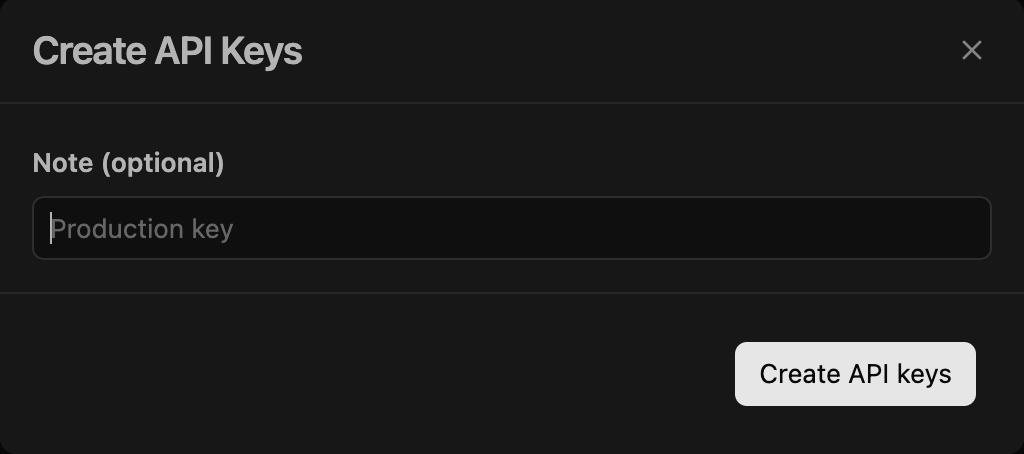
1. In Langfuse, signed in as an organization **Owner**, open the organization you want to review and click **Settings** in the sidebar to reach **Organization Settings**.
2. Open the **API Keys** tab and click **Create new API keys**.
3. Fill in **Note (optional)** (e.g. `Probo Access Review`) and click **Create API keys**.
4. Copy the **Public Key** and the **Secret Key** and store them securely. Langfuse shows the secret key only once and displays a masked version after that.
## Step 2: Connect in Probo
1. In Probo, go to **Access Review** > **Connections**.
2. Find **Langfuse**, click **API Key**, paste the two keys as one `pk-lf-…:sk-lf-…` string (public key, a colon, then the secret key) into the API key field, enter your **Base URL** (the Langfuse host you sign in to, or your self-hosted deployment URL), and click **Connect**.
Probo names the source **Langfuse** and pulls your organization's members into your campaigns. The memberships endpoint carries no organization name, so the source keeps that generic name.
## Troubleshooting
- **No API Keys tab in organization settings.** Langfuse shows the tab only when the organization's plan includes the organization management API and you hold the **Owner** role. Check both before creating the key.
- **Key rejected.** Confirm you created the key on the organization settings page rather than on a project's settings page, that you pasted both halves as `pk-lf-…:sk-lf-…` with the colon in between, and that the **Base URL** is the same Langfuse host you created the key on. Each cloud region is a separate deployment, so a key from one host does not authenticate against another.
- **"This feature is not available on your current plan."** The organization management API is gated on the plan, not on the key. Langfuse grants the `admin-api` entitlement to Langfuse Cloud **Enterprise**, to **Pro with the Teams add-on**, and to a self-hosted **Enterprise Edition** deployment. Move the Langfuse organization onto a qualifying plan, or confirm the entitlement with Langfuse, then connect again. If the organization cannot move onto one of those plans, review its members through a [CSV access source](/docs/product/access-review/csv-sources) instead.
- **No members appear.** An organization-scoped key is bound to the organization you created it in and lists only that organization's members. Create the key inside the organization you want to review.
---
Source: https://www.probo.com/docs/product/access-review/mercury
# Mercury
Probo reads your Mercury organization's users through the Mercury API so you can review who has access.
:::caution
Use a **Read Only** API token, and paste it with its `secret-token:` prefix. Probo sends the token as `Authorization: Bearer `, which matches the form Mercury documents: `Authorization: Bearer secret-token:...`. A **Read and Write** token is refused from any IP address outside the whitelist it requires, and a **Custom** token can only call the scopes granted when it was created, so neither one reliably reaches the users endpoint.
:::
## Prerequisites
- Probo organization administrator access
- A Mercury user with permission to create API tokens. An admin on the Mercury account controls that permission, and a user without it sees no way to create a token
- The Mercury organization you want to review. A token is bound to the organization it is created in, so switch to that organization before opening its settings
## Collected Fields
| Probo field | Mercury field | Notes |
| ----------- | -------------------------------------------------------- | ------------------------------------------------------------------------------------------------------------------------------------------------------------------------------------------------------------------------ |
| Name | `firstName`, `lastName` | Joined with a space. Falls back to the email address when both are empty |
| Email | `email` | |
| Role | `organizationRole` | `administrator` becomes Administrator, `bookkeeper` becomes Bookkeeper, `customUser` becomes Custom User, `cardOnlyUser` becomes Card Only User, and `employee` becomes Employee. An unrecognized value is kept verbatim |
| Admin | `organizationRole` | Flagged as an administrator when `organizationRole` is `administrator` |
| Status | | |
| MFA | | |
| Last login | | |
| External ID | `userId` | Stable identifier used to track the account across reviews |
| Created at | | |
Mercury returns every member of the organization on one endpoint. Probo skips a record that arrives without an email address.
## Step 1: Create a Read Only API Token
1. In [Mercury](https://app.mercury.com/settings/tokens), click your organization at the top left, click **All Settings**, and open **Tokens** in the left navigation.
2. Click **Create an API Token**, enter a **Nickname** such as `Probo Access Review`, set **Permissions** to **Read Only**, then click **Create Token**. A **Read Only** token can fetch all available data on the account and requires no IP whitelist.
3. Copy the token, including its `secret-token:` prefix, and store it securely. Mercury does not show it again once the dialog closes.
## Step 2: Connect in Probo
1. In Probo, go to **Access Review** > **Connections**.
2. Find **Mercury**, click **API Key**, paste the token, and click **Connect**.
Mercury's users endpoint carries no organization name, so the source keeps the generic name **Mercury**. Probo pulls the organization's users into your campaigns.
## Troubleshooting
- **Token rejected.** Paste the token with its `secret-token:` prefix, since Probo sends it as `Authorization: Bearer `. A sandbox token is rejected as well: Probo calls `api.mercury.com`, and a token created in the sandbox belongs to the separate `api-sandbox.mercury.com` environment.
- **The Tokens page offers no way to create a token.** The signed-in user does not hold the permission. An admin on the Mercury account can grant it or create the token instead.
- **No users appear, or the wrong ones do.** A token is bound to the organization it was created in, so create it from the **All Settings** > **Tokens** page of the organization you want to review. A **Custom** token also reaches only the scopes granted at creation, and those cannot be edited afterwards.
- **The source stops syncing after a quiet period.** Mercury deletes a token that goes unused for 45 days and emails account admins seven days beforehand. Create a new token and reconnect the source.
---
Source: https://www.probo.com/docs/product/access-review/metabase
# Metabase
Probo reads the people in your Metabase instance through the Metabase API so you can review who has access.
:::caution
Assign the key to the **Administrators** group. A Metabase API key has exactly the permissions of the group it is assigned to, and the endpoint Probo reads returns the people list to an administrator only. A key left in **All Users** returns a permission error instead of the member list. Probo authenticates with the `X-API-Key` header, so a session token from `POST /api/session` is not an alternative.
:::
## Prerequisites
- Probo organization administrator access
- Membership of the **Administrators** group in Metabase (only an administrator can open Admin settings and create an API key)
- Metabase 49 or later, the release that added API keys
- The **Instance URL**, which the Connect dialog asks for alongside the key. It is the base URL you open Metabase with: an `http://` or `https://` address, such as `https://example.metabaseapp.com` on Metabase Cloud, or your own hostname when self-hosted. Probo calls that address directly, so it has to be reachable from the internet
## Collected Fields
| Probo field | Metabase field | Notes |
| ----------- | -------------------------------------------------------- | ---------------------------------------------------------------------------------------------------------------------------------------------------------------------------------------- |
| Name | `common_name` | Metabase builds it from the first and last name and falls back to the email address when both are unset. Probo joins `first_name` and `last_name` when the response has no `common_name` |
| Email | `email` | |
| Role | `is_superuser` | Probo reports `Admin` when `is_superuser` is true and `User` otherwise. Probo does not collect Metabase group membership |
| Admin | `is_superuser` | Probo marks the account as an administrator when `is_superuser` is true |
| Status | `is_active` | Probo requests every status, so it lists deactivated people alongside active ones and marks them inactive |
| MFA | | |
| Last login | `last_login` | When the person last signed in. Empty for a person who has never signed in |
| External ID | `id` | Stable identifier Probo uses to track the account across reviews |
| Created at | `date_joined` | When the account was created in Metabase |
Probo skips accounts that have no email address.
## Step 1: Create an API Key
1. In Metabase, signed in as a member of the **Administrators** group, go to **Admin** > **Settings** > **Authentication** > **API keys** (`/admin/settings/authentication/api-keys` on your instance).
2. Click **Create an API key**, enter a **Key name** (e.g. `Probo Access Review`), and set **Group this key should belong to** to **Administrators**.
3. Click **Create**, copy the key (`mb_…`), and store it securely. Metabase does not show it again.
## Step 2: Connect in Probo
1. In Probo, go to **Access Review** > **Connections**.
2. Find **Metabase**, click **API Key**, paste the key, enter your **Instance URL** (the base address of your Metabase, e.g. `https://example.metabaseapp.com`), and click **Connect**.
Probo names the source after your Metabase site name and pulls its people into your campaigns.
## Troubleshooting
- **Key rejected.** Confirm the key is assigned to the **Administrators** group, and that nobody has regenerated it since you pasted it. Regenerating a key in the **Edit API key** dialog replaces the previous value.
- **Probo cannot reach the instance.** Paste the base address only. A URL copied from a Metabase page, such as one ending in `/admin/settings/authentication`, sends the sync to the wrong endpoint. A self-hosted instance that is only reachable on a private network or behind a VPN cannot be synced.
- **No API keys page under Authentication.** Metabase added API keys in version 49, so upgrade an older instance first. If your instance shows no dedicated page, scroll to the **API Keys** block on the **Authentication** page and click **Manage**.
- **No members appear.** Check the key's group first, because the people list is restricted to administrators. Probo also skips any account that has no email address.
---
Source: https://www.probo.com/docs/product/access-review/mongodb-atlas
# MongoDB Atlas
Probo reads your MongoDB Atlas organization through the Atlas Administration API so you can review who has access. The roster covers the organization's human members, its service accounts and its programmatic API keys. The last two are non-human principals that hold organization roles of their own, up to and including Organization Owner.
:::caution
Use a **service account** created inside the Atlas organization you want to review, and connect with its **Client ID** and **Client Secret**. The legacy public and private **API key** pair will **not** work for connecting, because it authenticates with HTTP Digest rather than the OAuth2 client-credentials grant this connector uses. Those API keys are still *reviewed*: they appear in the roster alongside your members and service accounts.
The client secret expires, and its lifetime is fixed when the secret is created. The **Client Secret Expiration** menu offers durations from 8 hours to 365 days and starts on 90 days. The maximum comes from your organization's settings, and the duration cannot be changed once the secret exists. When the secret expires the source stops syncing. Probo cannot swap the secret on an existing client-credentials connection, so renewing it means generating a new secret on the same service account, deleting the Probo source, and connecting again.
:::
## Prerequisites
- Probo organization administrator access
- The **Organization Owner** role in Atlas. Creating a service account requires it
- A service account in the organization you want to review, granted the **Organization Read Only** permission. It covers every call Probo makes, so a wider role is not needed
- The service account's **Client ID** and **Client Secret**. Atlas shows the secret once, on the screen that creates it
- A secret lifetime that outlasts your review cycle. Atlas allows up to 365 days, capped by your organization's settings, and will not extend an existing secret
## Collected Fields
| Probo field | MongoDB Atlas field | Notes |
| ----------- | -------------------------------------------------------- | ---------------------------------------------------------------------------------------------------------------------------------------------------------------------------------------------------- |
| Name | `firstName`, `lastName`, service account `name`, API key `desc` | Atlas returns neither name for an invitation that has not been accepted, and Probo leaves the field empty rather than substituting the email address. An API key with no description falls back to its public key |
| Email | `username` | Atlas has no separate email field on a member record: `username` is the email address. A service account and an API key have none |
| Role | `roles.orgRoles`, `roles.groupRoleAssignments[].groupRoles`, service account `roles`, API key `roles[].roleName` | Roles carry the labels the Atlas console shows, such as Organization Owner, Organization Project Creator, Organization Billing Admin, Organization Billing Viewer, Organization Stream Processing Admin, Organization Read Only and Organization Member. Project roles such as Project Owner are listed after the organization roles, deduplicated and without naming the project |
| Admin | `roles.orgRoles`, service account `roles`, API key `roles[].roleName` | Flagged for **Organization Owner** alone. Owning a project administers that project rather than the organization, so it does not count |
| Status | `orgMembershipStatus` | `ACTIVE` is listed as active, and every other membership status is listed as inactive. Atlas exposes no enabled or disabled state for a service account or an API key, so Probo has no status to read for those and lists them as active |
| MFA | | |
| Last login | `lastAuth`, service account `secrets[].lastUsedAt` | When the member last authenticated. For a service account, the most recent use of any of its secrets. A secret that has never been used carries no timestamp and is skipped. An API key exposes no last use, so the field stays empty for one |
| External ID | `id`, service account `clientId`, API key `id` | Stable identifier used to track the account across reviews |
| Created at | `createdAt` | When MongoDB Cloud created the account, or when the service account was created. An invitation that has not been accepted carries `invitationCreatedAt` instead, the date the invitation was sent, and Probo reads that in its place. An API key exposes no creation date, so the field stays empty for one |
An invitation that has not been accepted stays in the roster. Atlas reports it with a membership status of `PENDING`, and Probo lists it as inactive rather than dropping it, because an access review should catch an invitation left open to someone who has left. Probo asks Atlas for the active and the pending members, which is what the endpoint returns by default, so an invitation that has expired or been rejected stays out of the roster.
Probo reports no multi-factor state and no authentication method for an Atlas account. The Atlas Administration API reports neither on a member record, so a campaign cannot say whether a member signs in through your identity provider or with a password, and cannot show whether multi-factor authentication is on.
Probo never asks for an organization ID. An Atlas service account belongs to exactly one organization, so Probo resolves it from the credential itself and names the source after that organization.
## Step 1: Create a Service Account
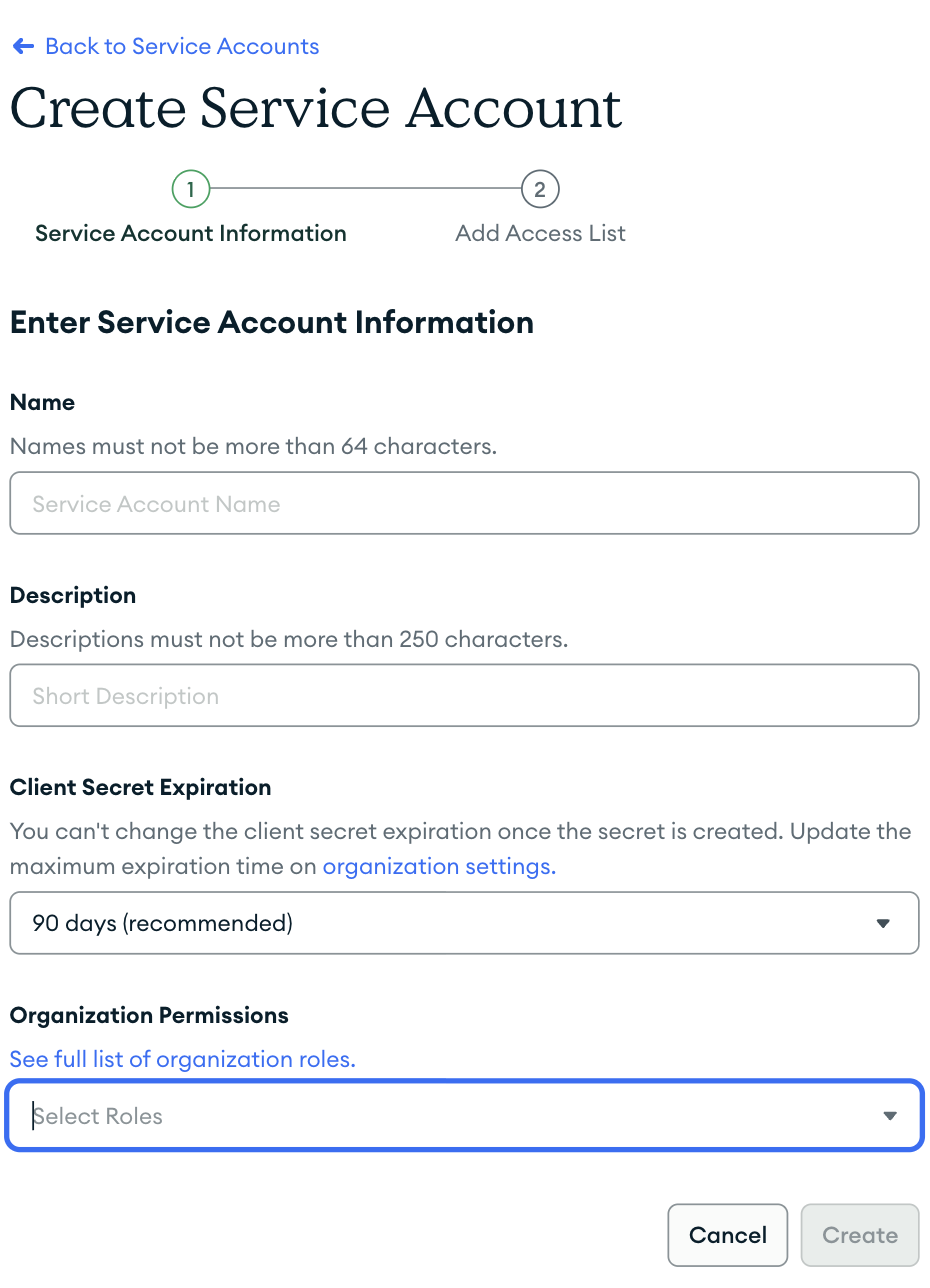
1. In the Atlas console, select the organization you want to review from the **Organizations** menu, then click **Applications** in the sidebar, under **Identity & Access**.
2. Click **Add new** > **Service Account** to open the **Create Service Account** wizard, and give the account a **Name**, for example `Probo Access Review`, and a **Description**.
3. Select a duration from the **Client Secret Expiration** menu. It starts on 90 days and runs to 365 days, capped by your organization's settings. The value cannot be changed once the secret exists, so choose the longest duration your policy allows.
4. From the **Organization Permissions** menu, select **Organization Read Only**.
5. Click **Create**, then copy the **Client ID** and the **Client Secret**. The secret is shown only on this screen.
6. The second step of the wizard, **Add Access List**, takes IP addresses and CIDR blocks. Leave it empty unless your organization requires an access list, in which case it has to cover the addresses Probo calls from. Atlas turns that requirement on for organizations created through its console.
## Step 2: Connect in Probo
1. In Probo, go to **Access Review** > **Connections**.
2. Find **MongoDB Atlas**, click **Client Credentials**, paste the **Client ID** and the **Client Secret**, leave **Scope** empty, and click **Connect**.
Probo names the source after your Atlas organization and pulls its members, service accounts and API keys into your campaigns.
## Troubleshooting
- **Credentials rejected.** Confirm both halves were copied whole, that the service account still exists, and that the client secret has not passed its expiry. A public and private API key pair is not a service account and cannot authenticate here.
- **A source that worked stops syncing.** The client secret reached the expiry chosen when it was created. Generate a new client secret on the same service account in Atlas, on its **Service Accounts** page under **Applications**, then delete the Probo source and connect again with it, since a client-credentials connection cannot take a new secret in place.
- **Every call is refused although the credential is valid.** Check the service account's **API Access List**. Atlas answers 403 to a request from any address outside it, even though the token itself can be minted from anywhere, and the organization setting **Require IP Access List for the Atlas Administration API** makes an access list mandatory. Atlas turns that setting on for every organization created through its console. Either turn it off and leave the list empty, or add Probo's addresses to it: the [egress address](/docs/deployment/ip-ranges) for your region on Probo Cloud, or your deployment's fixed egress addresses when self-hosted.
- **The source syncs nothing and keeps a generic name.** Probo expects the credential to reach exactly one organization, and gives up when it reaches none or several. Create the service account inside the organization you want to review, and check that it still holds an organization permission there.
- **No members appear.** The service account needs at least **Organization Read Only**. One holding a narrower permission, or none at all, can still mint a token, but Atlas refuses the reads and the sync fails rather than returning an empty roster.
---
Source: https://www.probo.com/docs/product/access-review/neon
# Neon
Probo reads your Neon organization's members through the Neon API so you can review who has access.
:::caution
Create an **organization API key** from the organization's **Settings** > **API keys** page in the Neon Console. Only an organization admin can create one. A **project-scoped API key** will **not** work, because it cannot perform organization-related actions such as reading the member list.
:::
## Prerequisites
- Probo organization administrator access
- The **Admin** role in the Neon organization (only organization admins can create an organization API key)
- The **Organization ID**, which the Connect dialog asks for alongside the key. Neon shows it on the organization's **Settings** page, under **General information**, in the form `org-example-12345678`
## Collected Fields
| Probo field | Neon field | Notes |
| ----------- | -------------------------------------------------------- | -------------------------------------------------------------------------------------------------------------------------------------------------------------------------------------------------------------------------------------------------------------- |
| Name | `user.email` | The members endpoint exposes no display name, so the email address is used |
| Email | `user.email` | |
| Role | `member.role` | `admin` and `member`, Neon's two organization roles, are shown as Admin and Member, and `editor`, `viewer` and `collaborator` as Editor, Viewer and Collaborator. Any other value is shown as Neon returns it, and a member with no role is listed without one |
| Admin | `member.role` | Flagged as an administrator when `role` is `admin`, matched without regard to case |
| Status | `user.deactivated_at` | Listed as active when Neon omits the field, and as inactive when Neon returns a deactivation timestamp |
| MFA | `user.has_mfa` | Neon reports whether the member has multi-factor authentication enabled. Left unknown when the field is absent |
| Last login | | |
| External ID | `member.user_id` | Stable identifier used to track the account across reviews. Falls back to `member.id`, the membership ID, when Neon returns no user ID |
| Created at | `member.joined_at` | When the member joined the organization |
Probo skips any member Neon returns without an email address.
## Step 1: Create an Organization API Key
1. In the [Neon Console](https://console.neon.tech), signed in as an organization **Admin**, switch to the organization you want to review and go to **Settings** > **API keys**.
2. Click **Create new** and name the key (e.g. `Probo Access Review`). Leave it as an organization key, which covers all of the organization's resources; do not select **Project-scoped**.
3. Copy the key and store it securely. Neon displays the token only once, and a lost key has to be revoked and replaced.
## Step 2: Connect in Probo
1. In Probo, go to **Access Review** > **Connections**.
2. Find **Neon**, click **API Key**, paste the key, enter your **Organization ID**, and click **Connect**.
Probo names the source after your organization and pulls its members into your campaigns.
## Troubleshooting
- **Key rejected.** Neon answers a missing, invalid or revoked key with a 401. Confirm the key was created on the organization's **Settings** > **API keys** page and is still listed there.
- **No members appear.** Check that the **Organization ID** matches the organization the key belongs to. A project-scoped key reaches only its own project and cannot read organization members.
- **A collaborator is missing.** Someone invited to a single project is a project collaborator, not an organization member, so the members endpoint does not return them. Review those people on the project's **Collaborators** list instead.
---
Source: https://www.probo.com/docs/product/access-review/new-relic
# New Relic
Probo reads your New Relic organization's users through NerdGraph so you can review who has access.
:::caution
Use a **user key**, created under **API keys** in the user menu. A **license key** or an **ingest key** will **not** work, because those authenticate telemetry sent to New Relic rather than queries made against it. The user key also has to belong to someone who can read user management, which in New Relic means the **Authentication Domain Manager** role.
:::
## Prerequisites
- Probo organization administrator access
- A New Relic user who can read user management for the organization. New Relic requires two things together: a **Core** or **Full platform** user, holding the **Authentication Domain Manager** role. A key created by an account missing either one authenticates but cannot list the organization's users
- A user key created by that account
- The **Region** your New Relic account is in: `us`, `eu` or `jp`. NerdGraph runs one endpoint per region and refuses a key presented to any other one, and the key itself does not say which region it belongs to
## Collected Fields
| Probo field | New Relic field | Notes |
| ----------- | -------------------------------------------------------- | ------------------------------------------------------------------------------------------------------------------------------------------------------ |
| Name | `name` | A user with no name is listed under their email address |
| Email | `email` | |
| Role | group `displayName` | New Relic keeps what a user may do in the groups they belong to, so the groups are the roles. The user type (Basic, Core, Full platform) is not collected as a role: New Relic documents it as a billing factor and states it is not a way to set permissions |
| Admin | group `displayName` | Flagged for members of New Relic's built-in **Admin** group, matched exactly. A custom group with a similar name grants nothing by that fact alone, so it is not treated as administrative |
| Status | | |
| MFA | | |
| Last login | `lastActive` | When the user was last active in New Relic. Empty for a user who has never signed in |
| External ID | `id` | Stable identifier used to track the account across reviews |
| Created at | | |
Probo reads every authentication domain in the organization, so a campaign covers users who sign in with a password as well as users who sign in through your identity provider.
## Step 1: Create a User Key
1. In New Relic, open the user menu and go to **API keys**.
2. Click **Create a key** and choose **User** as the key type.
3. Name the key, for example `Probo Access Review`, and create it.
4. Copy the key and store it securely.
## Step 2: Connect in Probo
1. In Probo, go to **Access Review** > **Connections**.
2. Find **New Relic**, click **API Key**, paste the key, fill in **Region (us, eu or jp)** with the region the key's New Relic account is in, and click **Connect**.
Probo names the source after your New Relic organization and pulls its users into your campaigns.
## Troubleshooting
- **Key rejected.** Confirm the key is a user key, not a license or ingest key, and that it has not been deleted.
- **Connection refused after the key is accepted.** This is usually the wrong **Region**. Each endpoint refuses a key belonging to another region's account. Reconnect with the region that matches the account the key came from.
- **No members appear.** Listing the organization's users needs both a Core or Full platform account type and the **Authentication Domain Manager** role. Ask a New Relic administrator to grant whichever is missing to the key's owner, or to create the key from an account that has both.
---
Source: https://www.probo.com/docs/product/access-review/nuki
# Nuki
Probo uses the Nuki Web API to read the users of your Nuki Web account together with the device authorizations attached to them, so you can review who has access. Authorizations that belong to no account user, such as keypad codes, fobs and bridges, appear as service accounts without an email address. An account user Nuki records as a company is listed as a service account too, but keeps its name and email. Nuki exposes no administrator flag on an account user, so Probo marks no Nuki account as an administrator.
:::caution
Use a **Nuki Web API token** generated in Nuki Web under the **API** menu, one that grants at least the **View and manage account** and **View and manage authorizations** rights. A **Nuki Bridge HTTP API token** does not work, because the Bridge API only controls devices locally through a bridge and never reaches the Nuki Web API at `api.nuki.io`.
:::
## Prerequisites
- Probo organization administrator access
- Access to the Nuki Web account you want to review. An API token reaches only the devices registered in its own Nuki Web account, so add one Probo source per account
- The Nuki Web API activated on that account. The **API** menu in Nuki Web first shows the Terms of Use of the Nuki APIs behind an **Activate Nuki Web API** button, and the token options appear once the API is active
- A token granting the **View and manage account** and **View and manage authorizations** rights, which Nuki's API reference calls the `account` and `smartlock.auth` scopes. The account users endpoint requires both rights, and the smartlock authorizations endpoint requires `smartlock.auth`. The **View devices** right (`smartlock.readOnly`) is optional and only lets Probo read the device list to name the roles after your smart locks
## Collected Fields
| Probo field | Nuki field | Notes |
| ----------- | -------------------------------------------------------- | ------------------------------------------------------------------------------------------------------------------------------------------------------------------------------------------------------------------------------------------------------------------------------------------------------------------------------------------------------------------------------------------------------------------------------------------------------------------------------------------------------------------------------------------------------------------------------------------------------------------ |
| Name | `name` | The account user's name. When it is empty, Probo falls back to the email address, then to the account user ID. For an authorization listed as a service account, Probo uses the authorization name, then a label for its type, such as Keypad code or Fob |
| Email | `email` | The account user's email address. An authorization listed as a service account carries no email in the Nuki response, so the field stays empty |
| Role | `smartlockId`, `remoteAllowed`, `type` | Nuki has no role field, so Probo builds the role list from the device authorizations. Each contributes the smart lock's `name` when the token can read the device list, otherwise `Smartlock` followed by the numeric smart lock ID. When the authorization is tied to no smart lock, Probo uses the authorization type (App, Bridge, Fob, Keypad, Keypad code, Z-Key, or Virtual; any other value reads `Authorization`). Probo adds `Remote access` when any authorization allows remote access, then removes duplicates and sorts the result alphabetically. An account user with no authorization gets no role |
| Admin | Not exposed by Nuki | Nuki has no administrator flag on an account user or an authorization. Probo records every account as not an administrator rather than leaving the field blank |
| Status | `enabled`, `allowedUntilDate` | An authorization counts as inactive when `enabled` is false, or when `allowedUntilDate` is already in the past. An account user is active when at least one of its authorizations is, and inactive when none is. The status is unknown for an account user that holds no authorization. A service account carries the status of its own authorization |
| MFA | | |
| Last login | `lastActiveDate` | The most recent activity date across the account user's authorizations. It is the last activity Nuki recorded on an authorization, not a Nuki Web sign-in. Probo leaves it empty when no authorization carries a valid RFC 3339 timestamp |
| External ID | `accountUserId` | Stable identifier used to track the account across reviews. An authorization listed as a service account uses its own `id` instead, or `authId` when `id` is empty |
| Created at | `creationDate` | When the account user was created, or when the authorization was created for a service account |
## Step 1: Create an API Token
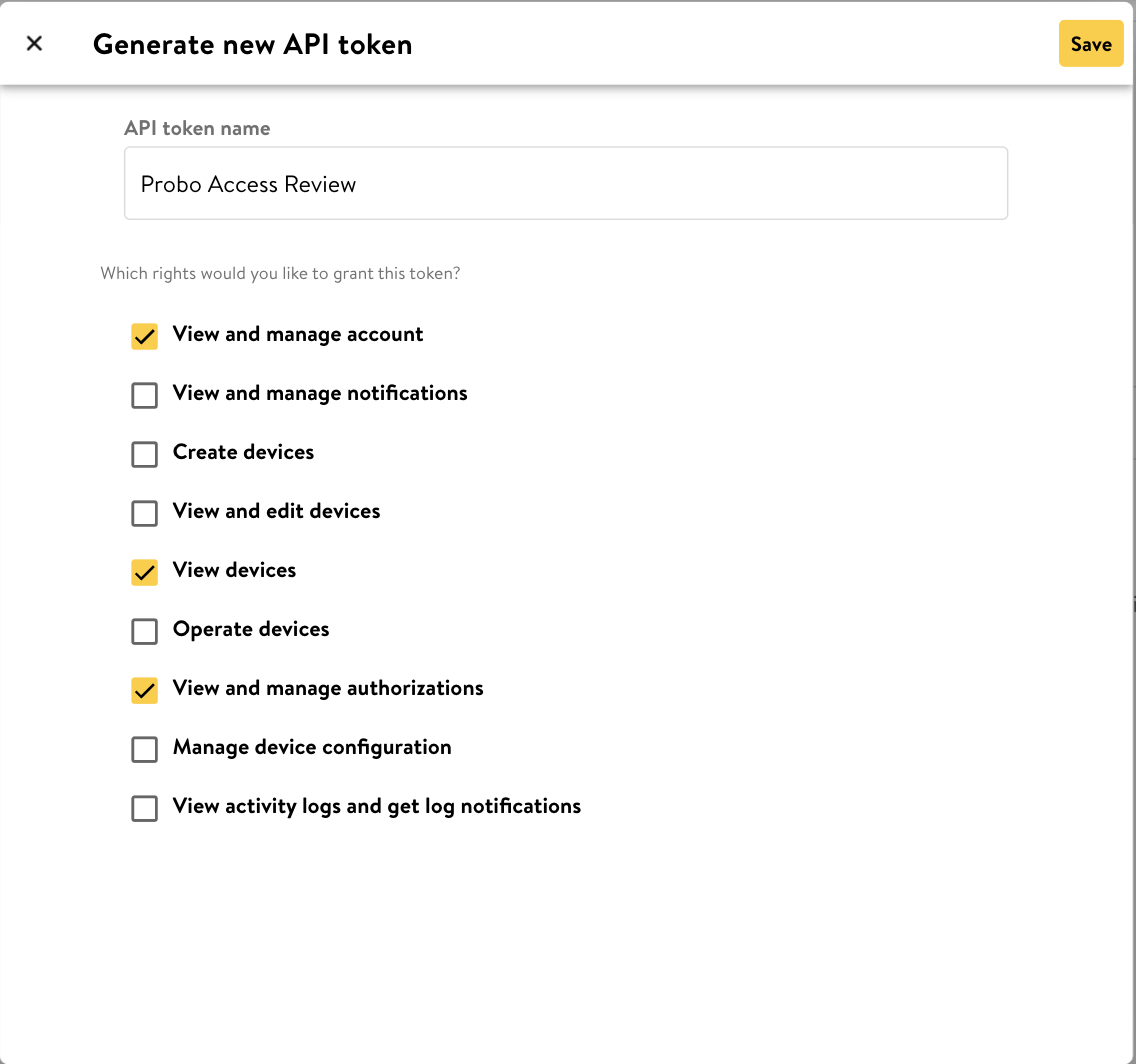
1. Sign in to [Nuki Web](https://web.nuki.io) with the account whose devices and users you want to review.
2. In the left-side menu, open **API**. The first time, tick **I have read and accept the Terms of Use APIs** and click **Activate Nuki Web API**.
3. Under **API tokens**, click **Generate API token** and fill in the **API token name** (e.g. `Probo Access Review`).
4. Under **Which rights would you like to grant this token?**, Nuki checks every right by default. Leave **View and manage account** and **View and manage authorizations** checked, keep **View devices** so roles carry smart lock names instead of numeric IDs, and clear the rest.
5. Click **Save**, then copy the token and store it securely. Nuki does not let you retrieve the token again after it is created.
## Step 2: Connect in Probo
1. In Probo, go to **Access Review** > **Connections**.
2. Find **Nuki**, click **API Key**, paste the API token, and click **Connect**.
Probo names the source after the name on your Nuki Web account and pulls its account users and device authorizations into your campaigns.
## Troubleshooting
- **Token rejected.** Confirm the token is a Nuki Web API token generated under the **API** menu in Nuki Web. Nuki documents that API tokens do not expire, but that they are destroyed when the password of the Nuki Web account changes. A lost token cannot be retrieved, so generate a new one and connect again.
- **No users appear.** Reading the account users and the device authorizations requires the **View and manage account** and **View and manage authorizations** rights. Rights are fixed when the token is generated, so generate a new token with both rights and connect again.
- **Roles read `Smartlock` followed by a number.** Probo could not read the device list, which needs the **View devices** right. The sync still runs without it, and roles fall back to the numeric smart lock ID. Generate a token that carries that right to see the smart lock names.
- **Status and Last login are empty for a user.** Probo derives both from device authorizations. A Nuki Web user who holds no authorization on any device has no status and no last activity date.
- **Accounts appear without an email address.** These are device authorizations that belong to no Nuki Web user, such as keypad codes, fobs and bridges. Probo lists them as service accounts, named after the authorization or after its type.
- **The sync fails intermittently.** Nuki rate limits the Web API and rejects further requests until the limit expires. It does not publish the thresholds, so retry the sync later.
---
Source: https://www.probo.com/docs/product/access-review/okta
# Okta
Probo reads your Okta org's users through the Okta Users API so you can review who has access.
:::caution
Create an **Okta API token** in the Admin Console under **Security** > **API** > **Tokens**. Probo sends it with Okta's `SSWS` authorization scheme, so an OAuth 2.0 access token issued by your org authorization server will **not** work. An API token also carries the permissions of the admin who created it and is rejected once that admin is deactivated, so create it from an account that stays active.
:::
## Prerequisites
- Probo organization administrator access
- An Okta admin role that can create tokens. Okta allows super admins, org admins, group admins, group membership admins, and read-only admins to create them
- An admin who can view **Users**, because the token inherits that admin's permissions
- Your **Okta Domain**, which the Connect dialog asks for alongside the token. Okta has no central API gateway, so every org authenticates against its own host, such as `acme.okta.com`, `acme.oktapreview.com`, `acme.okta-emea.com`, or a custom domain. Click your username in the upper right corner of the Admin Console and the domain appears in the dropdown
## Collected Fields
| Probo field | Okta field | Notes |
| ----------- | -------------------------------------------------------- | ---------------------------------------------------------------------------------------------------------------------------------------------------------------------------------------------------------------------- |
| Name | `profile.displayName` | Falls back to `profile.firstName` and `profile.lastName` joined with a space |
| Email | `profile.email` | Falls back to `profile.login`. A user with neither is skipped |
| Role | | |
| Admin | | |
| Status | `status` | `SUSPENDED` and `DEPROVISIONED` are listed as inactive. `ACTIVE`, `PROVISIONED`, `STAGED`, `RECOVERY`, `PASSWORD_EXPIRED`, and `LOCKED_OUT` are listed as active. A user Okta returns without a status is left unknown |
| MFA | | |
| Last login | `lastLogin` | The user's last sign-in to Okta. Left empty when Okta returns `null` |
| External ID | `id` | Stable identifier used to track the account across reviews |
| Created at | `created` | When the user was created in the Okta org |
The users endpoint does not return role assignments, so Probo records no role and flags no account as an administrator.
## Step 1: Create an API Token
1. In the Okta Admin Console, signed in as an admin who can view **Users**, go to **Security** > **API** > **Tokens**.
2. Click **Create token** and name the token in **What do you want your token to be named?** (e.g. `Probo Access Review`).
3. For Probo Cloud, restrict the token to the [egress IP](/docs/deployment/ip-ranges) for your region, or set **API calls made with this token must originate from** to **Any IP**. For a self-hosted deployment, allowlist that deployment's fixed egress addresses in an Okta network zone. Click **Create token**, then copy the token value and store it securely. Okta shows it only once.
## Step 2: Connect in Probo
1. In Probo, go to **Access Review** > **Connections**.
2. Find **Okta**, click **API Key**, paste the token, enter your **Okta Domain** (the org host, for example `acme.okta.com`), and click **Connect**.
Probo names the source after your Okta org and pulls its users into your campaigns.
## Troubleshooting
- **Token rejected.** Confirm it is an Okta API token created under **Security** > **API** > **Tokens** rather than an OAuth 2.0 access token, and that the **Okta Domain** is the host of the org that issued it. A token authenticates only against its own org.
- **A token that used to work stops working.** An Okta API token is valid for 30 days from its creation or its last use, so a token unused for 30 days expires. Okta also rejects a token once the admin who created it is deactivated. Create a new one from an account that stays active.
- **No users appear.** The token carries the permissions of the admin who created it, so it must come from an admin who can view Users. For Probo Cloud, the token's network condition must allow the [Cloud egress IP](/docs/deployment/ip-ranges) for your region, or **Any IP**. For a self-hosted deployment, it can instead allowlist that deployment's fixed egress addresses.
- **Deactivated users are missing.** Okta's users endpoint omits users whose status is `DEPROVISIONED` unless the request carries a filter or search query, and Probo sends neither, so accounts you deactivated in Okta do not reach the campaign.
---
Source: https://www.probo.com/docs/product/access-review/one-password
# 1Password
Probo reads your 1Password account's members through the 1Password SCIM Bridge so you can review who has access.
:::caution
Use the **bearer token** that 1Password issues when you set up automated user provisioning, and pair it with the bridge it was issued for. A token from another 1Password integration, such as Events Reporting, will **not** work, because the bridge accepts only the bearer token generated alongside its own `scimsession` file.
:::
## Prerequisites
- Probo organization administrator access
- The **owner** or **administrator** role in a 1Password **Business** account (automated user provisioning requires both the plan and the role)
- Automated user provisioning already in place, either hosted by 1Password or on a SCIM bridge you deployed yourself
- The **SCIM Bridge URL**, which the Connect dialog asks for alongside the token. Enter the bridge address with no path, for example `https://scim.example.com`, the form 1Password's own identity provider guides ask for. Probo appends `/scim/v2/Users` to it. For provisioning hosted by 1Password, the setup page shows a **SCIM URL** such as `https://provisioning.1password.com/scim/v2`, so drop the `/scim/v2` suffix and enter `https://provisioning.1password.com`
## Collected Fields
| Probo field | 1Password field | Notes |
| ----------- | -------------------------------------------------------- | -------------------------------------------------------------------------------------------------- |
| Name | `displayName` | Falls back to `name.formatted`, then to `name.givenName` and `name.familyName` joined with a space |
| Email | `userName` | Falls back to the primary address in `emails`. A user with neither is skipped |
| Role | | |
| Admin | | |
| Status | `active` | Listed as inactive when `active` is false, including when the response omits the field |
| MFA | | |
| Last login | | |
| External ID | `id` | Stable identifier used to track the account across reviews |
| Created at | `meta.created` | When the account was created. Left empty when the value is not an RFC 3339 timestamp |
A SCIM user record has a `meta.lastModified` timestamp, but that timestamp records the last change to the profile rather than a sign-in, so Probo does not report it as a last login. Probo reads no role from the SCIM record either, so it flags no account as an administrator.
## Step 1: Create a Bearer Token
1. In [1Password.com](https://start.1password.com), signed in as an **owner** or **administrator**, select **Integrations** in the sidebar, then your identity provider in the **User Provisioning** section.
2. Complete the provisioning setup. For provisioning hosted by 1Password, select **Set up hosted provisioning**. For a self-hosted bridge, choose your deployment platform and follow 1Password's deployment guide for it.
3. Copy the **bearer token** that 1Password issues at the end of setup and store it securely. 1Password recommends saving the credentials in 1Password. You deploy a self-hosted bridge with the `scimsession` file that 1Password generates together with the token, so keep both.
## Step 2: Connect in Probo
1. In Probo, go to **Access Review** > **Connections**.
2. Find **1Password**, click **API Key**, paste the bearer token, enter your **SCIM Bridge URL** (the address of the bridge that token was issued for, with no path), and click **Connect**.
Probo names the source **1Password** and pulls the account's members into your campaigns.
## Troubleshooting
- **Token rejected.** The bridge accepts only the bearer token paired with the `scimsession` file it runs with, so a token from an earlier setup or from a different 1Password integration fails. Selecting **Regenerate Credentials** on the 1Password **Integrations** page issues a new pair, so reconnect with the new token.
- **No members appear.** Probo lists the users the bridge returns on its `/scim/v2/Users` endpoint and skips any record without an email address. Confirm the bridge is healthy and that the URL you connected is the one your identity provider provisions against.
- **SCIM Bridge URL rejected.** The URL must use `http` or `https` and include a host, for example `https://scim.example.com`. Probo calls the bridge from its own servers, so you cannot connect a bridge that is reachable only on a private network.
- **No account is flagged as an administrator.** Probo reads no role from the SCIM user records, so Role and Admin stay empty for every member. Review who holds the owner and administrator roles in the 1Password console instead.
- **The provisioning setup is unavailable.** Automated user provisioning is a 1Password **Business** feature, and only an owner or an administrator can set it up. On a lower plan, upgrade first.
---
Source: https://www.probo.com/docs/product/access-review/openai
# OpenAI
Probo reads your OpenAI organization's members through the Admin API so you can review who has access.
:::caution
Use an **Admin API key** (`sk-admin-…`) created in the OpenAI API platform. A standard project key (`sk-proj-…`) will **not** work.
:::
## Prerequisites
- Probo organization administrator access
- The **Owner** role in an OpenAI organization (only owners can create Admin API keys)
## Collected Fields
| Probo field | OpenAI field | Notes |
| ----------- | -------------------------------------------------------- | ---------------------------------------------------------- |
| Name | `name` | |
| Email | `email` | |
| Role | `role` | `owner` → Owner, `reader` → Reader, otherwise Member |
| Admin | `role` | Flagged as an administrator when `role` is `owner` |
| Status | `disabled` | Disabled members are shown as inactive |
| MFA | | |
| Last login | | |
| External ID | `id` | Stable identifier used to track the account across reviews |
| Created at | `added_at` | When the member joined the organization |
## Step 1: Create an Admin API Key
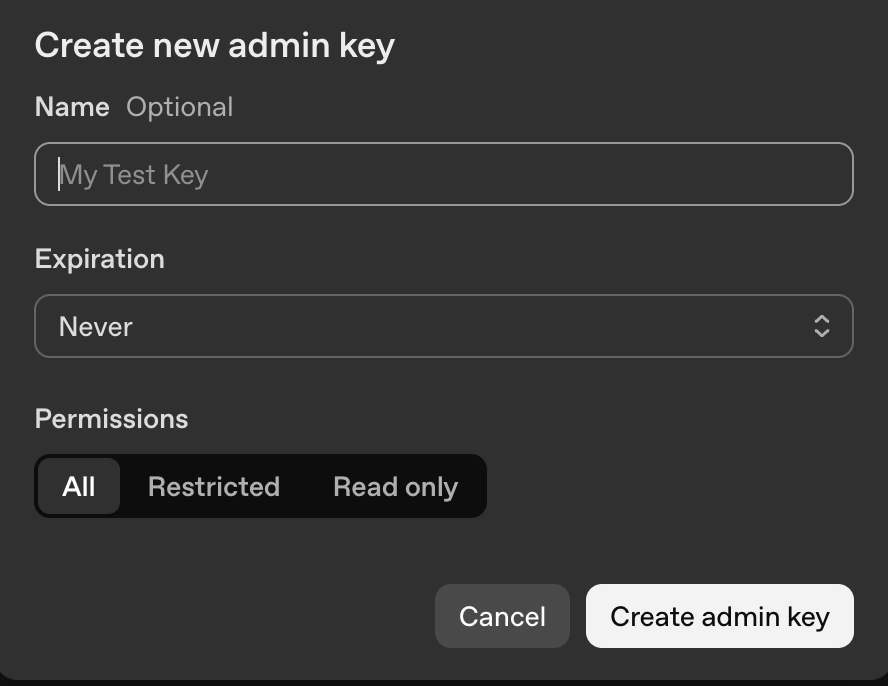
1. In the [OpenAI API platform](https://platform.openai.com/settings/organization/admin-keys), go to **Settings** > **Admin keys** as an organization **Owner**.
2. Click **Create new Admin key**, name it (e.g. `Probo Access Review`), and set **Permissions** to **Read only**, since Probo only reads your members.
3. Copy the key (`sk-admin-…`) and store it securely. It's shown only once.
## Step 2: Connect in Probo
1. In Probo, go to **Access Review** > **Connections**.
2. Find **OpenAI**, click **API Key**, paste the key, and click **Connect**.
Probo names the source after your organization and pulls its members into your campaigns.
## Troubleshooting
- **Key rejected.** Confirm it's an admin key (`sk-admin-…`) with at least **Read only** permission. A project key (`sk-proj-…`) won't work.
- **No members appear.** The key must be created by an organization **Owner** and belong to the organization you're reviewing.
---
Source: https://www.probo.com/docs/product/access-review/openrouter
# OpenRouter
Probo reads your OpenRouter organization's members through the organization members API so you can review who has access.
:::caution
Use an organization **Management API key** (`sk-or-v1-…`) created at `openrouter.ai/settings/management-keys`. A **personal inference API key** will **not** work, because it is not an organization-owned management key and cannot list organization members.
:::
## Prerequisites
- Probo organization administrator access
- The **organization admin** (`org:admin`) role in OpenRouter (mint the management key from within the organization)
- An OpenRouter **organization** (create one under **Settings** > **Preferences** before creating the key; this requires a verified email address)
## Collected Fields
| Probo field | OpenRouter field | Notes |
| ----------- | -------------------------------------------------------- | ------------------------------------------------------------------------------ |
| Name | `first_name` `last_name` | Combined into a full name; falls back to the email when neither is set |
| Email | `email` | The member's email address |
| Role | `role` | `org:admin` maps to Admin, `org:member` maps to Member, otherwise the raw role |
| Admin | `role` | Flagged as an administrator when `role` is `org:admin` |
| Status | | |
| MFA | | |
| Last login | | |
| External ID | `id` | Stable identifier used to track the account across reviews |
| Created at | | |
## Step 1: Create an API Key
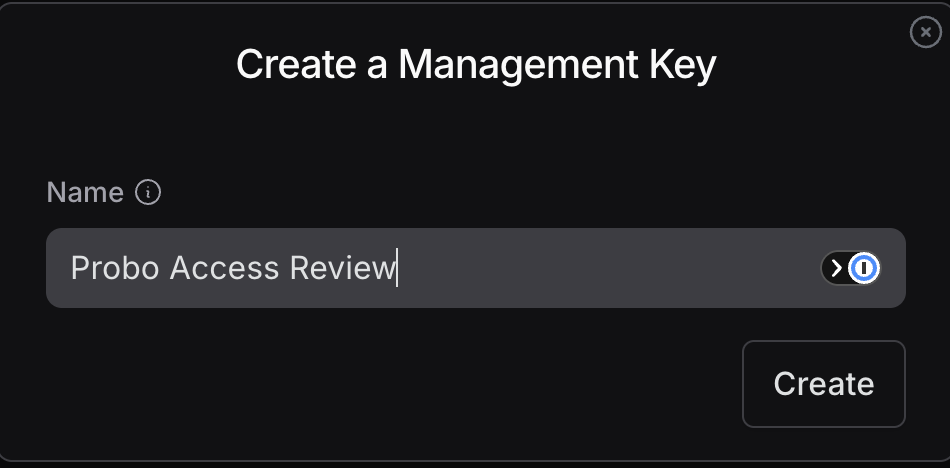
1. In OpenRouter (signed in as an organization **admin**), go to **Settings** > **Management API Keys** (`openrouter.ai/settings/management-keys`).
2. Click **Create New Key**, name it (e.g. `Probo Access Review`), and confirm. Management keys have no per-scope toggles; the key type alone authorizes listing organization members.
3. Copy the key (`sk-or-v1-…`) and store it securely. It's shown only once.
## Step 2: Connect in Probo
1. In Probo, go to **Access Review** > **Connections**.
2. Find **OpenRouter**, click **API Key**, paste the key, and click **Connect**.
Probo names the source **OpenRouter** and pulls your organization's members into your campaigns.
## Troubleshooting
- **Key rejected.** Confirm it's an organization **Management API key** (`sk-or-v1-…`), not a personal inference key. A key that does not belong to an organization is rejected.
- **No members appear.** The management key must belong to the organization you are reviewing and be created by an organization admin. A personal key returns no members.
---
Source: https://www.probo.com/docs/product/access-review/overview
# Access Reviews Overview
Access reviews let an organization take a point-in-time snapshot of identities and permissions, record reviewer decisions, and preserve the result of the campaign. Sources can be connected providers or CSV data exported from another system.
## How It Works
1. Create one or more access sources.
2. Create a campaign and attach the sources that define its scope.
3. Start the campaign to fetch and snapshot available access entries.
4. Review entries, add [flags](/docs/product/access-review/campaigns#flags) where useful, and record decisions.
5. Complete the campaign after every entry has a decision.
Campaign statistics describe the current review state. The snapshot remains separate from the provider’s live directory, so remediation in a provider does not silently rewrite the decision history.
See [Run an Access Review Campaign](/docs/product/access-review/campaigns) for the complete console workflow.
## What Probo Collects
For each account in a review, Probo shows the following, wherever the provider exposes it. Fields the provider doesn't return are left blank.
| Field | What it tells reviewers |
| ---------- | ------------------------------------------------------- |
| Name | The account holder's name (service accounts are marked) |
| Email | The account's email address |
| Role | The role(s) the account holds in the provider |
| Admin | Whether the account has administrator access |
| Status | Whether the account is active or disabled |
| MFA | Whether multi-factor authentication is enabled |
| Last login | When the account last signed in or was used |
## Connection Methods
- **OAuth.** When a provider offers **OAuth** on the **Connections** page, Probo sends you to that provider's consent screen. Availability depends on the provider and your Probo deployment.
- **API key or client credentials.** You generate a credential on the provider and paste it into Probo. The credential type and required permissions vary, so check the [Connector Directory](/docs/product/access-review/directory). Where a provider mints every key with a fixed prefix, the Connect dialog shows that shape as the field's placeholder and refuses a value that does not match it, before Probo calls the provider at all. That catches a half-copied key and the provider's other kinds of credential. It says nothing about whether the key itself works: only the provider can answer that.
- **Workload identity.** Used by [Amazon Web Services](/docs/product/access-review/aws). You create a read-only IAM role in your AWS account, and Probo assumes it with a short-lived token. Probo stores no AWS credentials.
- **CSV.** Paste an exported account list for a system Probo cannot connect to directly. See [Create a CSV Access Source](/docs/product/access-review/csv-sources).
Access reviews live under **Access Review** in your organization sidebar: **Connections** connects providers, **Campaigns** runs reviews.
See [How Probo Protects Integration Credentials](/docs/product/access-review/integration-security) for encryption, access control, and data handling.
## Review Boundaries
Provider APIs expose different fields and may omit MFA, login, status, or role information. A blank value means the source did not provide it; it should not be interpreted as a passing or failing control. Reviewers remain responsible for deciding whether an identity and its access are appropriate.
Recording a decision does not change the account in the provider. Complete revocations and role changes in the source system, then use the campaign record as evidence of the review.
## Automation
- [CLI access-review](/docs/developers/cli/commands/access-review) — Manage sources and campaigns with prb access-review
- [MCP access reviews](/docs/developers/api/mcp/tools/catalog/access-reviews) — Operate access reviews from supported AI tools
- [n8n Access Review](/docs/developers/api/n8n/resources/access-review) — Automate campaign workflows in n8n
---
Source: https://www.probo.com/docs/product/access-review/ovhcloud
# OVHcloud
Probo reads the identities that can reach your OVHcloud account through the OVHcloud API so you can review who has access. Connecting with **OAuth** is the recommended method and requires no credential management. A service account is also available, and it is the one to choose if you want to revoke Probo's access yourself.
:::caution
A service account authenticates as soon as it is created, but it can read nothing until you attach an IAM policy to it. OVHcloud starts every service account with no permissions, so one created and connected straight away returns no members. Grant it the **OVHcloud customer account** product at **READ**, applied to your account resource.
:::
## Prerequisites
- Probo organization administrator access
- For OAuth, an OVHcloud identity whose permissions cover the account. The account holder always qualifies
- For a service account, permission to create one and to attach an IAM policy, under **Identity, Security & Operations**
- An OVHcloud account in the **Europe** region. OVHcloud issues OAuth2 clients per region, so accounts on the Canada and US regions cannot connect yet
## Collected Fields
| Probo field | OVHcloud field | Notes |
| ----------- | ------------------------------------------------- | -------------------------------------------------------------------------------------------------------------------------------------------------------------- |
| Name | `firstname` + `name`, `oauth2.client.name`, `api.application.name` | The account holder's first and last name joined into one display name, a service account's own name, and for a classic API credential the name of the application it belongs to. Local users and federated users carry no name in OVHcloud |
| Email | `email` | Local users and the account holder. A federated user carries the subject the SSO provider asserted, when that subject is an email address. A service account has none |
| Role | `groups`, `group`, `api.credential.rules` | The user groups the identity belongs to, which is what you grant and revoke. The account holder is reported as `Account owner`. A classic API credential lists the access rules it was granted, preceded by `Created by OVHcloud support` when OVHcloud created it. Service accounts and federated users have none |
| Admin | group `role` | For a local user, flagged when any of its groups carries the `ADMIN` role, and left blank when a group cannot be resolved. The account holder is always flagged. Left blank for service accounts and federated users, whose privilege OVHcloud does not expose |
| Status | `status` | For a local user, `DISABLED` is inactive and `PASSWORD_CHANGE_REQUIRED` stays active, because the user authenticates once the password is rotated. A classic API credential is active only while `validated`; an expired or refused one stays in the roster as inactive. The account holder and service accounts are always reported active. A federated user has no status, because OVHcloud does not manage the identity |
| MFA | `loginSuccessDetails.mfaType` | Read from the account audit log. It reports the factor a sign-in actually used, not what the identity has enrolled |
| Last login | `createdAt` of a `LOGIN_SUCCESS` event, `lastUse` | The most recent successful sign-in in the audit log. For a classic API credential it is the last time the credential called the API, which is empty if it never has |
| External ID | `urn`, `identity`, `nichandle`, `credentialId` | The identity's IAM URN, falling back to the login when OVHcloud returns none. The account holder is tracked by NIC handle, a service account by its IAM credential URN or its client ID, a classic API credential by its credential ID, and a federated user by the subject the audit log recorded |
| Created at | `creation` | When the local user or the classic API credential was created. Probo does not record a creation date for the other identity types |
Probo reports five kinds of identity because no single OVHcloud endpoint lists them all. Local users come from the identity API. The account holder is a separate identity class that the user list never returns, so Probo reads the account itself. Service accounts are the client-credentials clients registered on the account. Classic API credentials are the consumer keys issued under **API keys**, which predate IAM and appear in no identity endpoint. Federated users come from the audit log.
Classic API credentials are worth reviewing even when nobody remembers creating one. Each is standing API access that does not expire unless it was given an expiry, and OVHcloud records whether the credential was created by you or by its own support team. Probo labels a support-created credential in its Role column so it is visible in the review rather than buried.
Federated users are covered only in part. OVHcloud does not manage identities that sign in through your SSO provider, and maps them to groups rather than to users, so there is no endpoint that lists them. Probo reports a federated user once the audit log records a successful sign-in, and reports nothing about them beyond that sign-in. A federated user who has not signed in within your audit log's retention window does not appear at all. Review them in your identity provider.
OVHcloud also has no read-only OAuth scope, and exposes no per-user MFA enrolment state. The MFA column reports what the recorded sign-ins show.
## Connect OVHcloud
### Option A: Connect with OVHcloud (recommended)
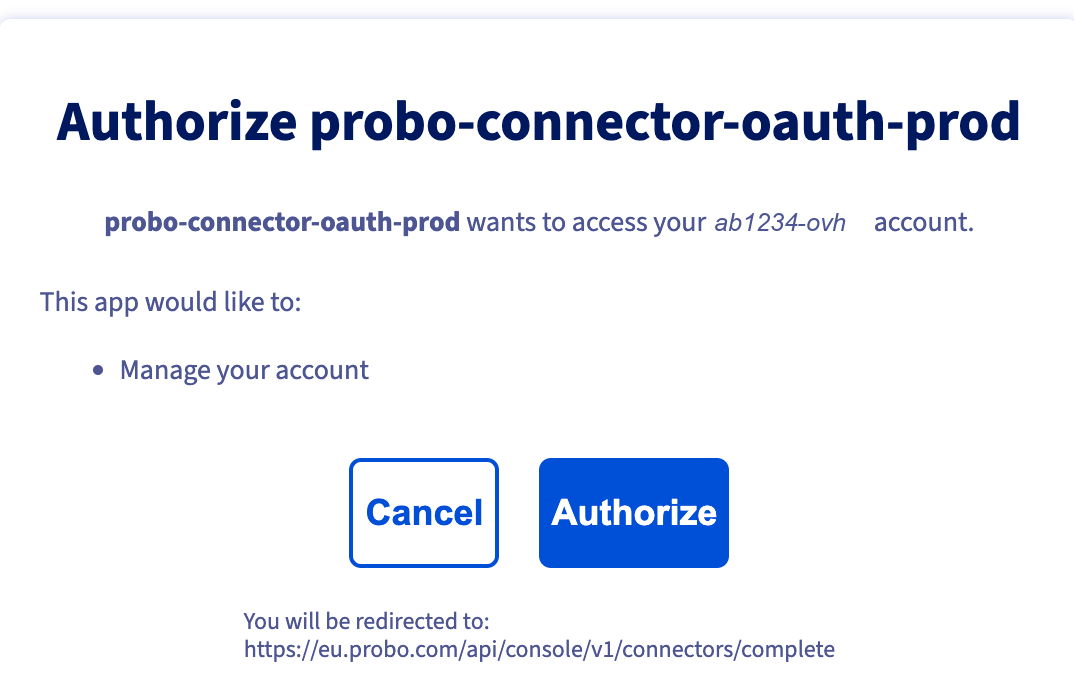
1. In Probo, go to **Access Review** > **Connections**.
2. Find **OVHcloud** and click **OAuth**.
3. Sign in to OVHcloud if you are not already, then confirm the account shown is the one you want to review.
4. Review the authorization screen. It names the client Probo registered and the handle of the account you are about to connect, so confirm both. Probo requests the `account/all` scope, which OVHcloud describes as **Manage your account**. It covers the account and identity routes Probo reads and no other OVHcloud product. Click **Authorize**.
OVHcloud grants the permissions of whoever authorizes, so authorize as an identity that can read the account's users and groups. The account holder always can.
### Option B: Service Account
Choose this option if you want to hold the credential yourself. Deleting the service account revokes Probo's access. OVHcloud offers no equivalent for an OAuth connection.
1. In the OVHcloud Control Panel, go to **Identity, Security & Operations** > **Identities** and open the **Service account** tab.
2. Click **Add a service account**, give it a name (e.g. `Probo Access Review`) and a description, then click **Create**.
3. Copy the **Service account name** and the **Password**. The password is shown only once. These are the client ID and client secret.
4. Go to **Identity, Security & Operations** > **Policies** and click **Create a policy**. Use the newer OVHcloud console for this step, reachable from **Discover the console** in the top bar. The older policy editor can attach a policy to local users only, so the service account you just created will not appear in it.
5. Name the policy, then under **Identities** open the **Service accounts** tab and select the service account you just created.
6. Under **Product types**, select **OVHcloud customer account**. Under **Resources**, select your account.
7. Under **Actions**, select **READ**, then click **Create**.
8. In Probo, go to **Access Review** > **Connections** and find **OVHcloud**. **Client Credentials** sits in the menu behind the arrow next to the **OAuth** button.
9. Paste the client ID and client secret, then click **Connect**. Leave **Scope** empty. Probo sends the scope this connector needs.
Probo names the source `OVHcloud / ` and pulls the identities into your campaigns.
## Troubleshooting
- **The connection succeeds but no members appear.** The service account has no IAM policy, or its policy has actions but no resource. OVHcloud treats a policy with no resource as granting nothing, so the policy looks complete in the Control Panel while every request is still refused. Open the policy and confirm your account is selected under **Resources**.
- **The service account is missing from the policy editor.** The older OVHcloud policy editor lists local users only. Open the newer console from **Discover the console** in the top bar and create the policy there, where the **Identities** section has a **Service accounts** tab.
- **Credentials rejected.** Confirm you copied the **Service account name** as the client ID rather than the description, and that you copied the password when the service account was created. OVHcloud does not show it again, so create a new service account if you lost it.
- **An API key you do not recognise appears.** Classic API credentials are listed under **Identity, Security & Operations** > **API keys**. One marked `Created by OVHcloud support` was issued to OVHcloud's support team rather than by you, usually while a support ticket was open. Revoke any you no longer need there.
- **A colleague who uses SSO is missing.** OVHcloud does not manage federated identities and no endpoint lists them. Probo reports a federated user only after the audit log records a sign-in. Review the rest in your identity provider.
- **The MFA column says a user has no MFA, but they do.** The column reports the factor used on the most recent recorded sign-in, because OVHcloud exposes no per-user enrolment state. A user who enrolled after that sign-in still shows the older result.
- **A Canada or US account will not connect.** OVHcloud issues OAuth2 clients per region and Probo currently registers them in Europe only. A service account does not get you around this: both connect paths use OVHcloud's European token and API endpoints, so a service account created on a Canada or US account cannot authenticate either.
---
Source: https://www.probo.com/docs/product/access-review/pylon
# Pylon
Probo reads your Pylon organization's users through the Pylon API so you can review who has access.
:::caution
Use an API token created on the **API Tokens** page in Pylon's settings. Only Admin users can create one. The chat widget's **Identity Verification Secret** is a different credential and will not work, because it signs widget users instead of authenticating requests to `api.usepylon.com`.
:::
## Prerequisites
- Probo organization administrator access
- The **Admin** role in Pylon (only Admin users can create API tokens)
- A token created in the Pylon organization you want to review, since a token returns only that organization's users
## Collected Fields
| Probo field | Pylon field | Notes |
| ----------- | -------------------------------------------------------- | ------------------------------------------------------------------------------------------------------------------------------------------------------------------------------------------------------------------------------ |
| Name | `name` | Falls back to the email address when the user has no name |
| Email | `email` | The user's primary email |
| Role | `role_id` | Resolved to the role's `name` through Pylon's user roles endpoint. A user has one role, either a default role (`Member` or `Admin`) or a custom one. If the role catalogue does not return the `role_id`, the role stays blank |
| Admin | `role_id` | Flagged as an administrator when the resolved role's `slug` is `admin`. When a role has no slug, Probo matches the exact name `Admin`, case-insensitively, so a custom role such as `Billing Admin` is not flagged |
| Status | `status` | Probo lists `active` as active and every other value as inactive. Pylon documents `away` and `out_of_office` as user statuses too, so both count as inactive. A missing status leaves the state unknown |
| MFA | | |
| Last login | | |
| External ID | `id` | Stable identifier used to track the account across reviews |
| Created at | | |
Pylon users are the internal team members of your Pylon organization, not the contacts and accounts that represent your customers. Probo skips any user returned without an email address.
:::note
Pylon's `away` and `out_of_office` values describe availability, not revoked access. Probo currently displays every status other than `active` as inactive, so check the user's role before deciding whether access should be removed.
:::
## Step 1: Create an API Token
1. In Pylon, signed in as an **Admin**, go to [**Settings** > **API Tokens**](https://app.usepylon.com/settings/api-tokens).
2. Create a token and name it (e.g. `Probo Access Review`). Actions the token performs show up under the token's name.
3. Copy the token and store it securely, for example in a password manager.
## Step 2: Connect in Probo
1. In Probo, go to **Access Review** > **Connections**.
2. Find **Pylon**, click **API Key**, paste the token, and click **Connect**.
The users endpoint does not return an organization name, so Probo lists the source under the fixed name Pylon and pulls the organization's users into your campaigns.
## Troubleshooting
- **Token rejected.** Confirm the token comes from the **API Tokens** page and has not been revoked there. If you no longer have the token value, create a new token rather than trying to recover the old one.
- **Token creation is unavailable.** Only Admin users can create API tokens. Ask an Admin in your Pylon organization to create the token, or to give you the Admin role from the **Users** page.
- **No users appear.** A token returns the users of the organization it was created in. Confirm it was created in the Pylon organization you want to review, and that the members you expect are Pylon users rather than customer contacts.
- **A user is listed inactive who still has access.** Pylon uses `status` for availability too, including `away` and `out_of_office`, and Probo lists any status other than `active` as inactive. Review the user's role to decide whether the access is still appropriate.
---
Source: https://www.probo.com/docs/product/access-review/qovery
# Qovery
Probo reads your Qovery organization's members through the Qovery API so you can review who has access.
:::caution
Create an organization **API token** (`qov_…`) in the Qovery Console under **Settings** > **API token**. Qovery documents these as tokens for third-party applications and scripts, sent as `Authorization: Token `. That is the header Probo uses. A signed-in user's JWT, which the Console sends as `Authorization: Bearer`, is a different credential with a limited lifetime and will **not** work. Give the token the **Admin** role, because a token only carries the permissions of the role it is created with.
:::
## Prerequisites
- Probo organization administrator access
- The **Owner**, **Admin** or **DevOps** role in Qovery. Those three built-in roles cover organization setup, which includes API tokens. A custom role cannot generate one
- The **Organization ID**, which the Connect dialog asks for alongside the token. It is a UUID, and Qovery uses it as the `{organizationId}` path segment of its API. With the organization open in the Console, the ID is the segment that follows `/organization/` in the address bar
## Collected Fields
| Probo field | Qovery field | Notes |
| ----------- | -------------------------------------------------------- | -------------------------------------------------------------------------------------------------------------------------------------------------------------------------------------------------------------------------- |
| Name | `name` | Falls back to `nickname`, then to the email address |
| Email | `email` | |
| Role | `role` | `OWNER`, `ADMIN`, `DEVELOPER` and `VIEWER` are shown as Owner, Admin, Developer and Viewer, matched without regard to case. Any other value is shown as Qovery returns it, and a member with no role is listed without one |
| Admin | `role` | Flagged as an administrator when `role` is `OWNER` or `ADMIN`, matched without regard to case |
| Status | | |
| MFA | | |
| Last login | `last_activity_at` | Qovery documents it as the last time the user was connected. Left empty when the field is absent or is not an RFC 3339 timestamp |
| External ID | `id` | Stable identifier used to track the account across reviews |
| Created at | `created_at` | When the member joined the organization |
Probo skips any member Qovery returns without an email address.
## Step 1: Create an API Token
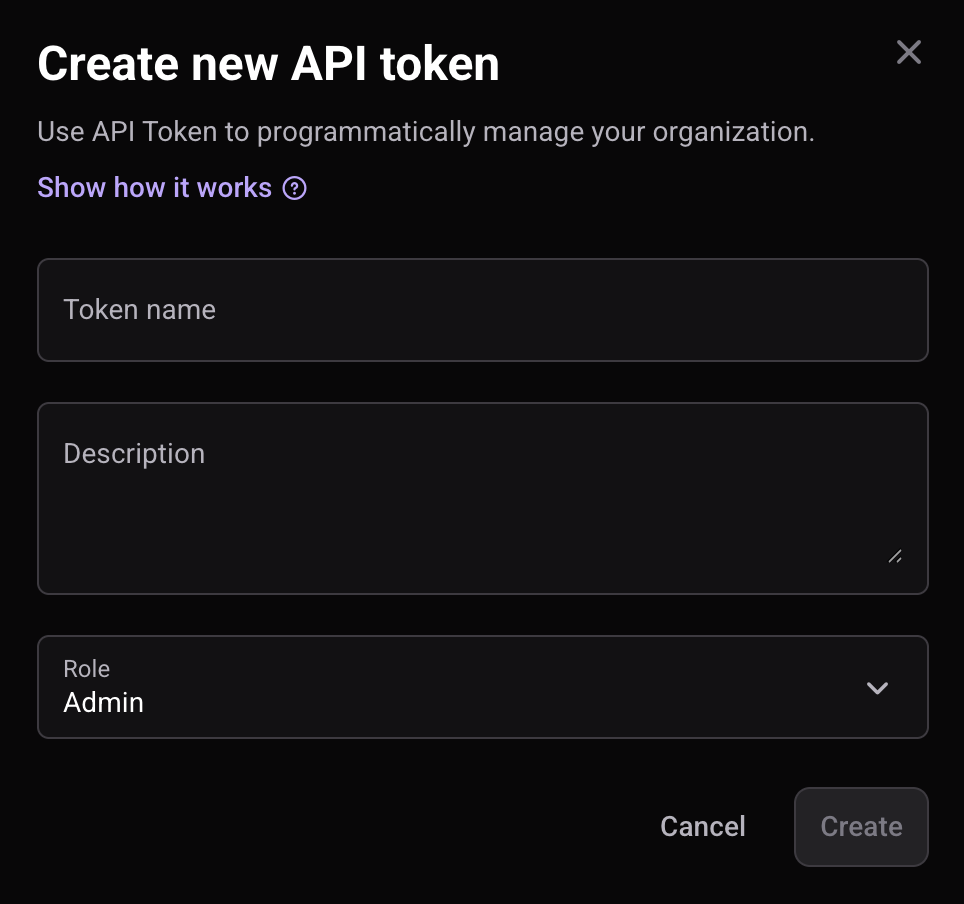
1. In the [Qovery Console](https://console.qovery.com), signed in as an **Owner**, **Admin** or **DevOps** user, open the organization you want to review, click the **Settings** tab, then open the **API token** section.
2. Click **Add new**, enter a **Token name** (e.g. `Probo Access Review`) and a **Description**, then pick **Admin** in the **Role** list.
3. Click **Create**, then copy the token. Qovery shows it once and you cannot retrieve it later, so store it securely.
## Step 2: Connect in Probo
1. In Probo, go to **Access Review** > **Connections**.
2. Find **Qovery**, click **API Key**, paste the token, enter your **Organization ID**, and click **Connect**.
Probo names the source after your organization and pulls its members into your campaigns.
## Troubleshooting
- **Token rejected.** Qovery answers a missing or invalid token with a 401. Confirm the value starts with `qov_`, or `sk-qov-` for an API policy token, and is an organization token that is still listed under **Settings** > **API token**, and not a Console session token, which the API accepts only as a `Bearer` credential.
- **No members appear.** A token carries only the permissions of the role it was created with, and Qovery reserves member management for the Owner and Admin roles. A token created with a narrower role can be refused at the members endpoint. Recreate the token with the **Admin** role, and confirm the **Organization ID** belongs to the same organization as the token.
- **Organization ID unknown.** Open the organization in the Console and read the UUID that follows `/organization/` in the URL, or call `GET https://api.qovery.com/organization` with the token to list the organizations it can see, each with its `id`.
- **Token creation is unavailable.** Only the Owner, Admin and DevOps built-in roles can generate API tokens. A custom role cannot, so ask someone holding one of those roles to create the token.
---
Source: https://www.probo.com/docs/product/access-review/railway
# Railway
Probo reads the members of your Railway workspaces through the Railway GraphQL API so you can review who has access.
:::caution
Use an **account token**, created at **Account Settings** > **Tokens** with the workspace selector left on **No workspace**. A **workspace** or **project** token will **not** work, because Probo's query is scoped to your personal account (`me`), which Railway does not expose to workspace or project tokens.
:::
## Prerequisites
- Probo organization administrator access
- A Railway **account token** from an account that belongs to every workspace you want to review (the review only covers workspaces the token's account is a member of)
## Collected Fields
| Probo field | Railway field | Notes |
| ----------- | -------------------------------------------------------- | ----------------------------------------------------------------------------------------------------------------------- |
| Name | `name` | Falls back to the email |
| Email | `email` | |
| Role | `role` | `ADMIN` → Admin, `MEMBER` → Member; other roles are shown as-is, and roles are combined across the account's workspaces |
| Admin | `role` | Flagged as an administrator when any workspace lists the member's `role` as `ADMIN` |
| Status | | |
| MFA | `twoFactorAuthEnabled` | Whether two-factor authentication is enabled for the member |
| Last login | | |
| External ID | `id` | Stable identifier used to track the account across reviews |
| Created at | | |
## Step 1: Create an Account Token
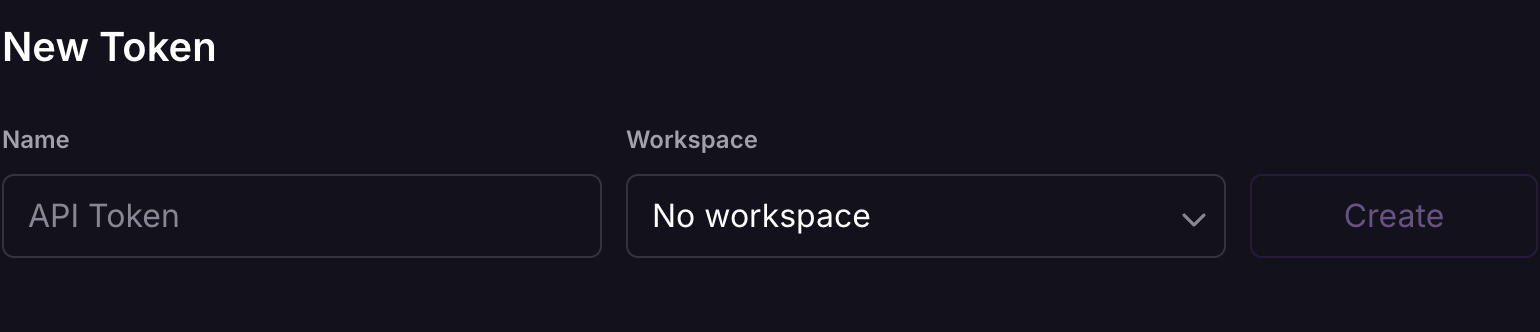
1. In Railway, go to [**Account Settings** > **Tokens**](https://railway.com/account/tokens).
2. Name it (e.g. `Probo Access Review`), leave the workspace selector on **No workspace** so the token is tied to your account, and create it.
3. Copy the token and store it securely. It's shown only once.
## Step 2: Connect in Probo
1. In Probo, go to **Access Review** > **Connections**.
2. Find **Railway**, click **API Key**, paste the token, and click **Connect**.
Probo names the source after your Railway workspace, or after your account when the token's account belongs to several workspaces, and pulls their members into your campaigns.
## Troubleshooting
- **Token rejected.** Confirm it's an **account token**, created with **No workspace** selected. A workspace or project token won't work, because Probo's query resolves your personal account.
- **No members appear.** The token's account must belong to the workspace you're reviewing; members of workspaces the account is not in are not visible.
---
Source: https://www.probo.com/docs/product/access-review/render
# Render
Probo reads your Render workspace's members through the Render API so you can review who has access.
:::caution
Create the API key from your **Account Settings** page in the Render Dashboard, signed in with an account that belongs to the workspace you want to review. A Render API key has no scopes and is not bound to one workspace: it authorizes the same actions as the account that created it, across every workspace that account belongs to. The CLI token that `render login` stores is a separate credential that expires periodically, so it is not a substitute.
:::
## Prerequisites
- Probo organization administrator access
- A Render account that belongs to the workspace you want to review. Render documents that every workspace role can view workspace members, so the key does not have to come from an **Admin**
- An account that satisfies the workspace's login requirements. If the workspace enforces 2FA, Render blocks its API keys from reaching workspace resources until the key's owner enables 2FA. If it enforces Google login, the key must be created while signed in through Google. If it enforces SAML SSO, existing keys stay invalid until their owner logs in through SSO
- A workspace on the **Pro** plan or higher if it has more than one member (a Hobby workspace cannot have additional members)
- The **Workspace ID** of the workspace Probo should review, which the Connect dialog asks for alongside the key. It appears at the top of the workspace's **Settings** page in the Render Dashboard and starts with `tea-`, or with `usr-` for a personal workspace. You can also list the workspaces a key can reach with `GET https://api.render.com/v1/owners`
## Collected Fields
| Probo field | Render field | Notes |
| ----------- | -------------------------------------------------------- | ---------------------------------------------------------------------------------------------------------------------------------------------------------------------------------------------------------------------------------- |
| Name | `name` | Falls back to the email address when the member has no name |
| Email | `email` | Members returned without an email address are skipped |
| Role | `role` | Render returns an uppercase enum. `ADMIN`, `DEVELOPER`, `WORKSPACE_CONTRIBUTOR`, `WORKSPACE_BILLING`, and `WORKSPACE_VIEWER` are shown as Admin, Developer, Contributor, Billing, and Viewer. Any other value is shown as returned |
| Admin | `role` | Flagged as an administrator when `role` is `ADMIN`, which is also the role reported for the workspace owner |
| Status | `status` | `active` is listed as active and `inactive` as inactive. A missing or unrecognized status leaves the account's status unknown rather than deactivated |
| MFA | `mfaEnabled` | Enabled when `true`, disabled when `false` |
| Last login | | |
| External ID | `userId` | Stable identifier used to track the account across reviews |
| Created at | | |
Render returns every member of the workspace, active and inactive, in one response.
## Step 1: Create an API Key
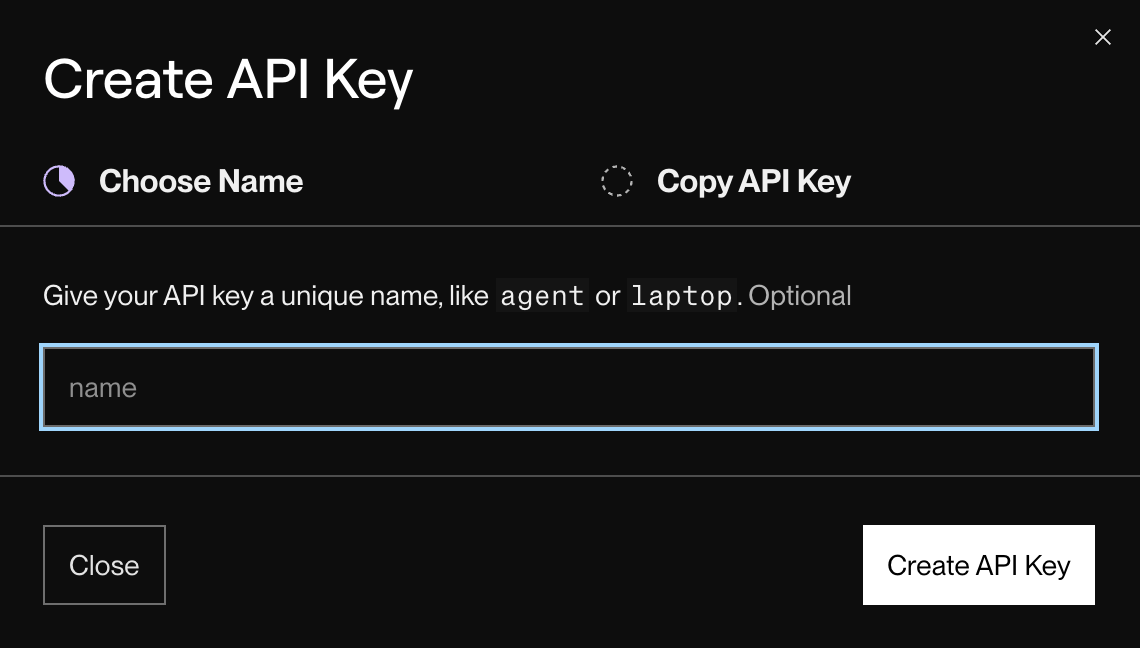
1. In the Render Dashboard (signed in with an account that belongs to the workspace you want to review), open your [Account Settings](https://dashboard.render.com/u/settings?add-api-key) from the account menu in the top right.
2. On the Account Settings page, create an API key. In the **Create API Key** dialog, name the key (the name is optional, e.g. `Probo Access Review`) and click **Create API Key**. Render API keys have no scopes, so the key authorizes everything its creator can do in the Dashboard.
3. On the **Copy API Key** step, copy the key and store it securely. Render shows the full key only once, when you create it.
## Step 2: Connect in Probo
1. In Probo, go to **Access Review** > **Connections**.
2. Find **Render**, click **API Key**, paste the key, enter your **Workspace ID** (the identifier at the top of the workspace's **Settings** page), and click **Connect**.
Probo names the source after your workspace and pulls its members into your campaigns.
## Troubleshooting
- **Key rejected.** Confirm the key was created on the Account Settings page of an account that belongs to the workspace, and that the **Workspace ID** identifies that same workspace. A key created by an account outside the workspace cannot read its members. If the workspace enforces 2FA, Google login, or SAML SSO, the key also stays unusable until its owner meets that requirement: 2FA enabled on the owner's account, the key created while signed in through Google, or the owner logged in through SSO.
- **No members appear.** A Hobby workspace cannot have additional members, so it lists only its owner. Inviting members requires the Pro plan or higher.
- **Workspace ID unknown.** Open the workspace's **Settings** page in the Render Dashboard; the ID sits at the top and starts with `tea-`, or with `usr-` for a personal workspace. Alternatively, call `GET https://api.render.com/v1/owners` with the key to list every workspace it can reach.
- **Syncs stop returning members.** A Render API key authorizes the same actions as the account that created it and reaches only the workspaces that account belongs to. If that account leaves the workspace, create a new key from an account that is still a member, then reconnect the source.
---
Source: https://www.probo.com/docs/product/access-review/resend
# Resend
Probo reads your Resend account's API keys through the Resend API so you can review which programmatic credentials have access. It does not collect the people on your Resend team, because the Resend API does not expose them.
:::caution
Use a **Full access** API key (`re_…`) created in the Resend dashboard. A **Sending access** key (also prefixed `re_…`) will **not** work, because it can only send emails and cannot read your account's API keys.
:::
## Prerequisites
- Probo organization administrator access
- Access to the Resend account's **API Keys** page, so you can create the key for the account you want to review
- A Resend API key with **Full access** (Sending access cannot read the account's API keys)
## Collected Fields
The Resend dashboard lists your team members under **Settings** > **Team**, but the public API has no endpoint that returns them, so Probo cannot collect them. Resend exposes the account's API keys instead, so each reviewed account is an API key (a service account) with no email or role, and no account is flagged admin. To review the people on your Resend team, add them through a [CSV source](/docs/product/access-review/csv-sources).
The Full access key used to connect Probo is part of the same API-key inventory and can therefore appear in the campaign. Review it like any other privileged programmatic credential.
| Probo field | Resend field | Notes |
| ----------- | -------------------------------------------------------- | ---------------------------------------------------------- |
| Name | `name` | The label given to the API key when it was created |
| Email | | |
| Role | | |
| Admin | | |
| Status | | |
| MFA | | |
| Last login | `last_used_at` | When the API key was last used to call the Resend API |
| External ID | `id` | Stable identifier used to track the API key across reviews |
| Created at | `created_at` | When the API key was created |
## Step 1: Create an API Key
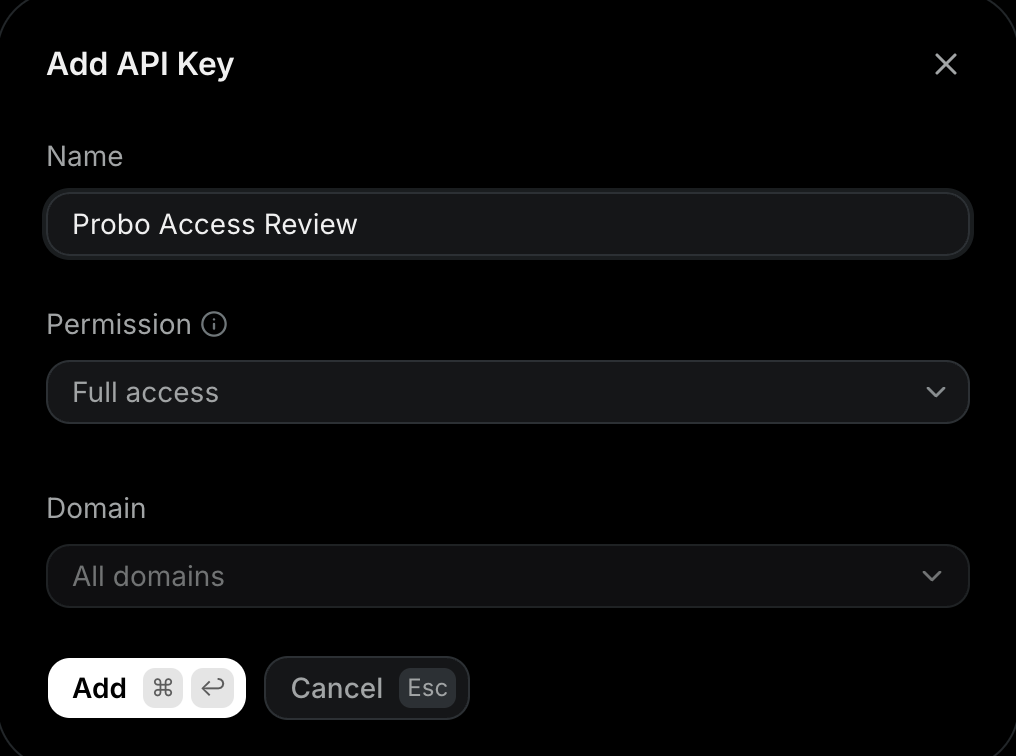
1. In the [Resend dashboard](https://resend.com/api-keys), go to **API Keys** in the sidebar.
2. Click **Create API Key**, name it (e.g. `Probo Access Review`), and set **Permission** to **Full access**, since Probo needs to read the account's API keys.
3. Copy the key (`re_…`) and store it securely. It is shown only once.
## Step 2: Connect in Probo
1. In Probo, go to **Access Review** > **Connections**.
2. Find **Resend**, click the arrow next to **OAuth** and choose **API Key**, paste the key, and click **Connect**. Probo registers the Resend OAuth client on every deployment, so **API Key** is always in that menu.
Probo lists the source as **Resend** and pulls the account's API keys into your campaigns.
## Troubleshooting
- **Key rejected.** Confirm it is a **Full access** key (`re_…`). A Sending access key only sends emails and will not connect.
- **No API keys appear.** The key must have **Full access** and belong to the Resend account you are reviewing.
- **Team members do not appear.** The Resend API returns no team members, so this source only ever contains API keys. Review the people on your team from **Settings** > **Team** in the Resend dashboard, and track them in Probo with a [CSV source](/docs/product/access-review/csv-sources).
---
Source: https://www.probo.com/docs/product/access-review/retool
# Retool
Probo reads your Retool organization's users through the Retool API so you can review who has access.
:::caution
Use an **API access token** carrying the **Users > Read** scope, created under **Settings** > **Retool API**. A token without that scope authenticates and is then refused on the users endpoint, because Retool checks scopes per endpoint rather than per token, and it names the missing scope when it refuses.
Retool gates that scope behind its **Enterprise** plan. Its pricing page gives Business "limited access" to the platform APIs and reserves "full access to all API scopes" for Enterprise, and the token dialog bears that out: neither Team nor Business lists a Users scope at all. On those plans no token can read the roster and this connector cannot be used.
:::
## Prerequisites
- Probo organization administrator access
- A Retool **organization admin** account. Only organization admins can create API access tokens
- A Retool **Enterprise** plan. The **Users** scope this connector needs is absent from the token dialog on Team and on Business, so confirm the dialog offers it before going further
- An access token granted the **Users > Read** scope. Scopes are chosen when the token is created and cannot be changed afterwards, since the only action Retool offers on an existing token is deleting it
- Self-hosted only: the **Base URL** of your Retool instance. Retool Cloud customers leave this empty, because a cloud token already identifies the organization it belongs to
## Collected Fields
| Probo field | Retool field | Notes |
| ----------- | -------------------------------------------------------- | -------------------------------------------------------------------------------------------------------------------------------------------- |
| Name | `first_name`, `last_name` | Either may be empty. A user with neither is listed under their email address |
| Email | `email` | |
| Role | `is_admin`, `seat_type`, `user_type` | Three separate things a reviewer acts on differently, so each is listed on its own: Admin for an organization admin, the seat (Builder, Internal User, External User), and the account kind when it is not the ordinary one (Mobile, Embed) |
| Admin | `is_admin` | Flagged when Retool reports the user as an organization admin |
| Status | `active` | A deactivated user is listed as inactive |
| MFA | `two_factor_auth_enabled` | Retool reports this for every user, so a Retool campaign always shows whether two-factor authentication is on |
| Last login | `last_active` | Empty for a user who has never signed in |
| External ID | `id` | Stable identifier used to track the account across reviews |
| Created at | `created_at` | When the user was created in the organization |
Group membership comes from a separate Retool endpoint and is not part of the roster. A Retool campaign therefore covers organization-level access, not per-app permissions.
## Step 1: Create an API Access Token
1. In Retool, signed in as an organization admin, go to **Settings** > **Retool API**.
2. Click **Create new** and name the token, for example `Probo Access Review`.
3. Under scopes, select **Users > Read**. If the dialog offers no Users scope, the organization is not on Enterprise and the connector cannot read its roster.
4. Copy the token and store it securely. Retool shows it only once, and the scopes cannot be changed later.
## Step 2: Connect in Probo
1. In Probo, go to **Access Review** > **Connections**.
2. Find **Retool**, click **API Key**, and paste the token.
3. On Retool Cloud, leave **Base URL (leave empty for Retool Cloud)** empty. On a self-hosted instance, enter the address you use to reach Retool, for example `https://retool.example.com`.
4. Click **Connect**.
Probo pulls your Retool users into your campaigns.
## Troubleshooting
- **Key rejected.** Confirm the token was copied whole and has not been revoked.
- **The token dialog offers no Users scope.** The scope is Enterprise only. A Team plan offers **Retool RPC** and **Custom Component Libraries**; Business adds **Apps**, **User Invites** and **User Attributes**. None of those reads the roster, and a token created on Business with every scope selected is still refused with `missing one of "users:read"`. No other endpoint substitutes either: `/user_invites` returns invitations rather than current members, and the usage endpoints need a `usage` scope that dialog does not offer. Until the organization is on Enterprise, use a CSV source.
- **No members appear.** The token needs the **Users > Read** scope. Retool names the missing scope when it refuses, and a token's scopes cannot be edited, so create a new token that carries it.
- **Self-hosted instance does not connect.** Probo calls the **Base URL** from its own infrastructure, so it cannot reach an instance that is only available on a private network. Self-hosted Retool serves the API from version 3.18 onward.
---
Source: https://www.probo.com/docs/product/access-review/scaleway
# Scaleway
Probo reads your Scaleway Organization's IAM users through the Scaleway IAM API so you can review who has access.
:::caution
A Scaleway API key has an **access key** (`SCW…`) and a **secret key** (a UUID). Use the **secret key**. The access key is a public identifier and will **not** work, because Probo authenticates with the secret key in the `X-Auth-Token` header. The secret key is shown only once, when you create the key.
:::
## Prerequisites
- Probo organization administrator access
- A Scaleway API key whose bearer holds the **`IAMReadOnly`** (or **`IAMUserReadOnly`**) permission, so it can list the Organization's users. The account **Owner** has this by default
- Your Scaleway **Organization ID**, from the console under **Organization Settings** (use **Copy ID** next to the Organization name)
## Collected Fields
| Probo field | Scaleway field | Notes |
| ----------- | ---------------------------- | --------------------------------------------------------------------------- |
| Name | `first_name` and `last_name` | Falls back to the username, then the email |
| Email | `email` | |
| Role | `type` | `owner` → Owner, `member` → Member |
| Admin | `type` | Flagged as an administrator when `type` is `owner` |
| Status | `status` and `locked` | Inactive when the account is locked or its invitation is still pending |
| MFA | `two_factor_enabled` | Whether two-factor authentication is enabled (falls back to the `mfa` flag) |
| Last login | `last_login_at` | When the user last signed in |
| External ID | `id` | Stable identifier used to track the account across reviews |
| Created at | `created_at` | When the user was added to the Organization |
## Step 1: Create an API Key
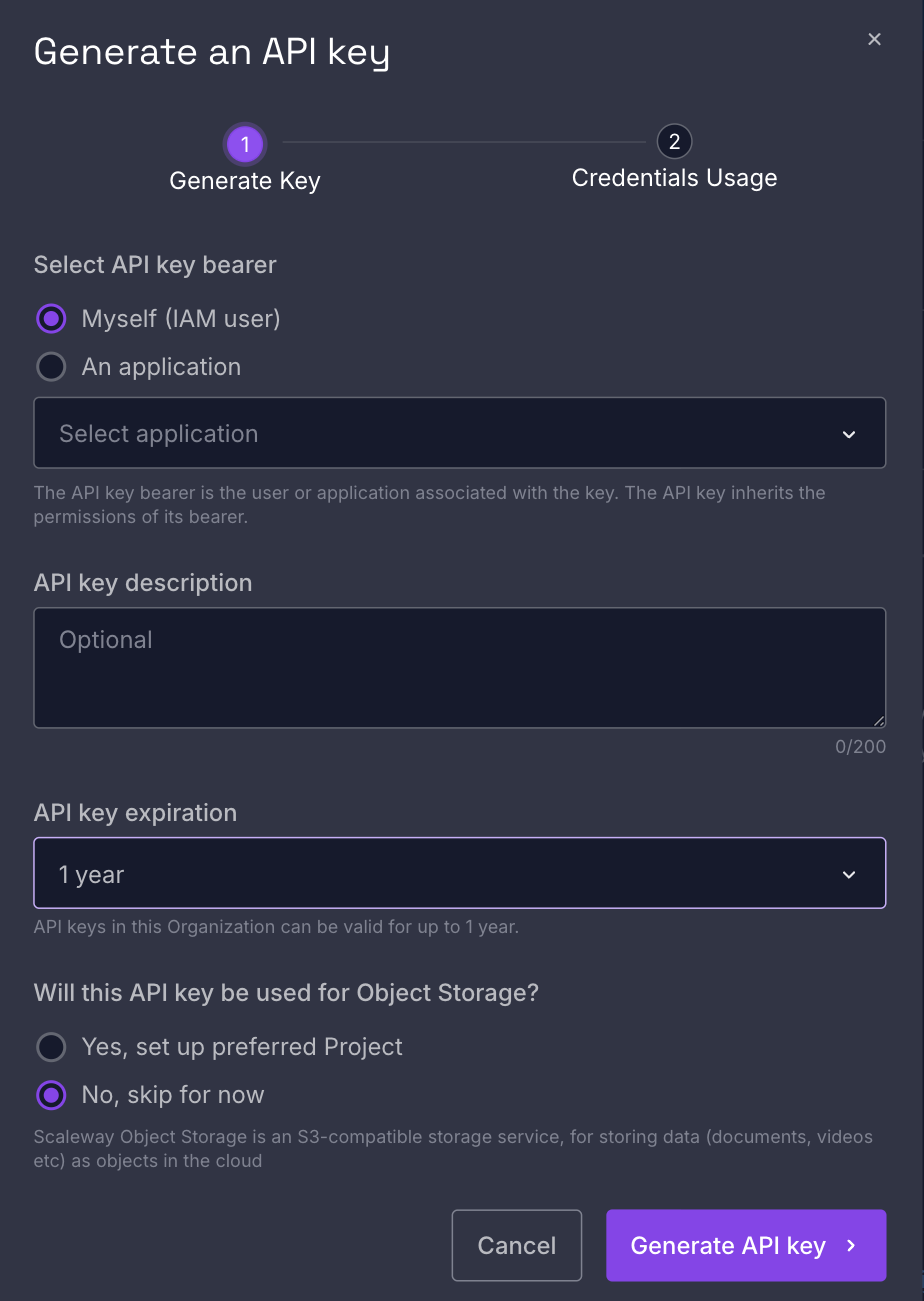
1. In the [Scaleway console](https://console.scaleway.com/iam/api-keys), open **IAM & API keys** from the top-right menu, then the **API keys** tab.
2. Click **Generate API key**, choose the **bearer** (yourself, or an IAM application that holds the `IAMReadOnly` permission), add a description (e.g. `Probo Access Review`), and generate it.
3. Copy the **secret key** (a UUID) and store it securely. It's shown only once.
## Step 2: Connect in Probo
1. In Probo, go to **Access Review** > **Connections**.
2. Find **Scaleway**, click **API Key**, paste the **secret key**, enter your **Organization ID** (from **Organization Settings**), and click **Connect**.
Probo names the source after your Organization and pulls its IAM users into your campaigns.
## Troubleshooting
- **Key rejected.** Confirm you pasted the **secret key** (a UUID), not the access key (`SCW…`) or the Organization ID. Only the secret key authenticates in the `X-Auth-Token` header.
- **No users appear.** The key's bearer needs the `IAMReadOnly` or `IAMUserReadOnly` permission, and the **Organization ID** must match the Organization you're reviewing.
---
Source: https://www.probo.com/docs/product/access-review/segment
# Segment
Probo reads your Segment workspace's members through the Segment Public API so you can review who has access.
:::caution
Create a **Public API token**, not a Config API token. Segment runs both, and only the Public API token authenticates against the endpoints Probo reads. The Public API is available to **Team** and **Business** tier workspaces only, and only a **Workspace Owner** can create a token, so a Free workspace has none to create.
:::
## Prerequisites
- Probo organization administrator access
- A Segment workspace on the **Team** or **Business** tier
- The **Workspace Owner** role in Segment (only a Workspace Owner can create a Public API token)
- The workspace's **Region**, which the Connect dialog asks for alongside the token. Segment calls it the data processing region and sets it when the workspace is created; you cannot change it afterwards. New workspaces default to US, and EU data residency is a Business tier feature that a Segment account executive enables, so a Team workspace is always US
## Collected Fields
| Probo field | Segment field | Notes |
| ----------- | -------------------------------------------------------- | ----------------------------------------------------------------------------------------------------------------------------------------- |
| Name | `name` | Falls back to the email address |
| Email | `email` | |
| Role | `permissions[].roleName` | Deduplicated and sorted. A pending invitation carries no role |
| Admin | `permissions[].roleName` | Flagged as an administrator when one of the roles is `Workspace Owner` |
| Status | `invites` | Pending invitations are listed as inactive. The users endpoint carries no status for members who have accepted, so theirs is left unknown |
| MFA | | |
| Last login | | |
| External ID | `id` | Stable identifier used to track the account across reviews. A pending invitation is keyed by its email address |
| Created at | | |
Members who have been invited but have not yet accepted appear alongside accepted members, marked inactive.
## Step 1: Create a Public API Token
1. In the [Segment app](https://app.segment.com), signed in as a **Workspace Owner**, go to **Settings** > **Workspace settings** > **Access Management** > **Tokens**.
2. Click **+ Create Token**, choose a **Public API token**, write a description (e.g. `Probo Access Review`), and assign it **Workspace Owner** access.
3. Click **Create**, copy the token somewhere secure, and click **Done**.
## Step 2: Connect in Probo
1. In Probo, go to **Access Review** > **Connections**.
2. Find **Segment**, click **API Key**, paste the token, choose your **Region**, and click **Connect**.
Probo names the source after your workspace and pulls its members into your campaigns.
## Troubleshooting
- **Token creation is unavailable.** The Public API is a Team and Business tier feature, and only a Workspace Owner can create a token. On a Free workspace, upgrade the plan first.
- **Token rejected.** Confirm it is a Public API token rather than a Config API token, that a Workspace Owner created it, and that the **Region** matches the workspace. Each region has its own host, and a token authenticates against its own workspace's host.
- **Region unknown.** Segment does not document a settings screen that shows an existing workspace's region, but the URL you sign in with is a practical indicator: `app.segment.com` is the US app and `eu1.app.segment.com` the EU one.
- **No members appear.** A token with only Workspace Member access may not be able to read the workspace's users. Create one with Workspace Owner access instead.
---
Source: https://www.probo.com/docs/product/access-review/sendgrid
# SendGrid
Probo reads your SendGrid account's teammates through the SendGrid v3 API so you can review who has access.
:::caution
Create the API key with **Full Access**, or with **Custom Access** and the **Teammates** permission set to at least **Read Access**. A **Billing Access** key will not work: it reaches only the account's billing endpoints, not the teammates endpoints Probo reads.
:::
## Prerequisites
- Probo organization administrator access
- SendGrid account owner or administrator access (an administrator holds every scope, including the Teammates permission the key needs)
## Collected Fields
| Probo field | SendGrid field | Notes |
| ----------- | -------------------------------------------------------- | -------------------------------------------------------------------------------------------------------------------------------------------------------------------------------------------------------------------------- |
| Name | `first_name`, `last_name` | Joined into a single name, and left empty when SendGrid holds neither |
| Email | `email` | |
| Role | `user_type` | `owner` becomes Owner, `admin` becomes Admin, `teammate` becomes Teammate. When SendGrid returns no `user_type`, the role falls back to Admin or Teammate according to `is_admin`. Any other value is passed through as is |
| Admin | `is_admin` | Flagged as an administrator when `is_admin` is true |
| Status | | |
| MFA | `scopes` | Read from the per-teammate detail endpoint. `2fa_required` on its own reports MFA enabled and `2fa_exempt` on its own reports it disabled. Both flags together, neither flag, or a failed detail fetch report unknown |
| Last login | | |
| External ID | `username` | Stable identifier used to track the account across reviews. On a unified teammate it is the email address |
| Created at | | |
The account owner appears alongside the teammates. Probo skips any row that carries no email address.
## Step 1: Create an API Key
1. In the [SendGrid app](https://app.sendgrid.com/settings/api_keys), signed in as the account owner or an administrator, go to **Settings** > **API Keys**.
2. Click **Create API Key**, name it (e.g. `Probo Access Review`), and select **Full Access**, or **Custom Access** with the **Teammates** permission set to **Read Access**.
3. Click **Create & View**, copy the key (`SG.…`), and store it securely. SendGrid shows it only once and cannot retrieve it later.
## Step 2: Connect in Probo
1. In Probo, go to **Access Review** > **Connections**.
2. Find **SendGrid**, click **API Key**, paste the key, and click **Connect**.
Probo names the source after the company name on your SendGrid account profile and pulls its teammates into your campaigns.
## Troubleshooting
- **Key rejected.** Confirm the key has Full Access, or Custom Access including the Teammates permission. A Billing Access key reaches only billing endpoints. If you did not copy the key value when you created it, you cannot recover it, so create a new key instead.
- **No teammates appear.** The key needs at least Read Access to Teammates. A short list can also be correct: Free and Essentials accounts allow one teammate per account, while Pro and higher allow up to 1,000.
- **MFA is unknown for the account owner.** SendGrid reports two-factor state through the auto-set `2fa_exempt` and `2fa_required` scopes. A full-access user, including the owner, holds every scope and therefore both flags, so Probo reports unknown.
- **The source keeps its default name.** The name comes from the **company** field on your SendGrid account profile. Probo keeps the default name when that field is blank, and when the key cannot read the profile. To have Probo pick the name up, fill in the company field and give the key read access to the account profile, or use a Full Access key.
---
Source: https://www.probo.com/docs/product/access-review/signoz
# SigNoz
Probo reads your SigNoz organization through the SigNoz API so you can review who has access. The roster covers the organization's members and its service accounts. Every SigNoz API key belongs to a service account and acts with that account's roles, up to and including SigNoz-Admin.
:::caution
Use a **service account API key**, created under **Settings** > **Service Accounts** and sent in the `SIGNOZ-API-KEY` header. An **ingestion key**, created under **Settings** > **Ingestion**, will **not** work, because it only authenticates telemetry sent to the ingest endpoints. SigNoz documents no prefix that tells the two apart, so go by where the key was created.
:::
## Prerequisites
- Probo organization administrator access
- A SigNoz user holding the **SigNoz-Admin** (`signoz-admin`) role. SigNoz states the requirement as a role with the transactions needed to create a service account, attach a role to it and create its API key. `signoz-admin` is the only managed role that carries them
- A service account assigned the **SigNoz-Admin** (`signoz-admin`) role, so its key can list the organization's members, service accounts, roles and API keys. The member endpoints Probo reads are admin only, and SigNoz's fine-grained access control does not cover the user resource yet, so no narrower role can read members
- SigNoz v0.118.0 or later. A self-hosted instance on an older version does not serve all the member and role endpoints Probo reads
- The **Base URL** of your SigNoz instance, which the Connect dialog asks for alongside the key. It is the `http` or `https` address you use to reach SigNoz: on SigNoz Cloud that is your instance URL, which includes its region (for example `https://your-instance.us.signoz.cloud`), and on a self-hosted deployment it is your own server address. Include the base path when SigNoz is served under one, for example `https://example.com/signoz`. Leave off any query string or fragment, and make sure the instance is reachable from the public internet
## Collected Fields
| Probo field | SigNoz field | Notes |
| ----------- | -------------------------------------------------------- | ------------------------------------------------------------------------------------------------------------------------------------------------------------------------------------------------------------------------------------------------------------------------------------------------------------------------------------------------ |
| Name | `displayName`, service account `name` | |
| Email | `email` | A member with no email address is skipped. SigNoz generates a service account's address from the name it was created with, as `@signozserviceaccount.com` by default. A self-hosted instance can configure another domain, and renaming the account does not change the address |
| Role | Role `name` | Read from the roles assigned to each member and service account. `signoz-admin` maps to Admin, `signoz-editor` to Editor and `signoz-viewer` to Viewer. Any other role, including a custom role named `admin`, is kept as written and does not flag the account as an administrator. An account can hold more than one role |
| Admin | `isRoot`, role `name` | Flagged as an administrator when any of the account's roles is `signoz-admin`, or when a member's `isRoot` is true |
| Status | `status` | `active` is listed as active, `pending_invite` and `deleted` as inactive. A service account is either `active` or `deleted`. Any other value leaves the status unknown |
| MFA | | |
| Last login | service account `keys[].lastObservedAt` | For a service account, the most recent use of any of its current API keys. SigNoz stamps a new key with its creation time until the key is first used, and Probo skips a key that still carries that stamp. Revoking a key deletes it, and its last use with it. The member record carries no sign-in time, so the field stays empty for members |
| External ID | `id` | Stable identifier used to track the account across reviews |
| Created at | `createdAt` | When the member or the service account was created in the organization |
SigNoz lists pending invitations in the same Members table as active users, so someone who was invited but has not accepted still appears in the campaign, marked inactive.
A deleted service account also stays in the campaign, marked inactive. SigNoz revokes its keys but keeps its roles for audit, so it can still show as an administrator. Service accounts are listed with API key as their authentication method, since an API key is the only way one authenticates. The service account whose key connects Probo is listed too, with the SigNoz-Admin role it needs. Its last login follows Probo's own syncs, since SigNoz records every request made with a key.
## Step 1: Create a Service Account API Key
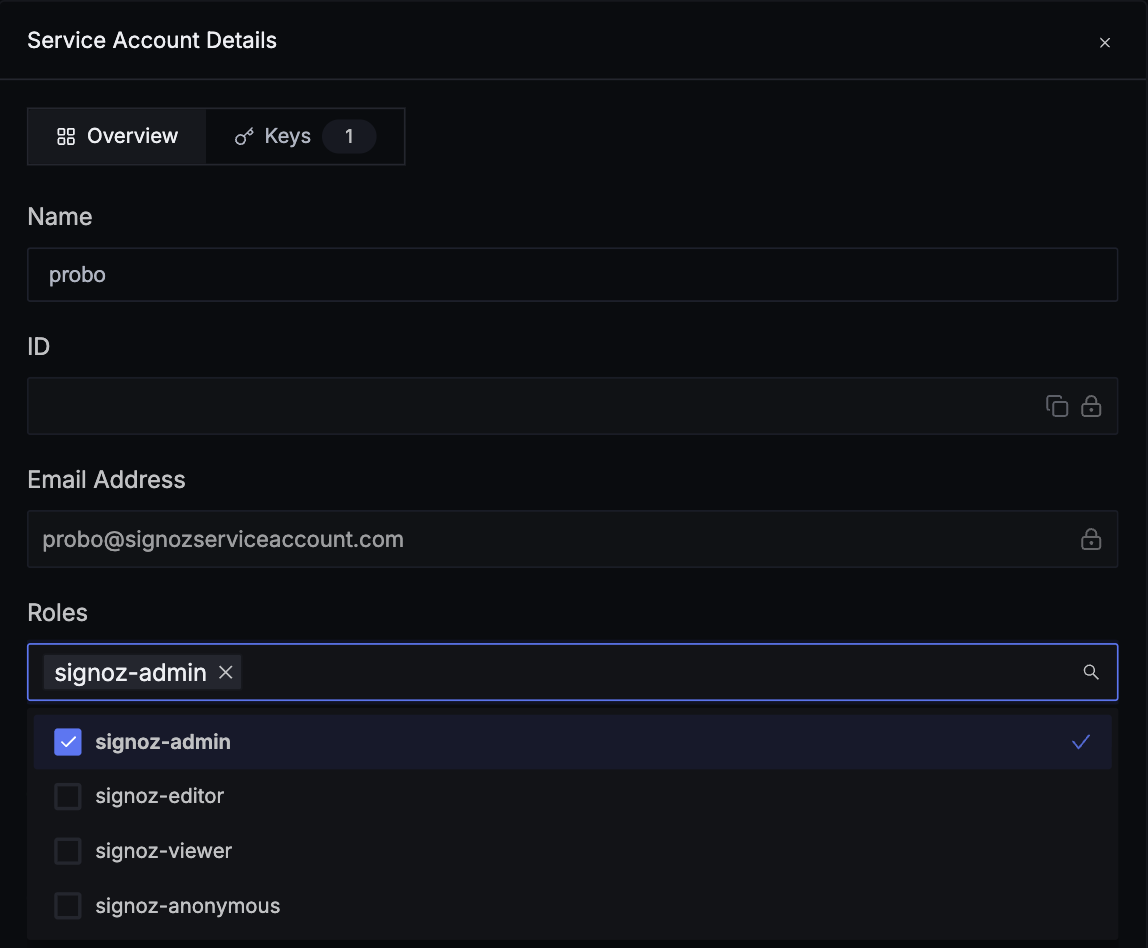
1. In SigNoz, signed in with the **SigNoz-Admin** role, open **Settings** and go to **Service Accounts**.
2. Click **New Service Account**, enter a **Name** in lowercase letters and hyphens, starting with a letter (e.g. `probo-access-review`), and click **Create Service Account**.
3. Open the service account. In the **Overview** tab, select `signoz-admin` in the **Roles** dropdown, then click **Save Changes**.
4. Open the **Keys** tab, click **Add Key**, enter a **Name** in lowercase letters and hyphens, starting with a letter (e.g. `probo-access-review`), keep **Expiration** on **No Expiration** so the key stays valid until it is revoked, and click **Create Key**. Copy the key and store it securely. SigNoz shows it only once.
## Step 2: Connect in Probo
1. In Probo, go to **Access Review** > **Connections**.
2. Find **SigNoz**, click **API Key**, paste the key, enter your **Base URL** (the address of the instance the key was created on), and click **Connect**.
Probo names the source after your SigNoz organization and pulls its members and service accounts into your campaigns.
## Troubleshooting
- **The source says the SigNoz credentials are invalid.** SigNoz rejected the key, or Probo did not reach the SigNoz API. Confirm it is a service account API key from **Settings** > **Service Accounts** rather than an ingestion key from **Settings** > **Ingestion**, that it has not expired or been revoked, and that the **Base URL** points at the instance the key was created on. On a self-hosted instance, also check that SigNoz runs v0.118.0 or later: an older version answers Probo with its web page instead of the API, which the source reports the same way.
- **The source says SigNoz refused this request.** The key is valid, but the service account does not hold the **SigNoz-Admin** role, which SigNoz requires to list members and their roles. Probo saves the connection anyway and flags the source afterwards. Open the service account's **Overview** tab, select `signoz-admin` in **Roles** and click **Save Changes**. The existing key picks up the role, so you do not need to reconnect: reload the page in Probo. The source keeps its generic name, though: SigNoz also refused the organization lookup that Probo runs once after the source is created.
- **Key creation is unavailable.** By default only the `signoz-admin` role can create service accounts and their keys. Ask a SigNoz admin to create the key. On SigNoz Cloud, and on Self-Hosted Enterprise versions that support custom roles for service accounts, an admin can instead grant a custom role scoped to that one service account. That needs an active SigNoz license and is not available on Self-Hosted Community.
- **A self-hosted source cannot be reached.** Probo calls the **Base URL** from its own infrastructure, so it cannot connect to a SigNoz deployment that is only reachable on a private network or on `localhost`.
---
Source: https://www.probo.com/docs/product/access-review/slack
# Slack
Probo reads your Slack workspace members through the `users.list` API. For each member it records the role and whether two-factor authentication is turned on. Slack connects through OAuth only, so there is no API key to create or paste.
:::caution
Connect Slack while signed in as a workspace **Admin**, **Owner**, or **Primary Owner**. Probo acts with the user token of the person who authorizes it, and Slack only returns a member's two-factor authentication status when the caller is a workspace admin. Probo refuses the connection unless the person who authorizes it is an Admin, Owner, or Primary Owner.
:::
## Prerequisites
- Probo organization administrator access
- The **Admin**, **Owner**, or **Primary Owner** role in the Slack workspace you want to review
## Collected Fields
| Probo field | Slack field | Notes |
| ----------- | ---------------------------------------------------------------------------------- | -------------------------------------------------------------------------------------------------------------------------------------------------- |
| Name | `real_name` | |
| Email | `profile.email` | Members without an email address are not listed, which in practice leaves out bots and apps |
| Role | `is_primary_owner`, `is_owner`, `is_admin`, `is_restricted`, `is_ultra_restricted` | One of `Primary Owner`, `Owner`, `Admin`, `Restricted` (multi-channel guest), `Ultra Restricted` (single-channel guest), or `Member` |
| Admin | `is_admin`, `is_owner`, `is_primary_owner` | Admin when any of the three is true |
| Status | `deleted` | Inactive when the member is deactivated |
| MFA | `has_2fa` | Enabled or Disabled. Unknown when Slack leaves the field out, as it can for deactivated members, and for every member when the token cannot see it |
| Last login | | |
| External ID | `id` | Slack member ID, used to track the account across reviews |
| Created at | | |
Probo also records each member's job title from `profile.title`.
Probo reads MFA only from the `has_2fa` value Slack reports. If your members sign in to Slack through an identity provider, check their MFA status in that provider as well.
## Connect Slack
1. In Probo, go to **Access Review** > **Connections**.
2. Find **Slack** and click **OAuth**.
3. Sign in to Slack as a workspace admin or owner, pick the workspace you want to review, then click **Allow**. Probo requests the **`users:read`** and **`users:read.email`** user scopes.
Probo names the source `Slack / ` and pulls its members into your campaigns. Each connection covers one workspace. To review several workspaces of an Enterprise Grid organization, connect each workspace separately.
## Troubleshooting
- **"Slack must be connected by a workspace admin or owner, the only role Slack shares MFA status with."** The person who authorized Probo is not an admin or owner of the workspace. Click **OAuth** again and authorize as an **Admin**, **Owner**, or **Primary Owner**.
- **The source says Slack is disconnected.** The token was revoked, for example because the person who authorized Probo left the workspace or removed the app, or the connection predates MFA collection and still uses a bot token, which cannot read it. Click **Reconnect** and authorize as a workspace admin or owner.
- **The source says Slack refused this request.** The person who authorized the connection is no longer an admin or owner, so Slack stopped returning MFA status to their token. Click **Reconnect** and authorize as a current admin or owner.
- **A member is missing.** Probo skips Slackbot and every member without an email address, which in practice leaves out bots and apps.
---
Source: https://www.probo.com/docs/product/access-review/supabase
# Supabase
Probo reads your Supabase organization's members through the Supabase Management API so you can review who has access.
:::caution
Use a Supabase **personal access token** (`sbp_…`) created on your account's **Access Tokens** page. Give it **Organization** resource access that includes the organization you want to review. A token left on the default **Project** resource access cannot read organization members. Project API keys do not work either. Publishable keys (`sb_publishable_…`), secret keys (`sb_secret_…`) and the legacy `anon` and `service_role` JWTs authenticate requests to a single project, but the organization members endpoint is on the Management API at `api.supabase.com`, which accepts only a personal access token or an OAuth2 token.
:::
## Prerequisites
- Probo organization administrator access
- A Supabase account with an organization role in the organization you want to review. Every organization role (**Owner**, **Administrator**, **Developer** and **Read-Only**) can list organization members. An account with access to specific projects only cannot select the organization for an **Organization** token. A token never has more access than the account that created it
- The **Organization Slug** of the organization Probo should review, which the Connect dialog asks for alongside the token. Supabase puts it in the dashboard URL while the organization is open: `supabase.com/dashboard/org/`
## Collected Fields
| Probo field | Supabase field | Notes |
| ----------- | -------------------------------------------------------- | --------------------------------------------------------------------------------------------------------------------------------------------------------------------------------------------------------------------------------------------------- |
| Name | `user_name` | The member's Supabase user name. There is no fallback, so a member returned without one is listed with an empty name |
| Email | `email` | |
| Role | `role_name` | The members endpoint returns one role name per member. Supabase's organization roles are `Owner`, `Administrator`, `Developer` and `Read-Only`. Probo trims surrounding whitespace, and a member returned without a role name is listed without one |
| Admin | `role_name` | Flagged as an administrator when `role_name` is `Owner` or `Administrator`, and not for `Developer` or `Read-Only` |
| Status | | |
| MFA | `mfa_enabled` | Enabled when the flag is true, disabled otherwise. Supabase returns the flag for every member |
| Last login | | |
| External ID | `user_id` | Stable identifier used to track the account across reviews |
| Created at | | |
## Step 1: Create a Personal Access Token
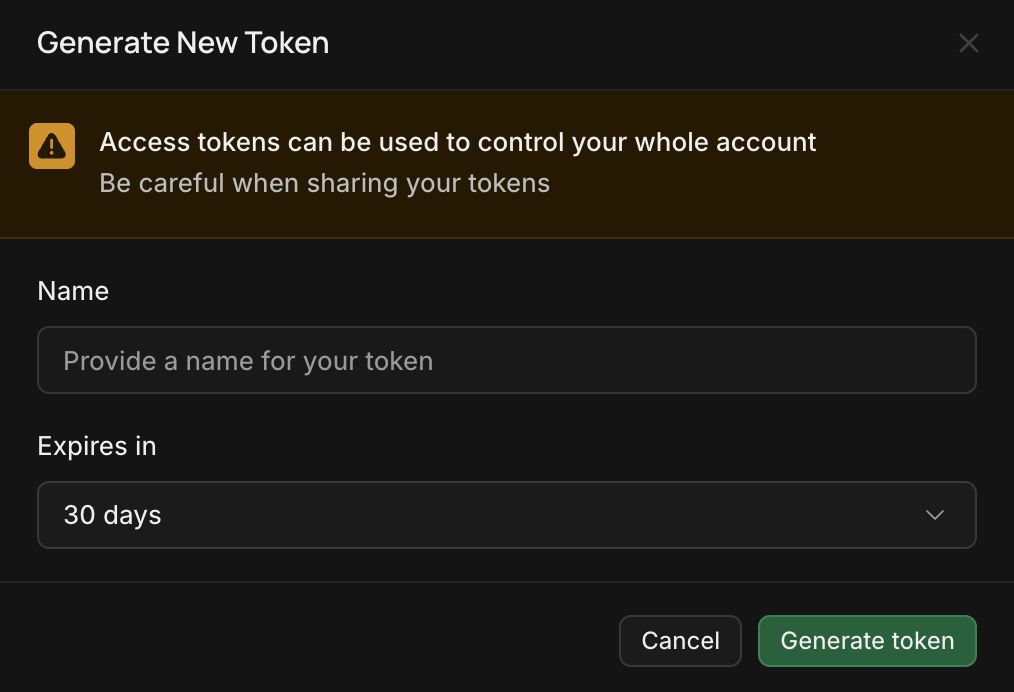
1. In the [Supabase dashboard](https://supabase.com/dashboard/account/tokens), go to **Account Settings** > **Access Tokens** and click **Generate new token**.
2. Enter a **Name** (e.g. `Probo Access Review`) and set **Expires in**. The dialog defaults to 7 days, so pick **90 days** or a **Custom** date that covers your review cycle.
3. Under **Resource access**, select **Organization** instead of the default **Project**, then choose the organization Probo should review in **Select organizations**.
4. Under **Permissions**, open **Account and organization** and set **Organization Members** to **Read**. Probo reads nothing else, so leave the other permissions at **None**.
5. Click **Review access**, then **Create token**. Copy the token (`sbp_…`) and store it securely. Supabase shows it once and you cannot retrieve it afterwards.
## Step 2: Connect in Probo
1. In Probo, go to **Access Review** > **Connections**.
2. Find **Supabase**, click **API Key**, paste the token, enter your **Organization Slug**, and click **Connect**.
When you click **Connect**, Probo uses the token to request that organization's members from Supabase. If Supabase has no organization with that slug, the dialog shows an error under **Organization Slug**. If it accepts the token but refuses to list that organization's members, the error appears under **API Key**. In both cases Probo does not save the connection. After you connect, Probo names the source after your organization slug and pulls its members into your campaigns.
## Troubleshooting
- **Token rejected.** The Connect dialog only accepts a key that starts with `sbp_`, so a project API key is refused before it reaches Supabase. An expired or deleted personal access token is not caught when you connect: the source then shows **Supabase credentials are invalid**. Confirm the token is still listed under **Account Settings** > **Access Tokens**.
- **"This access token cannot read the members of this organization."** Shown under **API Key**. The token has the default **Project** resource access, is scoped to other organizations, or belongs to an account that is not a member of this organization. Generate a token with **Organization** resource access that includes the organization and **Organization Members** set to **Read**.
- **"Supabase has no organization with this slug."** Open the organization in the Supabase dashboard and copy the **Organization Slug** from the URL: `supabase.com/dashboard/org/`.
- **Syncs worked and then stopped.** The token has expired, or the account that created it has left the organization. A token has only its owner's access, so it stops reading the organization once that person leaves. The console cannot replace the token on an existing source. Generate a new token, **Delete** the source in **Connections**, and connect Supabase again with the new token. Campaigns that already include the deleted source stop fetching it, so start a new campaign to review it again.
- **Using a legacy token.** A legacy token has full access to your account and shows a **LEGACY** badge on the **Access Tokens** page. Tokens created before Supabase introduced scoped tokens are legacy tokens, and so are tokens made with **Create legacy token**. A legacy token works, but it grants far more access than Probo needs. Prefer a token scoped as described in Step 1.
---
Source: https://www.probo.com/docs/product/access-review/tailscale
# Tailscale
Probo reads your Tailscale tailnet's users through the Tailscale API so you can review who has access.
:::caution
Use an **API access token** (`tskey-api-…`) generated on the Keys page of the Tailscale admin console. Tailscale's other `tskey-` credentials do not work here: an auth key (`tskey-auth-…`) authenticates a device onto the tailnet rather than an API request, and an OAuth client secret (`tskey-client-…`) has to be exchanged at Tailscale's OAuth token endpoint for an access token that expires after one hour.
:::
## Prerequisites
- Probo organization administrator access
- The **Owner**, **Admin**, **IT admin**, or **Network admin** role in Tailscale (only these roles can generate an access token)
- A Tailscale account that can read the tailnet's users, because an access token carries the same permissions as the user who created it
## Collected Fields
| Probo field | Tailscale field | Notes |
| ----------- | -------------------------------------------------------- | ------------------------------------------------------------------------------------------------------------------------------------- |
| Name | `displayName` | Left blank when Tailscale has no display name for the user |
| Email | `loginName` | Tailscale calls it the login name. A user without one is skipped |
| Role | `role` | A single role per user: `owner`, `admin`, `it-admin`, `network-admin`, `billing-admin`, `auditor`, or `member` |
| Admin | `role` | Flagged as an administrator when `role` is `owner`, `admin`, `it-admin`, `network-admin`, or `billing-admin` |
| Status | `status` | `active` and `idle` are listed as active, `suspended` as inactive. `needs-approval` and `over-billing-limit` leave the status unknown |
| MFA | | |
| Last login | `lastSeen` | The later of the last time one of the user's devices connected and the last time the user authenticated to a Tailscale service |
| External ID | `id` | Stable identifier used to track the account across reviews |
| Created at | `created` | When the user joined the tailnet |
Tailscale delegates sign-in to the identity provider or passkey each user authenticates with, and its users API returns no MFA field.
## Step 1: Create an API Access Token
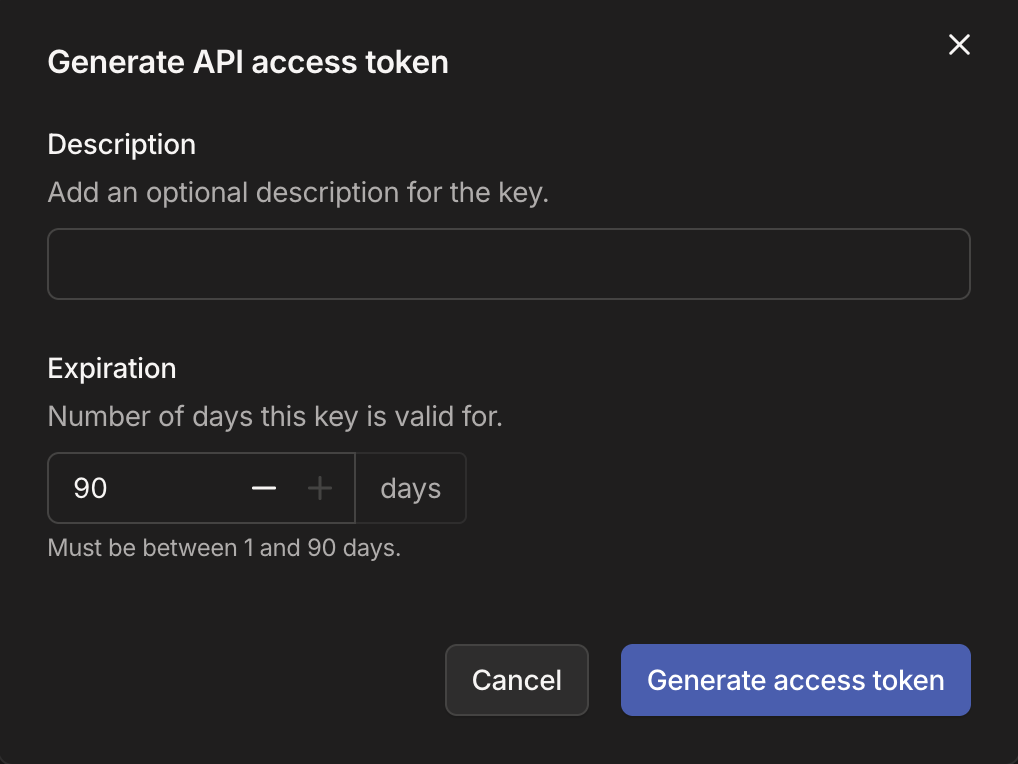
1. In the Tailscale admin console, signed in as an **Owner**, **Admin**, **IT admin**, or **Network admin**, open the [Keys](https://console.tailscale.com/admin/settings/keys) page and go to the **API access tokens** section.
2. Select **Generate access token**, add a **Description** (e.g. `Probo Access Review`), and set the **Expiration**. Tailscale allows between 1 and 90 days.
3. Copy the token (`tskey-api-…`) and store it securely. Tailscale displays a secret in full only once.
## Step 2: Connect in Probo
1. In Probo, go to **Access Review** > **Connections**.
2. Find **Tailscale**, click **API Key**, paste the access token, and click **Connect**.
Probo names the source after the most common login domain among the imported users, then pulls those users into your campaigns. That name is only a Probo label, so it can differ from how Tailscale identifies your tailnet.
## Troubleshooting
- **Token rejected.** Confirm it is an API access token (`tskey-api-…`). Neither an auth key (`tskey-auth-…`) nor an OAuth client secret (`tskey-client-…`) authenticates a Tailscale API request.
- **The source stops syncing after a few weeks.** A Tailscale access token expires after the 1 to 90 days chosen when it was generated. Generate a new token and reconnect the source.
- **No members appear.** An access token has the same permissions as the user who created it, and the users endpoint returns 404 when that user cannot read the tailnet's users. Generate the token from an Owner, Admin, IT admin, or Network admin account, and confirm that account can still read the tailnet's users.
- **A user shared in from another tailnet is missing.** The users endpoint returns tailnet members by default, so Probo does not import users shared in from elsewhere.
---
Source: https://www.probo.com/docs/product/access-review/tally
# Tally
Probo reads your Tally organization's users and pending invitations through the Tally API so you can review who has access.
:::caution
Use a Tally **API key** (`tly-…`) created under **Settings** > **API keys**. Tally ties each key to the user who created it, so the key inherits that user's permissions and stops working once that user leaves the organization. Create it from an account that can read the organization's members and that will stay in the organization.
:::
## Prerequisites
- Probo organization administrator access
- A Tally account in the organization you want to review, preferably the **organization owner**. A key has no scopes of its own: it inherits the permissions of the user who created it, so calls made with the key can do no more than that user can
Probo resolves the organization from the key, so the Connect dialog asks only for the key.
## Collected Fields
| Probo field | Tally field | Notes |
| ----------- | -------------------------------------------------------- | -------------------------------------------------------------------------------------------------------------------------------- |
| Name | `fullName` | A pending invitation carries no name |
| Email | `email` | A record with no email address is skipped |
| Role | `invites` | Tally exposes no role on an organization user, so members have none. A pending invitation is listed with the role `Invited` |
| Admin | | |
| Status | `isDeleted` | A user flagged `isDeleted` is listed as inactive and every other user as active. Pending invitations are listed as inactive |
| MFA | `hasTwoFactorEnabled` | Enabled when the flag is true, disabled when it is false. A pending invitation carries no flag, so its MFA state is left unknown |
| Last login | | |
| External ID | `id` | Stable identifier used to track the account across reviews. A pending invitation is keyed by its invite id |
| Created at | `createdAt` | The timestamp Tally returns on the user record. Probo does not record one for a pending invitation |
People who have been invited but have not yet accepted appear alongside the organization's users, marked inactive.
## Step 1: Create an API Key
1. In [Tally](https://tally.so/settings/api-keys), signed in as the account the key should belong to, go to **Settings** > **API keys**.
2. Click **Create API key**, name it (e.g. `Probo Access Review`), and click **Create**. Tally keys have no scopes, so there is nothing to set on the key.
3. Copy the key (`tly-…`) and store it securely. Tally shows it only once.
## Step 2: Connect in Probo
1. In Probo, go to **Access Review** > **Connections**.
2. Find **Tally**, click **API Key**, paste the key, and click **Connect**.
Probo checks the key against the Tally API before it creates the connection, so a rejected key fails at the Connect step and never becomes a broken source. Probo resolves the organization the key belongs to and names the source after the organization owner, because the Tally API exposes no organization name.
## Troubleshooting
- **Tally rejected the API key.** The Connect dialog shows this error when the key fails the check against the Tally API. Confirm the value is an active Tally API key (`tly-…`) copied from **Settings** > **API keys**. A key also stops working once its user is removed from the organization or leaves it, so create a replacement from an account that is still a member.
- **The source connects but fails to sync.** The Connect check only proves Tally accepts the key. The sync then reads the organization's users and invites with that key, and it can do no more than the key's user can, so an under-permissioned key passes Connect and fails later. Create the key from the organization owner's account instead.
- **Few or no members appear.** A Tally account belongs to a single organization, and inviting team members is a Tally Pro feature, so a Free account's organization typically has only that one member.
---
Source: https://www.probo.com/docs/product/access-review/twingate
# Twingate
Probo reads the users on your Twingate network through the Twingate API so you can review who has access.
:::caution
Use an API token generated under **Settings** > **API** in the Twingate Admin Console. **Read only** is enough, and is the level to prefer: Probo never writes to Twingate. If the token is restricted to source addresses, Probo's requests will be refused unless your allowlist covers them, so leave the default address range in place.
:::
## Prerequisites
- Probo organization administrator access
- Access to your Twingate Admin Console settings, where you generate API tokens
- A **Read only** API token
- Your Twingate **Network name**, the label in front of `.twingate.com` in your Admin Console address. For `acme.twingate.com` the network name is `acme`
## Collected Fields
| Probo field | Twingate field | Notes |
| ----------- | -------------------------------------------------------- | ----------------------------------------------------------------------------------------------------------------------------- |
| Name | `firstName`, `lastName` | A user with neither is listed under their email address |
| Email | `email` | |
| Role | `role` | `ADMIN`, `DEVOPS`, `SUPPORT`, `HELPDESK`, `ACCESS_REVIEWER`, `BILLING` and `MEMBER` map to Admin, DevOps, Support, Helpdesk, Access Reviewer, Billing and Member. A role Twingate adds later is passed through as Twingate spells it |
| Admin | `isAdmin` | Twingate reports this alongside the role and sets it for administrative roles beyond `ADMIN`, a `DEVOPS` user included, so Probo passes the flag through rather than reading it off the role |
| Status | `state` | `ACTIVE` is listed as active. `PENDING` (invited but not joined) and `DISABLED` are listed as inactive |
| MFA | | |
| Last login | | |
| External ID | `id` | Stable identifier used to track the account across reviews |
| Created at | `createdAt` | When the user was added to the network |
Probo also reads Twingate's `type` field. A user provisioned by your identity provider is recorded as signing in through SSO. For a user an administrator added by hand, Probo records no sign-in method, because the field describes how the record was created and not how the person authenticates.
Service accounts are a separate type in Twingate and are not part of this roster. A Twingate campaign therefore covers people, not machine credentials.
## Step 1: Create an API Token
1. In the Twingate Admin Console, go to **Settings** > **API**.
2. Click **Generate Token** and name it, for example `Probo Access Review`.
3. Choose the **Read only** permission level.
4. Leave the source address restriction at its default so Probo can reach the API.
5. Copy the token and store it securely.
## Step 2: Connect in Probo
1. In Probo, go to **Access Review** > **Connections**.
2. Find **Twingate**, click **API Key**, paste the token, enter your **Network name** (the label in front of `.twingate.com` in your Admin Console address), and click **Connect**.
Probo names the source after your Twingate network and pulls its users into your campaigns.
## Troubleshooting
- **Key rejected.** Confirm the token was copied whole and has not been revoked, and that any source address restriction on it allows Probo's requests.
- **Connection fails with the token accepted elsewhere.** Check the **Network name**. A network that does not exist fails the connection instead of returning an empty campaign, so a typo shows up as soon as you connect.
- **A large network fails to sync.** Twingate limits reads to 60 a minute per account by default, so Probo spaces its requests to stay inside that limit. Probo also gives one source two minutes to return its roster, which together put the practical ceiling at roughly ten thousand users. Past that the sync fails rather than returning a partial list, so a campaign never runs on an incomplete roster.
---
Source: https://www.probo.com/docs/product/access-review/upcloud
# UpCloud
Probo reads your UpCloud contract's main account and its subaccounts through the UpCloud API so you can review who has access.
:::caution
Use an API token (`ucat_…`) created under your **main account**. A token created under a subaccount will **not** work, because only the main account can list the contract's accounts.
:::
## Prerequisites
- Probo organization administrator access
- Access to the UpCloud **main account** (a subaccount only sees itself)
## Collected Fields
| Probo field | UpCloud field | Notes |
| ----------- | -------------------------------------------------------- | ---------------------------------------------------------------------------- |
| Name | `first_name`, `last_name` | From account details. Falls back to `username` when the name is empty |
| Email | `email` | From account details |
| Role | `roles.role` | Any of `technical`, `billing`, `aux_billing` |
| Admin | `type` | Flagged as an administrator for the main account (any type other than `sub`) |
| Status | | |
| MFA | | |
| Last login | | |
| External ID | `username` | Stable identifier used to track the account across reviews |
| Created at | | |
The UpCloud Control Panel shows a 2FA status column under **People**, but the public API does not expose that field on any account endpoint, so Probo cannot collect it. The same applies to account status and last login.
## Step 1: Create an API Token
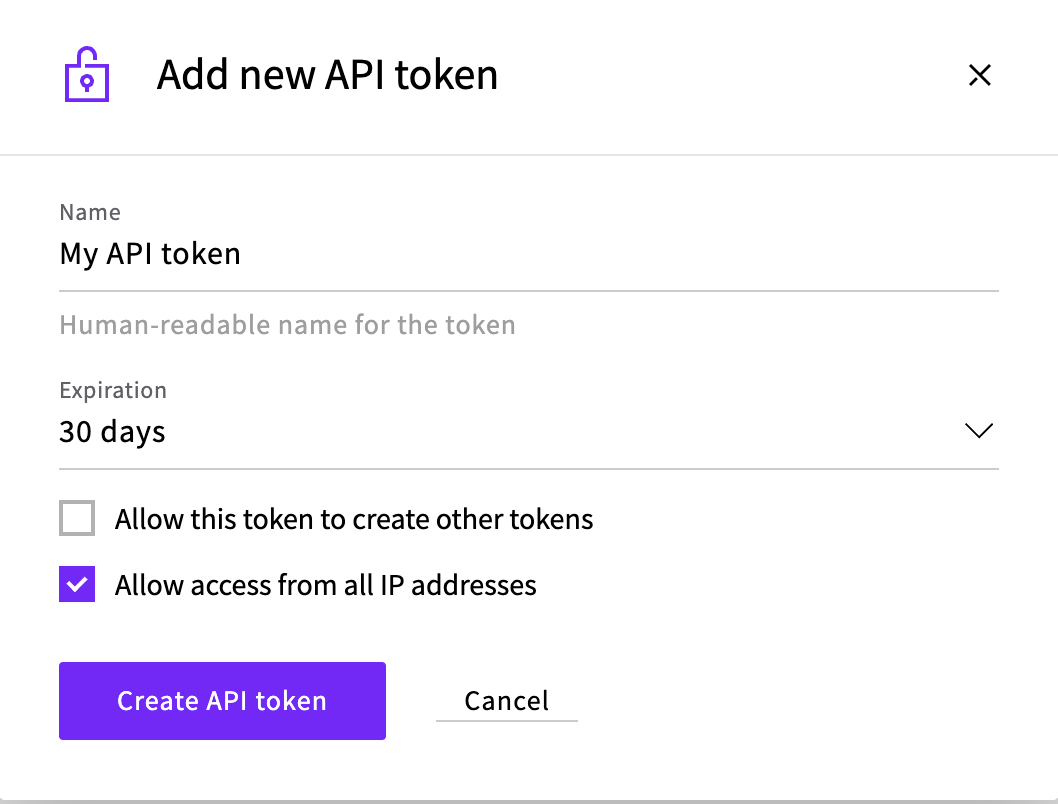
1. In the [UpCloud Control Panel](https://hub.upcloud.com/account/api-tokens), signed in as the main account, go to **Account** > **API tokens**.
2. Click **Add new API token** and enter a name (e.g. `Probo Access Review`).
3. Set **Expiration**. It defaults to 30 days, and 365 days is the maximum. The source stops syncing once the token expires, so pick the longest period your policy allows and plan to rotate the token before that date.
4. Leave **Allow this token to create other tokens** unchecked. Probo only reads accounts.
5. For Probo Cloud, you can restrict the token to the [egress IP](/docs/deployment/ip-ranges) for your region, or keep **Allow access from all IP addresses** checked. For a self-hosted deployment, restrict the token to that deployment's fixed egress addresses.
6. Click **Create API token**, then copy the token (`ucat_…`) and store it securely. It's shown only once.
## Step 2: Connect in Probo
1. In Probo, go to **Access Review** > **Connections**.
2. Find **UpCloud**, click **API Key**, paste the token, and click **Connect**.
Probo names the source after the account the token belongs to and pulls the contract's accounts into your campaigns.
## Troubleshooting
- **Token rejected.** Confirm the token starts with `ucat_` and has not expired. If you restricted the token to specific IPs, include the [Cloud egress address](/docs/deployment/ip-ranges) for your region. A self-hosted deployment can use its own fixed egress addresses. Your UpCloud username and password won't work here.
- **The contract's accounts don't come through.** Account listing is only available to the main account, so a token created under a subaccount is refused and the source cannot enumerate the contract. Create the token while signed in as the main account.
- **An account is missing its name and email.** The token couldn't read that account's details. The account still appears in the review under its username.
---
Source: https://www.probo.com/docs/product/access-review/yousign
# Yousign
Probo reads your Yousign organization's members through the Yousign API so you can review who has access.
:::caution
Use a **Production** API key created in Yousign under **Developers** > **API keys**. A **Sandbox** key will **not** work, because Probo calls the production API at `api.yousign.app` and Yousign keeps the Sandbox and Production environments fully isolated.
:::
## Prerequisites
- Probo organization administrator access
- The **Owner** or **Admin** role in Yousign (Members cannot create API keys)
- A paid Yousign API plan, since Production API access is not part of the free trial (which is Sandbox only)
## Collected Fields
| Probo field | Yousign field | Notes |
| ----------- | -------------------------------------------------------- | ------------------------------------------------------------- |
| Name | `first_name` and `last_name` | Combined into the member's display name |
| Email | `email` | |
| Role | `role` | `owner` → Owner, `admin` → Admin, `member` → Member |
| Admin | `role` | Flagged as an administrator when `role` is `owner` or `admin` |
| Status | `is_active` | A member is shown as inactive when `is_active` is false |
| MFA | | |
| Last login | | |
| External ID | `id` | Stable identifier used to track the account across reviews |
| Created at | `created_at` | When the member was added to the organization |
## Step 1: Create an API Key
1. In Yousign (signed in as an **Owner** or **Admin**), go to **Developers** > **API keys**.
2. Click **New API key** (or **Start integration** for your first key). Set **Environment** to **Production**, **Scope** to **Organization** so the key sees every member, and **Permission** to **Read only**, since Probo only reads your members. Add a description (e.g. `Probo Access Review`).
3. Click **Create API key**, then copy the key and store it securely. It's shown only once.
## Step 2: Connect in Probo
1. In Probo, go to **Access Review** > **Connections**.
2. Find **Yousign**, click **API Key**, paste the key, and click **Connect**.
Probo names the source after your Yousign organization and pulls its members into your campaigns.
## Troubleshooting
- **Key rejected.** Confirm it's a **Production** API key created by an Owner or Admin. A Sandbox key authenticates only against Yousign's sandbox environment, which Probo does not use.
- **No members appear.** The key must belong to the organization you're reviewing and be scoped to the **Organization** rather than a single Workspace.
---
Source: https://www.probo.com/docs/product/assets-and-obligations
# Assets and obligations
Assets and obligations provide context that does not always fit neatly into a framework.
## Assets
An asset represents something the organization needs to understand and protect, such as a service, system, repository, device class, or data store. Record business impact and data sensitivity consistently so risk and control decisions can be compared.
Link assets to the controls, internal controls, risks, and other records that explain how they are protected. An asset inventory is useful only while it reflects the systems the organization actually operates, so assign ownership and review it when architecture changes.
## Obligations
An obligation records a legal, regulatory, contractual, or customer requirement. It is separate from a framework control because the source and wording may be specific to the organization.
Link obligations to:
- controls that satisfy the requirement;
- risks created by noncompliance;
- internal controls and evidence showing implementation;
- documents that formalize the organization’s response.
Publishing asset and obligation lists creates reviewed snapshots for reporting. Continue to maintain the underlying records as systems and requirements change.
## Automation
- [CLI asset](/docs/developers/cli/commands/asset) — Manage the asset inventory with prb asset
- [CLI obligation](/docs/developers/cli/commands/obligation) — Track obligations outside a framework
- [MCP assets and data](/docs/developers/api/mcp/tools/catalog/assets-and-data) — Operate assets and related records through MCP
- [MCP obligations](/docs/developers/api/mcp/tools/catalog/obligations) — Manage obligations from supported AI tools
- [n8n Asset](/docs/developers/api/n8n/resources/asset) — Automate asset inventory workflows in n8n
- [n8n Obligation](/docs/developers/api/n8n/resources/obligation) — Automate obligation workflows in n8n
---
Source: https://www.probo.com/docs/product/audit-log
# Audit log
The audit log is a chronological record of write actions in your organization. Use it to investigate who changed people, roles, compliance records, and settings — and when those changes happened.
Open **Settings** → **Audit Log**. Entries are immutable: Probo does not modify or delete them after they are written.
## What each entry shows
| Field | Meaning |
| ----- | ------- |
| **Date** | When the action was recorded |
| **Actor** | Who performed it — a user, an API key, or the system — plus the actor identifier |
| **Action** | The operation, typically as `resource:verb` (for example create, update, or delete) |
| **Resource** | The type and identifier of the record that changed |
Actions cover organization records such as memberships, invitations, documents, risks, third parties, and authentication configuration. The log records write operations; it is not a full session or login history.
## Who can view and export
Owners and admins can open the audit log in **Settings**. Browse recent entries in the console, then load more as needed.
For a dated trail outside the console, export entries for a time range. Exports are delivered as a CSV download link. You can also list and export through the [CLI](/docs/developers/cli/commands/audit-log), [MCP](/docs/developers/api/mcp/tools/catalog/audit-logs), or [n8n](/docs/developers/api/n8n/resources/audit-log).
## When to use it
- Confirm who invited, promoted, deactivated, or removed a person.
- Trace changes to SSO, SCIM, or other organization settings.
- Provide evidence for an internal investigation or an external audit.
## Current limitations
- Retention is not configurable.
- There is no SIEM export or streaming integration yet, even though the export format is compatible with common SIEM ingest paths.
If you need configurable retention or SIEM export, [contact sales](/contact).
---
Source: https://www.probo.com/docs/product/audits-and-findings
# Audits and findings
An audit in Probo represents a defined review of an organization’s compliance program. It provides a place to scope the review, connect relevant controls, and collect the findings produced by that work.
## Audit scope
Define the audit independently from a framework. An audit may review all or part of a framework and can connect to controls and supporting program records. This keeps the review boundary explicit even when the organization operates several frameworks.
## Findings
Findings describe issues or observations identified during an audit or another review. Supported kinds include major nonconformity, minor nonconformity, observation, and exception. A finding can be linked to more than one audit when the same underlying issue affects multiple reviews.
Use a finding for the reviewed issue and tasks or internal controls for remediation work. This preserves the original conclusion while allowing owners, due dates, and implementation evidence to change as work progresses.
## Reports and evidence
Audit reports are generated from current audit records. Before sharing a report, verify the scope, linked controls, finding classification, and supporting evidence. Document publication and electronic signatures provide separate approval records when a report or policy requires formal sign-off.
## Automation
- [CLI audit](/docs/developers/cli/commands/audit) — Manage audits with prb audit
- [CLI finding](/docs/developers/cli/commands/finding) — Create and update findings from the command line
- [MCP audits and findings](/docs/developers/api/mcp/tools/catalog/audits-and-findings) — Operate audits and findings from supported AI tools
- [n8n Audit](/docs/developers/api/n8n/resources/audit) — Automate audit operations in n8n
- [n8n Finding](/docs/developers/api/n8n/resources/finding) — Automate finding operations in n8n
---
Source: https://www.probo.com/docs/product/compliance-portal
# Compliance Portal
Customers and prospects increasingly expect one place to review your security posture before they buy, renew, or begin due diligence. The Compliance Portal gives them a dedicated, branded place to find that information, built directly into Probo.
Instead of maintaining a separate trust site, choose which frameworks, reports, documents, commitments, references, and subprocessors to expose from your existing Probo workspace. Nothing is shared automatically: you decide what is public, what requires approval, and whether visitors must sign an NDA before exporting documents.
## Choose what customers can see
The portal is connected to the information already managed in Probo. Select the approved items you want to share:
- Frameworks and audit reports that show your compliance coverage
- Policies, procedures, and other documents
- Security commitments and supporting files
- Customer references and useful external links
- Subprocessors selected from your third-party inventory
Adding or updating information in Probo does not automatically expose it. Each portal has its own selection of published content.
## Protect sensitive documents
For each document, audit report, or portal file, choose how it is shared:
- **Not published** — it stays inside Probo and does not appear on the portal.
- **Public** — anyone visiting the portal can open it.
- **Restricted** — visitors can see that it exists, but must sign in, request access, and receive your approval before opening it.
You can also add an NDA to the portal. Visitors may request access before signing it, but they must complete the electronic signature before exporting documents.
## Guides
- [Quickstart](/docs/product/compliance-portal/quickstart) — Create, configure, and activate your first portal
- [Branding](/docs/product/compliance-portal/branding-and-domains) — Add organization details, logos, links, and a custom domain
- [Publishing content](/docs/product/compliance-portal/publishing-content) — Publish frameworks, references, documents, audits, and files
- [Commitments](/docs/product/compliance-portal/commitments) — Write and organize accurate public security and privacy claims
- [Visitor access and NDA](/docs/product/compliance-portal/visitor-access-and-nda) — Protect resources and review visitor access requests
- [Subprocessors](/docs/product/compliance-portal/subprocessors) — Publish selected vendors from your third-party inventory
## Operations and administration
- [Updates and mailing list](/docs/product/compliance-portal/updates-and-mailing-list) — Publish compliance updates and manage subscribers
- [Rights requests](/docs/product/compliance-portal/rights-requests) — Let visitors submit and track privacy requests
- [Multiple portals](/docs/product/compliance-portal/multiple-portals) — Operate separate publishing surfaces for entities, products, or audiences
- [SEO and discoverability](/docs/product/compliance-portal/seo-and-discoverability) — Control indexing and machine-readable portal content
- [Permissions and integrations](/docs/product/compliance-portal/permissions-and-integrations) — Review roles, Slack notifications, and automation options
## Automation
- [MCP Compliance Portal](/docs/developers/api/mcp/tools/catalog/compliance-portal) — Manage portal content from supported AI tools
- [n8n Compliance Portal](/docs/developers/api/n8n/resources/compliance-portal) — Automate portal operations in n8n
---
Source: https://www.probo.com/docs/product/compliance-portal/branding-and-domains
# Branding
Use the **Brand** tab to make the portal recognizable and give visitors clear ways to verify your organization or contact the right team.
## Profile
The profile appears at the top of the public portal. Complete it with information that customers and prospects will recognize:
| Field | What to enter |
| ------------------------ | --------------------------------------------------------------------------------------------------- |
| **Entity name** | The legal entity or product name your customers know. |
| **Description** | What the organization does and what visitors can find in the portal. |
| **Website URL** | The official organization website, so visitors can confirm the portal belongs to you. |
| **Email** | A monitored address for security, compliance, or privacy questions. |
| **Headquarters address** | The address customers can use to identify the legal entity behind the portal, when they require it. |
Keep the description short and factual. The portal should help with due diligence, not repeat the content of your marketing website.
## Visual identity
Upload your primary logo and, if needed, a separate version for dark mode. The logos appear throughout the public portal and help visitors recognize that it is an official resource.
Use square images with transparent backgrounds and enough contrast for their intended display mode. Probo accepts PNG, JPEG, SVG, and WebP images up to 5 MB. You can replace or remove either logo independently.
## Custom links
Custom links connect the portal to useful resources that do not belong in its document library. They appear after your contact details at the top of the portal and open in a new tab.
Common examples include:
- Service status and incident history
- Security contact or vulnerability disclosure
- Privacy notice and data-processing information
- Corporate website or support center
- LinkedIn, X, or Facebook profile
Use a short, descriptive label such as **Service status** instead of a raw hostname. Probo displays a matching icon for supported social networks and a web icon for other links.
1. Open **Brand** and find **Custom links**.
2. Select **Add link**.
3. Enter the visitor-facing name and complete `https://` URL.
4. Save the link, then drag links into the order you want visitors to see.
5. Open the public portal and test every link.
Do not use custom links for confidential documents. Add those to the portal as restricted content so access requests, approvals, and NDA controls still apply.
## Domains
On Probo Cloud, every portal receives a Probo-managed domain based on its hosting region:
- **United States:** `.us.probopages.com`
- **European Union:** `.eu.probopages.com`
Probo obtains and renews TLS certificates for the managed domain automatically, so no DNS configuration is required. Certificates may be issued by Google Trust Services or Let’s Encrypt. After your custom domain becomes active, the managed `probopages.com` address redirects visitors to it.
### Connect a custom domain
1. In the **Domains** section, select **Configure**.
2. Enter the hostname you want to use, such as `compliance.example.com`.
3. Create the DNS records shown by Probo. Copy the record type, name, value, and TTL exactly. Self-hosted deployments must show an operator-owned CNAME target, not `custom.getprobo.com`.
4. Wait for the domain and TLS certificate status to become active.
5. Open the portal from the custom hostname and verify that it loads over HTTPS. Then open the managed address and confirm that it redirects to the custom hostname.
DNS propagation and certificate provisioning can take time. Keep the records in place after activation so the domain can continue to resolve and its certificate can renew.
### Self-hosted domains
`custom.getprobo.com` routes to Probo Cloud. A self-hosted deployment must set
`PROBOD_CUSTOM_DOMAINS_CNAME_TARGET`, or
`probo.customDomains.cnameTarget` in the Helm chart, to a stable hostname that
reaches its own Compliance Portal entry point. Probo displays this value in
the DNS instructions and requires connected domains to resolve through it.
For example, set the deployment target to `portals.probo.example.com`, route that hostname to your proxy or load balancer, and create this customer-facing record:
```text
compliance.example.com. CNAME portals.probo.example.com.
```
The Compliance Portal uses separate HTTP and HTTPS listeners from the console and API. Route the domain according to where TLS terminates:
| TLS mode | Use when | Required routing |
| --------- | ------------------------------------------------ | ------------------------------------------------------------------------------------------------------------------------------------------------ |
| `direct` | Probo obtains and serves the portal certificate. | Pass TCP ports 80 and 443 through to the portal HTTP and HTTPS listeners. Preserve TLS SNI; do not terminate TLS before Probo. |
| `external` | A trusted layer-7 proxy terminates TLS. | Forward requests to the portal HTTP listener. Preserve the original `Host`, set one `X-Forwarded-Proto` value, and overwrite `X-Forwarded-Host` if you send it. |
`direct` is the default. To use external termination, set `PROBOD_TRUST_CENTER_TLS_MODE=external`, or `probo.trustCenter.tlsMode: external` with Helm. Prevent clients from reaching the portal HTTP listener directly: external mode treats the proxy-provided host and protocol as trusted routing data.
In either mode, allow plain HTTP requests for `/.well-known/acme-challenge/` to reach the portal HTTP listener. Probo uses that route while provisioning and renewing certificates. See the [container environment guide](/docs/deployment/configuration/environment-variables#compliance-portal-tls) and [Kubernetes deployment guide](/docs/deployment/self-hosting/kubernetes#compliance-portal-custom-domains) for operator configuration.
### Troubleshoot certificate provisioning
If the custom domain remains pending or reports a provisioning error, first confirm that its CNAME record exactly matches the value shown by Probo and is visible through public DNS.
Then check for Certificate Authority Authorization (CAA) records. Probo Cloud uses both **Google Trust Services** and **Let’s Encrypt** for managed and custom-domain certificates. If your domain has a restrictive CAA policy, it must authorize both issuers:
```text
example.com. CAA 0 issue "letsencrypt.org"
example.com. CAA 0 issue "pki.goog"
```
A CAA record on `example.com` also applies to `compliance.example.com` unless the subdomain defines its own policy. Existing authorizations for other certificate authorities can remain.
For self-hosted Probo, authorize the certificate authority configured by `PROBOD_CUSTOM_DOMAINS_CAA_ISSUER_DOMAIN` and `PROBOD_ACME_DIRECTORY`. The defaults use Let’s Encrypt.
If no CAA records exist, you do not need to create them. If records do exist and exclude the certificate authority selected by Probo, certificate issuance and renewal fail. Correct the records, wait for their DNS TTL to expire, and check the domain status again.
---
Source: https://www.probo.com/docs/product/compliance-portal/commitments
# Commitments
Commitments explain your security and privacy practices in concise, visitor-friendly language. They appear publicly on the Compliance Portal and help customers understand your approach before they review detailed policies or reports.
Commitments are public claims, not evidence of implementation. Use [documents and audit reports](/docs/product/compliance-portal/publishing-content) when visitors need supporting material.
## How commitments are organized
A commitment belongs to a **commitment group**. Groups create the sections visitors see on the portal.
For example, a **Data protection** group could contain commitments about encryption, data retention, and backups. Other useful group themes include:
- Infrastructure security
- Identity and access management
- Incident response
- Privacy and data handling
- Business continuity
- Responsible disclosure
Each group requires a title and description. Each commitment contains:
- **Icon** — a visual cue that supports the subject.
- **Eyebrow** — an optional short label displayed above the title.
- **Title** — the main claim visitors scan.
- **Description** — the context needed to understand the claim.
## Create a commitment group
1. Open the portal’s **Commitments** tab.
2. Select **Add group**.
3. Enter a specific title that describes the shared theme.
4. Explain in the description what the group covers.
5. Save the group.
Keep groups distinct. A small number of well-defined sections is easier to scan than many overlapping sections.
## Add a commitment
1. Find the group where the commitment belongs.
2. Select **Add commitment**.
3. Choose an icon.
4. Optionally enter an eyebrow as a short category or qualifier.
5. Enter the title and description.
6. Save the commitment.
7. Open the public portal and review the result in context.
The title should communicate the practice without depending on the description. Use the description to add meaningful scope, ownership, or limitations.
For example:
- **Eyebrow:** Encryption
- **Title:** Customer data is encrypted in transit
- **Description:** Connections to Probo services use modern TLS configurations to protect customer data while it moves across networks.
Only use an example like this when it accurately reflects your implemented controls.
## Write defensible commitments
Prefer language that is specific enough to be useful and narrow enough to remain true.
**Be factual.** Describe an implemented practice, not an aspiration. Replace “We are committed to industry-leading security” with the control or process you actually operate.
**Define the scope.** Avoid broad claims such as “All data is always encrypted” unless every system, environment, and data flow satisfies the statement.
**Avoid guarantees.** Terms such as “never,” “completely secure,” and “zero risk” create claims that security controls cannot support.
**Keep evidence separate.** A commitment can summarize a practice, while a restricted policy or audit report provides substantiation.
**Write for customers.** Expand uncommon acronyms and avoid internal system names, implementation notes, and control identifiers unless they help visitors.
## Arrange the public layout
Drag commitment groups into the order in which visitors should read them. Within each group, reorder commitments so the most important or frequently requested information appears first.
A useful default order is:
1. Data protection and privacy
2. Access and infrastructure security
3. Monitoring and incident response
4. Resilience and business continuity
The right order depends on your product, risk profile, and customer due-diligence questions.
## Update or remove commitments
Edit a group when its theme or introduction changes. Edit an individual commitment when the underlying practice, scope, or wording changes.
Because commitments are public, changes are visible to portal visitors. Review the public page after editing, reordering, or removing content to confirm that the remaining claims still read coherently.
## Establish a review process
Assign an owner to each commitment or group and review the content:
- When a related control, system, vendor, or policy changes
- After an incident reveals that a statement is incomplete or inaccurate
- Before a major customer or regulatory review
- On a recurring schedule appropriate to your compliance program
During review, confirm that each statement is current, supported by evidence, approved for public disclosure, and consistent with published policies and reports.
---
Source: https://www.probo.com/docs/product/compliance-portal/multiple-portals
# Multiple Portals
An organization can have multiple Compliance Portals. Each portal is an independent publishing surface with its own URL, activation state, brand profile, domains, content selection, visitor access, mailing list, and feature settings.
## When to use separate portals
Create another portal when you need a distinct public experience for:
- separate legal entities or brands;
- products with different certifications or subprocessors;
- regional audiences;
- different sets of public and restricted material.
Do not use portals as a replacement for Probo organizations when teams require separate memberships, permission boundaries, or compliance records. Portals under the same organization draw from that organization's records.
## Create a portal
1. Open **Compliance Portals** in the organization.
2. Select **Create compliance portal**.
3. Enter the entity name shown to visitors.
4. Configure the portal before activating it.
A new portal starts inactive and not indexable. Probo assigns a unique slug and, when a managed base domain is configured, provisions a portal-specific managed domain.
## Keep portals distinct
Review these settings separately for every portal:
- entity profile, logos, and contact details;
- frameworks, documents, audits, files, and subprocessors;
- public versus restricted visibility;
- NDA and visitor access decisions;
- custom domain and search indexing;
- mailing-list subscribers and updates;
- rights-request availability.
Deleting a portal removes its portal configuration, portal files, domains, certificate association, and mailing list. It does not serve as a way to delete the organization's source compliance records.
You can also create and list portals with the [CLI Compliance Portal commands](/docs/developers/cli/commands/compliance-portal), [n8n Compliance Portal operations](/docs/developers/api/n8n/resources/compliance-portal), or [MCP Compliance Portal tools](/docs/developers/api/mcp/tools/catalog/compliance-portal).
---
Source: https://www.probo.com/docs/product/compliance-portal/permissions-and-integrations
# Permissions and Integrations
Compliance Portal administration follows the person's organization role and the organization boundary.
## Console permissions
- **Owners and admins** have full Compliance Portal management access for their organization. They can create, update, activate, and delete portals; manage published content and access; send updates; and configure custom domains.
- **Viewers** have read-only access to portal settings, visitor access, files, references, commitments, frameworks, custom links, and domains.
- Managed domains cannot be deleted through the custom-domain delete permission.
- Auditor and employee roles do not receive the Compliance Portal management policies.
Use the least-privileged role that fits the person's work. See [Roles and permissions](/docs/product/roles-and-permissions) for organization-wide role guidance.
## Slack
The portal overview can connect a Slack workspace and select a channel for Compliance Portal access-request notifications. Connecting or changing the channel requires permission to initiate connectors. A connection without a selected channel is shown as not configured.
## API and automation access
OAuth clients can request one of two Compliance Portal scopes:
- `v1:compliance-page:read` grants portal read operations, including lists of access records, files, references, mailing-list updates and subscribers, frameworks, links, domains, and commitments.
- `v1:compliance-page` adds create, update, delete, access-management, mailing-list, domain, and publishing operations.
The caller must still be authorized for the target organization. Keep credentials out of workflows and grant write access only where an automation must change portal state.
Use the supported interface for the job:
- [CLI Compliance Portal reference](/docs/developers/cli/commands/compliance-portal) for scripts and operator workflows;
- [MCP Compliance Portal tools](/docs/developers/api/mcp/tools/catalog/compliance-portal) for supported AI clients;
- [n8n Compliance Portal operations](/docs/developers/api/n8n/resources/compliance-portal) for workflow automation.
Rights-request automation is documented separately in the [CLI](/docs/developers/cli/commands/rights-request), [MCP privacy catalog](/docs/developers/api/mcp/tools/catalog/privacy), and [n8n](/docs/developers/api/n8n/resources/rights-request) references.
To notify another system when a portal visitor creates or changes a rights request, subscribe to the corresponding [webhook events](/docs/developers/api/webhooks/event-types#rights-request).
---
Source: https://www.probo.com/docs/product/compliance-portal/publishing-content
# Publishing content
Your Compliance Portal is a curated view of your organization’s compliance program. Creating or updating a record elsewhere in Probo does not automatically expose it: you choose what appears on each portal.
This guide covers frameworks, references, documents, audits, and files. [Commitments](/docs/product/compliance-portal/commitments) and [subprocessors](/docs/product/compliance-portal/subprocessors) have dedicated publishing guides.
## Choose the right content type
Use the source that best represents the information you want to share:
- **Frameworks** highlight standards and regulations in your compliance program. They do not include evidence or an audit report.
- **References** display approved customer or partner logos as trust signals.
- **Commitments** explain your security and privacy practices in your own words. See [Commitments](/docs/product/compliance-portal/commitments).
- **Documents** publish the latest approved version of content managed in Probo, such as policies and procedures.
- **Audits** share an audit entry and its report.
- **Files** publish standalone material that is not maintained in document management, such as a security brief or completed questionnaire.
Prefer **Documents** for material that requires versioning and approval in Probo. Use **Files** for supplemental material that only needs to be uploaded and shared through the portal.
## Understand visibility
Documents, audits, and files can require different levels of access:
- **Public** — anyone who visits the portal can open the resource.
- **Restricted** — the resource is listed, but a visitor must sign in, request access, and receive approval before opening it.
- **Not published** — the resource does not appear to visitors. This option is available for portal files.
Documents and audits have a separate **Displayed** control. Selecting it adds the resource to the portal as **Restricted** by default. Clearing it removes the resource from that portal without deleting the source document or audit from Probo.
Frameworks, references, and commitments are public when you add them to a portal; they do not have a Restricted setting.
## Publish frameworks
Frameworks give visitors a quick view of your compliance coverage.
1. Open the portal’s **Overview** tab.
2. Under **Compliance frameworks**, select each framework you want to display.
3. Select a highlighted framework again to remove it from the portal.
Only use a framework card to communicate scope at a high level. Publish a certification, attestation, or other supporting evidence as a document or audit report, with the appropriate visibility.
## Add references
References can showcase customers, partners, or other organizations that support your credibility.
1. Open **References** and select **Add reference**.
2. Enter the organization’s name and website URL.
3. Upload its logo and add an optional description.
4. Save the reference.
5. Drag references into the order in which they should appear.
Obtain permission before publishing another organization’s name, logo, or endorsement. Removing a reference from one portal does not affect references on another portal.
## Publish managed documents
The **Documents** tab lists active documents that have at least one published version. Draft-only, inactive, or archived documents are not available to add.
For each document you want to share:
1. Confirm the correct version is published in [Document Management](/docs/product/document-management).
2. Open the portal’s **Documents** tab.
3. Select **Displayed** next to the document. It is added as **Restricted**.
4. Keep **Restricted** or change the visibility to **Public**.
5. Use the public portal to verify the title, document type, and access behavior.
The portal follows the document’s latest published version. Publishing a newer version therefore changes what portal visitors receive; it does not require you to add the document again. Complete approval and redaction before publishing a replacement version.
If a document does not appear in the list, check that it is active and has a published version.
## Publish audits and reports
The **Audits** tab lists audits from the organization, including their framework, name, validity date, and state.
1. Locate the audit you want to share.
2. Review its state, validity date, scope, and attached report.
3. Select **Displayed**. The audit is added as **Restricted**.
4. Keep **Restricted** or change the visibility to **Public**.
5. Verify the audit entry and report from the public portal.
Do not make a report public solely because the audit is complete. Reports can contain findings, testing details, customer names, or scope information intended only for qualified recipients.
## Upload standalone files
Use **Files** when the content is not managed as a versioned Probo document.
1. Open **Files** and select **Add file**.
2. Upload one supported document, spreadsheet, presentation, text, image, or data file. The maximum file size is 10 MB.
3. Enter the visitor-facing name and category.
4. Choose **Not published**, **Restricted**, or **Public**.
5. Select **Add file**, then verify it from the portal.
Choose **Not published** to stage a file before release. You can later change its visibility without uploading it again. To replace the underlying file, delete the existing portal file and upload the replacement.
## Review before release
Before making content available:
- Open every document and file; do not rely on its filename or title.
- Remove secrets, personal data, internal comments, hidden spreadsheet tabs, and unsupported claims.
- Confirm that links, validity dates, and published versions are current.
- Check that you have permission to publish third-party names, logos, and reports.
- Use **Restricted** when a requester’s identity or business need should be reviewed.
- Test public resources while signed out.
- Test restricted resources with a visitor account, including the request and approval flow.
For access approvals, revocation, and NDA requirements, see [Visitor access and NDA](/docs/product/compliance-portal/visitor-access-and-nda).
---
Source: https://www.probo.com/docs/product/compliance-portal/quickstart
# Compliance Portal quickstart
This guide takes you from an empty organization to an active Compliance Portal.
## Prerequisites
- Access to an organization in the Probo console
- Permission to create and update Compliance Portals
- Approved content to publish
## Create and launch a portal
1. **Create the portal**
Open **Compliance Portals** in the organization sidebar and select **Create Compliance Portal**. Enter the legal or customer-facing entity name, then create the portal.
Creating a portal assigns it a public URL and opens its configuration page. The portal remains inactive until you enable it.
2. **Complete the public profile**
Open the **Brand** tab. Add a description, website URL, contact email, and headquarters address. Upload separate logos for light and dark backgrounds if needed.
3. **Add public content**
Use the **References**, **Commitments**, **Audits**, **Documents**, **Files**, and **Subprocessors** tabs to choose what the portal presents. Adding an internal record to the portal is a separate action; records are not published automatically.
See [Publishing content](/docs/product/compliance-portal/publishing-content) for the available content types and visibility settings.
4. **Review access controls**
On the **Overview** tab, upload an NDA if visitors must accept one. For each document, audit report, or portal file, confirm whether its visibility should be **Public** or **Restricted**.
5. **Review the configuration**
Check the profile, links, content labels, visibility settings, and public URL. Inactive portals return a not-found response to visitors, so activate the portal before testing the public experience.
6. **Activate and verify the portal**
Return to **Overview** and enable **Activate compliance portal**. Once active, use **Open** in the page header to visit the portal. Verify it while signed out and, if you publish restricted content, with a visitor account.
Search engine indexing can be enabled only while the portal is active. Leave it disabled if the portal should not be included in search engine indexes.
## Next steps
- [Customize branding and domains](/docs/product/compliance-portal/branding-and-domains)
- [Configure visitor access and an NDA](/docs/product/compliance-portal/visitor-access-and-nda)
- [Publish subprocessors](/docs/product/compliance-portal/subprocessors)
---
Source: https://www.probo.com/docs/product/compliance-portal/rights-requests
# Rights Requests
Rights requests let a signed-in portal visitor submit a privacy request and follow its status from the portal. Requests are scoped to the visitor's verified email address.
## Enable requests
Open the portal's **Overview** tab and turn on **Rights requests**. Turning the feature off removes the requests page from the portal; it does not delete requests already recorded in Probo.
## Visitor workflow
A visitor selects **Requests**, opens **Data Requests**, and signs in before submitting a request. The form supports data access, deletion, rectification, processing objection, and abuse-report requests. Probo uses the verified account email as the contact address; the visitor can add a data-subject name and request details.
An unsigned portal NDA does not block this workflow. Rights requests remain available to authenticated visitors so an agreement for compliance documents cannot prevent the exercise of privacy rights.
New portal requests:
- are created in the portal's organization;
- start in the **To do** state;
- receive a deadline 30 days after submission;
- emit a `right-request:created` webhook event;
- appear in the visitor's personal request list.
The visitor can see the request type, status, submission time, and any response recorded in **Action taken**.
## Process requests
Manage submitted requests in Probo's privacy management workflow. Verify identity and scope before disclosing or deleting data, record the work performed, and update the request state and action taken. The initial 30-day deadline can be adjusted in the console when the applicable law or an extension requires it.
For automation, use the [CLI rights-request commands](/docs/developers/cli/commands/rights-request), [n8n Rights Request operations](/docs/developers/api/n8n/resources/rights-request), or the [MCP privacy tools](/docs/developers/api/mcp/tools/catalog/privacy).
---
Source: https://www.probo.com/docs/product/compliance-portal/seo-and-discoverability
# SEO and Discoverability
A Compliance Portal starts inactive with search-engine indexing disabled. Activate and review the portal before inviting crawlers to discover it.
## Understand activation and indexing
Activation and indexing are separate controls:
- An **inactive portal** is not available to visitors or crawlers.
- An **active portal with indexing disabled** is available to anyone who knows its URL, but its `robots.txt` asks compliant crawlers not to crawl it.
- An **active portal with indexing enabled** allows crawling and advertises its generated sitemap.
The indexing setting is unavailable until the portal is active.
Search-engine directives are not access controls. They are instructions that well-behaved crawlers may follow. Use [restricted visibility and visitor access controls](/docs/product/compliance-portal/visitor-access-and-nda) to protect content.
## Prepare the portal
Search engines use the portal’s public profile and content to understand the page. Before enabling indexing:
- Use the organization or product name customers will search for.
- Write a concise description that explains what the organization does and what the portal contains.
- Add the official website URL and a monitored contact email.
- Upload a recognizable logo.
- Publish current frameworks, documents, audits, and subprocessors.
- Remove placeholder, duplicate, expired, or test content.
- Configure and verify an organization-owned [custom domain](/docs/product/compliance-portal/branding-and-domains#connect-a-custom-domain) when appropriate.
- Review the complete portal while signed out.
Restricted resources are visible in the catalog by name even though their contents are protected. Do not use a sensitive customer name, project name, incident reference, or other confidential detail in a restricted resource title.
## Enable indexing
1. Open the portal’s **Overview** tab.
2. Enable **Activate compliance portal**.
3. Use **Open** in the page header to review the public portal.
4. Return to **Overview** and enable **Search engine indexing**.
5. Verify the generated crawler files on the active portal hostname.
Enabling indexing does not guarantee inclusion or ranking. Each search engine decides whether and when to crawl and index a page.
## Verify crawler directives
Open these URLs on the portal hostname:
- `https:///robots.txt`
- `https:///sitemap.xml`
When indexing is enabled, `robots.txt` allows crawling and points to `sitemap.xml`. When indexing is disabled, it contains a site-wide `Disallow` directive.
The sitemap includes the main overview, documents, subprocessors, and updates pages, plus detail URLs for public documents, portal files, and audit reports. Restricted resources are not added as detail URLs.
After publishing or removing content, check the sitemap again to confirm that it reflects the intended public resources.
## Generated search metadata
Probo generates metadata for every portal page:
- The page title uses the portal’s entity name.
- The meta description uses the portal description, with the generated page title as a fallback.
- A self-referencing canonical URL uses the current managed or custom portal hostname.
- Language alternates identify every supported translation, with English as the default.
- The portal logo is used as the favicon when available; otherwise Probo’s favicon is used.
After changing the entity name, description, logo, or domain, allow search engines time to recrawl the portal before expecting search results to update.
## Custom domains and canonical URLs
Use one stable hostname when promoting the portal. After a custom domain becomes active, the managed `probopages.com` address redirects to it, and generated canonical URLs use the custom hostname requested by visitors.
Before enabling indexing on a new custom domain:
1. Confirm that the domain is active and loads over HTTPS.
2. Open several public portal pages from the custom hostname.
3. Verify that the managed hostname redirects to the custom hostname.
4. Check `robots.txt` and `sitemap.xml` on the custom hostname.
If the portal was already indexed on another hostname, search results can take time to consolidate around the redirected custom domain.
## Machine-readable portal summary
Each active portal serves:
```text
https:///llms.txt
```
This Markdown document summarizes the organization and its published compliance information for machine-readable clients. It can include the public profile, frameworks, public documents and audits, subprocessors, references, and custom links.
Restricted document and audit contents are excluded. The file remains reachable on an active portal even when search-engine indexing is disabled; `robots.txt` controls whether compliant crawlers are invited to fetch it.
Treat `llms.txt` as another public representation of the portal. Review it after changing visibility or public profile information.
## Troubleshoot indexing
### The portal does not appear in search results
- Confirm that the portal is active and **Search engine indexing** is enabled.
- Open `robots.txt` and verify that it allows crawling.
- Open `sitemap.xml` and confirm that the expected public URLs are present.
- Verify that the portal and its public resources return successfully over HTTPS.
- Allow time for the search engine to discover and recrawl the site.
- For a custom domain, use the search engine’s webmaster tools to inspect or submit the sitemap when needed.
### Search results show old text or branding
Confirm that the entity name, description, and logo are correct in **Brand**. Search engines cache metadata, so updates are not immediate even when the live portal is correct.
### Search results use the old domain
Confirm that the custom domain is active and the managed hostname redirects to it. Check that canonical URLs and the sitemap use the custom hostname, then allow time for recrawling.
### A restricted resource name appears publicly
Restricted visibility protects the resource contents, not its catalog entry. Rename the resource to remove sensitive information, or remove it from the portal entirely.
### You disabled indexing but results remain
Disabling indexing updates `robots.txt`, but it does not immediately remove URLs already known to a search engine. Removal timing is controlled by the search engine. Use its temporary-removal tools if a result must be hidden quickly, and remove or restrict the underlying content rather than relying on crawler directives.
---
Source: https://www.probo.com/docs/product/compliance-portal/subprocessors
# Publish subprocessors
The Compliance Portal can publish selected vendors from your organization’s third-party inventory. Use this catalog to tell visitors which external organizations process or host data for your service.
## Prepare the inventory
Create and maintain third-party records under [Third-party management](/docs/product/third-party-management) before publishing them. The portal uses the source record’s:
- Name
- Category
- Description
- Website URL
- Countries
Only top-level third parties are available in the portal picker. Complete the public-facing fields before adding a record.
## Add a subprocessor
1. Open **Compliance Portals** and select the portal.
2. Open the **Subprocessors** tab.
3. Select **Add subprocessor**.
4. Choose an available third party.
5. Confirm the addition.
The subprocessor appears on the public portal immediately when the portal is active. There is no restricted visibility option for this catalog.
## Visitor experience
Visitors can search the catalog and filter it by category and country. Entries are grouped by category and show the vendor name, description, website-derived logo, and listed countries.
## Update or remove an entry
Edit the underlying third-party record to correct its public details. Remove the entry from the **Subprocessors** tab when it should no longer be disclosed on this portal.
Removing a subprocessor from the portal removes only the portal association; it does not delete the source third-party record.
Review the published list whenever your vendor inventory or data-processing relationships change.
---
Source: https://www.probo.com/docs/product/compliance-portal/updates-and-mailing-list
# Updates and Mailing List
Each Compliance Portal has its own mailing list. Visitors can subscribe to receive compliance updates, and portal managers can add or remove subscribers from the console.
## Manage subscribers
Open the portal, then select **Mailing List**. The subscriber list shows each person's name, email address, subscription status, and subscription date.
- **Pending** subscribers have not completed confirmation.
- **Confirmed** subscribers receive updates.
- Removing a subscriber stops future sends to that address.
Use **Add subscriber** when a person has asked to join outside the portal. Do not add people without an appropriate basis for contacting them.
## Create and send an update
1. Open **Mailing List**, then select the updates view.
2. Create an update and enter a title and body.
3. Review the draft for confidential or customer-specific information.
4. Select **Send**, review the confirmation, and confirm the send.
Sending queues the update for delivery. A sent update becomes read-only; create a new update if you need to issue a correction. Delivery also requires working outbound email configuration.
## Visitor experience
Sent updates appear in the portal's **Updates** section. Signed-in visitors can choose **Subscribe to updates** from the user menu and unsubscribe later. A subscription affects email delivery only; visitors can still read published updates without subscribing.
## Automate mailing-list work
The [Compliance Portal MCP tools](/docs/developers/api/mcp/tools/catalog/compliance-portal#getMailingList) can list subscribers, create and edit drafts, and queue sends. Treat `sendMailingListUpdate` as an external side effect and require an explicit review step before calling it.
---
Source: https://www.probo.com/docs/product/compliance-portal/visitor-access-and-nda
# Visitor access and NDA
Access control applies to individual documents, audit reports, and portal files. This lets visitors browse public information while protecting resources that require identity verification, approval, or an NDA.
## Choose what requires approval
Set the visibility of each resource before activating or promoting the portal:
- **Public** — any visitor can open the resource without signing in.
- **Restricted** — visitors can see the resource in the catalog, but they must sign in, request access, and receive approval before opening it.
- **Not published** — the resource does not appear in the visitor catalog. This option is available for portal files.
Visibility and visitor grants solve different problems. Visibility determines the default access policy for everyone; a grant allows one visitor to open one restricted resource.
See [Publishing content](/docs/product/compliance-portal/publishing-content) to configure resource visibility.
## How a visitor requests access
Restricted resources remain discoverable so customers can request exactly what they need.
1. **Find restricted content**
The visitor opens **Documents** and can filter the catalog by public or restricted content. A restricted resource shows **Request Access** instead of **View**.
2. **Sign in and identify themselves**
When required, Probo asks the visitor to sign in and complete their profile before submitting the request.
3. **Review and sign the NDA**
If the portal has an NDA, the visitor must complete the signing flow before the restricted-resource request can proceed. Public content remains available without an NDA.
4. **Submit the request**
The visitor can request one resource or select multiple restricted documents, audit reports, and files and request them together.
5. **Wait for a decision**
The resource shows **Access requested** while the request is pending. A pending request does not grant access.
6. **Open approved resources**
After approval, **View** replaces the request action. The grant applies only to the approved visitor and resources.
## Configure an NDA
Use an NDA when visitors must accept confidentiality terms before requesting restricted resources.
Before uploading an agreement:
- Complete legal review outside Probo.
- Confirm that the agreement identifies the correct legal entity.
- Remove signature fields that conflict with the portal’s electronic-signature flow.
- Export the final agreement as a PDF no larger than 10 MB.
To configure it:
1. Open the portal’s **Overview** tab.
2. Find **Non-disclosure agreement** and select **Upload NDA**.
3. Choose the reviewed PDF and upload it.
4. Open the public portal with a test visitor account.
5. Request a restricted resource and complete the signing flow.
Replacing the PDF changes the agreement presented in future signing flows. Treat replacement as a controlled legal change: review the new version, record its effective date, and verify the visitor experience again.
An NDA controls the terms under which content is shared. It does not make unsuitable material safe to publish and does not replace per-resource approval.
## The NDA signing experience
When an NDA is required, the visitor:
1. Opens the agreement in the portal’s PDF viewer.
2. Reviews the consent text and agreement.
3. Selects **Sign** to provide electronic consent.
4. Waits while Probo seals the signature.
5. Returns to the resource or request flow they started.
Probo records the signature status, completion time, certificate, and signing events. If signing is incomplete, the portal displays a reminder to the visitor.
## Review access requests
Open the portal’s **Access** tab. Each row shows:
- Visitor name and email address
- Date the visitor profile was created
- Number of active grants
- Number of pending requests
- NDA signature status
Select an active visitor to review their documents, audit reports, and portal files. Check the resource name, type, and category before making a decision.
For each resource:
- **Requested** means no decision has been saved yet.
- **Granted** allows that visitor to open the restricted resource.
- **Rejected** declines a pending request.
- **Revoked** removes a grant that the visitor previously held.
Select **Grant** or **Reject** for individual resources. Use **Grant all** or **Reject or revoke all** only when the same decision is appropriate for every listed resource. Review the resulting statuses, then save the update.
## Review the NDA record
When a visitor has started or completed the NDA flow, their access details include an electronic-signature record. Use it to review:
- Current signature status
- Signing completion date
- Downloadable signature certificate
- Recorded activity and event timestamps
The signature record supports auditability, but it does not determine which resources the visitor should receive. Make the access decision separately.
## Revoke access
Revoke a grant when the visitor no longer has a valid business need, their engagement ends, or the resource should no longer be shared with them.
1. Open **Access** and select the visitor.
2. Find each currently granted resource.
3. Select **Revoke**, or use **Reject or revoke all** when appropriate.
4. Review the changes and save.
5. Confirm that the active-grant count has been updated.
Revocation removes the visitor’s portal access to the resource. It cannot recall copies they previously downloaded.
## Access-review practices
- Grant only the resources needed by the requester.
- Verify the requester’s organization, identity, and business need when the email address alone is insufficient.
- Check the request against the resource’s intended audience and owner approval.
- Investigate unexpected bulk requests instead of approving them by default.
- Review active grants periodically and revoke access that is no longer required.
- Review the NDA signature status, but do not treat a signature as automatic authorization.
- Keep sensitive information out of the portal when it should not be distributed, even under NDA.
---
Source: https://www.probo.com/docs/product/compliance-program
# Compliance program
A Probo organization is the boundary for a company’s compliance records and memberships. Inside it, a compliance program connects external requirements to the work and proof that demonstrate how those requirements are met.
## Core model
1. A **framework** groups requirements from a standard or a custom program.
2. A **control** describes an outcome the organization is expected to achieve.
3. An **internal control** describes what the organization actually operates to satisfy one or more controls.
4. A **[task](/docs/product/tasks/overview)** assigns a concrete piece of work, optionally with a due date.
5. **Evidence** is a file or URL supporting the operation of an internal control.
Controls and internal controls are many-to-many. A reusable internal control such as an access review can support controls in several frameworks, which avoids duplicating the same implementation work.
## Applicability
A Statement of Applicability records which controls apply to an organization and why. It is versioned separately from day-to-day internal control work so teams can review and publish a deliberate scope.
## Program records
Frameworks, controls, internal controls, tasks, evidence, risks, documents, audits, and obligations can be linked rather than copied. These relationships provide traceability from a requirement to its implementation, supporting material, risks, and audit results.
Publishing a list or statement creates a stable representation for review. Draft records remain editable until the responsible team is ready to publish them.
## Ownership and access
Organization membership determines access to the program. Assign work to named users and use the [audit log](/docs/product/audit-log) to investigate important changes. See [Roles and permissions](/docs/product/roles-and-permissions). SSO and SCIM manage access to Probo itself; [access reviews](/docs/product/access-review/overview) review access imported from Probo and connected systems.
## Automation
Frameworks, controls, internal controls, tasks, evidence, and statements of applicability are available through the console and developer interfaces.
- [CLI framework](/docs/developers/cli/commands/framework) — Import and manage frameworks from the command line
- [CLI internal control](/docs/developers/cli/commands/internal-control) — Manage internal controls that implement framework requirements
- [CLI SoA](/docs/developers/cli/commands/soa) — Work with statements of applicability
- [MCP frameworks and controls](/docs/developers/api/mcp/tools/catalog/frameworks-and-controls) — Operate frameworks and controls from supported AI tools
- [MCP internal controls, tasks, and evidence](/docs/developers/api/mcp/tools/catalog/internal-controls-tasks-and-evidence) — Create and update implementation work through MCP
- [n8n Framework](/docs/developers/api/n8n/resources/framework) — Automate framework operations in n8n
- [n8n Internal Control](/docs/developers/api/n8n/resources/internal-control) — Automate internal control operations in n8n
---
Source: https://www.probo.com/docs/product/cookie-banner/blocking-resources
# Blocking Third-Party Resources
The Probo cookie banner SDK can block third-party resources from loading until the visitor grants consent for the corresponding cookie category. This is essential for GDPR and ePrivacy compliance, where non-essential cookies and tracking must not be set before the visitor opts in.
## How It Works
Add a `data-cookie-consent` attribute to any element you want to gate behind consent. The attribute value must match a cookie category **slug** from your banner configuration — for example, `analytics`, `advertising`, or `functional`.
The SDK scans the page for elements with this attribute and keeps them inactive until the visitor consents to the matching category. It also watches for dynamically added elements using a `MutationObserver`, so resources injected after page load are handled automatically.
## Scripts
To block a script, change `src` to `data-src` and set `type="text/plain"` to prevent the browser from executing it:
```html
```
If the script originally had a meaningful `type` attribute (e.g. `module`), preserve it with `data-type`:
```html
```
Inline scripts work the same way:
```html
```
## Iframes
Replace `src` with `data-src`:
```html
```
## Images
Tracking pixels and other consent-gated images:
```html
```
## Stylesheets
Replace `href` with `data-href` on `` tags:
```html
```
## Supported Elements
| Element | Blocked Attribute | Restored To |
| ---------- | ------------------------------------- | ---------------------------------------------------- |
| `
```
### Facebook Pixel
```html
```
### YouTube Embed
```html
```
## Category Slugs
The `data-cookie-consent` attribute value is matched against the category **slug** in consent state (not the display name). Default categories use these slugs:
| Category | Attribute Value (`slug`) |
| ------------- | ------------------------ |
| Necessary | `necessary` |
| Analytics | `analytics` |
| Advertising | `advertising` |
| Functional | `functional` |
| Uncategorised | `uncategorised` |
For a custom category, use the **slug** you set in the console (for example `social-media`), not the display name.
System categories like Necessary are always consented to, so tagging elements with `data-cookie-consent="necessary"` is valid but has no blocking effect — those resources load immediately. The Uncategorised category is where cookies that haven't been assigned to a category yet are collected. You should move cookies out of Uncategorised and into the appropriate category in the console so visitors see meaningful groupings in the preference panel.
---
Source: https://www.probo.com/docs/product/cookie-banner/consent-manager
# Consent Manager API
The Consent Manager is a lightweight, framework-agnostic API for reading consent state and reacting to changes in your application code. It works with all three SDK modes — script tag, themed banner, and headless components.
Use it when you need to conditionally run code based on consent — for example, initializing an analytics library only after the visitor grants permission, or rendering a component differently depending on which categories are allowed.
## Importing
The Consent Manager is available as a standalone sub-export that ships no UI code:
```js
const consent = getConsent();
```
If you use the IIFE script tag, the same singleton is exposed on the `window` object:
```js
const consent = window.Probo.consent;
```
`getConsent()` always returns the same `ConsentManager` instance. You can call it from anywhere in your application — there is no need to pass it through props or context.
## API Reference
### `getConsent()`
Returns the global `ConsentManager` singleton. Call it from any module.
```js
const consent = getConsent();
```
### Properties
| Property | Type | Description |
| ------------- | --------- | ------------------------------------------------------------------------------------------------ |
| `ready` | `boolean` | `true` once the SDK has resolved the initial consent state (from cookie, API, or defaults). |
| `hasResponse` | `boolean` | `true` if the visitor has actively made a consent choice (as opposed to defaults being applied). |
### `has(category)`
Check whether a specific category is currently allowed.
```js
if (consent.has("analytics")) {
// Analytics category is granted
}
```
**Parameters:**
| Parameter | Type | Description |
| ---------- | -------- | ----------------------------------------------------------------------- |
| `category` | `string` | The category slug (e.g. `"analytics"`, `"advertising"`, `"functional"`) |
**Returns:** `boolean`
### `getAll()`
Returns the full consent state as a `Record` keyed by category slug.
```js
const state = consent.getAll();
// { necessary: true, analytics: false, advertising: false, functional: true }
```
### `onReady(callback)`
Registers a one-shot callback that fires when consent state is first resolved. If consent is already resolved, the callback fires immediately.
```js
const off = consent.onReady((data) => {
console.log("Consent resolved:", data);
});
// Call off() to unsubscribe before it fires
off();
```
**Returns:** An unsubscribe function.
### `onChange(callback)`
Registers a callback that fires every time the visitor updates their consent choices. Does **not** fire for the initial resolution — use `onReady` or `subscribe` for that.
```js
const off = consent.onChange((data) => {
console.log("Consent updated:", data);
});
off(); // stop listening
```
**Returns:** An unsubscribe function.
### `subscribe(callback)`
Combines `onReady` and `onChange` into a single subscription. The callback fires once when consent is first resolved, then again whenever the visitor changes their choices.
```js
const off = consent.subscribe((data) => {
console.log("Consent state:", data);
});
off(); // stop listening
```
**Returns:** An unsubscribe function.
## Examples
### Conditionally initialize analytics
```js
getConsent().onReady((data) => {
if (data.analytics) {
loadAnalytics();
}
});
getConsent().onChange((data) => {
if (data.analytics) {
loadAnalytics();
}
});
```
### Guard a third-party SDK
```js
const consent = getConsent();
consent.subscribe((data) => {
if (data.advertising) {
import("./facebook-pixel").then((m) => m.init());
}
});
```
### Read consent state at any time
```js
const consent = getConsent();
if (consent.ready && consent.has("functional")) {
enableLiveChat();
}
```
### IIFE usage
When using the script tag, access the same API through `window.Probo.consent`:
```html
```
## Consent Manager vs DOM Events
The SDK also emits [DOM events](/docs/product/cookie-banner/javascript-sdk#events) like `probo-consent` and `probo-ready`. Both approaches give you access to consent state — use whichever fits your architecture:
| Approach | Best for |
| -------------------------------------- | ---------------------------------------------------------------------------------------------------------------------------------------------------- |
| **Consent Manager** (`getConsent()`) | Application code, React hooks, module imports, anywhere you need to subscribe/unsubscribe or check state at any time. Works without a DOM reference. |
| **DOM events** (`probo-consent`, etc.) | Inline scripts, event delegation, cases where you already listen on the document or a parent element. |
The Consent Manager is the recommended approach for bundled applications — it's easier to compose, does not require a DOM element reference, and the `subscribe` API handles both initial state and updates in one call.
---
Source: https://www.probo.com/docs/product/cookie-banner/geolocation
# Geolocation and Regulations
Probo automatically detects each visitor's location from their IP address and applies the correct privacy regulation. The banner's **presentation** (opt-in, opt-out, or notice), button set, initial/reopen state, and copy all adapt to the visitor's location without any manual configuration.
Probo shows the least a jurisdiction allows. The banner only opens by itself where a law requires a proactive disclosure — everywhere else the visitor sees nothing but the cookie settings link you place in your footer.
## How It Works
Every time the JavaScript SDK fetches the banner configuration, the API resolves the visitor's location:
1. The visitor's IP address is extracted from the request.
2. The IP is looked up against a geolocation database to determine the country and, where it matters, the state or province.
3. The location is mapped to an applicable privacy regulation. This is subdivision-aware: a visitor in Texas gets the TDPSA rather than California's CCPA, and a visitor in Quebec gets Law 25 rather than the federal PIPEDA.
4. The regulation determines the **layout** (`presentation`, `initial_state`, `reopen_state`, buttons, settings-link style) and consent mode. Banner text variants are selected to match.
This happens transparently on every configuration request. You do not need to install any additional library or pass location data from the client.
If geolocation cannot resolve a country (for example the IP cannot be looked up), Probo falls back to **GDPR** — the strictest opt-in model.
## Presentations
The SDK renders from three presentations (see `layout.presentation` in the [JavaScript SDK](/docs/product/cookie-banner/javascript-sdk#layout-api)):
| Presentation | On first load | Behavior | Reopen target |
| ------------ | ------------- | -------- | ------------- |
| **OPT_IN** | Banner opens | Non-essential cookies blocked until the visitor consents. Accept / reject / customize. | Preference panel |
| **OPT_OUT** | Nothing opens | Non-essential cookies active by default. The settings link is the only visible surface; following it opens a compact acknowledge + opt-out banner. | Compact banner (Privacy Choices under CCPA) |
| **NOTICE** | Banner opens | Informational notice with a single dismiss control. Records `ACKNOWLEDGE` (not accept-all). Cookies follow the opt-out model (active by default). | Notice banner |
`OPT_OUT` never opens on its own, which makes `` load-bearing rather than decorative: in those jurisdictions it is the visitor's only route to their choices. See [Settings link](/docs/product/cookie-banner/javascript-sdk#settings-link).
## Supported Regulations
### Opt-in (`OPT_IN`) — banner opens on first load
| Regulation | Where it applies |
| ----------- | ---------------------------------------------------------------------------------------------------------------------------------------------------------------------------------------------------------------------------------------------------------------------------------- |
| **GDPR** | Austria, Belgium, Bulgaria, Croatia, Cyprus, Czechia, Denmark, Estonia, Finland, France, Germany, Greece, Hungary, Ireland, Italy, Latvia, Lithuania, Luxembourg, Malta, Netherlands, Poland, Portugal, Romania, Slovakia, Slovenia, Spain, Sweden, Iceland, Liechtenstein, Norway |
| **UK GDPR** | United Kingdom |
| **FADP** | Switzerland |
| **Law 25** | Quebec |
| **LGPD** | Brazil |
| **POPIA** | South Africa |
| **PDPA** | Thailand |
| **PIPL** | China |
| **PIPA** | South Korea |
| **DPDP** | India |
| **PDPL** | Saudi Arabia |
### Opt-out (`OPT_OUT`) — nothing opens; settings link only
| Regulation | Where it applies | Settings link |
| ---------- | ---------------- | ------------- |
| **CCPA / CPRA** | California, and any US visitor whose state cannot be resolved | “Your Privacy Choices” + the official opt-out icon, opening the Privacy Choices panel |
| **US state privacy laws** | Virginia (VCDPA), Colorado (CPA), Connecticut (CTDPA), Utah (UCPA), Texas (TDPSA), Oregon (OCPA), Montana (MTCDPA), Florida (FDBR), Iowa (IAICDPA), Delaware (DEPDPA), New Hampshire (NHPA), Nebraska (NENDPA), New Jersey (NJDPA), Tennessee (TIPA), Minnesota (MNDPA), Maryland (MODPA), Indiana (INCDPA), Kentucky (KCDPA), Rhode Island (RIDTPPA) | Default label, opening the compact opt-out banner |
| **PIPEDA** | Canada — federal, and provinces without their own statute | Default label, opening the compact opt-out banner |
| **PIPA (AB / BC)** | Alberta, British Columbia | Default label, opening the compact opt-out banner |
| **APPI** | Japan | Default label, opening the compact opt-out banner |
| **None** | Every other identified country, and US states with no comprehensive privacy law | Default label, opening the compact opt-out banner |
Japan and the no-law case sit here rather than in `NOTICE` because their disclosure duties are satisfied by a published privacy policy — nothing requires interrupting the visitor. They still get a working opt-out through the settings link.
### Notice (`NOTICE`) — banner opens on first load
| Regulation | Where it applies | Notes |
| ----------- | ---------------- | ----- |
| **LFPDPPP** | Mexico | Single acknowledge / dismiss control |
Mexico is the only jurisdiction in this group. Article 76 of the LFPDPPP regulations requires the cookie disclosure to be shown in a visible location, which a privacy-policy link alone does not satisfy.
## Resolution Priority
1. **Location resolved** — Map country and subdivision to the regulation above and apply that regulation's layout (presentation, consent mode, reopen target, settings-link style).
2. **US visitor, state unresolved** — Fall back to **CCPA**. California cannot be ruled out, so the visitor gets the statutory “Your Privacy Choices” link.
3. **Canadian visitor, province unresolved** — Fall back to **PIPEDA**, the federal baseline.
4. **Country unresolved** — Fall back to **GDPR** (strict opt-in).
5. There is **no console “default consent mode”** override. Layout is always derived from the resolved regulation.
## Banner Text Adaptation
The API adjusts button labels and description text to match the resolved presentation. You do not need to manage separate text variants in code — use presentation-specific translation keys in the console (or `resolveBannerText` in headless embeds).
| Presentation | Banner behavior |
| ------------ | --------------- |
| **OPT_IN** | Accept all, reject all, and customize with the standard consent description |
| **OPT_OUT** | Acknowledge + opt-out with opt-out-specific description. US state laws get state-law wording, Canada gets Canadian wording |
| **NOTICE** | Single dismiss button with a notice-style description — records `ACKNOWLEDGE` |
The opt-out button label is regional too. US state laws show the statutory “Do Not Sell or Share My Personal Information”; every other opt-out jurisdiction shows a neutral “Reject non-essential cookies”, since the California phrase misdescribes the choice elsewhere.
If you have customized banner translations, the system uses your opt-out or notice-specific text variants when they apply. Configure these per language in the Probo console under the banner's **Translations** tab.
## What to Configure
Geolocation and regulation mapping are fully automatic. You do **not** pick a consent mode when creating a banner — only name, origin, policy URLs, expiry, and languages. Everything else — IP resolution, location-to-regulation mapping, layout, and text adaptation — is handled by Probo.
The one thing you must do is place `` in your header or footer. Most of the world falls under `OPT_OUT`, where that link is the only surface a visitor ever sees.
---
Source: https://www.probo.com/docs/product/cookie-banner/javascript-sdk
# JavaScript SDK
The `@probo/cookie-banner` SDK is a lightweight, dependency-free JavaScript library built on Web Components. It renders the consent UI, manages visitor consent state, communicates with the Probo API, and activates third-party resources based on consent.
There are three ways to use the SDK, depending on your needs:
## Script Tag (No Bundler)
The simplest option. Add a single `
Cookie settings
```
This automatically renders a fully styled consent dialog. Place `` in your header or footer so visitors can reopen preferences — see [Settings link](#settings-link).
| Attribute | Required | Description |
| -------------------- | -------- | ---------------------------------------------------------------------------------------------------------------------------------------------------- |
| `data-banner-id` | Yes | Your banner ID from the Probo console |
| `data-base-url` | Yes | The Probo cookie banner API base URL |
| `data-position` | No | Banner card position: `bottom-left` (default), `bottom-right`, `bottom-center`, `top-left`, `top-right`, or `top-center` |
| `data-lang` | No | Force a specific language (e.g. `"fr"`). When omitted, the SDK auto-detects from the page or browser. See [Language Detection](#language-detection). |
## Themed Banner (ES Module)
For bundled applications (React, Vue, Svelte, Next.js, etc.), import the themed banner as an ES module:
```bash
npm install @probo/cookie-banner
```
Register the component and place it in your HTML or template:
```js
registerCookieBanner();
```
```html
Cookie settings
```
| Attribute | Required | Description |
| --------------- | -------- | ---------------------------------------------------------------------------------------------------------------------------------------------------- |
| `banner-id` | Yes | Your banner ID from the Probo console |
| `base-url` | Yes | The Probo cookie banner API base URL |
| `position` | No | Banner card position: `bottom-left` (default), `bottom-right`, `bottom-center`, `top-left`, `top-right`, or `top-center` |
| `lang` | No | Force a specific language (e.g. `"fr"`). When omitted, the SDK auto-detects from the page or browser. See [Language Detection](#language-detection). |
Since this is a Web Component, it works in any framework. In React, JSX treats it as a custom element. In Vue or Svelte, use it directly in your template. See the [React Integration](/docs/product/cookie-banner/react) guide for a complete walkthrough with a `useConsent` hook, Next.js setup, and TypeScript declarations.
See [Theming](/docs/product/cookie-banner/theming) for how to customize colors, fonts, and styling.
For programmatic access to consent state from any module (not just the DOM), see the [Consent Manager API](/docs/product/cookie-banner/consent-manager).
## Headless Components (Full Control)
For complete control over the consent UI, use the headless components. These are unstyled Web Component building blocks that you compose and style yourself:
```js
registerHeadlessComponents();
```
Then build your own layout:
```html
We use cookies to improve your experience.
Cookie settings
```
Use [`resolveLayout`](#layout-api) / [`resolveBannerText`](#layout-api) to show the right buttons and copy for the active presentation (`OPT_IN`, `OPT_OUT`, or `NOTICE`).
### Component Reference
| Component | Description |
| ---------------------------- | -------------------------------------------------------------------------------------------------------------------------------------------------------------------------------------------------------------- |
| `` | Root element. Requires `banner-id` and `base-url`. Optional `lang` attribute to force a language. Manages client lifecycle and state. |
| `` | Container for the first-layer banner card. Visibility follows `layout.initial_state` (closed in every opt-out jurisdiction — see [Settings link](#settings-link)). |
| `` | Wraps a button that records `ACCEPT_ALL` consent. |
| `` | Wraps a button that records `REJECT_ALL` consent (opt-out / Do Not Sell). |
| `` | Wraps a button that opens the preference panel. |
| `` | Wraps a button that records `ACKNOWLEDGE` for **NOTICE** presentations (informational dismiss, currently Mexico only). Do not reuse accept-all for this. |
| `` | Container for per-category consent toggles. |
| `` | CCPA Privacy Choices surface (sale/sharing opt-out + sensitive PI rights statement). Shown when state is `privacy_choices`. |
| `` | Renders a `` once per cookie category. Fills `data-slot="name"` and `data-slot="description"`. |
| `` | Binds the checkbox inside it to the category's consent state. |
| `` | Renders a `` once per cookie in the category. Fills `data-slot="name"`, `data-slot="type"`, and `data-slot="duration"`. |
| `` | Wraps a button that saves the current preference draft. |
| `` | **Required** header/footer reopen control. Click target comes from `layout.reopen_state`. See [Settings link](#settings-link). |
### Layout API
From 0.12 onward the API returns a structured `layout` on the banner config. Headless integrators should read it instead of branching on `regulation` or `consent_mode`:
```js
resolveLayout,
resolveBannerText,
} from "@probo/cookie-banner"; // or "@probo/cookie-banner/headless"
document.addEventListener("probo-ready", (e) => {
const { config } = e.detail;
const layout = resolveLayout(config);
// layout.presentation: "OPT_IN" | "OPT_OUT" | "NOTICE"
// layout.initial_state / layout.reopen_state: "banner" | "panel" | "privacy_choices" | "hidden"
// layout.buttons: which actions to show
// layout.settings_link: "default" | "ccpa_privacy_choices"
const copy = resolveBannerText(config);
// copy.title, copy.description, copy.primaryButton, copy.secondaryButton?
});
```
If `layout` is missing, the SDK logs an error and falls back to strict opt-in — that means a self-hosted Probo backend older than **probod v0.246.0**. Update probod when you see that warning.
### Settings link
`` is the sole reopen control. Place it in your site header or footer for every embed (script tag, themed, or headless). If it is missing, the SDK emits a soft `probo-validation` warning — without it visitors cannot reopen preferences.
```html
```
Behavior by presentation / regulation (driven by `layout`):
| Presentation | Typical regulations | Label shown | Banner on first visit | Click opens |
| ------------ | ------------------- | ----------- | --------------------- | ----------- |
| **OPT_OUT** (CCPA) | CCPA / CPRA, and US visitors whose state cannot be resolved | Always replaced with the statutory **“Your Privacy Choices”** text and [official opt-out icon](https://www.law.cornell.edu/regulations/california/11-CCR-7015) (English; not translated) | Closed by default | **Privacy Choices** panel (`privacy_choices`) |
| **OPT_OUT** (other) | Other US state laws, PIPEDA and provincial PIPA, APPI, and countries with no cookie-consent law | Your children (e.g. “Cookie settings”), or a localized fallback if empty | Closed by default | Compact opt-out banner |
| **OPT_IN** | GDPR, UK GDPR, FADP, Law 25, LGPD, … | Your children, or a localized fallback if empty | Open until the visitor chooses | Preference panel |
| **NOTICE** | LFPDPPP (Mexico) | Your children, or a localized fallback if empty | Open (informational dismiss) | Notice banner again |
Most visitors fall under `OPT_OUT`, where nothing opens on its own. In those jurisdictions the settings link is not a convenience — it is the visitor's only route to their choices, so it must be present on every page. See [Geolocation and regulations](/docs/product/cookie-banner/geolocation) for the full mapping.
When a Global Privacy Control (GPC) opt-out preference signal was applied, the settings link may show a small **GPC honored** badge next to the label.
The themed embed mounts `` for opt-out layouts, but **reopen to that surface is CCPA-only** (`layout.reopen_state = privacy_choices`). Other opt-out regimes reopen the compact banner. Headless integrators should include `` when supporting CCPA. The settings link finds the banner root automatically for all three integration methods.
Style `probo-settings-link` itself for font size and color — not inner children. Under CCPA the SDK replaces the children, but host styles still apply. The icon keeps its statutory blue/white colors and scales with `1em`.
## Language Detection
The SDK automatically resolves the visitor's language using the following priority:
1. **Explicit attribute** — The `lang` attribute on the component (or `data-lang` on the script tag)
2. **Page language** — The `lang` attribute on the `` element, using the base language subtag (e.g. `fr` from `fr-FR`)
3. **Browser language** — The browser's `navigator.language`, using the base subtag
4. **Default language** — The banner's default language configured in the console (defaults to `en`)
The resolved language is sent to the API when fetching the banner configuration. The API returns all UI text, category names, and descriptions in the resolved language. If no translation exists for that language, the API falls back to the banner's default language.
### Built-in Languages
New banners include translations for these languages out of the box:
| Code | Language | Code | Language |
| ---- | ------------ | ---- | ---------- |
| `en` | English | `nl` | Dutch |
| `de` | German | `pl` | Polish |
| `es` | Spanish | `pt` | Portuguese |
| `fr` | French | `tr` | Turkish |
| `id` | Indonesian | `uk` | Ukrainian |
| `it` | Italian | `zh` | Chinese |
| `ja` | Japanese | | |
| `ko` | Korean | | |
You can customize these translations and add new languages from the Probo console. All banner text is translatable, including:
- Banner title and description (including opt-out and notice variants)
- Button labels (accept all, reject all, customize, save, dismiss / acknowledge)
- Preference panel title and description
- Cookie detail labels (type, description, duration)
- ARIA accessibility labels
- Privacy policy / cookie policy link text
- Content placeholder text (shown when resources are blocked)
- Duration labels (years, months, days, persistent, etc.)
### Forcing a Language
To override auto-detection, set the language explicitly:
**Script tag:**
```html
```
**Themed banner:**
```html
```
**Headless components:**
```html
```
### Matching the Page Language
In most cases, you don't need to set a language explicitly. If your page has a `lang` attribute on the `` element, the SDK picks it up automatically:
```html
```
This is the recommended approach for multilingual sites that already set the `lang` attribute as part of their i18n setup.
## Events
The SDK emits custom events that bubble through the DOM. Listen on the root element or any ancestor:
| Event | Detail | Description |
| --------------------- | ----------------------------------------------- | ------------------------------------------------------------------------------------------------------------------------------------------------------------------------------------------------------------------------------------ |
| `probo-ready` | `{ config, gpcApplied, regulation }` | Fired when the banner configuration has been loaded. `config` includes `language`, `default_language`, `texts`, `layout`, `consent_mode`, `regulation`, `cookie_policy_url`, and categories. `gpcApplied` is `true` if a GPC opt-out was applied. |
| `probo-state` | `{ state, prev }` | Fired when the banner UI state changes. States: `loading`, `banner`, `panel`, `privacy_choices`, `hidden`. |
| `probo-consent` | `{ action, consent_data }` | Fired after consent is recorded. Actions: `ACCEPT_ALL`, `REJECT_ALL`, `CUSTOMIZE`, `GPC`, `ACKNOWLEDGE`. |
| `probo-validation` | `{ missing }` | Soft composition warning (e.g. missing ``). Does not block load. |
```js
document.addEventListener("probo-consent", (e) => {
console.log("Consent action:", e.detail.action);
});
```
## How Consent Is Stored
- **Client-side:** A `probo_consent` cookie stores the visitor's consent state. The cookie's `max-age` is set to the consent expiry configured on the banner (in days). It uses `SameSite=Lax`.
- **Server-side:** Every consent action is recorded via the Probo API with the banner version, visitor ID, action type, anonymized IP address, and user agent. IP addresses are anonymized before storage (IPv4 last octet zeroed, IPv6 masked to /48) — the full IP is never persisted. See [Audit Trail](/docs/product/cookie-banner/overview#audit-trail) for the complete list of stored fields.
- **Visitor identity:** The SDK generates a random visitor ID and stores it in `localStorage`. This ID is used to look up existing consent when the visitor returns.
- **Offline resilience:** If the API is unreachable when consent is recorded, the request is queued in `localStorage` and retried automatically on the next page load.
## Integrations
The SDK ships with built-in integrations that automatically sync consent state with third-party services. Integrations are enabled by default — they activate only when the corresponding flags are configured on your cookie categories in the Probo console. No extra code is needed.
### Google Consent Mode
The SDK pushes [Google Consent Mode v2](https://developers.google.com/tag-platform/security/guides/consent) signals to `gtag()` or `dataLayer`, keeping Google tags in sync with visitor consent.
How it works:
1. On load, the SDK sends a `consent("default", ...)` call that sets all configured consent types to `"denied"`.
2. When the visitor makes a choice, the SDK sends a `consent("update", ...)` call with `"granted"` or `"denied"` for each consent type based on the visitor's per-category choices.
Configuration is driven by the **GCM consent types** field on each cookie category in the Probo console. Map categories to Google consent types like `analytics_storage`, `ad_storage`, `ad_user_data`, or `ad_personalization`. Categories without GCM consent types configured are ignored.
The integration detects `window.gtag` or `window.dataLayer` automatically. If neither is present, it does nothing.
### PostHog
PostHog isn't auto-synced by the SDK — but the [Consent Manager API](/docs/product/cookie-banner/consent-manager) gives you everything you need to wire it up in a few lines and stay compliant with GDPR, CCPA, and the other regulations the banner handles.
See the dedicated guides:
- [How to set up PostHog: GDPR, CCPA, and global privacy laws](/blog/2026-05-27-posthog-cookie-banner-gdpr-ccpa-compliance) — cookieless-only vs consent-aware setup, with a minimum working example for each.
- [PostHog feature flags behind a cookie banner](/blog/2026-08-05-posthog-feature-flags-cookie-consent) — evaluate flags only after analytics consent and `identify()`, and why Track 2 should always use `cookieless_mode: "on_reject"`.
A complete working integration (including a consent-gated feature flag demo) lives in the [`cookie-banner-react`](https://github.com/getprobo/probo/tree/main/examples/cookie-banner-react) example.
---
Source: https://www.probo.com/docs/product/cookie-banner/overview
# Cookie consent
Probo provides a cookie-consent service and the `@probo/cookie-banner` client package. Together they publish a versioned banner, collect a visitor’s choices, and control configured tracker resources.
## System model
- A **banner** contains defaults, presentation settings, and translations.
- **Categories** group trackers by purpose. Necessary and uncategorized categories have system behavior; custom categories can be added and reordered.
- **Tracker patterns** identify resources and cookies. Tracker resources can be moved between categories.
- A **published version** is the configuration delivered to visitors.
- A **consent record** stores the action, category choices, banner version, client context, and timestamp reported to Probo.
Draft changes do not alter the configuration already shown to visitors. Publish a new version after reviewing categories, translations, resources, and defaults.
## Browser behavior
The JavaScript client fetches published configuration from `/api/cookie-banner/v1`, resolves language, regulation, and layout (presentation), reads existing consent, and renders the selected UI. It can block configured scripts, iframes, images, and other resources until their category is allowed.
The client shows the least the visitor's jurisdiction allows. A banner opens on first load only where a law requires a proactive disclosure — opt-in regimes such as the GDPR, plus Mexico's visible-notice rule. Everywhere else nothing opens and the `` you place in your footer carries the visitor's choices, which is why that link is required on every embed.
The package supports a ready-made banner and lower-level web components for custom interfaces. The Consent Manager API exposes current choices and change events to other application code.
## Privacy and legal responsibility
Geolocation, presentations (opt-in, opt-out, and notice), Global Privacy Control handling, version history, and consent records help teams implement a consent program. They do not determine which law applies, classify every tracker automatically, or guarantee legal compliance. The site operator remains responsible for tracker inventory, category purpose, copy, retention, and legal review.
## Next steps
- [Geolocation and regulations](/docs/product/cookie-banner/geolocation) — Understand how location determines presentation and consent mode
- [JavaScript SDK](/docs/product/cookie-banner/javascript-sdk) — Reference installation forms, components, events, and language behavior
- [Consent Manager API](/docs/product/cookie-banner/consent-manager) — Read consent and subscribe to changes from application code
- [Blocking resources](/docs/product/cookie-banner/blocking-resources) — Control third-party resources according to category consent
## Automation
- [CLI cookie banner](/docs/developers/cli/commands/cookie-banner) — Manage banners and published versions with prb
- [MCP cookie consent](/docs/developers/api/mcp/tools/catalog/cookie-consent) — Operate cookie consent from supported AI tools
- [n8n Cookie Banner](/docs/developers/api/n8n/resources/cookie-banner) — Automate banner configuration in n8n
---
Source: https://www.probo.com/docs/product/cookie-banner/quickstart
# Cookie Banner Quickstart
This guide walks you through creating a cookie banner in the Probo console and adding it to your website.
## Prerequisites
- A running Probo instance (see [Self-Hosting](/docs/deployment/self-hosting/docker-compose) if you haven't deployed yet)
- Access to your website's HTML to add a script tag
## Setup
1. **Create a banner in the Probo console**
Navigate to **Cookie Banners** in the sidebar and click **Create Banner**. Fill in the required fields:
| Field | Description |
| --- | --- |
| **Name** | An internal name to identify this banner (e.g. "Main Website") |
| **Origin** | The full origin of your website (e.g. `https://www.example.com`) |
| **Cookie Policy URL** | Link to your cookie policy page (required) |
| **Privacy Policy URL** | Link to your privacy policy page (optional) |
| **Consent Expiry** | Number of days before consent expires and the banner reappears (default: 365) |
| **Default Language** | The fallback language for the banner (default: `en`). The SDK uses this when the visitor's language is not available. |
Consent mode and presentation are **not** chosen at create time — they are resolved automatically from the visitor's location. See [Geolocation and Regulations](/docs/product/cookie-banner/geolocation).
2. **Configure cookie categories**
After creating the banner, go to the **Settings** tab. Five default categories are created automatically: Necessary, Analytics, Advertising, Functional, and Uncategorised.
You can:
- **Reorder categories** using the up/down arrows to control display order
- **Add custom categories** with a name and description
- **Delete normal categories** you don't need — any cookies in them are automatically moved to the Uncategorised category. System categories (Necessary and Uncategorised) cannot be deleted.
3. **Customize translations (optional)**
Go to the **Translations** tab. Built-in translations for 14 languages (en, de, es, fr, id, it, ja, ko, nl, pl, pt, tr, uk, zh) are created automatically. You can:
- **Edit UI text** for any language — banner title, description, button labels, and ARIA attributes
- **Translate category names and descriptions** per language
- **Add new languages** for any locale not included by default
- **Set the default language** in the banner settings — the SDK falls back to this when the visitor's language is not available
Changes to translations create a new draft version, just like any other configuration change.
4. **Add cookies to each category**
Switch to the **Cookies** tab to document the specific cookies used in each category. For each cookie, provide:
- **Name** — The cookie name (e.g. `_ga`)
- **Duration** — How long the cookie persists (e.g. "2 years")
- **Description** — What the cookie does
You can also **move cookies between categories** using the move button on each cookie row. This is useful for organizing newly detected cookies that land in the Uncategorised category — move them to the appropriate category (e.g. Analytics, Advertising) so visitors see accurate groupings.
This information is displayed to visitors in the preference panel so they can make informed decisions.
5. **Publish the banner**
Click **Publish Changes** in the banner header. This creates a published version of your configuration that the SDK will serve to visitors.
6. **Add the snippet to your website**
Go to the **JS / CSS snippets** tab and copy the script tag. Add it to your website's HTML, ideally just before the closing `` tag:
```html
Cookie settings
```
Replace `YOUR_BANNER_ID` and the base URL with the values shown in the console. The settings link is not optional: in opt-out jurisdictions — which is most of the world outside Europe — the banner never opens on its own, so this link is the only way a visitor reaches their choices. Under CCPA it shows “Your Privacy Choices” with the official opt-out icon and opens the Privacy Choices panel.
The SDK automatically detects the visitor's language from your page's `` attribute or the browser's language setting. To force a specific language, add `data-lang`:
```html
```
7. **Activate the banner**
Back in the console, click **Activate** to make the banner live. Only one banner can be active per origin at a time.
8. **Tag third-party scripts**
Mark any scripts or elements that require consent with the `data-cookie-consent` attribute. For example, to gate an analytics script:
```html
```
The SDK automatically activates these elements when the visitor grants consent for the matching category. See [Blocking Resources](/docs/product/cookie-banner/blocking-resources) for the full guide.
## What Happens Next
Once the banner is live:
- New visitors see only what their regulation requires. In opt-in jurisdictions the banner opens and blocks non-essential cookies until they choose; in opt-out jurisdictions nothing opens and cookies fire immediately, with the settings link available to opt out. See [Geolocation and regulations](/docs/product/cookie-banner/geolocation) for the full mapping.
- Consent is stored in a `probo_consent` cookie and recorded server-side for audit purposes.
- Third-party resources tagged with `data-cookie-consent` load only when the visitor has consented to the matching category.
- `` in your header or footer lets visitors change their preferences at any time. Under CCPA the link shows “Your Privacy Choices” with the official opt-out icon, opening the Privacy Choices panel — see the [JavaScript SDK](/docs/product/cookie-banner/javascript-sdk#settings-link) docs for details.
- When you update categories or banner settings, a new draft version is created. Publish it to push changes to visitors. Existing consent remains valid until it expires or the visitor updates their preferences.
---
Source: https://www.probo.com/docs/product/cookie-banner/react
# React Integration
This guide shows how to integrate the Probo cookie banner into a React application, build a `useConsent` hook for consent-aware rendering, and handle Next.js-specific requirements.
## Installation
```bash
npm install @probo/cookie-banner
```
## Rendering the Themed Banner
The themed banner is a Web Component. Register it once and place the custom element in your layout.
```tsx
// src/components/CookieBanner.tsx
let registered = false;
export function CookieBanner() {
useEffect(() => {
if (!registered) {
registerCookieBanner();
registered = true;
}
}, []);
return (
);
}
```
Render `` once at the root of your application, and place `` in your header or footer so visitors can reopen preferences:
```tsx
// src/App.tsx
export default function App() {
return (
<>
);
}
```
The banner handles everything from there — it fetches the configuration, shows the consent dialog when needed, and records consent. In opt-out jurisdictions the dialog never opens on its own and the settings link is the visitor's only route to their choices; under CCPA that link shows “Your Privacy Choices” with the official opt-out icon and opens the Privacy Choices panel.
### TypeScript
If TypeScript complains about the `` JSX element, add a type declaration:
```ts
// src/probo.d.ts
declare namespace JSX {
interface IntrinsicElements {
"probo-cookie-banner": React.DetailedHTMLProps<
React.HTMLAttributes & {
"banner-id": string;
"base-url": string;
position?:
| "bottom-left"
| "bottom-right"
| "bottom-center"
| "top-left"
| "top-right"
| "top-center";
lang?: string;
},
HTMLElement
>;
"probo-settings-link": React.DetailedHTMLProps<
React.HTMLAttributes,
HTMLElement
>;
"probo-acknowledge-button": React.DetailedHTMLProps<
React.HTMLAttributes,
HTMLElement
>;
"probo-privacy-choices": React.DetailedHTMLProps<
React.HTMLAttributes,
HTMLElement
>;
}
}
```
## The `useConsent` Hook
Use the [Consent Manager API](/docs/product/cookie-banner/consent-manager) to build a React hook that gives components reactive access to consent state.
```tsx
// src/hooks/useConsent.ts
const consent = getConsent();
function subscribe(onStoreChange: () => void): () => void {
return consent.subscribe(onStoreChange);
}
function getSnapshot(): Record {
return consent.getAll();
}
function getServerSnapshot(): Record {
return {};
}
export function useConsent(): Record {
return useSyncExternalStore(subscribe, getSnapshot, getServerSnapshot);
}
```
This hook re-renders the component whenever consent state changes — on initial resolution and after the visitor updates their preferences.
### Usage
```tsx
export function AnalyticsLoader() {
const consent = useConsent();
if (!consent.analytics) {
return null;
}
return ;
}
```
### Checking a single category
```tsx
export function ChatWidget() {
const consent = useConsent();
if (!consent.functional) {
return
Enable functional cookies to use live chat.
;
}
return ;
}
```
## Imperative Consent Checks
For code that runs outside of React's render cycle — event handlers, side effects, or non-React modules — use `getConsent()` directly instead of the hook:
```ts
export function trackEvent(name: string) {
if (getConsent().has("analytics")) {
analytics.track(name);
}
}
```
See the [Consent Manager API](/docs/product/cookie-banner/consent-manager) reference for the full API.
## Next.js
The cookie banner SDK accesses `document`, `window`, and `localStorage`, so it must run on the client. In the Next.js App Router, mark the component with `"use client"`:
```tsx
// src/components/CookieBanner.tsx
"use client";
let registered = false;
export function CookieBanner() {
useEffect(() => {
if (!registered) {
registerCookieBanner();
registered = true;
}
}, []);
return (
);
}
```
Then render it in your root layout:
```tsx
// src/app/layout.tsx
export default function RootLayout({ children }: { children: React.ReactNode }) {
return (
{children}
);
}
```
The `useConsent` hook works in any client component. Mark hooks that use it with `"use client"` or consume them from client components:
```tsx
// src/components/AnalyticsLoader.tsx
"use client";
export function AnalyticsLoader() {
const consent = useConsent();
if (!consent.analytics) {
return null;
}
return ;
}
```
### Pages Router
In the Pages Router, the banner component works without `"use client"`. Render it in `_app.tsx`:
```tsx
// pages/_app.tsx
export default function App({ Component, pageProps }: AppProps) {
return (
<>
);
}
```
## Headless Components
For complete control over the consent UI in React, use the [headless components](/docs/product/cookie-banner/javascript-sdk#headless-components-full-control). Register them once and compose the Web Component building blocks in your JSX:
```tsx
"use client";
let registered = false;
export function CustomConsentBanner() {
useEffect(() => {
if (!registered) {
registerHeadlessComponents();
registered = true;
}
}, []);
return (
<>
We use cookies to improve your experience.
Cookie settings
);
}
```
Use `resolveLayout` / `resolveBannerText` from `@probo/cookie-banner/headless` to show the right controls for `OPT_IN`, `OPT_OUT`, or `NOTICE`. See the [JavaScript SDK](/docs/product/cookie-banner/javascript-sdk#headless-components-full-control) docs for the full component reference and [Layout API](/docs/product/cookie-banner/javascript-sdk#layout-api).
## Settings Link
Place `` in your header or footer. It is required for all embeds — there is no floating settings button, and in opt-out jurisdictions it is the only banner surface a visitor ever sees.
```tsx
export function Footer() {
return (
);
}
```
Put your default label as children (shown for non-CCPA visitors). Under CCPA the SDK always replaces the content with the statutory “Your Privacy Choices” label and official opt-out icon, and opens the Privacy Choices panel. Style the host for font size and color:
```css
probo-settings-link {
font-size: 14px;
color: #334155;
text-decoration: underline;
}
```
See [Settings link](/docs/product/cookie-banner/javascript-sdk#settings-link) for full behavior by regulation.
---
Source: https://www.probo.com/docs/product/cookie-banner/theming
# Theming
The themed banner (both the script tag and the ES module) renders inside a Shadow DOM and exposes CSS custom properties for styling. You can override these properties to match your brand without writing any JavaScript.
## CSS Custom Properties
Add a `
 ```
## Stylesheets
Replace `href` with `data-href` on `` tags:
```html
```
## Supported Elements
| Element | Blocked Attribute | Restored To |
| ---------- | ------------------------------------- | ---------------------------------------------------- |
| `
```
### Facebook Pixel
```html
```
### YouTube Embed
```html
```
## Category Slugs
The `data-cookie-consent` attribute value is matched against the category **slug** in consent state (not the display name). Default categories use these slugs:
| Category | Attribute Value (`slug`) |
| ------------- | ------------------------ |
| Necessary | `necessary` |
| Analytics | `analytics` |
| Advertising | `advertising` |
| Functional | `functional` |
| Uncategorised | `uncategorised` |
For a custom category, use the **slug** you set in the console (for example `social-media`), not the display name.
System categories like Necessary are always consented to, so tagging elements with `data-cookie-consent="necessary"` is valid but has no blocking effect — those resources load immediately. The Uncategorised category is where cookies that haven't been assigned to a category yet are collected. You should move cookies out of Uncategorised and into the appropriate category in the console so visitors see meaningful groupings in the preference panel.
---
Source: https://www.probo.com/docs/product/cookie-banner/consent-manager
# Consent Manager API
The Consent Manager is a lightweight, framework-agnostic API for reading consent state and reacting to changes in your application code. It works with all three SDK modes — script tag, themed banner, and headless components.
Use it when you need to conditionally run code based on consent — for example, initializing an analytics library only after the visitor grants permission, or rendering a component differently depending on which categories are allowed.
## Importing
The Consent Manager is available as a standalone sub-export that ships no UI code:
```js
const consent = getConsent();
```
If you use the IIFE script tag, the same singleton is exposed on the `window` object:
```js
const consent = window.Probo.consent;
```
`getConsent()` always returns the same `ConsentManager` instance. You can call it from anywhere in your application — there is no need to pass it through props or context.
## API Reference
### `getConsent()`
Returns the global `ConsentManager` singleton. Call it from any module.
```js
const consent = getConsent();
```
### Properties
| Property | Type | Description |
| ------------- | --------- | ------------------------------------------------------------------------------------------------ |
| `ready` | `boolean` | `true` once the SDK has resolved the initial consent state (from cookie, API, or defaults). |
| `hasResponse` | `boolean` | `true` if the visitor has actively made a consent choice (as opposed to defaults being applied). |
### `has(category)`
Check whether a specific category is currently allowed.
```js
if (consent.has("analytics")) {
// Analytics category is granted
}
```
**Parameters:**
| Parameter | Type | Description |
| ---------- | -------- | ----------------------------------------------------------------------- |
| `category` | `string` | The category slug (e.g. `"analytics"`, `"advertising"`, `"functional"`) |
**Returns:** `boolean`
### `getAll()`
Returns the full consent state as a `Record
```
## Stylesheets
Replace `href` with `data-href` on `` tags:
```html
```
## Supported Elements
| Element | Blocked Attribute | Restored To |
| ---------- | ------------------------------------- | ---------------------------------------------------- |
| `
```
### Facebook Pixel
```html
```
### YouTube Embed
```html
```
## Category Slugs
The `data-cookie-consent` attribute value is matched against the category **slug** in consent state (not the display name). Default categories use these slugs:
| Category | Attribute Value (`slug`) |
| ------------- | ------------------------ |
| Necessary | `necessary` |
| Analytics | `analytics` |
| Advertising | `advertising` |
| Functional | `functional` |
| Uncategorised | `uncategorised` |
For a custom category, use the **slug** you set in the console (for example `social-media`), not the display name.
System categories like Necessary are always consented to, so tagging elements with `data-cookie-consent="necessary"` is valid but has no blocking effect — those resources load immediately. The Uncategorised category is where cookies that haven't been assigned to a category yet are collected. You should move cookies out of Uncategorised and into the appropriate category in the console so visitors see meaningful groupings in the preference panel.
---
Source: https://www.probo.com/docs/product/cookie-banner/consent-manager
# Consent Manager API
The Consent Manager is a lightweight, framework-agnostic API for reading consent state and reacting to changes in your application code. It works with all three SDK modes — script tag, themed banner, and headless components.
Use it when you need to conditionally run code based on consent — for example, initializing an analytics library only after the visitor grants permission, or rendering a component differently depending on which categories are allowed.
## Importing
The Consent Manager is available as a standalone sub-export that ships no UI code:
```js
const consent = getConsent();
```
If you use the IIFE script tag, the same singleton is exposed on the `window` object:
```js
const consent = window.Probo.consent;
```
`getConsent()` always returns the same `ConsentManager` instance. You can call it from anywhere in your application — there is no need to pass it through props or context.
## API Reference
### `getConsent()`
Returns the global `ConsentManager` singleton. Call it from any module.
```js
const consent = getConsent();
```
### Properties
| Property | Type | Description |
| ------------- | --------- | ------------------------------------------------------------------------------------------------ |
| `ready` | `boolean` | `true` once the SDK has resolved the initial consent state (from cookie, API, or defaults). |
| `hasResponse` | `boolean` | `true` if the visitor has actively made a consent choice (as opposed to defaults being applied). |
### `has(category)`
Check whether a specific category is currently allowed.
```js
if (consent.has("analytics")) {
// Analytics category is granted
}
```
**Parameters:**
| Parameter | Type | Description |
| ---------- | -------- | ----------------------------------------------------------------------- |
| `category` | `string` | The category slug (e.g. `"analytics"`, `"advertising"`, `"functional"`) |
**Returns:** `boolean`
### `getAll()`
Returns the full consent state as a `Record