
A prospect’s security team asks for your SOC 2 report. You’re one signature away from a deal you really want, so you drop the PDF in a Google Drive folder and share the link.
That link now works for anyone who gets it forwarded. You don’t know who opened it, nobody signed an NDA, and the report will still be sitting there long after the deal closes (or dies).
Your compliance portal already solves the access problem, but most teams only use it passively: they publish documents and wait for requests. This guide covers the two features that make it active. You can invite a visitor before they ask, so they get your documents in minutes under NDA. And you can post updates when your compliance changes, so customers hear about your new certification from you instead of finding out at renewal.
If your portal isn’t set up yet, start with how to set up your compliance portal and come back.
Part 1: Give prospects access before they ask
The standard flow is reactive: a visitor finds a restricted document, requests it, someone on your side approves, the visitor signs the NDA, then downloads. It works, but it puts the effort on the prospect. When you’re already talking to them, you can skip the waiting.
Step 1: Upload your NDA
Go to Compliance portal → Settings → Visitors (docs).
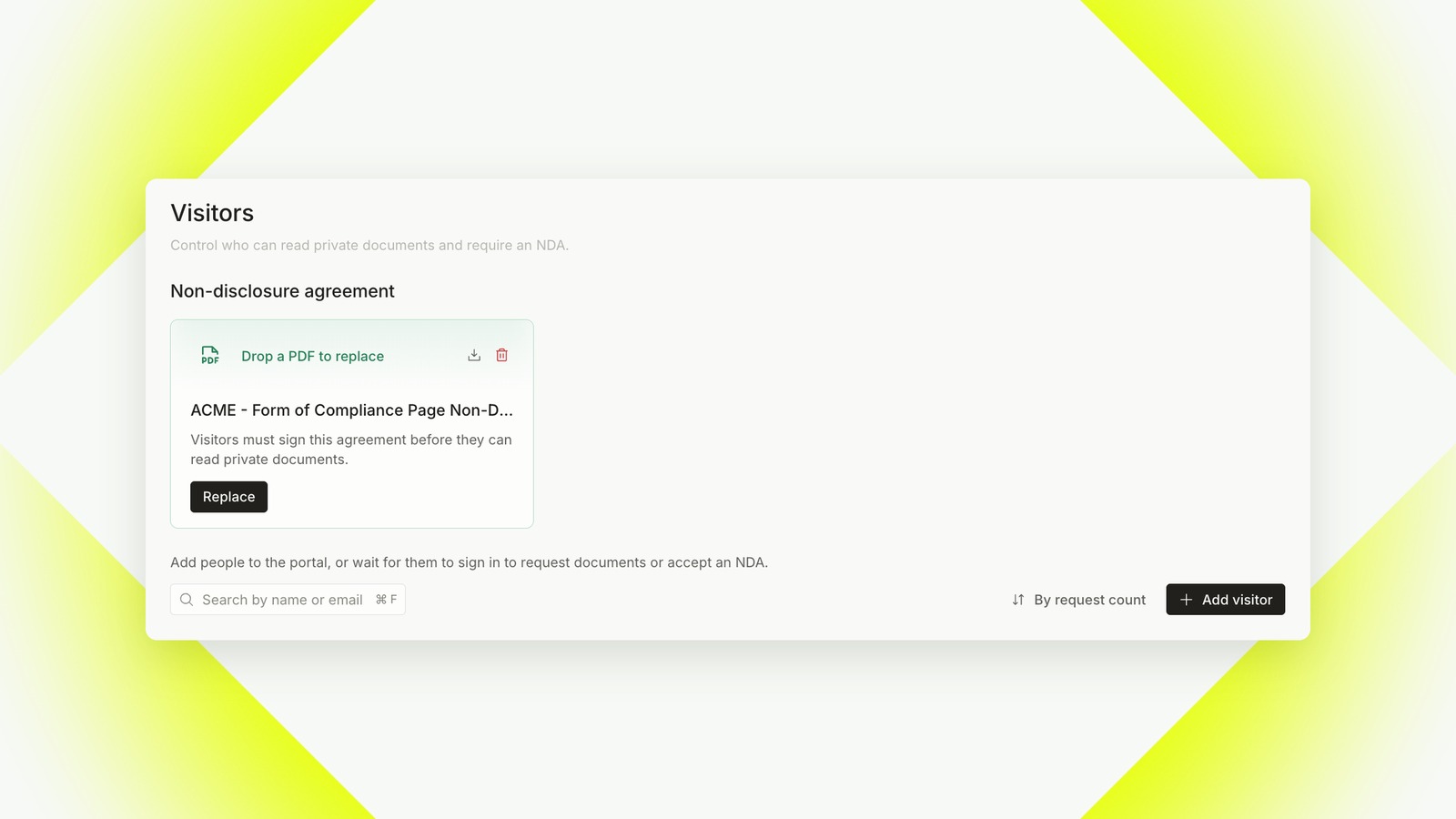
If you followed the setup guide, your NDA is already here. If not, upload it now: without an NDA, a visitor you grant access to can download right away, with no confidentiality terms attached.
How the NDA works on Probo: a visitor can request or receive access before signing, but they must sign the NDA electronically on the portal once their access is accepted, before they can download anything. Probo keeps the signature status, the completion date, the signing events and a downloadable certificate for each visitor.
Replacing the PDF later only changes the agreement shown in future signing flows. Treat it as a legal change: review the new version and note when it took effect.
Step 2: Add the visitor
On the same page, select Add visitor, type the person’s work email and select Add.
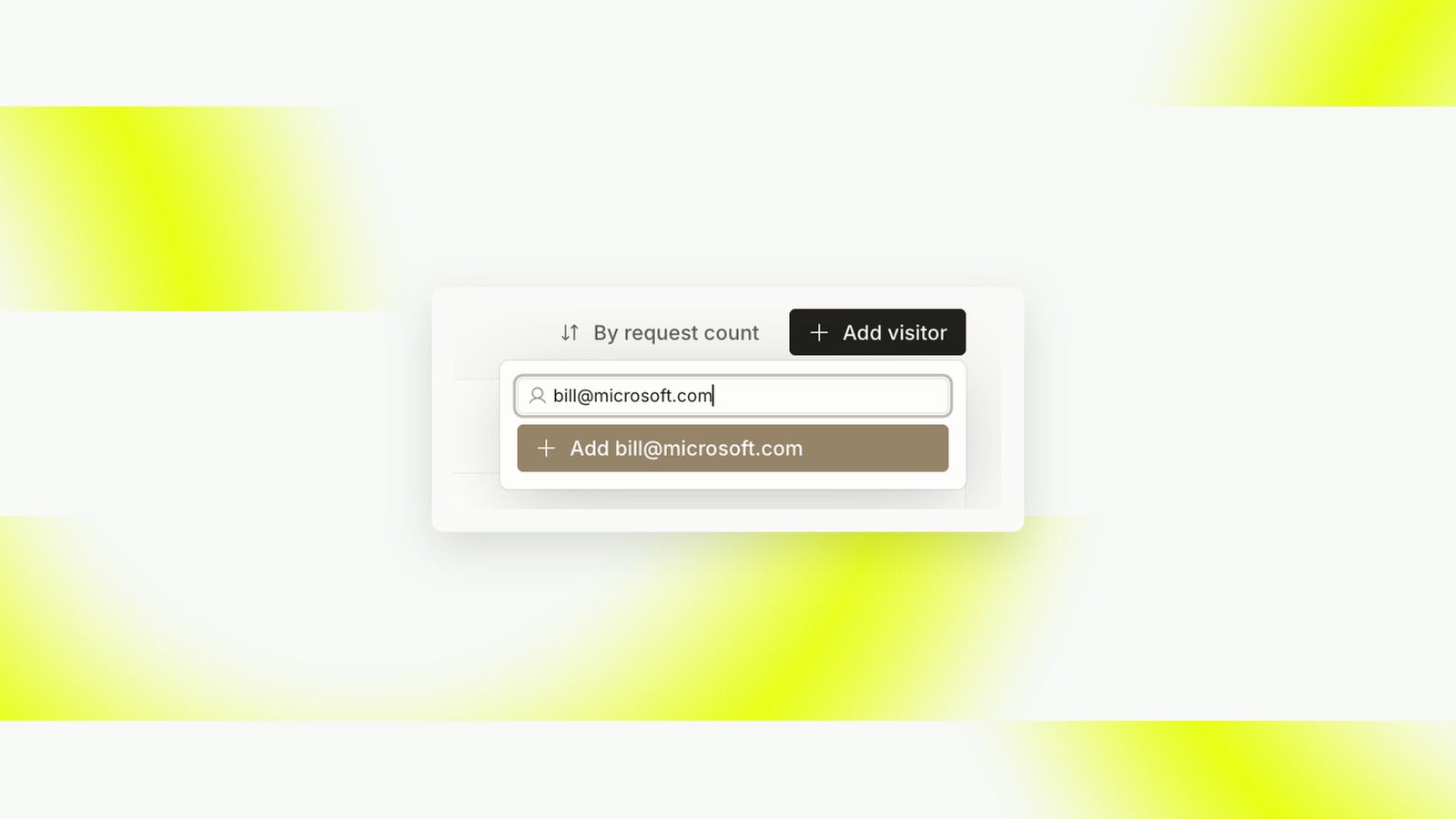
Use the email of the person who will actually read the report, usually someone on the prospect’s security or procurement team. If several people need it, add each of them. Access is per person, which is what gives you a clean record of who saw what.
Step 3: Grant only the documents they need
Open the new visitor. You’ll see their NDA status and, under Restricted Document Accesses, every restricted document, audit report and file on your portal, each with Grant and Reject.
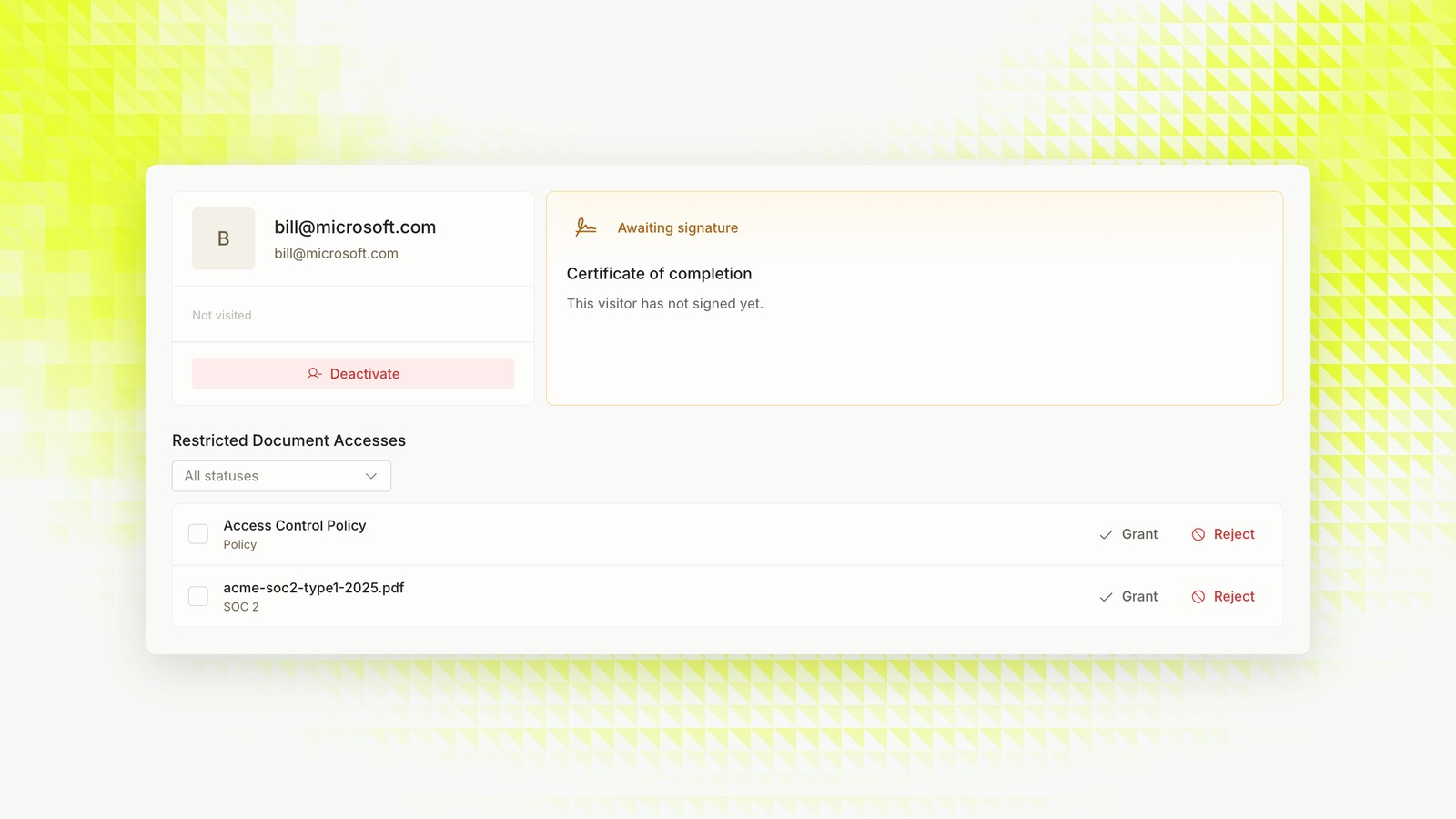
Select Grant for what this prospect needs, then save. For most security reviews that’s your latest audit report (the SOC 2 report or the ISO 27001 certificate and Statement of Applicability) and maybe one or two policies they asked about.
Resist the urge to grant everything. A prospect who asked for a SOC 2 report doesn’t need your business continuity plan. Every extra document is one more thing that leaves your control once it’s downloaded.
Step 4: Let the email do the rest
Probo emails the visitor that they’ve been granted access to your compliance portal, with an Access Compliance Page button.
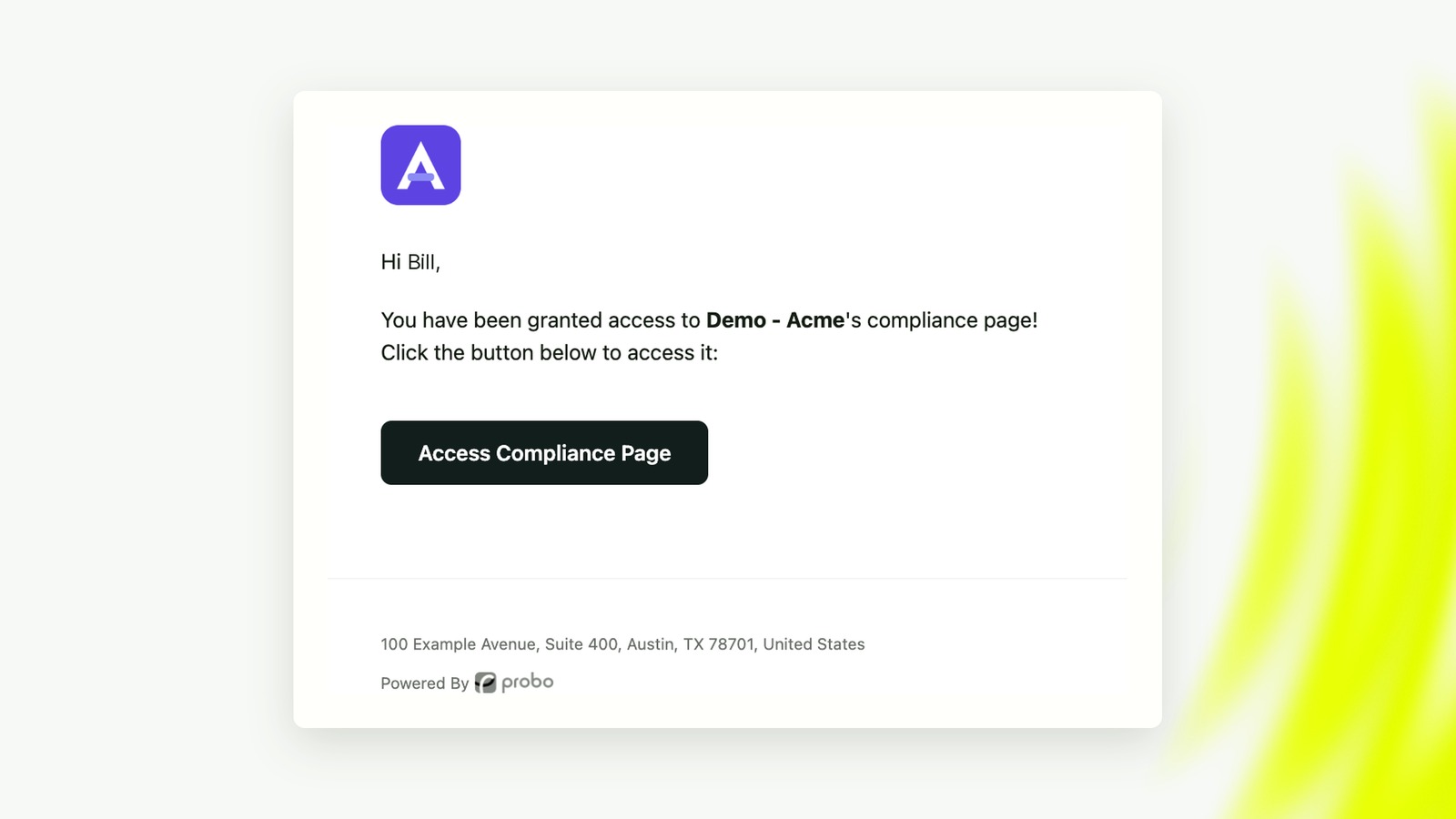
From there, the visitor opens the portal, signs your NDA (their status in the console moves from Awaiting signature to signed) and downloads the documents you granted. Until they first open the portal, they show as Not visited, which tells you whether it’s worth a nudge.
No DocuSign envelope, no countersigned PDF to chase, no Drive link floating around.
When the deal closes or stalls, revisit the visitor. Revoke grants they no longer need, or deactivate the visitor entirely. Revoking removes portal access, but it can’t recall a copy they already downloaded, which is exactly why you granted only what they needed in step 3.
Part 2: Keep customers posted when your compliance changes
Compliance isn’t a one-time event. You renew your SOC 2, you get ISO 27001, you switch from one cloud provider to another, you add an AI provider that processes customer data. Your customers care about all of that, and some of them are contractually owed a heads-up about new subprocessors.
Most teams handle this with a one-off email from someone’s inbox, or not at all. Portal updates give you a proper channel: a news feed on your portal, plus an email to everyone who subscribed.
Step 5: Set your reply-to email
Go to Compliance portal → Updates (docs). The Settings card at the top has one field: Reply-to email.
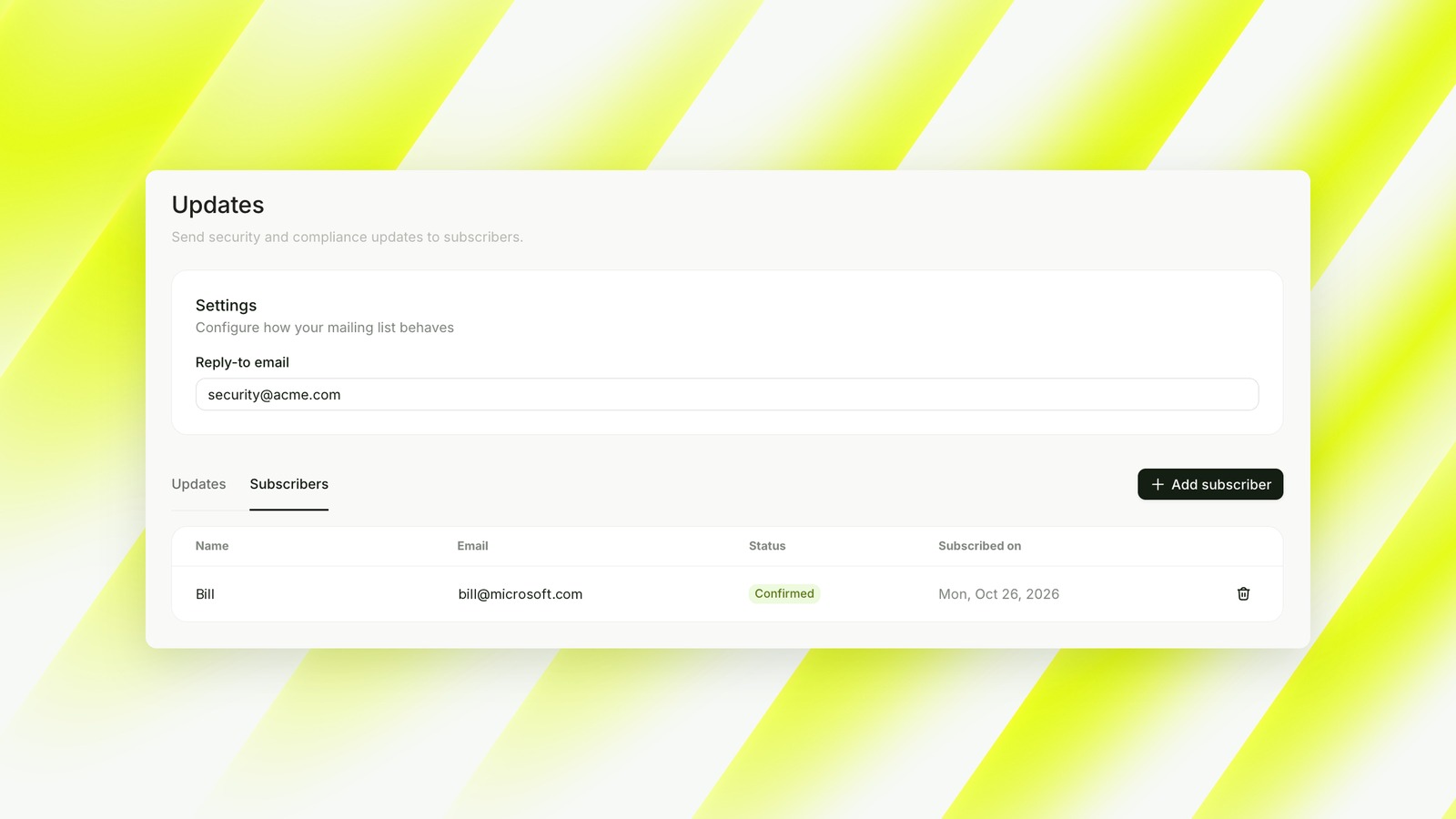
When a subscriber replies to one of your updates, their reply goes to this address. Use a shared inbox your security team actually reads, like security@yourcompany.com, not a personal address or a no-reply.
Step 6: Build your subscriber list
People join your mailing list in two ways.
1. They subscribe themselves. A visitor signs in to your portal and selects Subscribe to updates. The dialog states they’ll receive compliance updates from your company and can unsubscribe at any time.
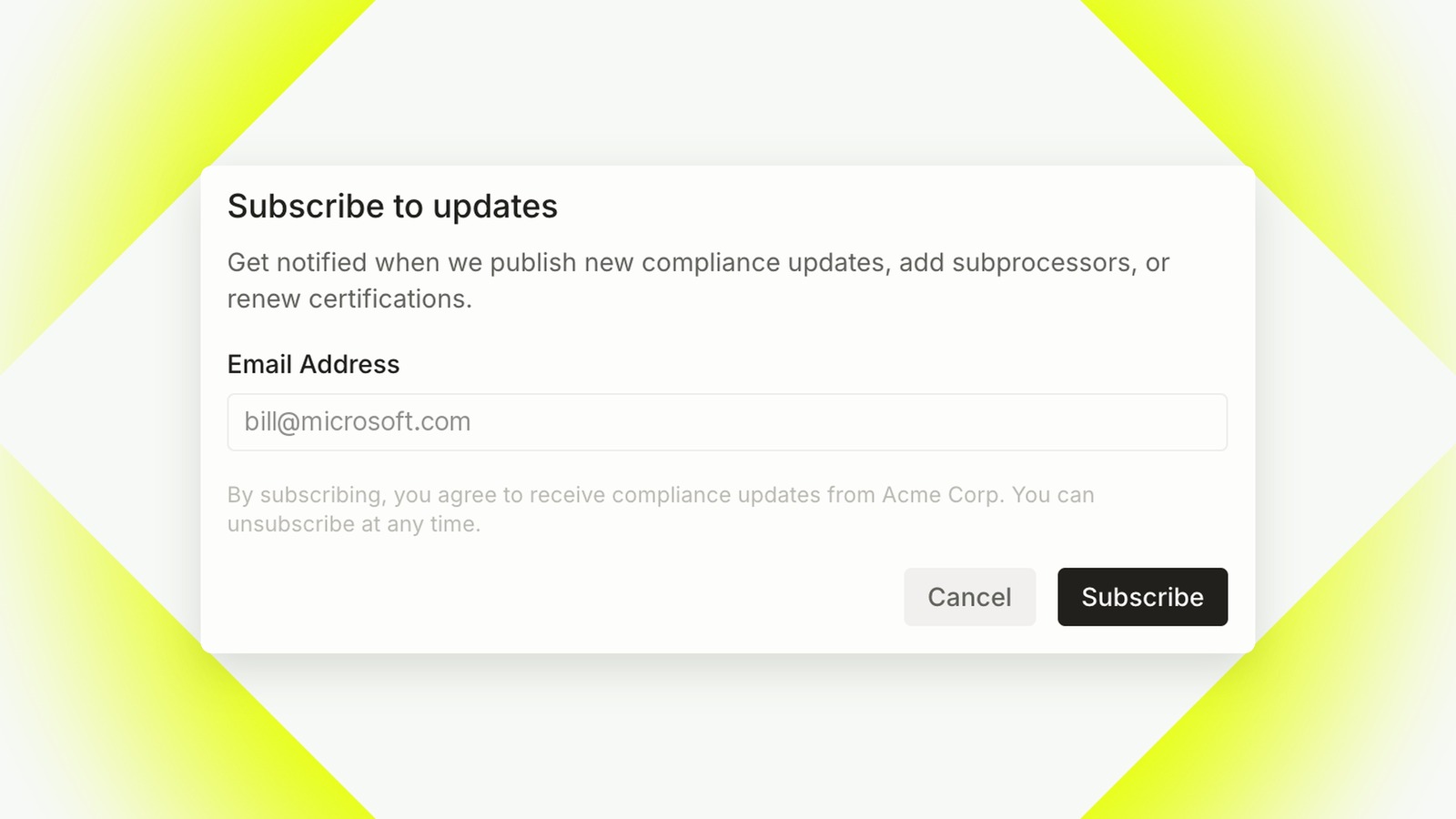
2. You add them. In Compliance portal → Updates → Subscribers, select Add subscriber and enter their email. Use it for a customer who asked to be kept informed, for example in a security review or a contract negotiation. Only add people who have a reason to hear from you.
Either way, every new subscriber gets a Confirm your subscription email and must select Confirm subscription before they receive anything. They then land on a Subscription confirmed page, and their status in the subscriber list moves from Pending to Confirmed.
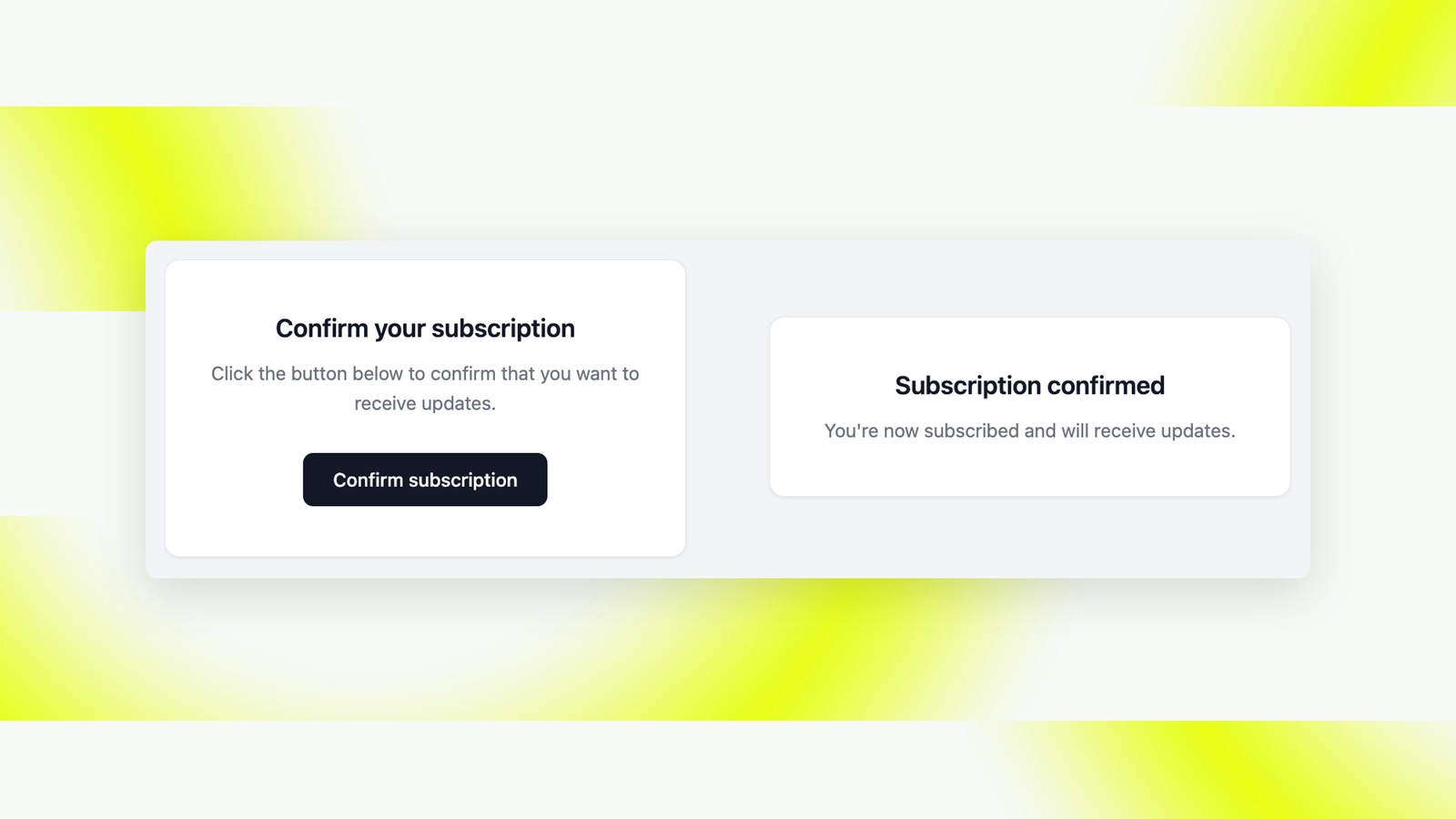
This double opt-in is a feature, not friction. It proves the person asked for your emails, and it keeps typos and forwarded addresses off your list.
Step 7: Write the update
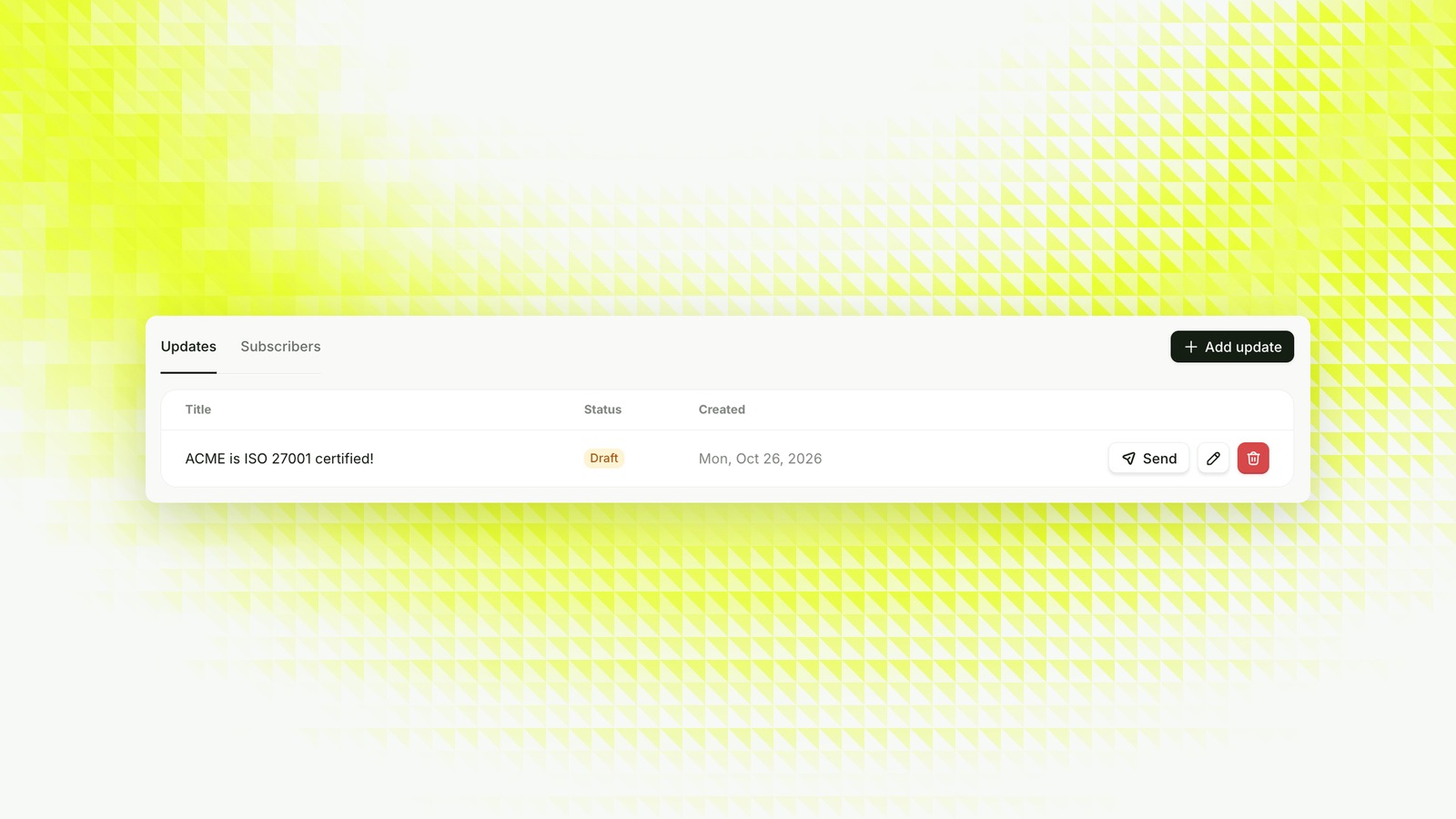
On the Updates tab, select Add update and write a title and a body. It’s saved as a Draft, with Send, edit and delete actions next to it.
Good reasons to post an update:
- A new certification or a renewed audit. “We’re now ISO 27001 certified” is the classic.
- A new or changed subprocessor. Especially anything that processes customer data: a new cloud region, a new email provider, an AI provider.
- A completed penetration test, and where customers can request the summary.
- A meaningful change to how you handle data, like a new retention period or a new data residency option.
Keep it factual. Say what changed, what it covers and where to find the evidence. If the certificate or report is on your portal, say it’s available on request there, so the update drives people to the document under NDA instead of attaching it.
Before sending, reread the draft for anything confidential or customer-specific. It goes to every confirmed subscriber.
Step 8: Send it
Select Send. Probo shows the Send update to subscribers confirmation with the exact title and body that will go out.
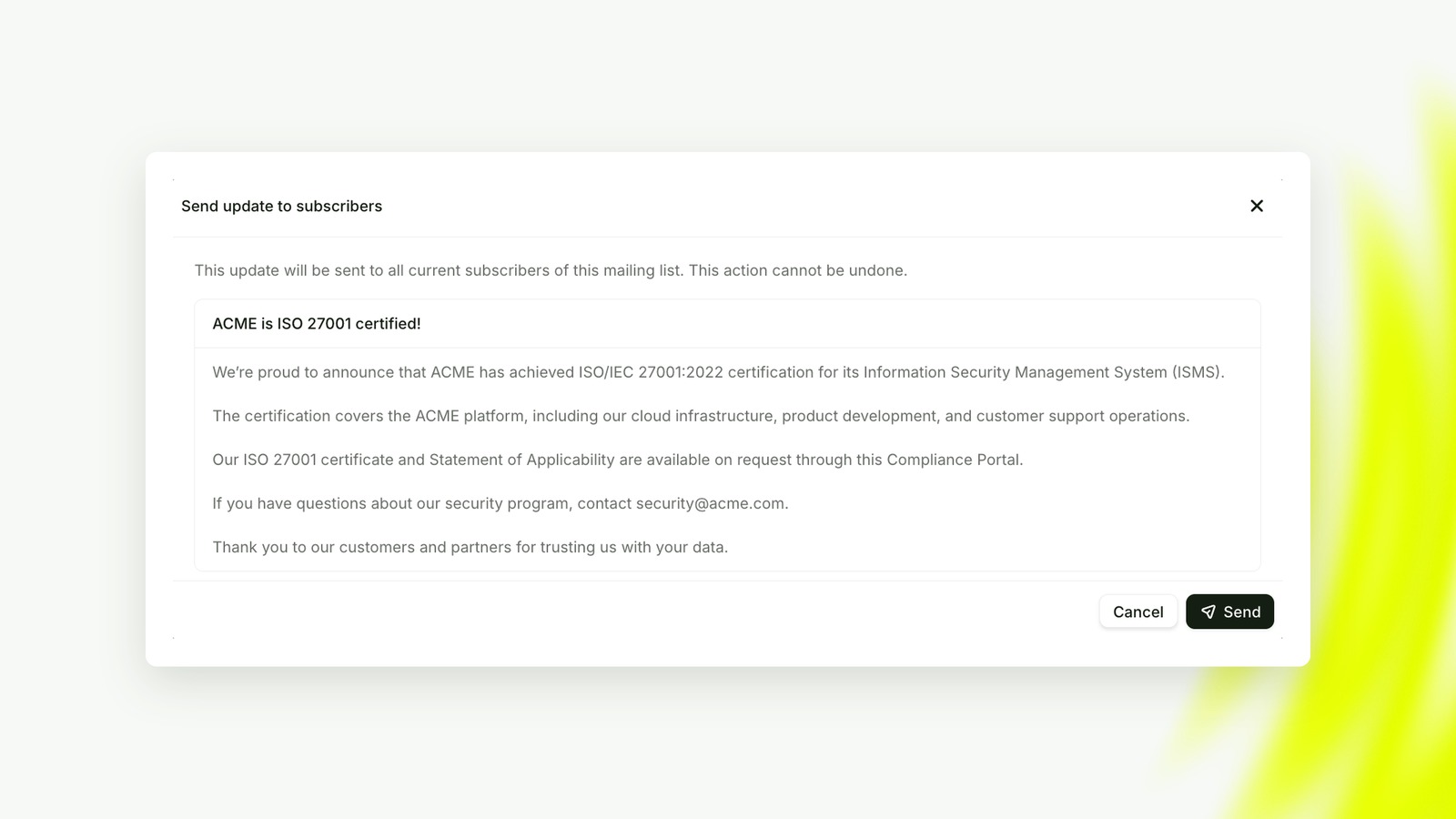
Sending can’t be undone. Once sent, the update is read-only: if you spot a mistake, publish a new update with the correction rather than hoping nobody noticed.
The update is emailed to every confirmed subscriber and appears in the Updates section of your portal, where anyone visiting can read it, subscribed or not.
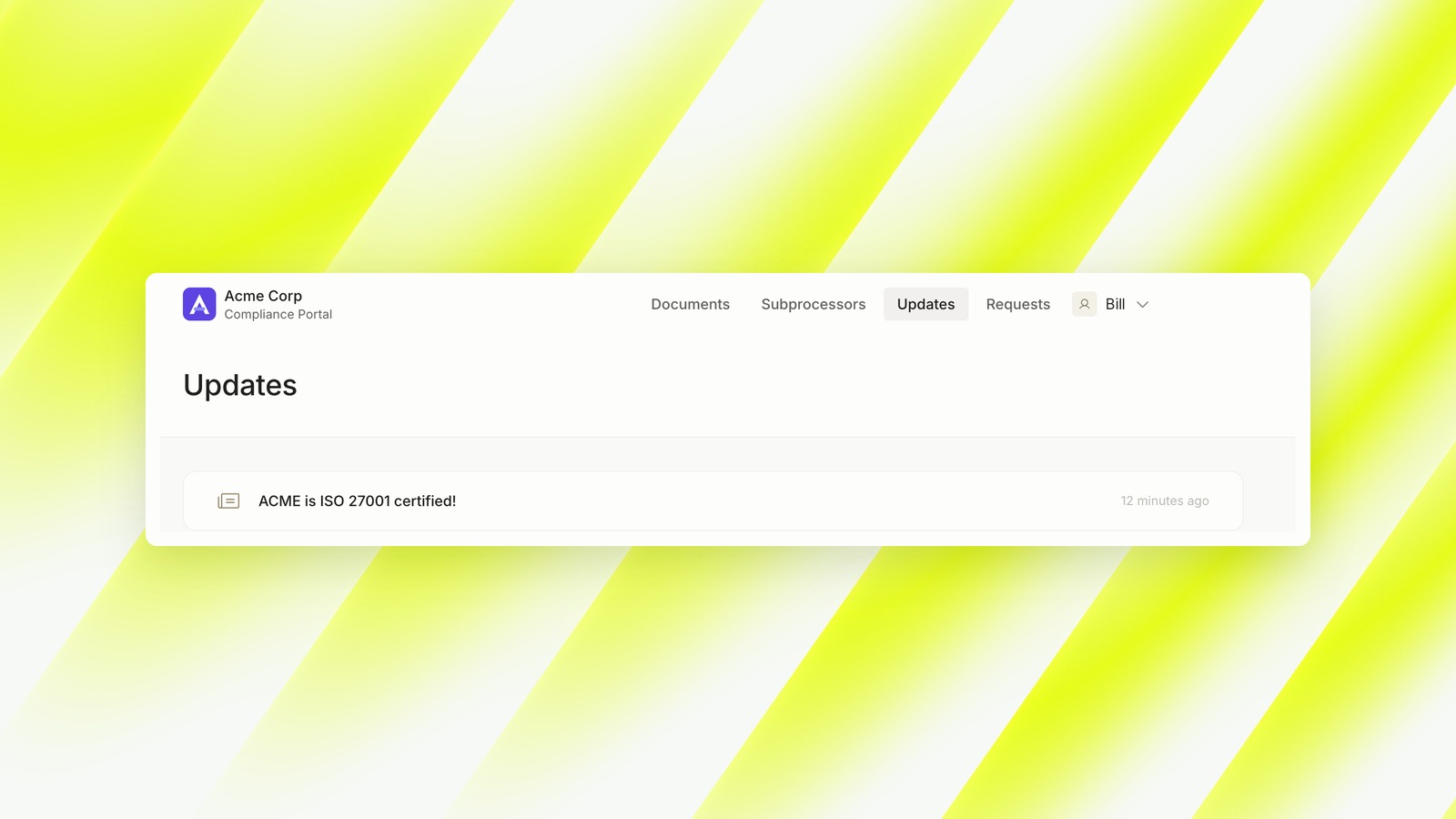
Over time, that page becomes a timeline of your security program. For a prospect doing due diligence, a portal that shows a renewed audit last quarter and a pentest last month says more than any badge.
Treat your portal as a channel, not a folder
A compliance portal that never changes looks like a folder someone set up once. One where you invite the right people and post what changed looks like a security team that’s paying attention.
Both features are part of the Probo compliance portal. For every setting, see the docs on visitor access and NDAs and updates and the mailing list.
Frequently asked questions
Does the visitor have to sign the NDA before I add them?
No. You can add a visitor and grant documents first. They sign the NDA on the portal once access is granted, before they can download.
Can I revoke access after the visitor has downloaded a document?
You can revoke portal access at any time, but it can't recall a copy they already downloaded. That's why it's worth granting only the documents each person needs.
Do subscribers I add myself also need to confirm?
Yes. Whether someone subscribes on the portal or you add them from the console, they receive a confirmation email and only get updates once they confirm.
Can I edit an update after sending it?
No. Drafts can be edited or deleted, but a sent update is read-only. Publish a new update with the correction.
Do visitors need to subscribe to see updates?
No. Published updates are visible in the Updates section of your portal to every visitor. Subscribing only adds the email.
Where do replies to my updates go?
To the reply-to email set in the Settings card of the Updates page. Use a monitored shared inbox.
 Share on LinkedIn