

Half of the answers in a security questionnaire are already sitting in your policies, your audit report and your vendor list. Your prospects just can’t see them.
That’s the job of a compliance portal: one link where buyers find your certifications, your security commitments and the documents they need, without a week of email back and forth. (If you’re still deciding what belongs on one, start with what is a compliance portal / trust center?.)
Setting it up on Probo takes about 30 minutes. Here are the eight steps.
Step 1: Turn the portal on
Go to Compliance portal → Settings → Hosting and flip the toggle. Your portal is now publicly accessible. (More in the quickstart docs.)
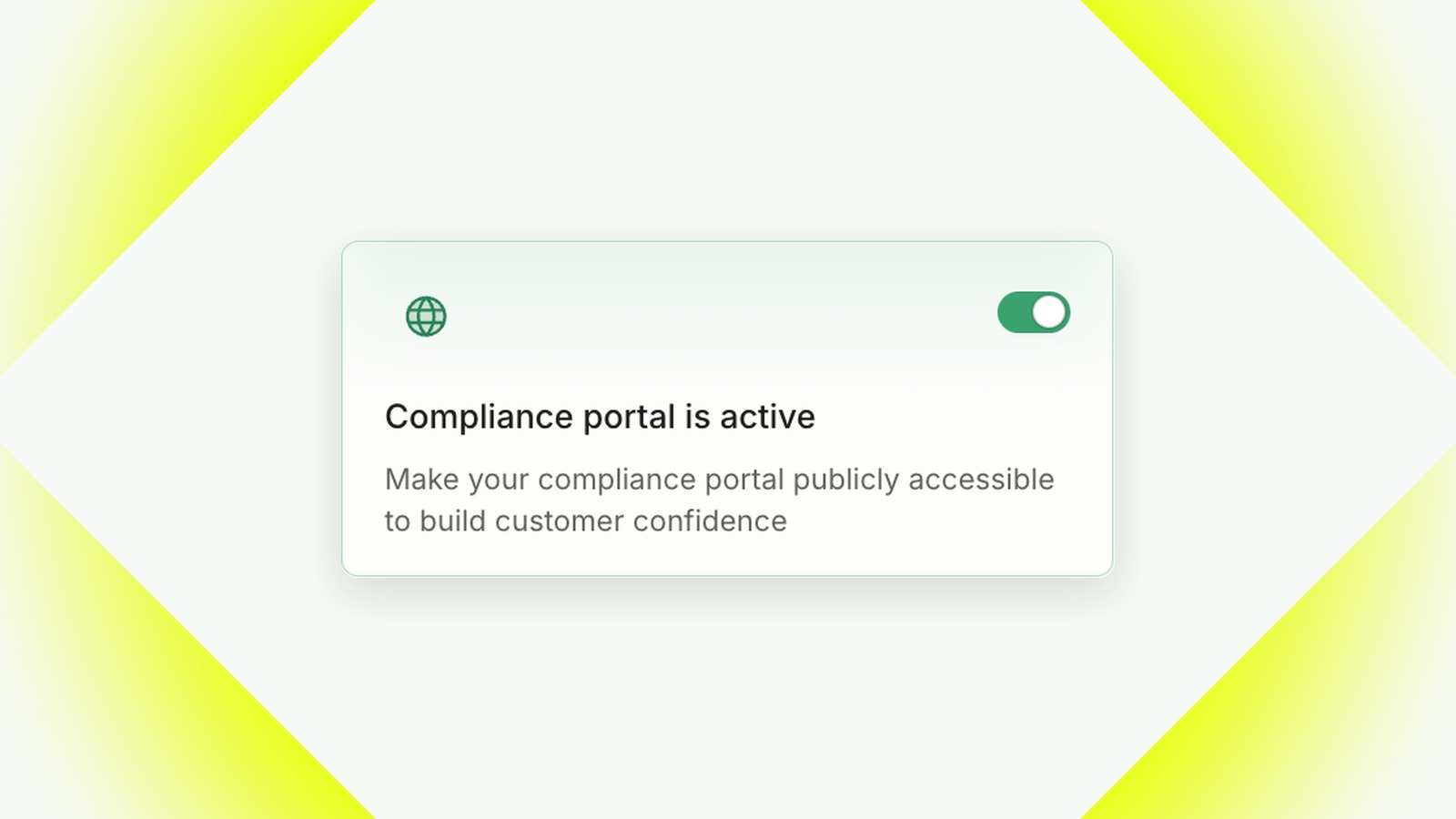
It’s live, but it’s empty. Don’t send the link to anyone yet. Do the next seven steps first.
Step 2: Make it look like yours
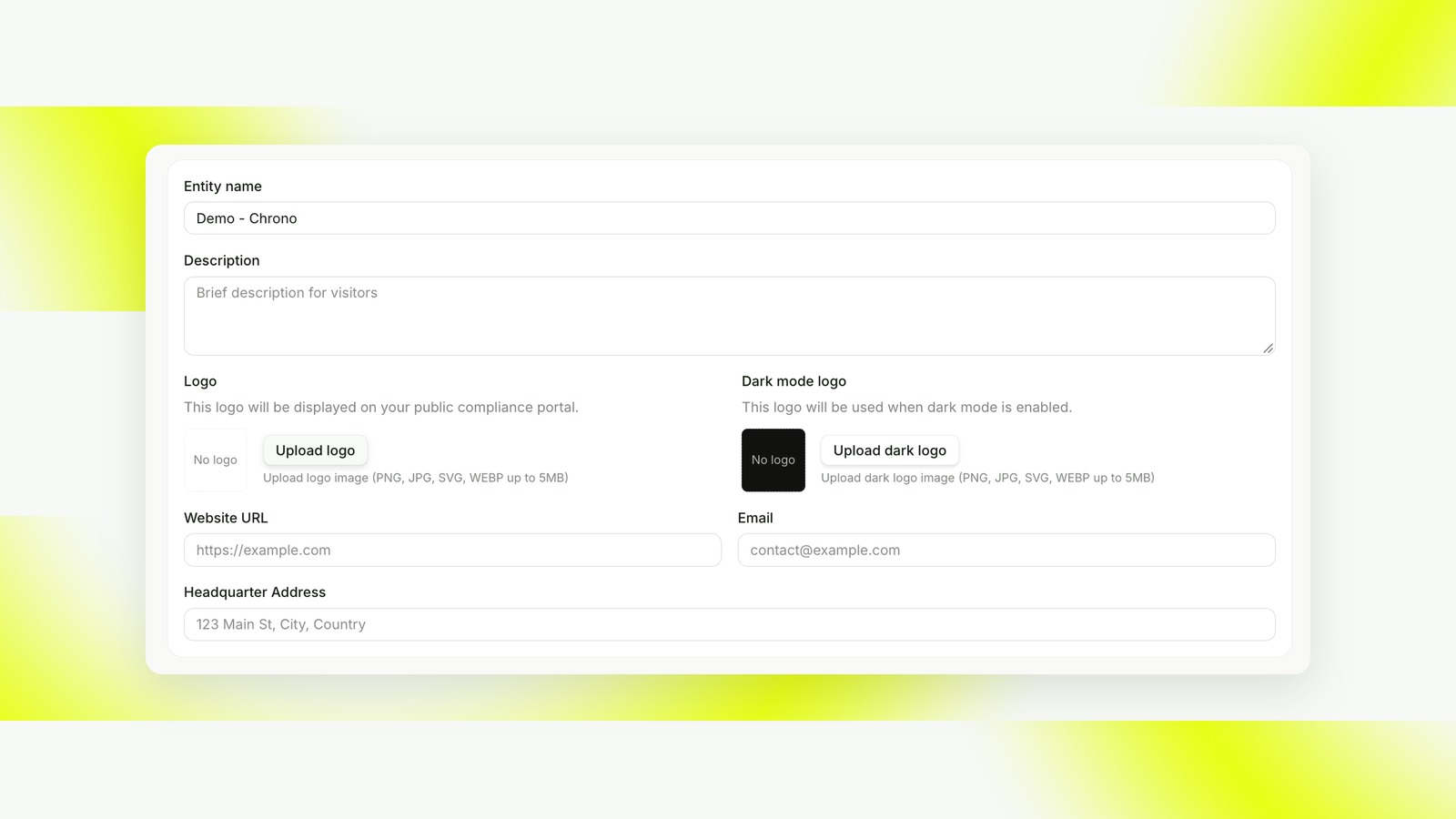
Go to Compliance portal → Pages → Landing → Branding (docs) and fill in:
- Entity name: your legal or trading name, the one buyers will recognize on the contract.
- Description: one or two plain sentences about what you do and who you serve.
- Logo and dark mode logo.
- Website URL and a contact email (a shared address like security@ beats a personal inbox).
- Headquarter address.
Step 3: Pick your frameworks and write your security commitments
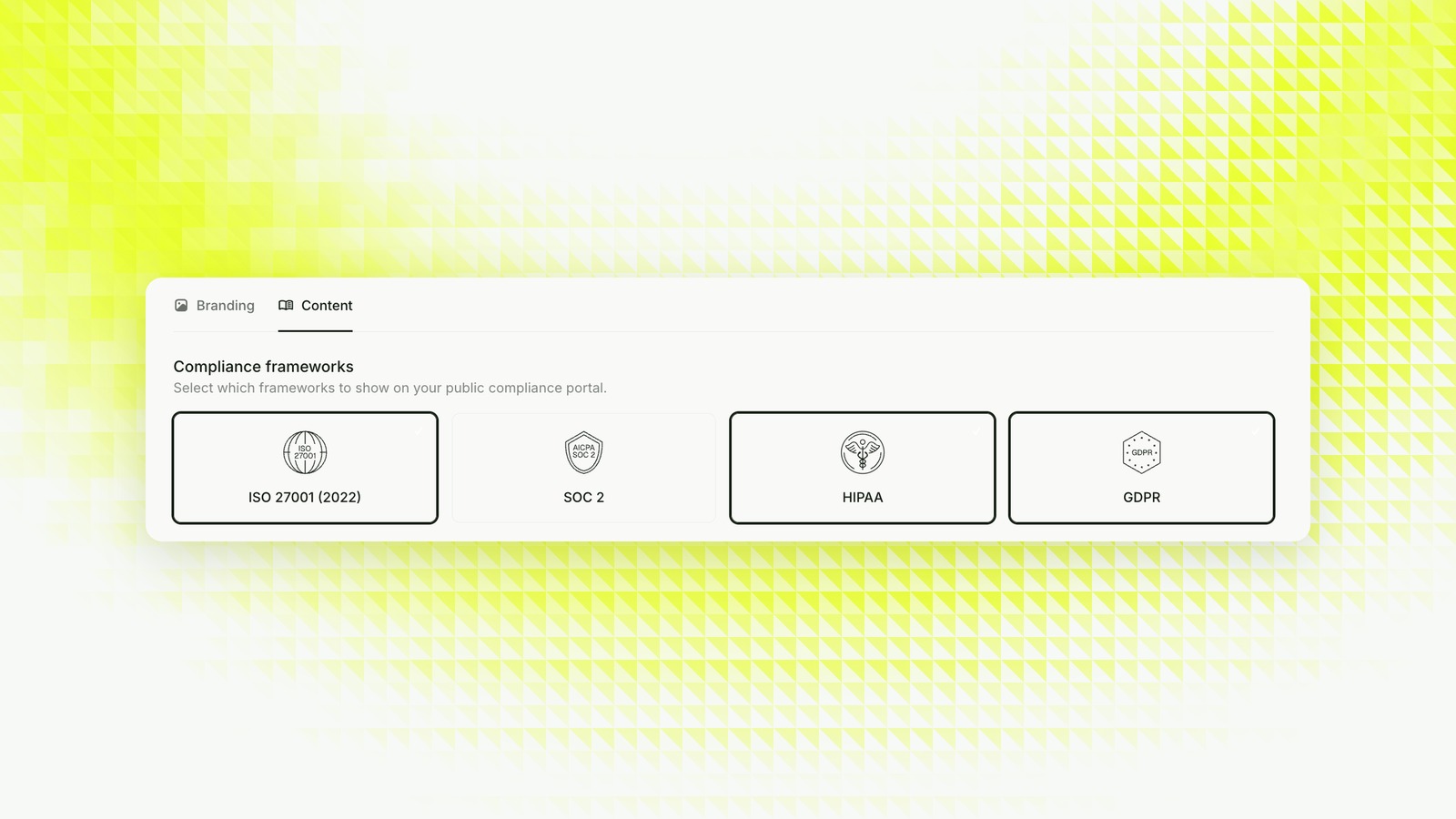
Go to Compliance portal → Pages → Landing → Content.
Frameworks
Select the frameworks you want displayed (ISO 27001, SOC 2, HIPAA, GDPR…). Only show the ones you actually work under. A framework badge you can’t back up with an audit or a policy set is a question you’ll have to answer awkwardly later. (See publishing frameworks in the docs.)
Security commitments
Security commitments are short cards that tell a visitor, in plain language, how you protect their data. Each one has an icon, a title and a one or two sentence description, grouped into sections (for example “Data protection”, “Access control”, “Incident response”).
A good commitment is specific and verifiable:
Encryption in transit and at rest. Data in transit is encrypted with TLS. Production databases are encrypted at rest with AES-256.
A bad one is a slogan: “We take your security extremely seriously.” Security reviewers skip those. They read the specific ones, and they check them against your policies.
That’s the rule: every commitment should trace back to a policy you’ve published. If it’s not in a policy, it’s a promise you haven’t written down yet.
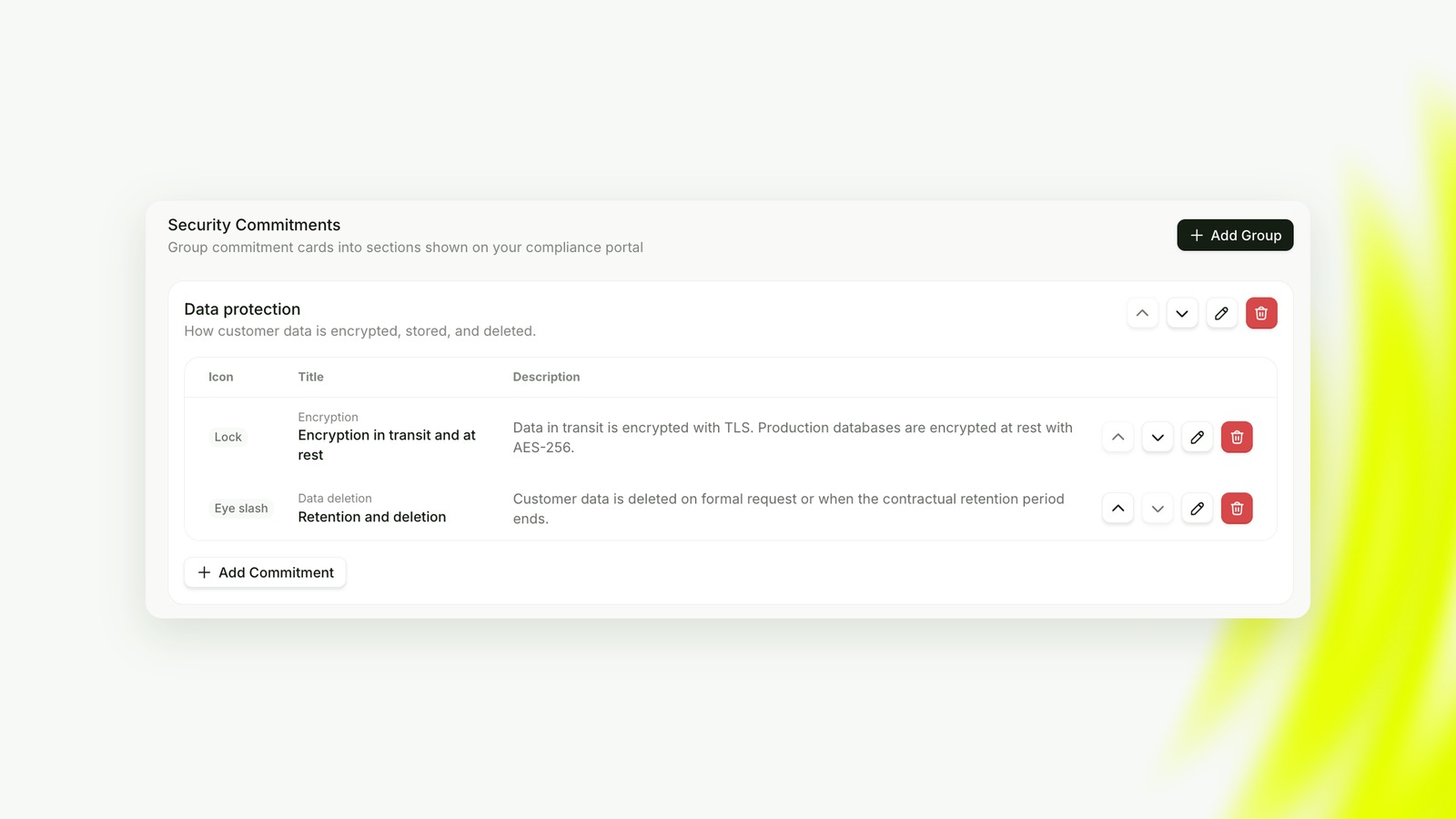
You can write them by hand with Add Group and Add Commitment. Or let an AI agent do the first draft: the compliance portal commitments skill from Probo reads your published policies through the Probo MCP and proposes a set of commitments grounded in what they actually say. You review, cut, reword, and only then does it publish them to the portal. It never invents a control that isn’t in your policies. The commitments docs cover both routes.
Step 4: Choose which documents and audits to share
Go to Compliance portal → Pages → Documents (docs).
Documents
Tick the Displayed box for each policy you want on the portal, and leave the visibility on Restricted. Restricted means visitors can see the document exists, but they have to request access (and sign your NDA, see step 6) before they can download it.
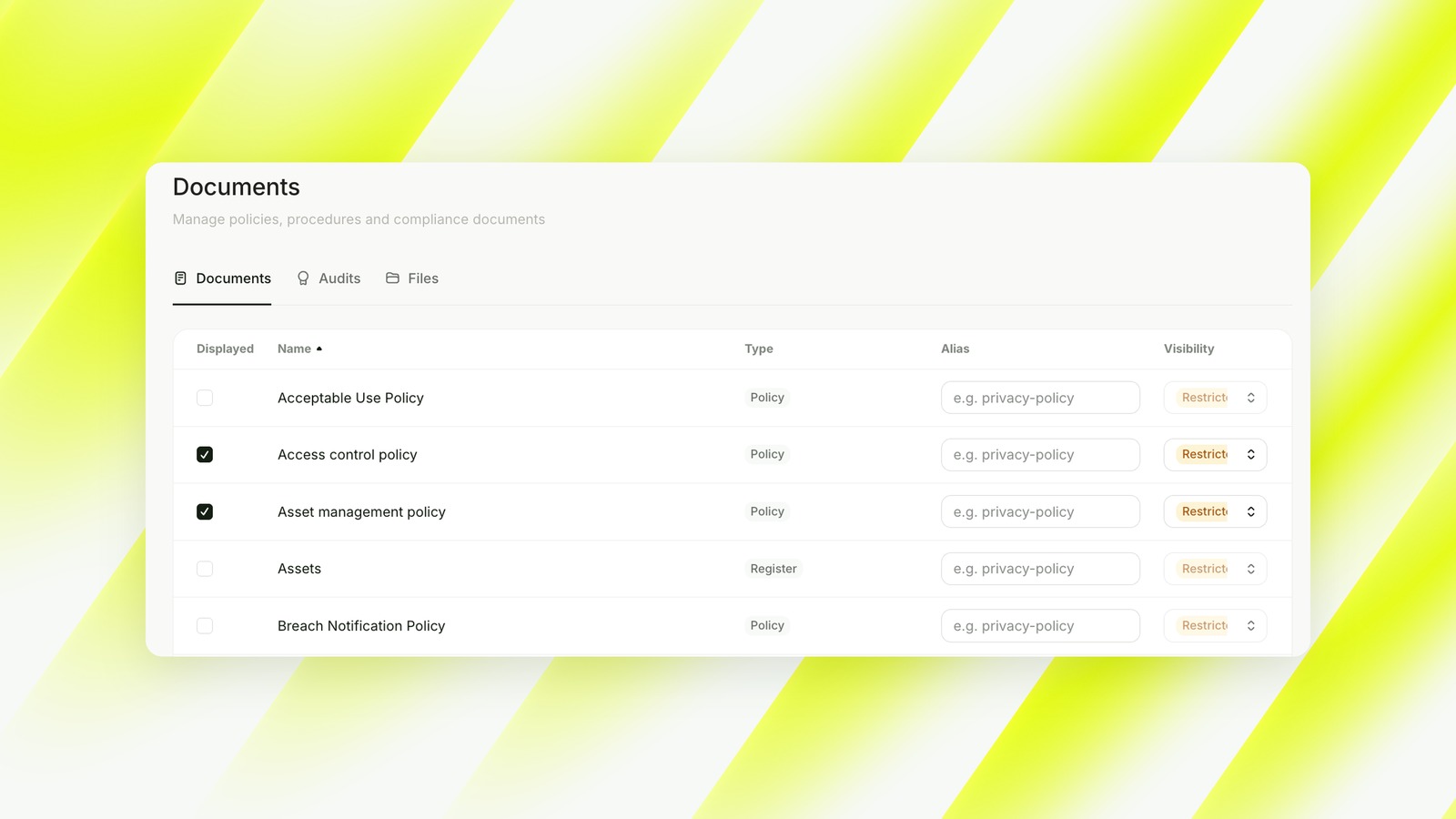
Which ones to display? Share the policies a buyer’s security team will ask for anyway:
- Information security policy
- Access control policy
- Encryption / cryptography policy
- Incident response policy
- Business continuity and disaster recovery policy
- Vendor (third-party) management policy
- Data protection / privacy policy
- Secure development policy
Keep these off the portal:
- Registers (asset inventory, risk register). They map your internals and your weak spots.
- Internal procedures and runbooks that name systems, tools or people.
- Anything that would help an attacker more than it helps a buyer.
Audits
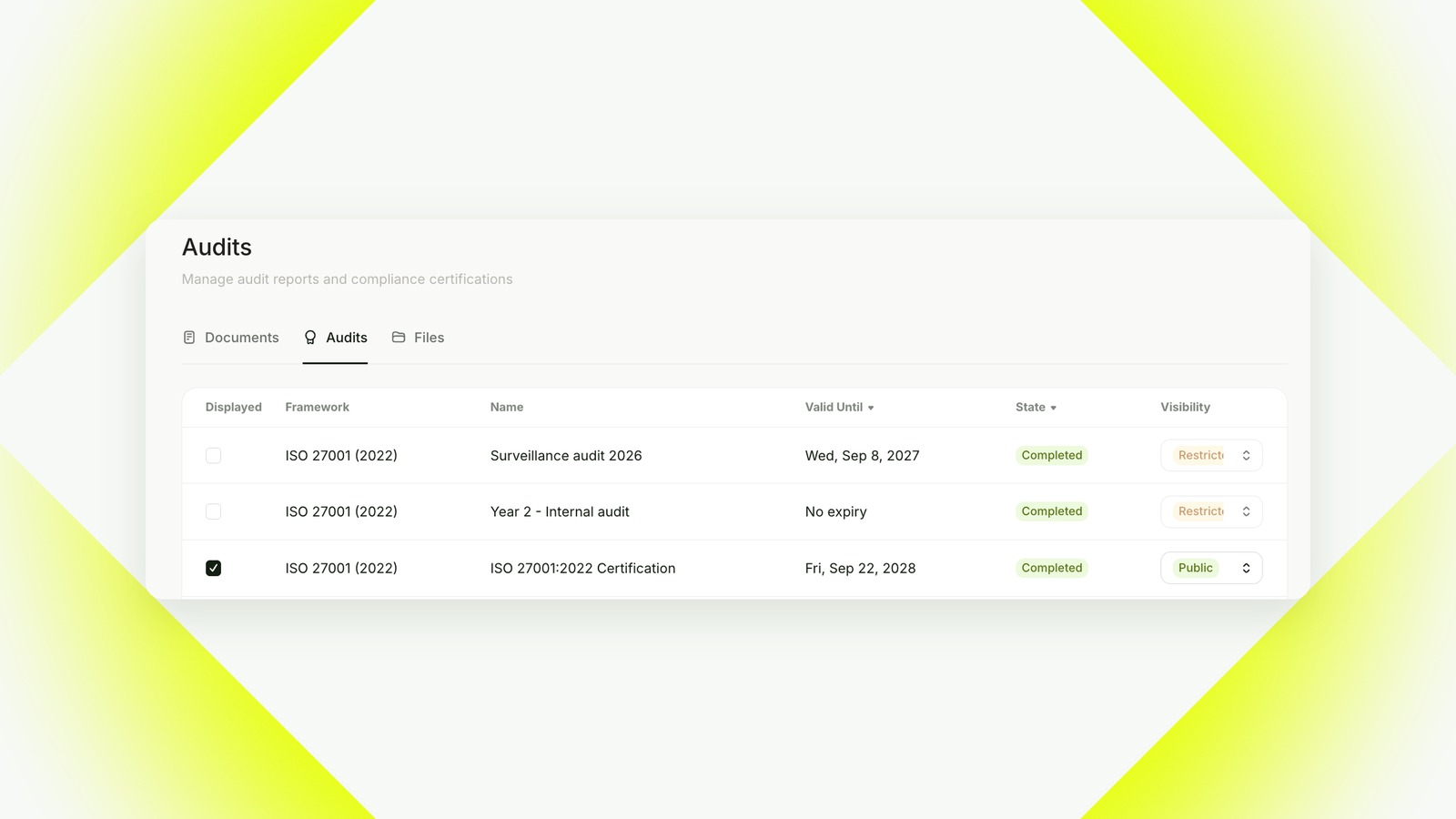
On the Audits tab, display the most recent audit for each framework. Not every audit you’ve ever had: older reports and internal audits only add noise.
Then set visibility by type:
- Audit reports (like a SOC 2 Type II report): Restricted. They’re detailed and confidential, and they’re meant for customers and prospects under NDA.
- Certificates (like an ISO 27001 certificate): Public. A certificate is designed to be shown. Hiding it behind a request just slows people down.
Step 5: List your subprocessors
Go to Compliance portal → Pages → Subprocessors (docs). The list comes straight from your third parties in Probo. Tick the ones you want to display.
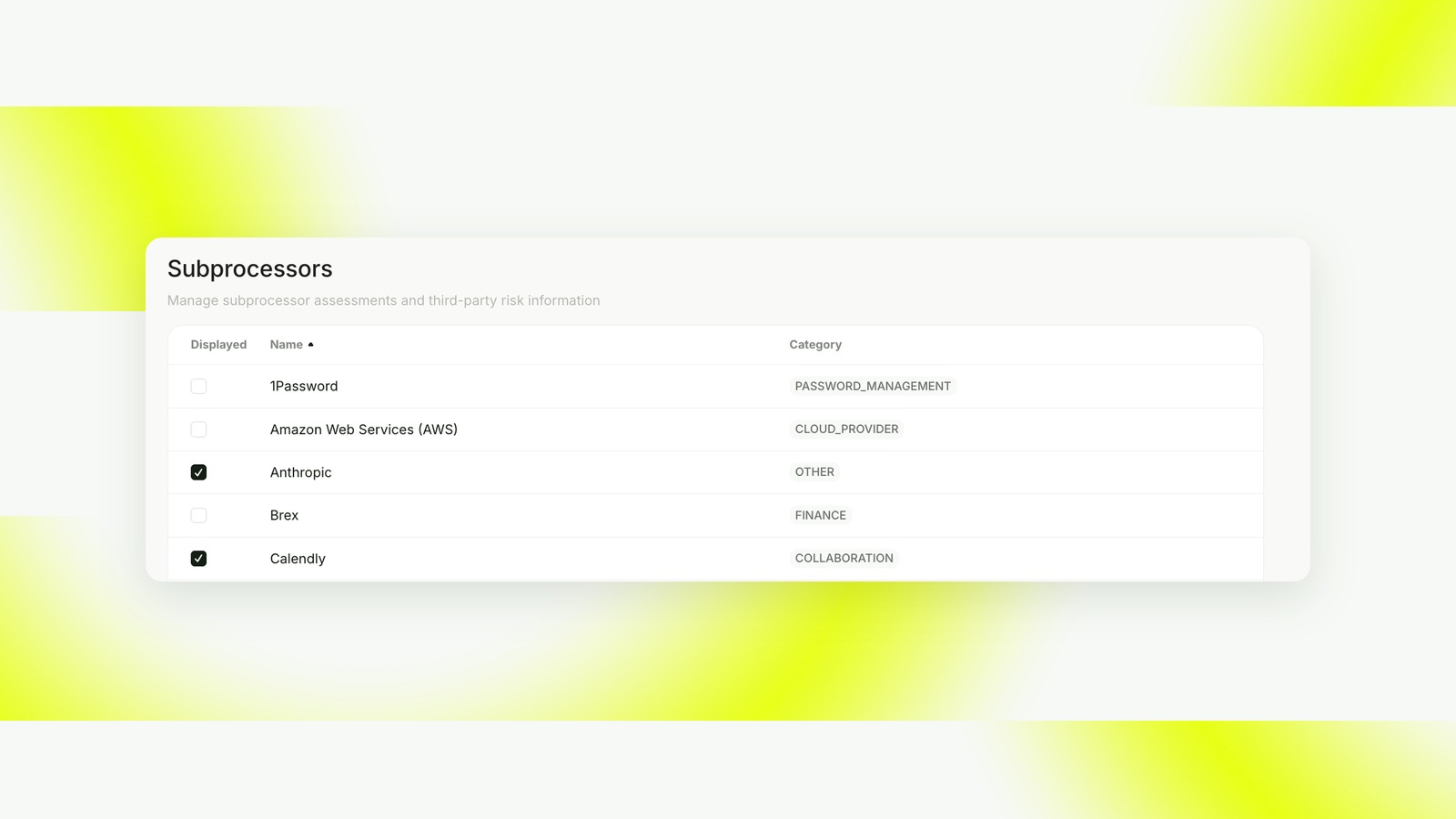
Display the vendors that actually process your customers’ data: your cloud provider, your database host, your email provider, any AI provider your product sends customer data to. Your password manager or your accounting tool usually doesn’t belong here. Buyers (and GDPR) care about who touches their data, not your whole stack.
Step 6: Upload an NDA
Go to Compliance portal → Settings → Visitors and upload your NDA as a PDF (docs).
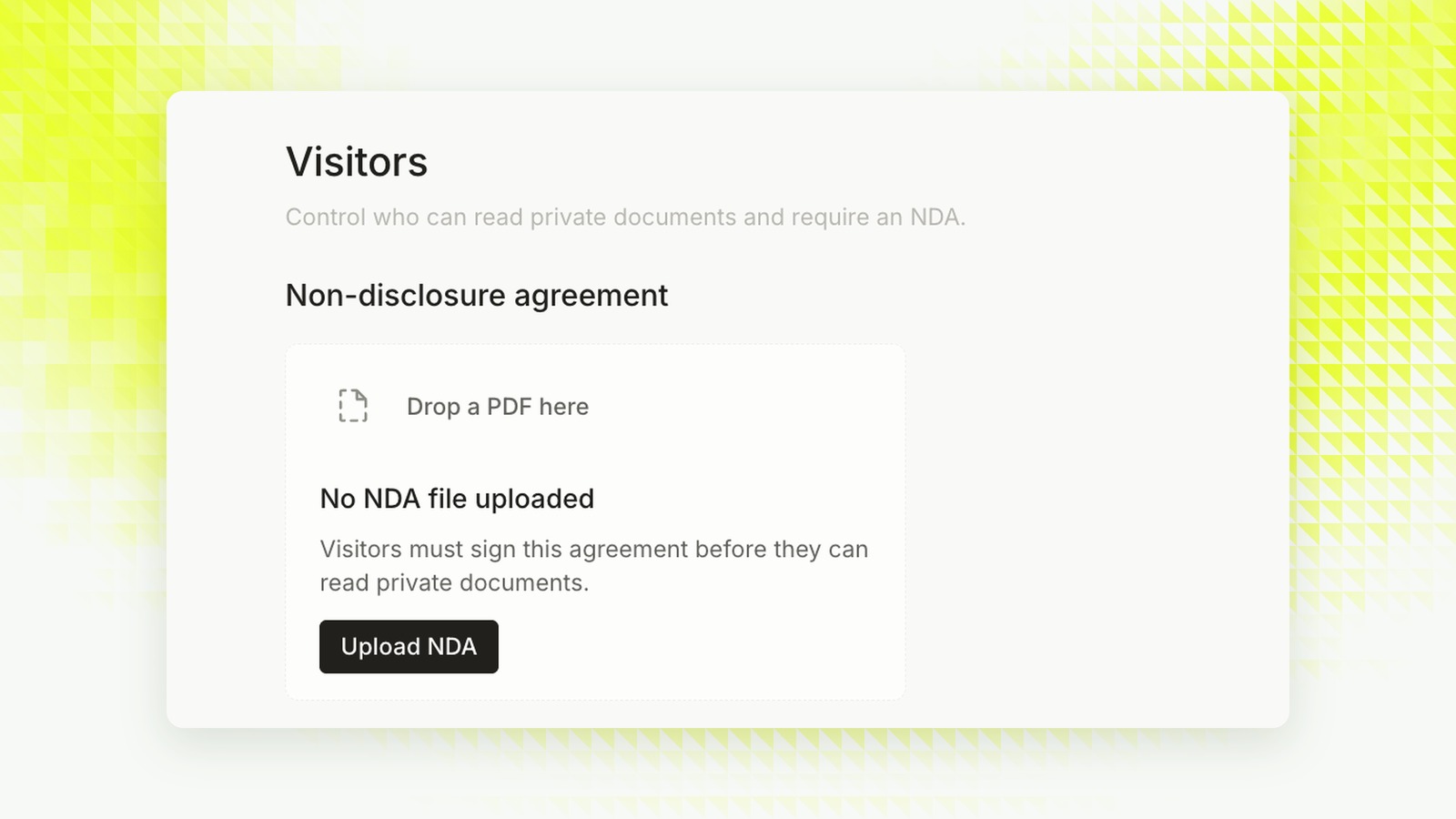
We strongly recommend this one. Once an NDA is uploaded, anyone you grant access to a restricted document has to sign it electronically, directly on the compliance portal, before they can download anything. No separate DocuSign, no chasing a countersigned PDF, and a clean record of who signed what.
Step 7: Get access requests in Slack
Go to Compliance portal → Settings → Integrations (docs).
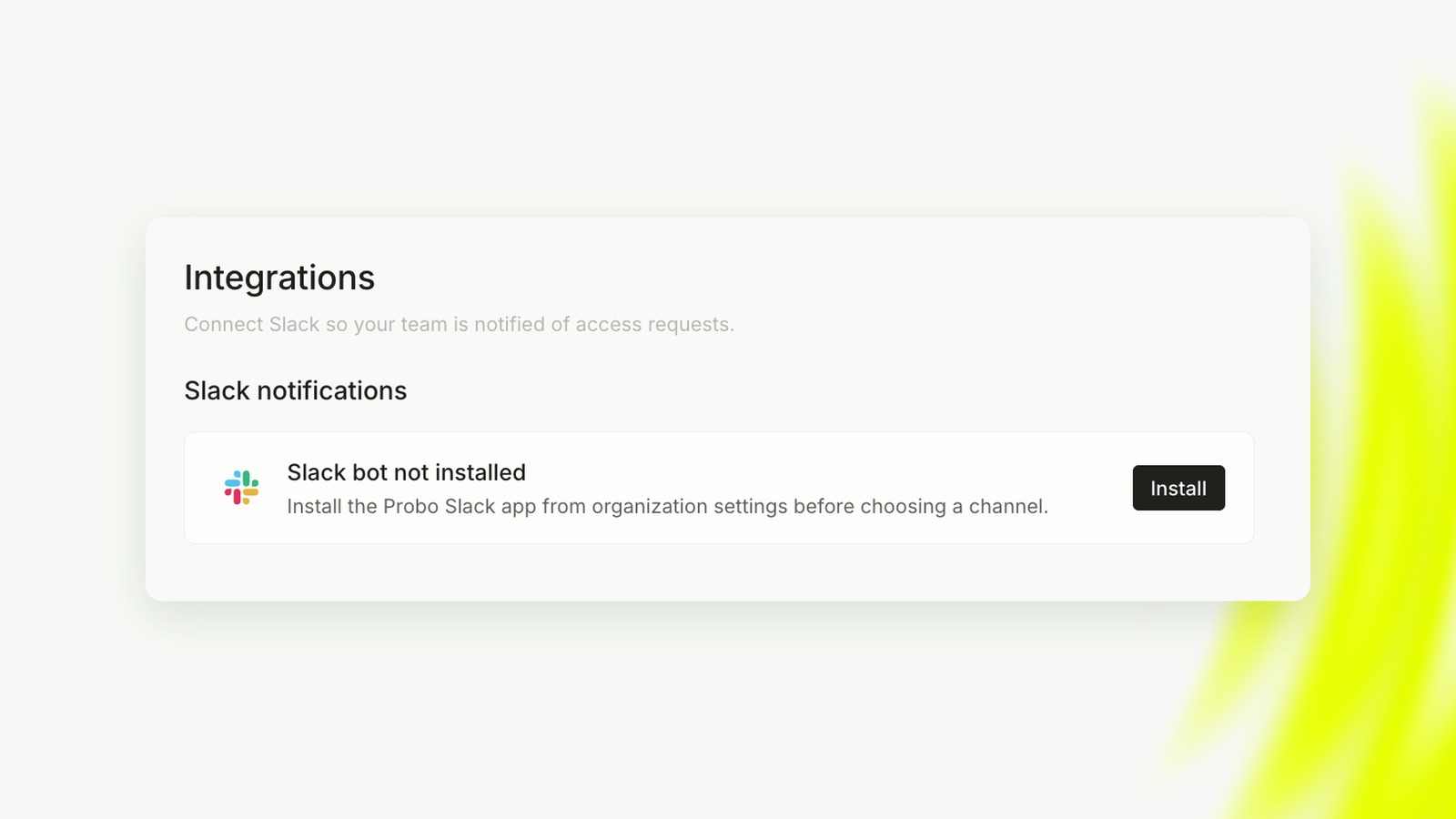
1. Install the Slack bot. Click Install.
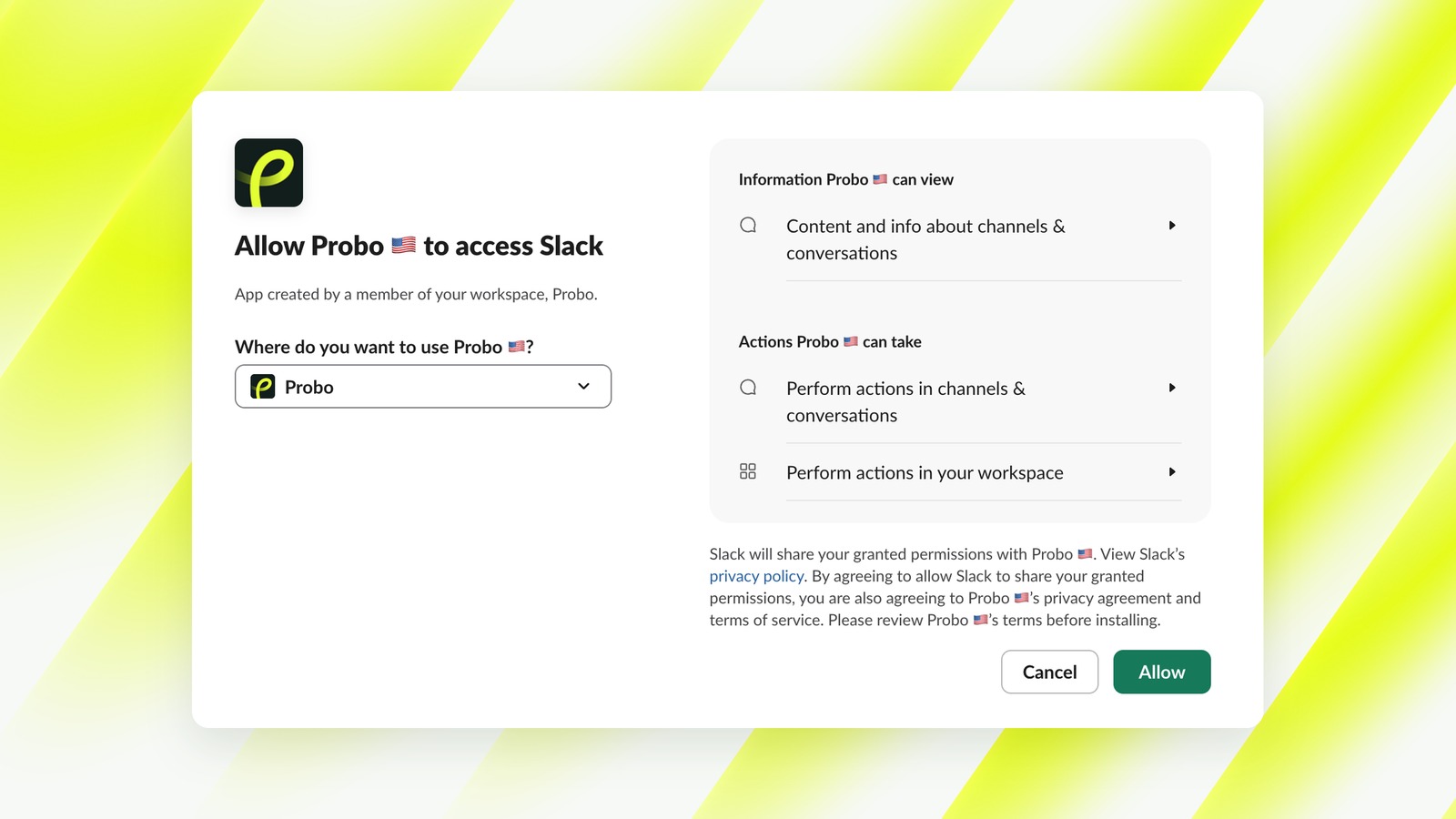
2. Authorize Probo in your workspace. Pick your Slack workspace and click Allow.
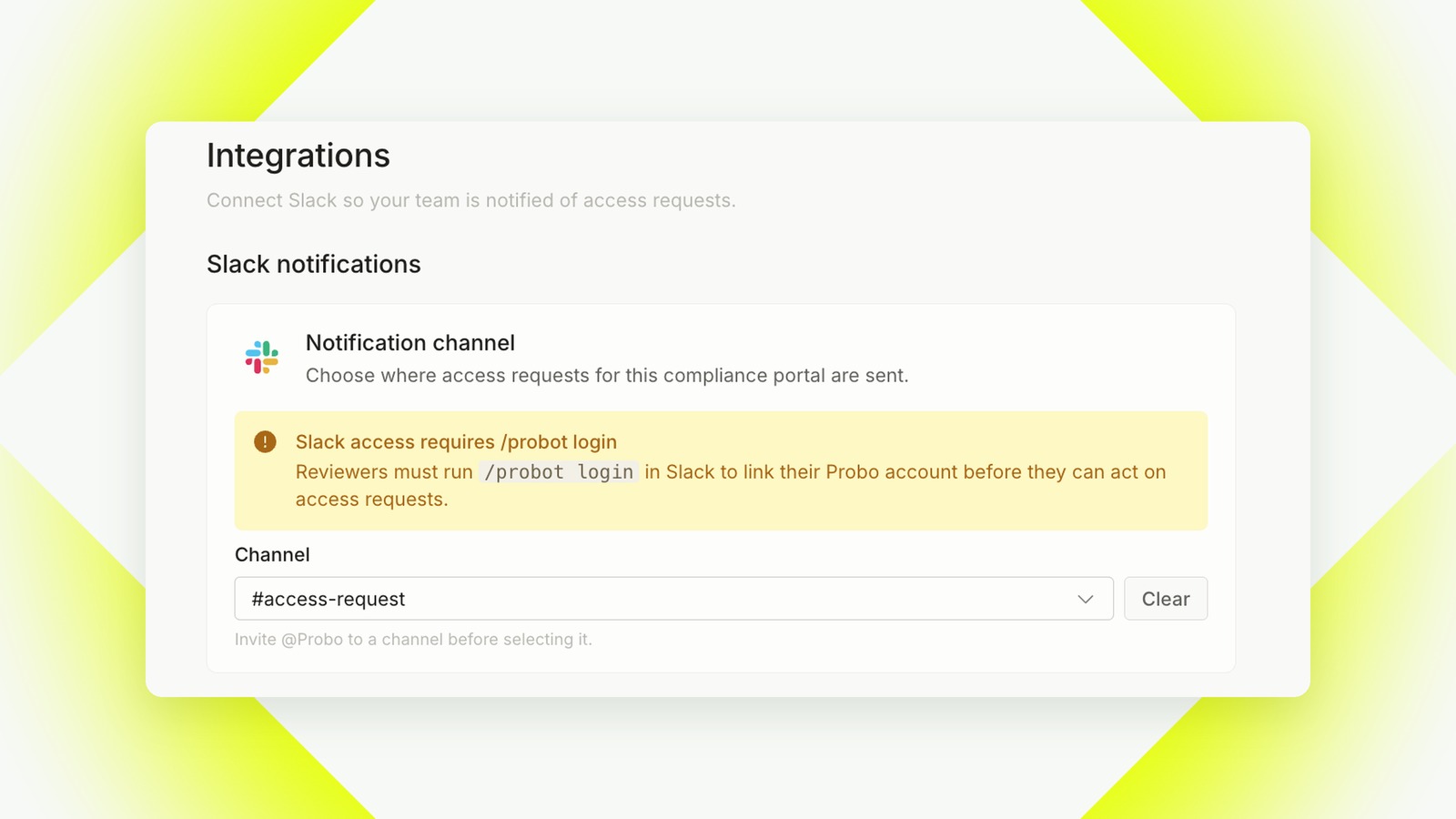
3. Choose a channel. Select the channel where access requests should land (for example #access-request).
4. Link your reviewers. Everyone who approves requests must run /probot login in Slack to link their Probo account. Until they do, they’ll see requests but won’t be able to act on them.
From then on, a new access request shows up in the channel, a reviewer approves it, the visitor signs the NDA and downloads the document. Minutes, not days.
Step 8: Put it on your own domain
Go to Compliance portal → Settings → Hosting and find Domains (docs).
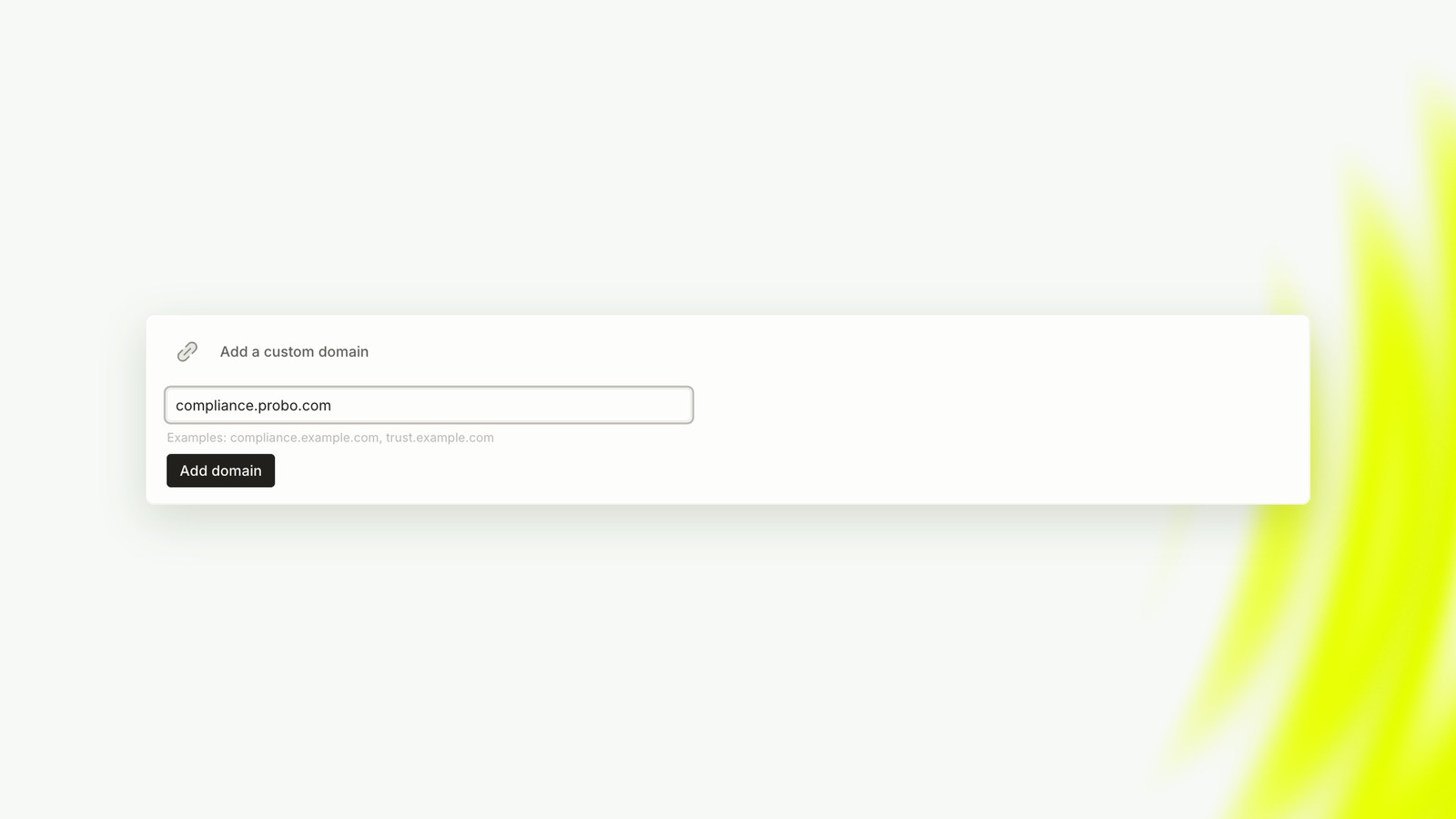
1. Pick a subdomain. Something buyers will recognize at a glance, like trust.yourcompany.com or compliance.yourcompany.com. Type it in and click Add domain.
2. Add the DNS record. Probo shows you a CNAME record that points your subdomain to Probo’s servers. Copy the Name and Value exactly as shown on your screen, and add them at your DNS provider (Cloudflare, Route 53, OVH, GoDaddy…).
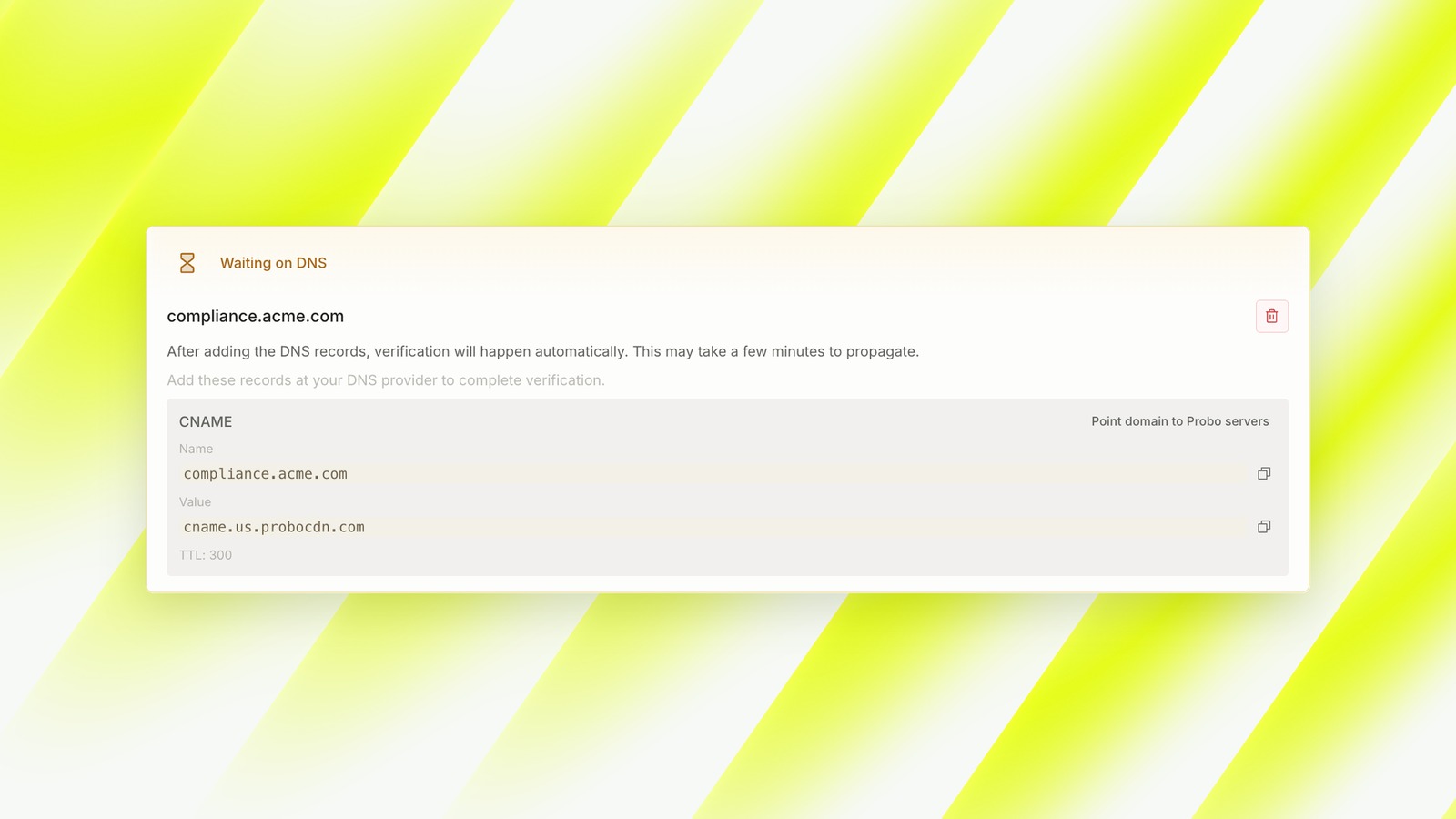
3. Wait for verification. There’s nothing else to click. Once the record propagates (usually a few minutes), Probo verifies the domain, issues the TLS certificate and your portal is live on your own URL. The default Probo address then redirects to it.
A portal on trust.yourcompany.com reads as part of your company. That’s the link you put in your website footer, your sales emails and your security questionnaire answers.
A portal is only as good as what’s behind it
The portal doesn’t make you secure. It makes the work you’ve already done visible. If your policies are generic templates, your commitments will be generic too, and a sharp security reviewer will notice.
Get the policies right first, then let the compliance portal do the selling. For every setting covered here and a few more (multiple portals, mailing list updates, SEO), see the compliance portal docs.
Frequently asked questions
Should I make my policies public instead of restricted?
Usually no. Restricted with an NDA gives you a record of who read what, and keeps your internal detail out of search engines. A privacy policy is the usual exception: it's meant to be public anyway.
Can I show a framework I'm still working toward?
You can, but say so. Showing a badge with no audit behind it invites the exact question you were trying to avoid. Better to show the frameworks you hold and add the next one when the audit is done.
How many security commitments should I write?
Enough to cover what a reviewer checks first: encryption, access control, data retention and deletion, incident response, vendor management. Somewhere between 6 and 12 specific cards beats 30 vague ones.
What happens if a reviewer hasn't run /probot login?
They'll still see the request in Slack, but they can't approve or reject it until their Slack account is linked to Probo.
My custom domain is stuck on Waiting on DNS. What do I check?
First, that the CNAME record matches the name and value shown in Probo exactly and is visible in public DNS. Then check for CAA records on your domain: if you restrict which certificate authorities can issue for it, you need to allow both Google Trust Services and Let's Encrypt.
Do I need to update the portal after each audit?
Yes. When a new audit or certificate lands, display it and hide the previous one, so buyers always see your current status.
 Share on LinkedIn