

MongoDB Atlas
Connect MongoDB Atlas as an access source using an organization service account's client ID and secret, so Probo can list the members, service accounts and API keys that hold organization roles.
Probo reads your MongoDB Atlas organization through the Atlas Administration API so you can review who has access. The roster covers the organization’s human members, its service accounts and its programmatic API keys. The last two are non-human principals that hold organization roles of their own, up to and including Organization Owner.
Prerequisites
Section titled “Prerequisites”- Probo organization administrator access
- The Organization Owner role in Atlas. Creating a service account requires it
- A service account in the organization you want to review, granted the Organization Read Only permission. It covers every call Probo makes, so a wider role is not needed
- The service account’s Client ID and Client Secret. Atlas shows the secret once, on the screen that creates it
- A secret lifetime that outlasts your review cycle. Atlas allows up to 365 days, capped by your organization’s settings, and will not extend an existing secret
Collected Fields
Section titled “Collected Fields”| Probo field | MongoDB Atlas field | Notes |
|---|---|---|
| Name | firstName, lastName, service account name, API key desc | Atlas returns neither name for an invitation that has not been accepted, and Probo leaves the field empty rather than substituting the email address. An API key with no description falls back to its public key |
username | Atlas has no separate email field on a member record: username is the email address. A service account and an API key have none | |
| Role | roles.orgRoles, roles.groupRoleAssignments[].groupRoles, service account roles, API key roles[].roleName | Roles carry the labels the Atlas console shows, such as Organization Owner, Organization Project Creator, Organization Billing Admin, Organization Billing Viewer, Organization Stream Processing Admin, Organization Read Only and Organization Member. Project roles such as Project Owner are listed after the organization roles, deduplicated and without naming the project |
| Admin | roles.orgRoles, service account roles, API key roles[].roleName | Flagged for Organization Owner alone. Owning a project administers that project rather than the organization, so it does not count |
| Status | orgMembershipStatus | ACTIVE is listed as active, and every other membership status is listed as inactive. Atlas exposes no enabled or disabled state for a service account or an API key, so Probo has no status to read for those and lists them as active |
| MFA | Not supported | |
| Last login | lastAuth, service account secrets[].lastUsedAt | When the member last authenticated. For a service account, the most recent use of any of its secrets. A secret that has never been used carries no timestamp and is skipped. An API key exposes no last use, so the field stays empty for one |
| External ID | id, service account clientId, API key id | Stable identifier used to track the account across reviews |
| Created at | createdAt | When MongoDB Cloud created the account, or when the service account was created. An invitation that has not been accepted carries invitationCreatedAt instead, the date the invitation was sent, and Probo reads that in its place. An API key exposes no creation date, so the field stays empty for one |
An invitation that has not been accepted stays in the roster. Atlas reports it with a membership status of PENDING, and Probo lists it as inactive rather than dropping it, because an access review should catch an invitation left open to someone who has left. Probo asks Atlas for the active and the pending members, which is what the endpoint returns by default, so an invitation that has expired or been rejected stays out of the roster.
Probo reports no multi-factor state and no authentication method for an Atlas account. The Atlas Administration API reports neither on a member record, so a campaign cannot say whether a member signs in through your identity provider or with a password, and cannot show whether multi-factor authentication is on.
Probo never asks for an organization ID. An Atlas service account belongs to exactly one organization, so Probo resolves it from the credential itself and names the source after that organization.
Step 1: Create a Service Account
Section titled “Step 1: Create a Service Account”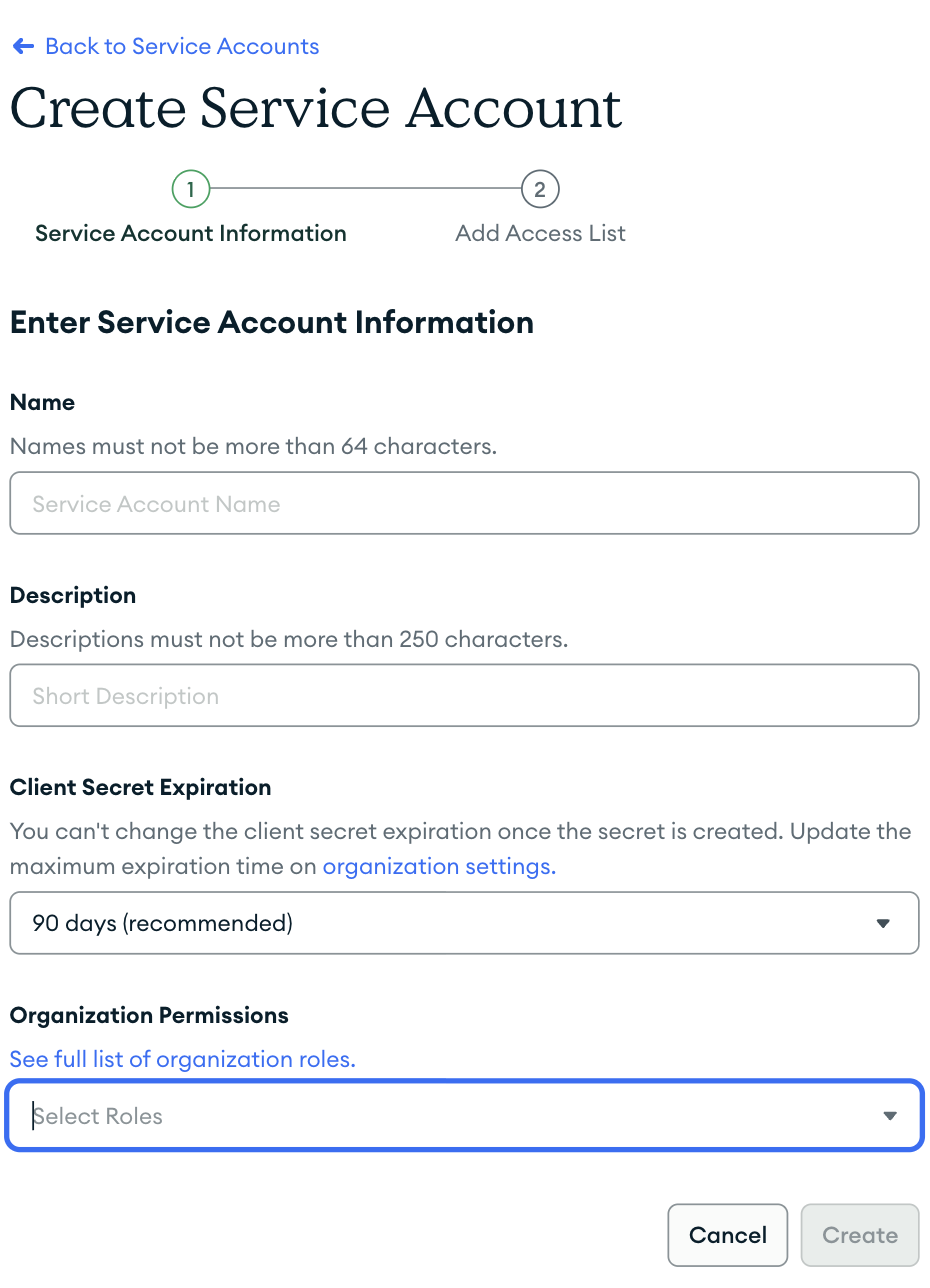
- In the Atlas console, select the organization you want to review from the Organizations menu, then click Applications in the sidebar, under Identity & Access.
- Click Add new > Service Account to open the Create Service Account wizard, and give the account a Name, for example
Probo Access Review, and a Description. - Select a duration from the Client Secret Expiration menu. It starts on 90 days and runs to 365 days, capped by your organization’s settings. The value cannot be changed once the secret exists, so choose the longest duration your policy allows.
- From the Organization Permissions menu, select Organization Read Only.
- Click Create, then copy the Client ID and the Client Secret. The secret is shown only on this screen.
- The second step of the wizard, Add Access List, takes IP addresses and CIDR blocks. Leave it empty unless your organization requires an access list, in which case it has to cover the addresses Probo calls from. Atlas turns that requirement on for organizations created through its console.
Step 2: Connect in Probo
Section titled “Step 2: Connect in Probo”- In Probo, go to Access Review > Connections.
- Find MongoDB Atlas, click Client Credentials, paste the Client ID and the Client Secret, leave Scope empty, and click Connect.
Probo names the source after your Atlas organization and pulls its members, service accounts and API keys into your campaigns.
Troubleshooting
Section titled “Troubleshooting”- Credentials rejected. Confirm both halves were copied whole, that the service account still exists, and that the client secret has not passed its expiry. A public and private API key pair is not a service account and cannot authenticate here.
- A source that worked stops syncing. The client secret reached the expiry chosen when it was created. Generate a new client secret on the same service account in Atlas, on its Service Accounts page under Applications, then delete the Probo source and connect again with it, since a client-credentials connection cannot take a new secret in place.
- Every call is refused although the credential is valid. Check the service account’s API Access List. Atlas answers 403 to a request from any address outside it, even though the token itself can be minted from anywhere, and the organization setting Require IP Access List for the Atlas Administration API makes an access list mandatory. Atlas turns that setting on for every organization created through its console. Either turn it off and leave the list empty, or add Probo’s addresses to it: the egress address for your region on Probo Cloud, or your deployment’s fixed egress addresses when self-hosted.
- The source syncs nothing and keeps a generic name. Probo expects the credential to reach exactly one organization, and gives up when it reaches none or several. Create the service account inside the organization you want to review, and check that it still holds an organization permission there.
- No members appear. The service account needs at least Organization Read Only. One holding a narrower permission, or none at all, can still mint a token, but Atlas refuses the reads and the sync fails rather than returning an empty roster.