

Render
Connect Render as an access review source using an account API key and workspace ID so Probo can list the members of that workspace.
Probo reads your Render workspace’s members through the Render API so you can review who has access.
Prerequisites
Section titled “Prerequisites”- Probo organization administrator access
- A Render account that belongs to the workspace you want to review. Render documents that every workspace role can view workspace members, so the key does not have to come from an Admin
- An account that satisfies the workspace’s login requirements. If the workspace enforces 2FA, Render blocks its API keys from reaching workspace resources until the key’s owner enables 2FA. If it enforces Google login, the key must be created while signed in through Google. If it enforces SAML SSO, existing keys stay invalid until their owner logs in through SSO
- A workspace on the Pro plan or higher if it has more than one member (a Hobby workspace cannot have additional members)
- The Workspace ID of the workspace Probo should review, which the Connect form asks for alongside the key. It appears at the top of the workspace’s Settings page in the Render Dashboard and starts with
tea-, or withusr-for a personal workspace. You can also list the workspaces a key can reach withGET https://api.render.com/v1/owners
Collected Fields
Section titled “Collected Fields”| Probo field | Render field | Notes |
|---|---|---|
| Name | name | Falls back to the email address when the member has no name |
email | Members returned without an email address are skipped | |
| Role | role | Render returns an uppercase enum. ADMIN, DEVELOPER, WORKSPACE_CONTRIBUTOR, WORKSPACE_BILLING, and WORKSPACE_VIEWER are shown as Admin, Developer, Contributor, Billing, and Viewer. Any other value is shown as returned |
| Admin | role | Flagged as an administrator when role is ADMIN, which is also the role reported for the workspace owner |
| Status | status | active is listed as active and inactive as inactive. A missing or unrecognized status leaves the account’s status unknown rather than deactivated |
| MFA | mfaEnabled | Enabled when true, disabled when false |
| Last login | Not supported | |
| External ID | userId | Stable identifier used to track the account across reviews |
| Created at | Not supported |
Render returns every member of the workspace, active and inactive, in one response.
Step 1: Create an API Key
Section titled “Step 1: Create an API Key”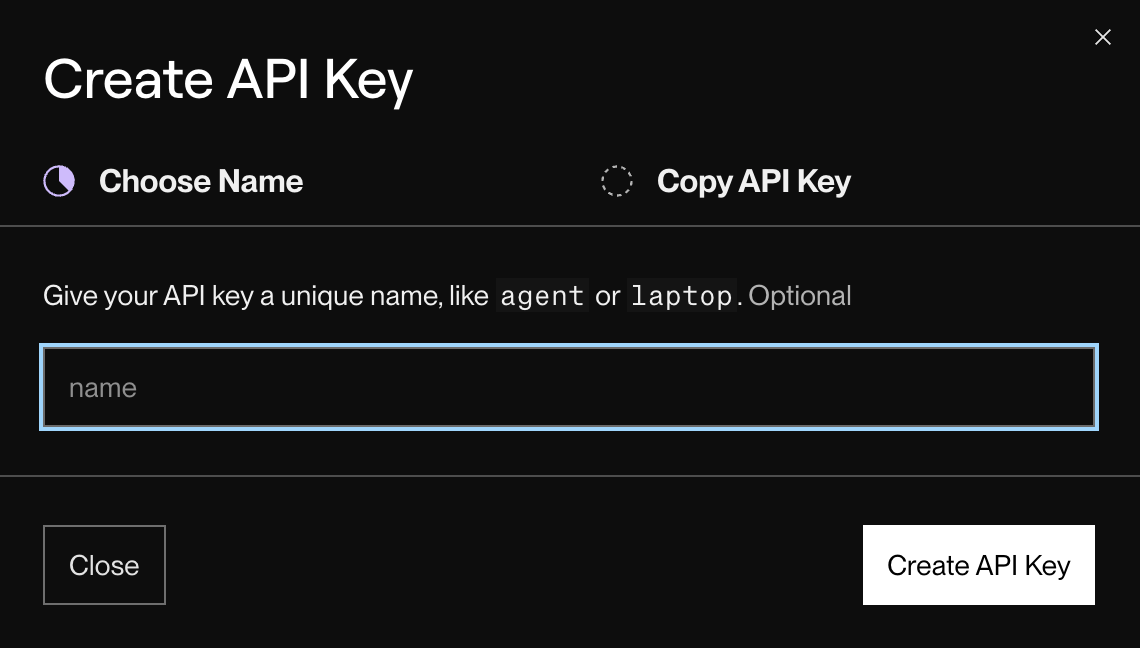
- In the Render Dashboard (signed in with an account that belongs to the workspace you want to review), open your Account Settings from the account menu in the top right.
- On the Account Settings page, create an API key. In the Create API Key dialog, name the key (the name is optional, e.g.
Probo Access Review) and click Create API Key. Render API keys have no scopes, so the key authorizes everything its creator can do in the Dashboard. - On the Copy API Key step, copy the key and store it securely. Render shows the full key only once, when you create it.
Step 2: Connect in Probo
Section titled “Step 2: Connect in Probo”- In Probo, go to Settings > Connectors and click Add more to open the Marketplace.
- Find Render and open it.
- Enter a Name for the connection (e.g.
main), paste the key into API key, enter your Workspace ID (the identifier at the top of the workspace’s Settings page), and click Connect. - Go to Access Review > Sources, click Add sources, tick Render, and click Add.
Probo names the source after your workspace and pulls its members into your campaigns.
Troubleshooting
Section titled “Troubleshooting”- Key rejected. Confirm the key was created on the Account Settings page of an account that belongs to the workspace, and that the Workspace ID identifies that same workspace. A key created by an account outside the workspace cannot read its members. If the workspace enforces 2FA, Google login, or SAML SSO, the key also stays unusable until its owner meets that requirement: 2FA enabled on the owner’s account, the key created while signed in through Google, or the owner logged in through SSO.
- No members appear. A Hobby workspace cannot have additional members, so it lists only its owner. Inviting members requires the Pro plan or higher.
- Workspace ID unknown. Open the workspace’s Settings page in the Render Dashboard; the ID sits at the top and starts with
tea-, or withusr-for a personal workspace. Alternatively, callGET https://api.render.com/v1/ownerswith the key to list every workspace it can reach. - Syncs stop returning members. A Render API key authorizes the same actions as the account that created it and reaches only the workspaces that account belongs to. If that account leaves the workspace, create a new key from an account that is still a member, then click Update API key (the key icon) on the Render connector in Settings > Connectors, paste the new key, and click Save API key. The connector keeps its name and its source.