

Attio
Connect Attio as an access review source using OAuth or an access token so Probo can list your Attio workspace members and their access levels.
Probo reads your Attio workspace members through the Attio API so you can review who has access. Connecting with OAuth is the recommended method and requires no token management. An access token is also available if you would rather not authorize an OAuth connection.
Prerequisites
Section titled “Prerequisites”- Probo organization administrator access
- Attio workspace administrator access, which is what Attio requires to create an access token and grant it scopes
Collected Fields
Section titled “Collected Fields”| Probo field | Attio field | Notes |
|---|---|---|
| Name | first_name, last_name | Joined into one display name |
email_address | ||
| Role | access_level | Displayed as Admin or Member. A suspended member has no role: Attio replaces the level with suspended |
| Admin | access_level | Flagged as administrator when the access level is admin |
| Status | access_level | Attio has no separate status field. Probo reports a member whose access level is suspended as inactive |
| MFA | Not supported | |
| Last login | Not supported | |
| External ID | id.workspace_member_id | The member’s Attio workspace member ID; stable identifier used to track the account across reviews |
| Created at | created_at | When the member joined the workspace |
Attio does not delete workspace members. When a member loses access, Attio sets the access level to suspended and keeps the record, so the seat appears in your campaign as an inactive account. Attio also replaces the level the member held, so a suspended member has no role.
Probo does not include unaccepted invitations. Attio exposes pending invitations only through its SCIM interface, which requires an Enterprise entitlement, so review invitations in Attio directly.
Connect Attio
Section titled “Connect Attio”Option A: Connect with Attio (recommended)
Section titled “Option A: Connect with Attio (recommended)”- In Probo, go to Settings > Connectors and click Add more to open the Marketplace.
- Find Attio and open it. If Probo asks how to connect, choose OAuth.
- Enter a Name for the connection (e.g.
main) and click Connect. - Sign in to Attio and authorize Probo. Probo needs
user_management:readto list workspace members. Attio grants permissions from the Probo app’s own configuration rather than from the authorization request. - Go to Access Review > Sources, click Add sources, tick Attio, and click Add.
Option B: Access Token
Section titled “Option B: Access Token”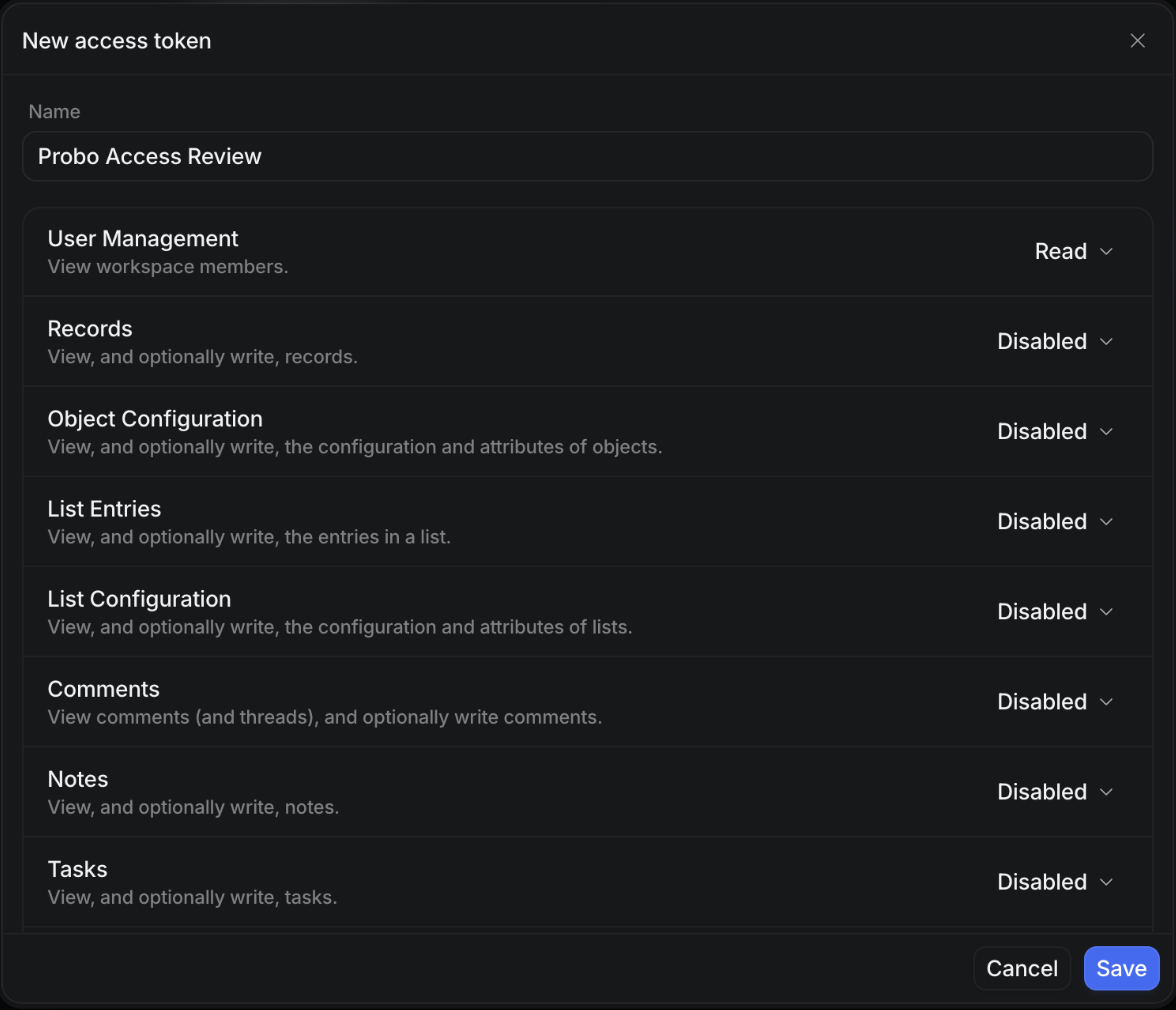
- In Attio, go to Settings > Developers and open the Access tokens tab.
- Click Create access token, or New access token if the workspace already has one.
- Name it (e.g.
Probo Access Review). - Set User Management to Read. Leave every other permission on Disabled.
- Click Save, then copy the token with the copy button next to it.
- In Probo, go to Settings > Connectors and click Add more to open the Marketplace.
- Find Attio and open it. If Probo asks how to connect, choose API key.
- Enter a Name for the connection (e.g.
main), paste the token into API key, and click Connect. - Go to Access Review > Sources, click Add sources, tick Attio, and click Add.
Probo names the source after your Attio workspace and pulls its members into your campaigns.
Troubleshooting
Section titled “Troubleshooting”- Token rejected. Attio returns an authentication error for a token that was revoked, deleted, or copied incompletely. Confirm the token still appears under Settings > Developers > Access tokens and copy it again with the copy button rather than by hand.
- Token accepted but the connection still fails. The token is valid but has no User Management permission, so Attio refuses the members endpoint. Probo does not repeat Attio’s explanation, so the missing permission is not named in the error. Attio defaults every permission to Disabled, so this is the usual outcome of creating a token and clicking straight through. Set User Management to Read on the token.
- A former colleague still appears. Attio keeps suspended members so past activity stays attributable. Probo reports them with an inactive status and no role. Suspend the member in Attio and the next campaign picks up the change; a campaign already under review keeps the entries it snapshotted.