

UpCloud
Connect UpCloud as an access review source using a main-account API token to review every account and subaccount on your UpCloud contract.
Probo reads your UpCloud contract’s main account and its subaccounts through the UpCloud API so you can review who has access.
Prerequisites
Section titled “Prerequisites”- Probo organization administrator access
- Access to the UpCloud main account (a subaccount only sees itself)
Collected Fields
Section titled “Collected Fields”| Probo field | UpCloud field | Notes |
|---|---|---|
| Name | first_name, last_name | From account details. Falls back to username when the name is empty |
email | From account details | |
| Role | roles.role | Any of technical, billing, aux_billing |
| Admin | type | Flagged as an administrator for the main account (any type other than sub) |
| Status | Not supported | |
| MFA | Not supported | |
| Last login | Not supported | |
| External ID | username | Stable identifier used to track the account across reviews |
| Created at | Not supported |
The UpCloud Control Panel shows a 2FA status column under People, but the public API does not expose that field on any account endpoint, so Probo cannot collect it. The same applies to account status and last login.
Step 1: Create an API Token
Section titled “Step 1: Create an API Token”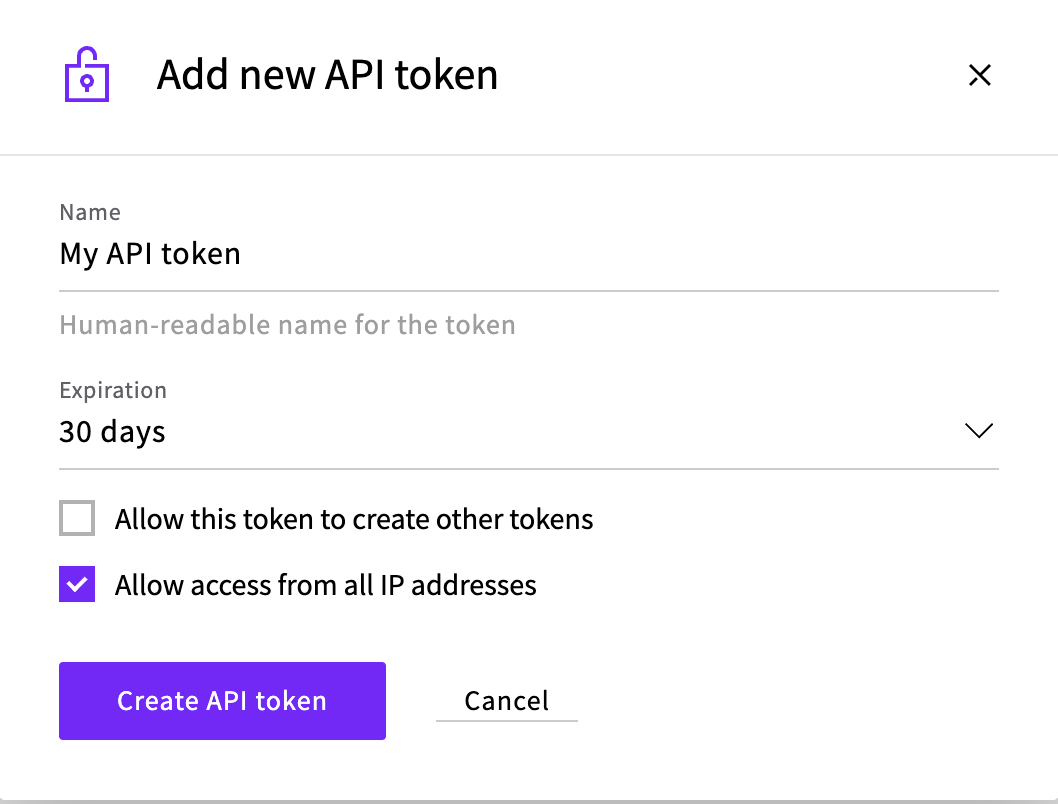
- In the UpCloud Control Panel, signed in as the main account, go to Account > API tokens.
- Click Add new API token and enter a name (e.g.
Probo Access Review). - Set Expiration. It defaults to 30 days, and 365 days is the maximum. The source stops syncing once the token expires, so pick the longest period your policy allows and plan to rotate the token before that date.
- Leave Allow this token to create other tokens unchecked. Probo only reads accounts.
- For Probo Cloud, you can restrict the token to the egress IP for your region, or keep Allow access from all IP addresses checked. For a self-hosted deployment, restrict the token to that deployment’s fixed egress addresses.
- Click Create API token, then copy the token (
ucat_…) and store it securely. It’s shown only once.
Step 2: Connect in Probo
Section titled “Step 2: Connect in Probo”- In Probo, go to Settings > Connectors and click Add more to open the Marketplace.
- Find UpCloud and open it.
- Enter a Name for the connection (e.g.
main), paste the token into API key, and click Connect. - Go to Access Review > Sources, click Add sources, tick UpCloud, and click Add.
Probo names the source after the account the token belongs to and pulls the contract’s accounts into your campaigns.
Troubleshooting
Section titled “Troubleshooting”- Token rejected. Confirm the token starts with
ucat_and has not expired. If you restricted the token to specific IPs, include the Cloud egress address for your region. A self-hosted deployment can use its own fixed egress addresses. Your UpCloud username and password won’t work here. - The contract’s accounts don’t come through. Account listing is only available to the main account, so a token created under a subaccount is refused and the source cannot enumerate the contract. Create the token while signed in as the main account.
- An account is missing its name and email. The token couldn’t read that account’s details. The account still appears in the review under its username.