

PlanetScale
Connect PlanetScale as an access review source using OAuth so Probo can list the members of a PlanetScale organization and their roles.
Probo reads the members of a PlanetScale organization through the PlanetScale API so you can review who has access. You connect with OAuth: you authorize Probo on PlanetScale and tick the organization to review.
Prerequisites
Section titled “Prerequisites”- Probo organization administrator access
- Membership in the PlanetScale organization you want to review. Probo reads the member list with the access of the PlanetScale account that authorizes it
Collected Fields
Section titled “Collected Fields”| Probo field | PlanetScale field | Notes |
|---|---|---|
| Name | user.name | Falls back to user.display_name when it differs from the email. PlanetScale sets display_name to the email when no name is set, so such a member has an empty name |
user.email | ||
| Role | role | The organization role as PlanetScale names it: admin, member or analyst |
| Admin | role | Probo flags the member as an administrator when the role is admin |
| Status | Not supported | |
| MFA | user.two_factor_auth_configured, organization sso | Enabled when the member set up two-factor authentication on PlanetScale. When the organization uses SSO, Probo reports every member as Unknown, because they sign in through your identity provider and the PlanetScale setting does not apply. A member who signs in with GitHub shows as Disabled even with two-factor authentication on at GitHub, because PlanetScale does not track it |
| Last login | Not supported | |
| External ID | user.id | The member’s PlanetScale user ID. Probo uses it to match the account across reviews |
| Created at | created_at | When the member joined the organization |
PlanetScale has no member status, so Probo shows every member it collects as active. With SSO, a member removed from your identity provider stays in the organization and can no longer sign in until someone removes them in PlanetScale or Directory Sync removes them. Pending invitations are not collected.
Connect PlanetScale
Section titled “Connect PlanetScale”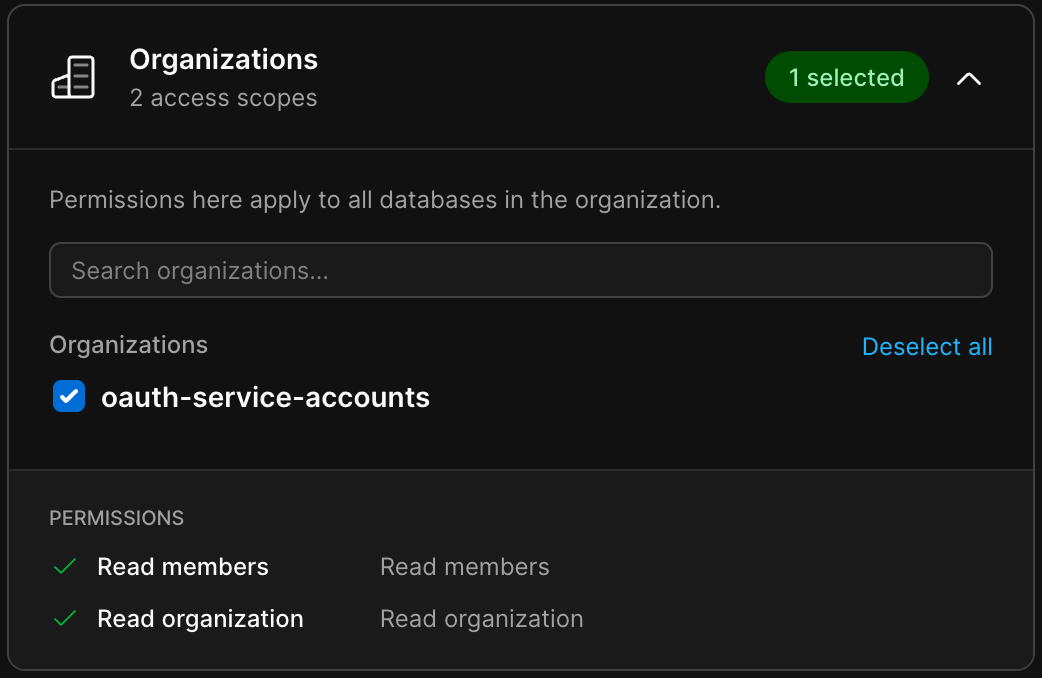
- In Probo, go to Settings > Connectors and click Add more to open the Marketplace.
- Find PlanetScale and open it.
- Enter a Name for the connection (e.g.
main) and click Connect. - Sign in to PlanetScale if prompted. On the authorization screen, expand Organizations and tick the organization you want to review. Probo asks for Read members and Read organization on that organization, and for read access to your user profile and organization list.
- Click Authorize access. Back in Probo, the PlanetScale connector shows as Connected. If you ticked a single organization, Probo selects it.
- If you ticked more than one organization, open the PlanetScale connector in Settings > Connectors and choose the organization to review in the Organization field.
- Go to Access Review > Sources, click Add sources, tick PlanetScale, and click Add.
Probo names the source after the PlanetScale organization and pulls its members into your campaigns.
Troubleshooting
Section titled “Troubleshooting”- Add sources shows “Pick an organization in Settings first.” Probo has no organization selected for the connector. If you ticked several organizations, choose one in the Organization field of the PlanetScale connector in Settings > Connectors. If that field lists none, you did not tick any organization on PlanetScale’s authorization screen: click the trash icon on the PlanetScale connector in Settings > Connectors, confirm Disconnect, and connect PlanetScale again, ticking the organization under Organizations before clicking Authorize access.
- An organization you belong to is missing from the Organization field. Probo lists only the organizations you ticked when you authorized it. Disconnect the PlanetScale connector and connect it again, ticking that organization as well. Remove any PlanetScale source in Access Review > Sources first, because a connector that a source still uses cannot be disconnected.
- The source shows as disconnected. PlanetScale no longer accepts Probo’s authorization, for example because an organization administrator opened Settings > OAuth applications > Installed in PlanetScale and clicked Revoke access on Probo. Click Reconnect on the PlanetScale connector in Settings > Connectors and authorize Probo again.
- A former colleague still appears. A campaign keeps the members it collected when it started. Remove the member from the organization in PlanetScale and the next campaign picks up the change.