

Daytona
Connect Daytona as an access source using an API key created in the organization you want to review, so Probo can list its members and the assignments they hold.
Probo reads the members of your Daytona organization through the Daytona API so you can review who has access.
Prerequisites
Section titled “Prerequisites”- Probo organization administrator access
- The Owner role in the Daytona organization you want to review
Collected Fields
Section titled “Collected Fields”| Probo field | Daytona field | Notes |
|---|---|---|
| Name | name | |
email | ||
| Role | role, assignedRoles | owner and member map to Owner and Member. A member’s assignments, such as Developer or Auditor, are listed after it. An owner has full access |
| Admin | role | Flagged when role is owner. A member with the Super Admin assignment is not flagged, since only owners administer the organization; the assignment shows under Role |
| Status | Not supported | |
| MFA | Not supported | |
| Last login | Not supported | |
| External ID | userId | Stable identifier used to track the account across reviews |
| Created at | createdAt | When the member joined the organization |
Daytona returns the whole member list in one response. It contains accepted members only: an API key cannot read pending invitations, and a member who leaves or is removed drops out of the list, so there is no inactive status to report.
Step 1: Create an API Key
Section titled “Step 1: Create an API Key”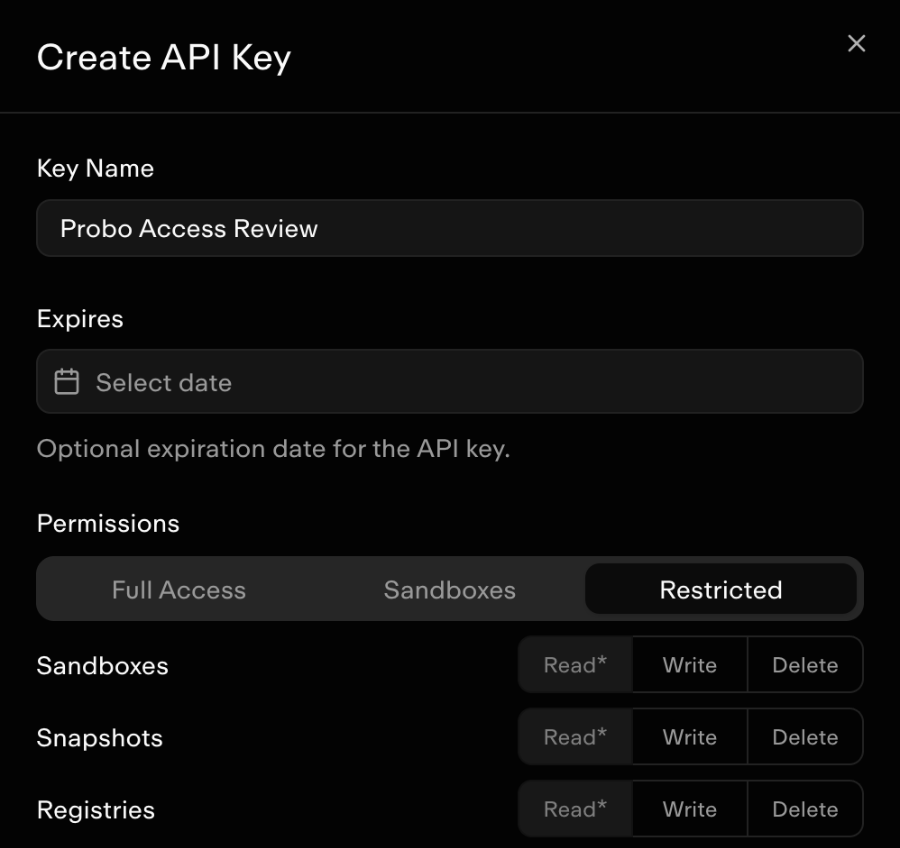
- In the Daytona dashboard, select the organization you want to review in the organization switcher at the top of the sidebar, then open API Keys.
- Click Create API Key and enter a Key Name, for example
Probo Access Review. - Under Permissions, choose Restricted and leave every permission unselected. The Read* toggles on Sandboxes, Snapshots, Registries and Regions stay on and cannot be cleared. Listing members needs no permission.
- Expires is optional. If you set a date, replace the key before it, because the source stops syncing when the key expires.
- Click Create, then copy the key and store it securely. Daytona shows it only once.
Step 2: Connect in Probo
Section titled “Step 2: Connect in Probo”- In Probo, go to Settings > Connectors and click Add more to open the Marketplace.
- Find Daytona and open it.
- Enter a Name for the connection (e.g.
main), paste the key into API key, and click Connect. - Go to Access Review > Sources, click Add sources, tick Daytona, and click Add.
Probo finds the organization from the key and pulls its members into your campaigns.
Troubleshooting
Section titled “Troubleshooting”- Key rejected. Daytona answers
401for a key it does not accept. Check that the key was copied whole and has not been revoked or expired under API Keys. - Only you appear, or the wrong people appear. The key reviews the organization it was created in. Select the right organization in the sidebar and create a new key there, then click Update API key (the key icon) on the Daytona connector in Settings > Connectors, paste the new key, and click Save API key. The connector keeps its name and its source.
- An invited user is missing. Pending invitations are not listed. The user appears once they accept the invitation.