
Notifications
How Probo notifies members about signature requests, approval requests, task assignments, and task mentions, in the notifications panel and by email.
Probo notifies a member when something needs their attention: a document to sign, a document to approve, a task assigned to them, or a mention in a task. Each notification shows in the notifications panel, and can also arrive by email.
What triggers a notification
Section titled “What triggers a notification”| Notification | Sent when | Message | Clears when |
|---|---|---|---|
| Document signature requests | A document version is sent to the member for signature | Document is ready for your signature | The member signs, or the signature request is canceled |
| Document approval requests | A document version is sent to the member for approval | Document is waiting for your approval | The member approves or rejects, or the approval is voided |
| Task assignments | Someone else assigns a task to the member | You were assigned task | The member opens the task |
| Task mentions | Someone else adds a mention of the member to a task description or comment. See Mentions. | You were mentioned in task | The member opens the task |
Probo does not notify you about your own actions: assigning a task to yourself or mentioning yourself sends nothing.
Where notifications appear
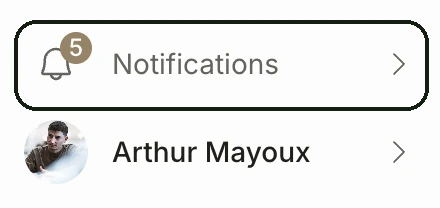
Section titled “Where notifications appear”- Console: open the menu at the bottom of the sidebar and choose Notifications. A badge on the bell icon shows how many notifications are unread.
- Employee portal: select the bell next to your name, at the top right.
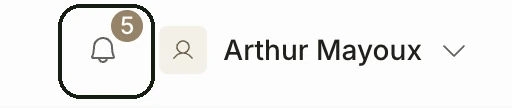
Both list the notifications for the current organization, newest first.
Selecting a notification opens the item:
- Signature and approval requests open the document’s Signatures or Approvals page in the employee portal, or the document in the console when the organization has no employee portal.
- Task notifications open the task in the employee portal, or in the console when the organization has no employee portal.
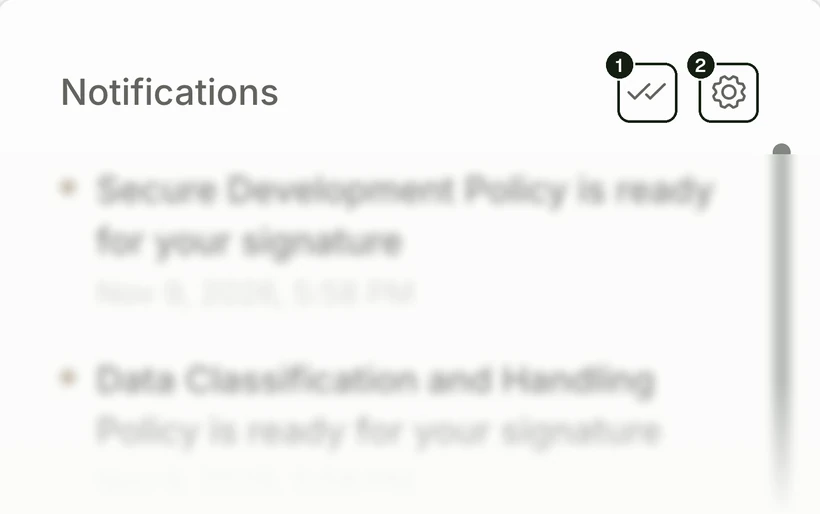
The panel header has two icons:
- Mark all as read (the double check) clears every unread notification in the organization at once, including signature and approval requests that are still open. The underlying request stays open: the document still waits for your signature or approval.
- Notification settings (the gear) opens your email preferences.
A cleared notification gets no further emails.
Email notifications
Section titled “Email notifications”Each member decides how every notification type reaches them by email. Select the gear in the notifications panel, or open Notification settings in the employee portal. The settings under Email apply to the current organization only.
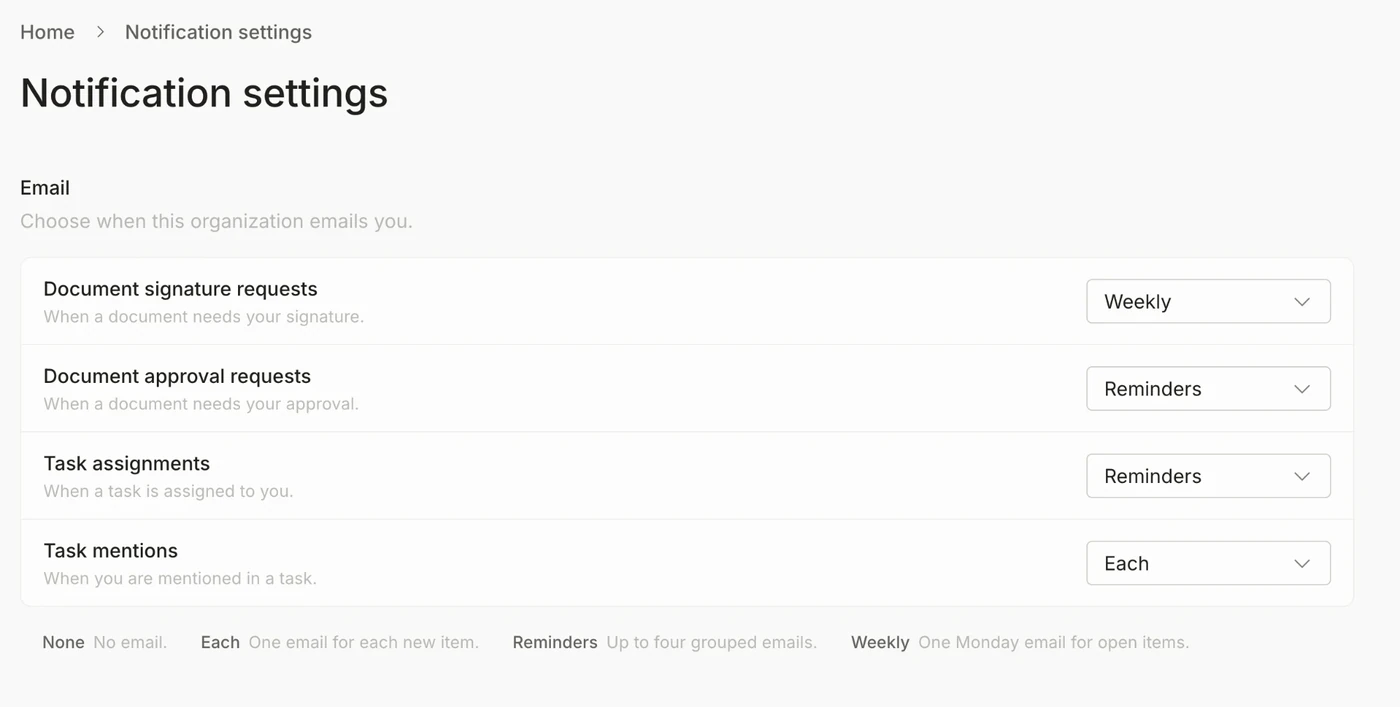
| Option | Behavior |
|---|---|
| None | No email. The notification still shows in the notifications panel. |
| Each | One email for each new notification, sent on the next email run (every few minutes). |
| Reminders | The default. A grouped email once a notification has been unread for 15 minutes, then up to three reminders while it stays uncleared. |
| Weekly | One email on Monday listing the items that are still uncleared. |
With Reminders, Probo sends a reminder one day after the first email, then two days after that, then three days after that, and then stops. A reminder that falls on a Saturday or Sunday moves to Monday at the same time. The weekly email goes out on Monday at 16:00 UTC.
Each type has its own setting, so you can, for example, get each signature request right away and a weekly digest of task mentions.
Self-hosting
Section titled “Self-hosting”On Probo Cloud the timings above are fixed. A self-hosted deployment can change them:
| Setting | Default | Meaning |
|---|---|---|
probod.notifications.email.interval | 300 (seconds) | How often the email worker runs |
probod.notifications.email.debounce-delay | 900 (seconds) | How long a notification stays unread before the first Reminders email |
probod.notifications.email.reminder-interval | 86400 (seconds) | Base reminder cadence. Reminders go out at 1x, 2x, and 3x this interval |
probod.notifications.weekly.weekday | 1 (Monday) | Day of the weekly email, from 0 (Sunday) to 6 (Saturday) |
probod.notifications.weekly.hour | 16 | Hour of the weekly email, in UTC |
Emails need a working mailer. See Config file and the Config reference.
Related
Section titled “Related”- Tasks: assignments and mentions
- Document management: signatures and approvals
- Webhooks: notify other systems when records change